What Is Bold Reports MCP Server? A Complete Guide
TL; DR:
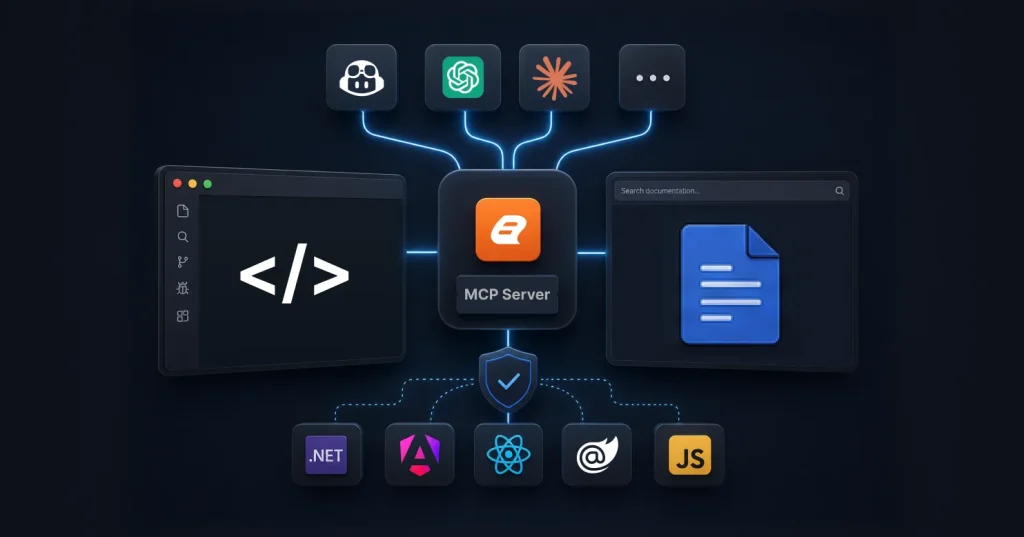
The Bold Reports MCP Server connects AI tools like Copilot or ChatGPT directly to official Bold Reports documentation, bringing accurate answers and code generation into your IDE. It eliminates manual documentation searches, reduces errors, and speeds up development by providing real-time, context-aware guidance for building and integrating reports across frameworks like ASP.NET, React, Angular, and Blazor.
Introduction
Imagine a world where you never have to leave your IDE to look up Bold Reports® documentation. Where debugging a tricky RDL expression or generating Report Viewer code happens alongside your other development tasks, powered by AI that draws directly from verified Bold Reports resources. This world is not hypothetical; it’s now available through the Bold Reports MCP Server.
The Bold Reports MCP Server connects your AI coding assistant, GitHub Copilot, ChatGPT, Claude, or any MCP-compatible tool to Bold Reports documentation through the model context protocol (MCP). The result is accurate, contextual guidance without tab-switching, search fatigue, or hallucinated answers.
If you’re integrating Bold Reports into ASP.NET, Angular, React, Blazor, or vanilla JavaScript applications, this guide walks you through everything you need to know to set up, use, and troubleshoot the Bold Reports MCP Server.
What is MCP?
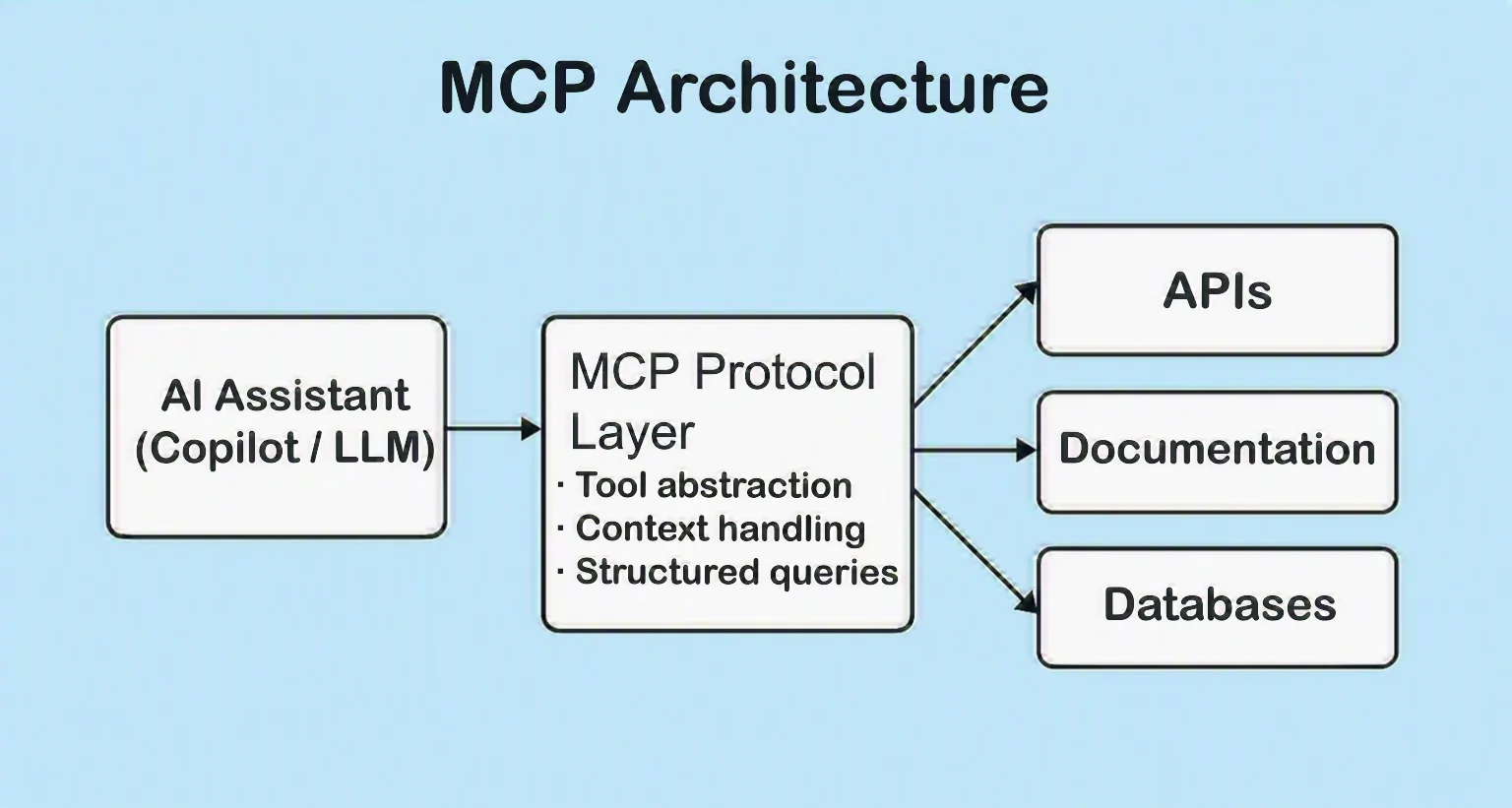
MCP is an open standard developed by Anthropic that allows AI assistants to interact with external tools and data sources in a standardized way. MCP standardizes how AI tools connect to external resources like documentation, databases, and APIs. Without MCP, an AI assistant like GitHub Copilot can only work with information it was trained on or that you paste into the conversation. It cannot natively “read” external documentation or access real-time information.
For reporting developers, this means you get answers grounded in current, official documentation rather than outdated training data or generic responses.
What is the Bold Reports MCP Server?
The Bold Reports MCP Server is a lightweight intermediary that exposes Bold Reports documentation and helps content to any AI assistant via the model context protocol. Think of it as a secure, documented handshake between your development environment and Bold Reports’ authoritative knowledge base. By implementing an MCP server for Bold Reports, the platform enables AI tools to retrieve feature descriptions, API references, code samples, and integration guides, all grounded in official documentation.
What you can do with Bold Reports MCP Server
Once connected, your AI assistant gains the ability to:
-
- Answer questions about Bold Reports features, APIs, and concepts: Whether you’re wondering about parameter configurations or the nuances of the Report Designer, the MCP server retrieves current, accurate information.
- Generate code for embedding report viewers and designers: Request integration code specific to your framework, complete with proper authentication, theming, and event handling.
- Assist with RDL and RDLC report structures and expressions: Get help building data sources, designing layouts, crafting expressions, and structuring parameters.
- Guide integrations for ASP.NET, Angular, React, Blazor, and JavaScript: The server covers the full range of supported platforms with targeted, platform-specific guidance.
- Retrieve relevant help content instantly: Instead of Googling and scrolling through documentation, you get direct, contextual answers in your IDE.
Bold Reports MCP Server vs. Traditional documentation search
When evaluating documentation access methods, developers often wonder: Is MCP really worth it? Here’s a direct comparison:
| Feature | MCP Server | Traditional Docs |
| AI context | Responses grounded in official docs | Generic AI responses |
| IDE integration | Never leave your development environment | Requires tab switching |
| Code generation | Direct, framework-specific code samples | Manual copying required |
| Real-time guidance | Current documentation, always updated | May reference outdated content |
| Context awareness | Understands your tech stack and question | Static responses |
| Search fatigue | Eliminated, direct answers | Endless scrolling and filtering |
| Answer reliability | Traceable to official documentation | Variable, mixed sources, community forums |
Benefits observed using MCP Server
Based on developer feedback and real-world usage, here are the measurable benefits teams experience:
-
- Reduced documentation lookup time: Instead of opening browser tabs, searching, and scanning pages of documentation, developers ask questions directly in their IDE. Context-switching time drops significantly.
-
- Faster onboarding: New team members working with Bold Reports can get up to speed faster by asking contextual questions rather than reading through extensive documentation from scratch.
-
- Fewer integration errors: When AI responses are grounded in official documentation, the risk of implementing incorrect patterns or outdated APIs decreases. Code samples come directly from Bold Reports’ validated resources.
-
- Improved code consistency: Teams using consistent AI assistance tend to produce more standardized code patterns, which improve long-term maintainability.
-
- Instant troubleshooting: Debugging RDL expressions or configuration issues becomes faster when you can describe the error to an AI assistant and get context-specific solutions immediately.
How the Bold Reports MCP Server works
The workflow is straightforward:
- Connect your IDE or AI assistant: You configure your development environment or AI tool to communicate with the Bold Reports MCP Server.
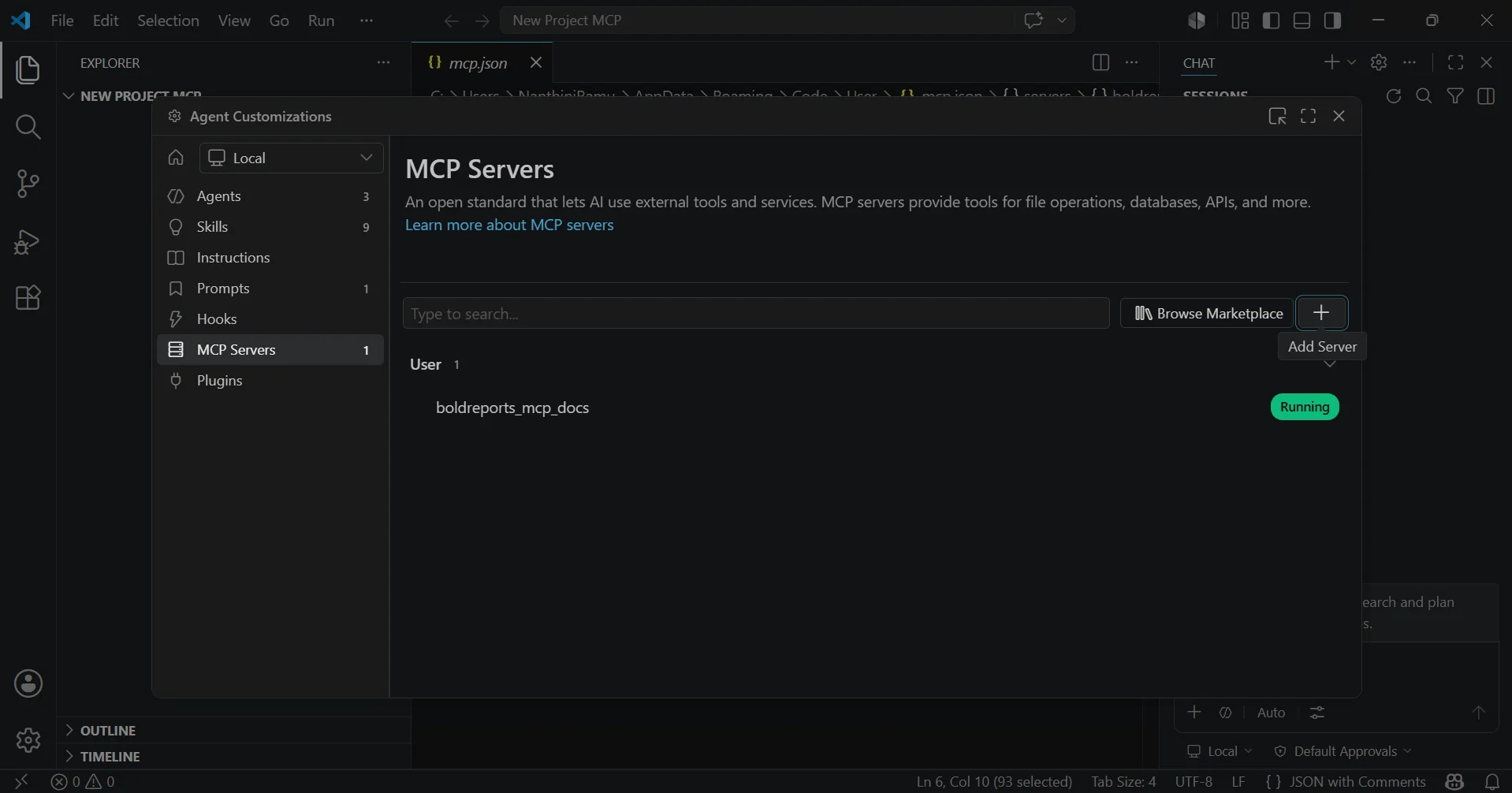
- Configure the Bold Reports MCP Server: Using the official endpoint (https://mcp.boldreports.com/docs), you set up the connection in your IDE or AI assistant’s MCP configuration.
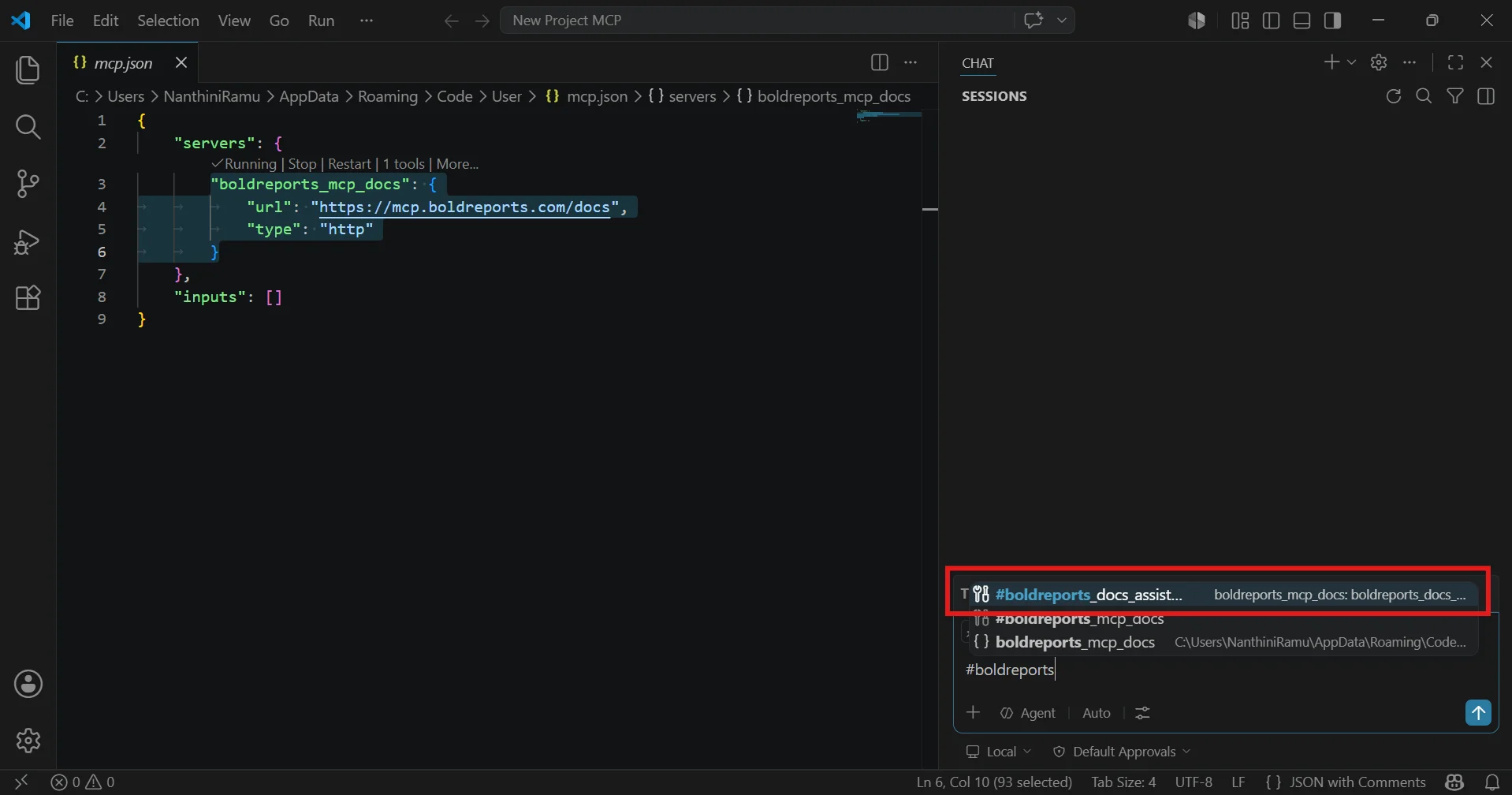
- Send a request: When you ask your AI assistant a Bold Reports-related question, the request is routed to the MCP server.
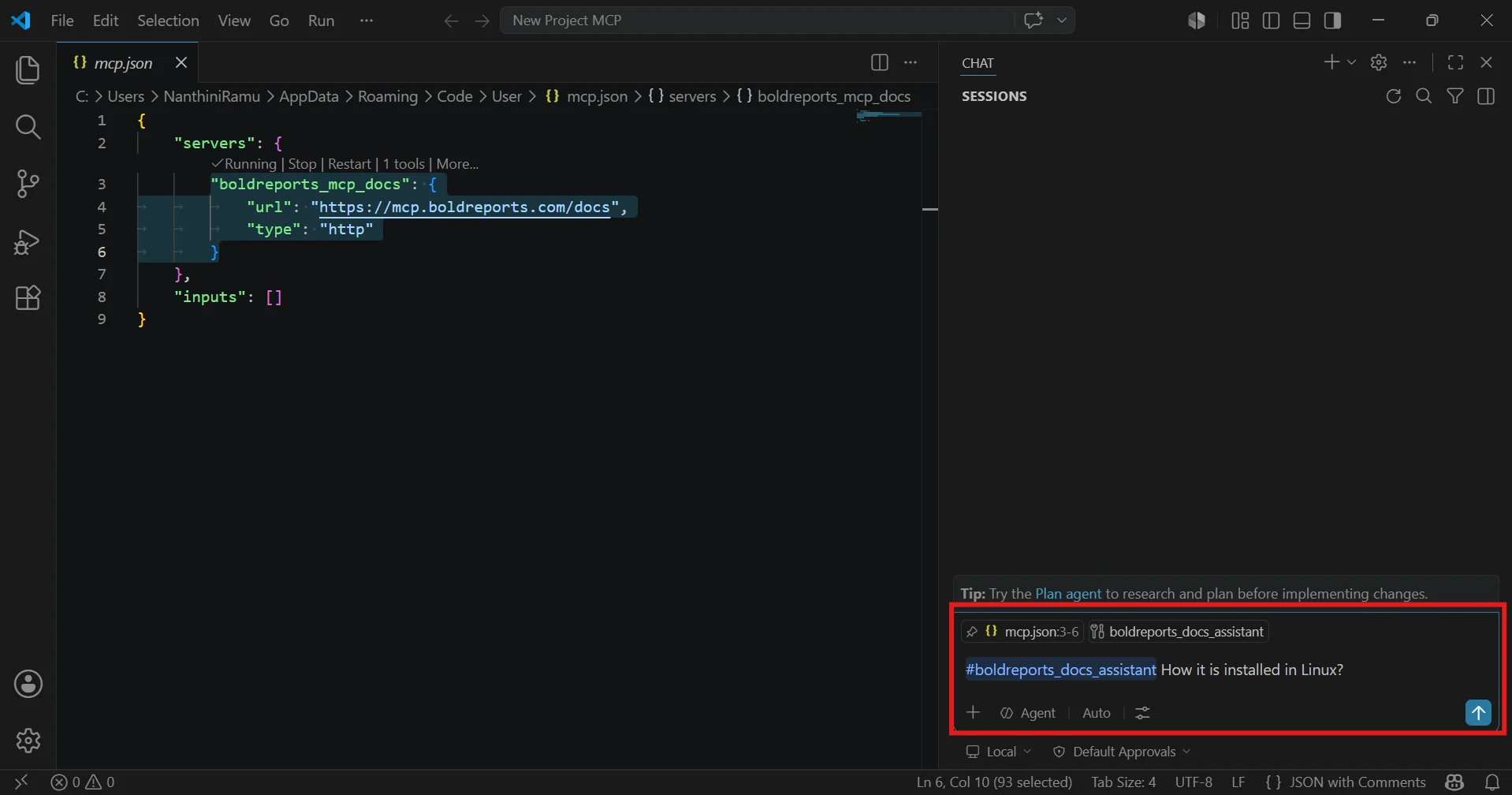
- The MCP server searches Bold Reports resources. It queries the official documentation and returns relevant results to your AI assistant.
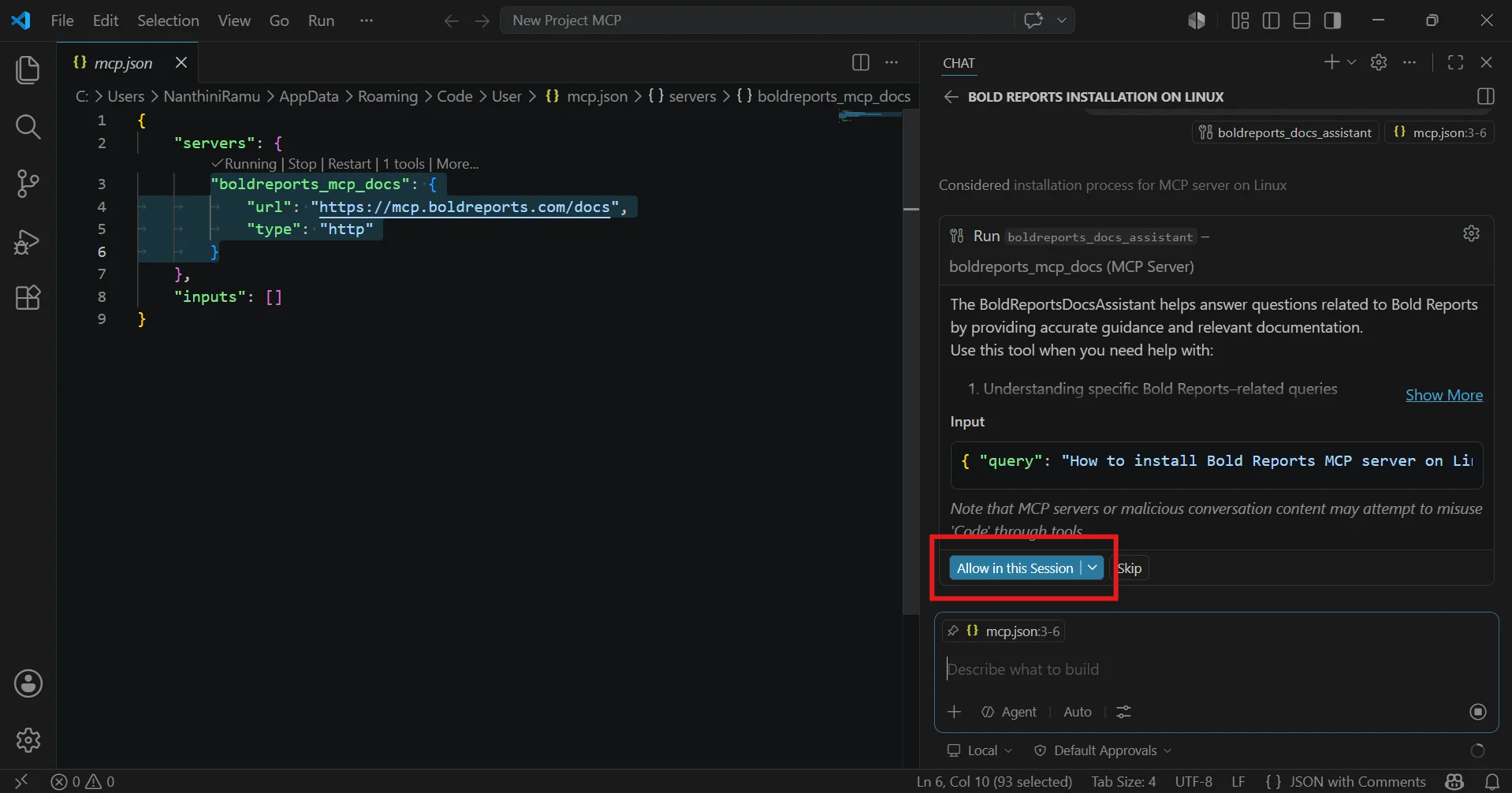
- The assistant responds with accurate, contextual answers. Armed with real documentation, the AI provides grounded, reliable guidance, code samples, explanations, and step-by-step instructions.
This architecture ensures that every answer is traceable to official Bold Reports documentation, reducing errors and increasing developer confidence.
Supported IDEs and AI assistants
Before setting up the Bold Reports MCP Server, ensure your environment meets the following requirements.
Supported IDEs
The Bold Reports MCP Server is compatible with the following integrated development environments:
-
- Visual Studio 2022
- Visual Studio 2026
- Visual Studio Code
Using the latest versions of these IDEs is strongly recommended to access the most recent MCP integration features and stability improvements.
Supported AI tools
The MCP server works with any AI assistant that supports the MCP protocol:
-
- GitHub Copilot
- JetBrains AI Assistant
- Claude Desktop
- Claude Code (CLI)
- ChatGPT (Plus, Team, or Enterprise plans)
- Gemini CLI
- Other MCP-compatible AI assistants
For the best experience, keep your IDEs, extensions, and AI tools updated to their latest releases. Outdated versions may lack proper MCP support or fail to establish a reliable connection.
Setting up the Bold Reports MCP server
Setup varies by platform. Below is a consolidated guide covering one-click installation, manual configuration, and platform-specific requirements.
One-click installation
For the fastest setup, use the official one-click installers:
Note: If the one-click installation does not work in your environment, follow the manual installation steps provided below.
Manual installation
Visual Studio 2022
- Add an .mcp.json file to your user directory, %USERPROFILE%.
- Configure the file with the Bold Reports MCP server endpoint (https://mcp.boldreports.com/docs).
- Enable Agent Mode in Visual Studio 2022.
Resources:
Visual Studio (Latest Versions: 2026 and Beyond)
- Ensure the .mcp.json file is present in the %USERPROFILE% directory.
- Point the configuration to the official Bold Reports MCP endpoint.
- Activate Agent Mode.
Resources:
VS Code
- Open VS Code and access the Command Palette (Ctrl+Shift+P or Cmd+Shift+P).
- Run the command “MCP: Add Server”.
- Enter the Bold Reports MCP endpoint: https://mcp.boldreports.com/docs.
- Save and restart VS Code if prompted.
Alternatively, create or edit `/.vscode/mcp.json` manually:
```json

{

  "servers": {

    "boldreports": {

      "type": "stdio",

      "command": "your-mcp-command",

      "args": ["--endpoint", "https://mcp.boldreports.com/docs"]

    }

  }

}

```
Resources:
ChatGPT
- Open ChatGPT in your browser.
- Navigate to Settings → Connectors → Advanced Settings.
- Enable Developer Mode.
- Click Create Connector.
- Set the following:
- Name: “Bold Reports Documentation”
- URL: https://mcp.boldreports.com/docs
- Authentication: None (public connector)
- Confirm the setup and trust the connector.
Resources:
Real developer workflow example
Here’s how a typical development session works with the Bold Reports MCP Server:
Scenario: A developer needs to embed the Bold Reports Viewer in a React application with custom PDF export functionality.
Before MCP: The developer would:
-
- Open a browser.
- Search for “Bold Reports React Viewer integration”.
- Navigate to documentation.
- Find relevant code sample.
- Copy and adapt for their needs.
- Switch back to IDE.
With MCP enabled:
Developer (in IDE): “Help me integrate the Bold Reports Viewer in a React TypeScript application with custom toolbar buttons for PDF export and page navigation.”
The flow becomes:
-
- AI assistant routes request to Bold Reports MCP Server.
-
- MCP servers queries official documentation for React integration patterns.
-
- AI returns complete TypeScript code sample with proper theming, toolbar customization, and export handlers.
-
- Developer reviews and customizes the output.
This workflow eliminates 5-10 minutes of documentation hunting per query, and the returned code is directly applicable to the developer’s framework.
Common setup steps across platforms
Regardless of your IDE or AI tool, the following steps apply universally:
-
- Enable Agent Mode: Many modern IDEs require Agent Mode to be turned on for MCP-based interactions to function. Consult your IDE documentation for specific instructions.
- Configure the MCP Server Endpoint: Add the official Bold Reports endpoint (https://mcp.boldreports.com/docs) to your MCP configuration.
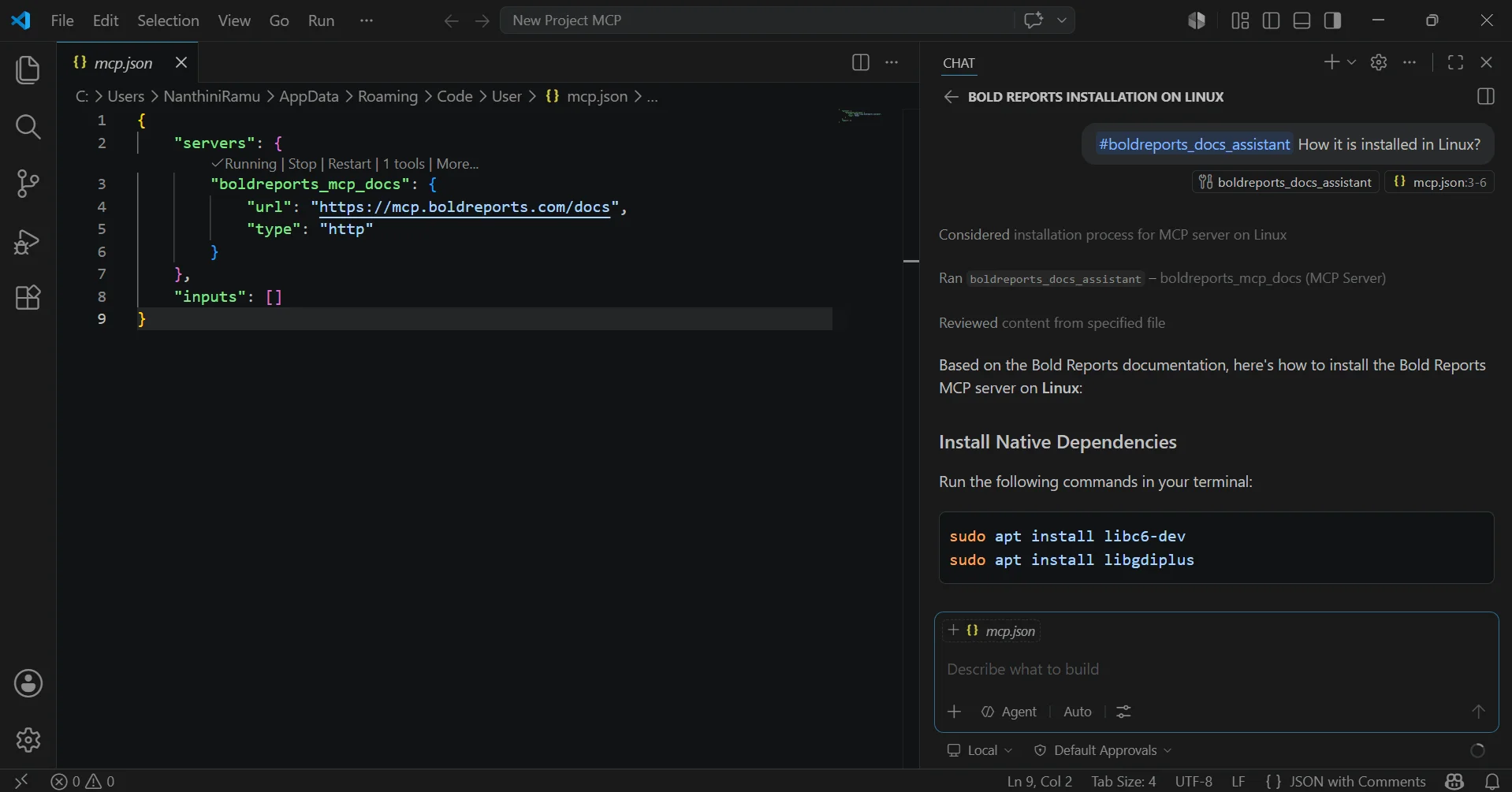
- Validate the Connection: After setting up, confirm that the Bold Reports tools are recognized. In supported assistants, look for the #boldreports_docs_assistant tool or equivalent marker.
- Add Custom Instructions (Optional): If you work in a specialized environment, you can provide tailored system prompts to improve how the AI assistant interacts with Bold Reports documentation. For example, you might specify your preferred language (C#, TypeScript) or request that responses always include code samples.
Asking questions: Best practices
The quality of answers from the Bold Reports MCP Server depends heavily on how you phrase your questions. Follow these guidelines to get the most accurate, actionable results.
1. Be specific about features
Clearly identify the Bold Reports component or feature you’re asking about. Avoid vague references.
-
- Good: “How do I configure cascading parameters in the Bold Reports Report Designer using a SQL data source?”
- Less Effective: “How do I do parameters?”
Specificity ensures that the MCP server retrieves the most relevant documentation section.
2. Include your tech stack
Always mention the framework and environment you’re working in.
-
- Good: “Generate Angular code to integrate the Bold Reports Viewer with custom toolbar and export options.”
- Less effective: “Give me integration code.”
Frameworks matter because integration patterns differ significantly between ASP.NET Core, Angular, React, Blazor, and JavaScript.
3. Ask for details
Don’t hesitate to request code samples, step-by-step instructions, or additional context.
-
- Good: “Provide a complete code sample for embedding the Bold Reports Designer in a Blazor Server application, including REST API data source configuration.”
- Less Effective: “Explain the Designer.”
Requesting details unlocks richer, more actionable responses.
4. Reference the documentation
Using documentation-aware phrasing can improve result accuracy. Phrases like “based on Bold Reports docs” or “according to official Bold Reports guidance” signal to the assistant that responses should be grounded in the MCP server’s content.
Sample queries
Here are real-world examples of requests you can pose for an AI assistant connected to the Bold Reports MCP Server. Use these templates for your own queries.
- Create an ASP.NET Core application with the Bold Reports Report Viewer, implementing Windows authentication and role-based access control.
- Design a parameter-driven RDL report using a SQL data source with cascading drop-down filters.
- Generate React TypeScript code to integrate the Bold Reports Viewer with custom toolbar buttons for PDF export and page navigation.
- Explain how to implement drill-through reports in Bold Reports, including data preparation and navigation setup.
- Build a Blazor Web Assembly application with the Bold Reports Designer component and a REST API data source.
- What are the best practices for handling large datasets in Bold Reports RDL reports to ensure optimal rendering performance?
- Provide the steps to embed the Bold Reports Viewer in an Angular application using the Angular wrapper component.
Each of these queries returns documentation-backed responses ranging from code samples to conceptual explanations to step-by-step guides.
Troubleshooting
The table below covers common issues encountered when setting up or using the Bold Reports MCP Server and their solutions.
| Issue | Solution |
| MCP server not starting | Restart your IDE and verify the MCP configuration file is correctly placed. |
| Invalid JSON in configuration | Check the mcp.json file for syntax errors—such as missing commas, mismatched brackets, or unquoted keys. |
| Server not recognized | Confirm the endpoint URL is correct (https://mcp.boldreports.com/docs) and ensure the connection type is set appropriately. |
| No AI response | Ensure MCP and Agent Mode are both enabled in your IDE or AI assistant settings. |
| Connection errors | Verify network access to the MCP endpoint. Check firewall or proxy settings if applicable. |
| MCP tools unavailable | Confirm MCP is enabled and that the Bold Reports MCP server appears in your AI assistant’s available tools list. |
Security considerations
AI-assisted development is powerful, but security remains your responsibility. Keep the following in mind when using the Bold Reports MCP Server:
- Review all AI-generated responses before implementing them: AI assistants can produce plausible-sounding but incorrect code or configurations. Always validate against official documentation and your application’s requirements.
- Validate configurations and code before deployment: Test AI-generated settings in development environments first and check for unintended side effects or security implications.
- Align usage with your organization’s security policies: If your organization has specific guidelines around AI tool usage, ensure your setup and workflows comply with them.
Conclusion
The Bold Reports MCP Server represents a meaningful step forward in integrated documentation access. By connecting AI assistants directly to Bold Reports’ authoritative knowledge base, it empowers developers to build report integrations faster, with greater accuracy, and without context-switching.
Whether you’re configuring report viewers in ASP.NET Core, adding designer capabilities to a React application, or building complex RDL expressions with cascading parameters, the MCP server ensures you always have official guidance.
Ready to get started? Use the one-click installation links above or follow the manual setup steps for your IDE. Enable Agent Mode, validate your connection, and start asking your AI assistant Bold Reports questions today.
Frequently asked questions
- 1.
Is the Bold Reports MCP Server free to use?
Yes, the Bold Reports MCP Server is available at no additional cost. It is included with all Bold Reports plans. You do need a supported IDE and an AI assistant that is compatible with the Model Context Protocol.
- 2.
Which programming languages and frameworks does the MCP Server support?
The MCP server retrieves documentation across all supported Bold Reports languages and frameworks, including ASP.NET Core, Angular, React, Blazor, and vanilla JavaScript. Code sample quality depends on the AI assistant being used and its knowledge of your specific framework.
- 3.
Does the Bold Reports MCP Server work with local or offline documentation?
No. The Bold Reports MCP Server currently connects exclusively to the cloud-hosted endpoint at https://mcp.boldreports.com/docs and does not support on-premises or offline documentation servers. An active internet connection is required for the server to retrieve help content.
- 4.
How does the Bold Reports MCP Server differ from searching Bold Reports documentation online?
A web search returns broad results that may include outdated content, community forums, or unrelated pages. The Bold Reports MCP Server queries only from official Bold Reports documentation, returns contextually relevant results tied to your specific question, and delivers code samples directly inside your IDE without requiring you to leave your development environment.
- 5.
What should I do if my AI assistant does not recognize Bold Reports tools after setup?
First, verify that the configuration file is in the correct location and that the endpoint URL is accurate. Restart your IDE or AI assistant. Confirm that Agent Mode is enabled; many IDEs require it explicitly. If the problem persists, remove and re-add the Bold Reports connector. If none of these steps resolve the issue, consult your IDE’s MCP documentation or contact Bold Reports support.
- 6.
Is my source code or project data sent to Bold Reports servers?
No. The Bold Reports MCP Server only retrieves documentation and help content. It does not upload your source code, project files, or report definitions to Bold Reports servers. Queries are processed to fetch relevant documentation; no persistent logging of your code or proprietary data occurs.
- 7.
Can I customize how the Bold Reports MCP Server responds?
You cannot modify the MCP server’s behavior directly, but you can add custom instructions to your AI assistant system prompt to guide how it uses the server. For example, you can specify a preferred programming language, request that responses always include code samples, or prioritize documentation sections.