How to Embed a Report Viewer in a JavaScript Application

Embedding a Report Viewer in a JavaScript app enables users to view, interact with, and export reports without leaving the application. With Bold Reports®, integration is straightforward, letting you deliver real-time reporting in minutes. The Bold Reports embedded platform simplifies this by offering a seamless solution. You can create, view, and export pixel-perfect, paginated reports effortlessly. This blog takes you through how to embed Report Viewer in a JavaScript reporting application. Finally, you’ll be able to embed and display reports directly in your web project.
Benefits of embedding the Report Viewer in a JavaScript app
Embedding the Bold Reports JavaScript report Viewer into your app can help you in the following ways:
- Display complex reports: Render paginated reports directly within your JavaScript app, ensuring smooth performance and instant load times—even for large datasets.
- Leverage existing SSRS assets: Embed support for Microsoft RDL and RDLC formats, allowing you to reuse existing SSRS reports without rebuilding them from scratch.
- Enable seamless report exporting and printing: Allow users to print or export reports in multiple formats like PDF, Excel, or an image file right from the embedded viewer, improving accessibility and usability.
- Deliver a consistent in-app reporting experience: Keep users within your application while offering full reporting functionality, eliminating the need to switch between tools or platforms.
- Effortless access: Empower users to access reports instantly from any location, even without a report server. This flexibility boosts productivity by supporting SSRS, SharePoint, cloud, and app-based data sources.
- Simplified data modelling: Connect to a wide range of data providers with minimal setup using the built-in query builder. This streamlines development and reduces integration time for complex data environments.
Next, let’s explore step-by-step guide on how to embed a Report Viewer in a JavaScript application.
How to Embed a Report Viewer in a JavaScript Application
To embed a Report Viewer in a JavaScript app in Bold Reports, follow these steps:
Create the HTML file
To get started, create a new folder named js-report-viewer.
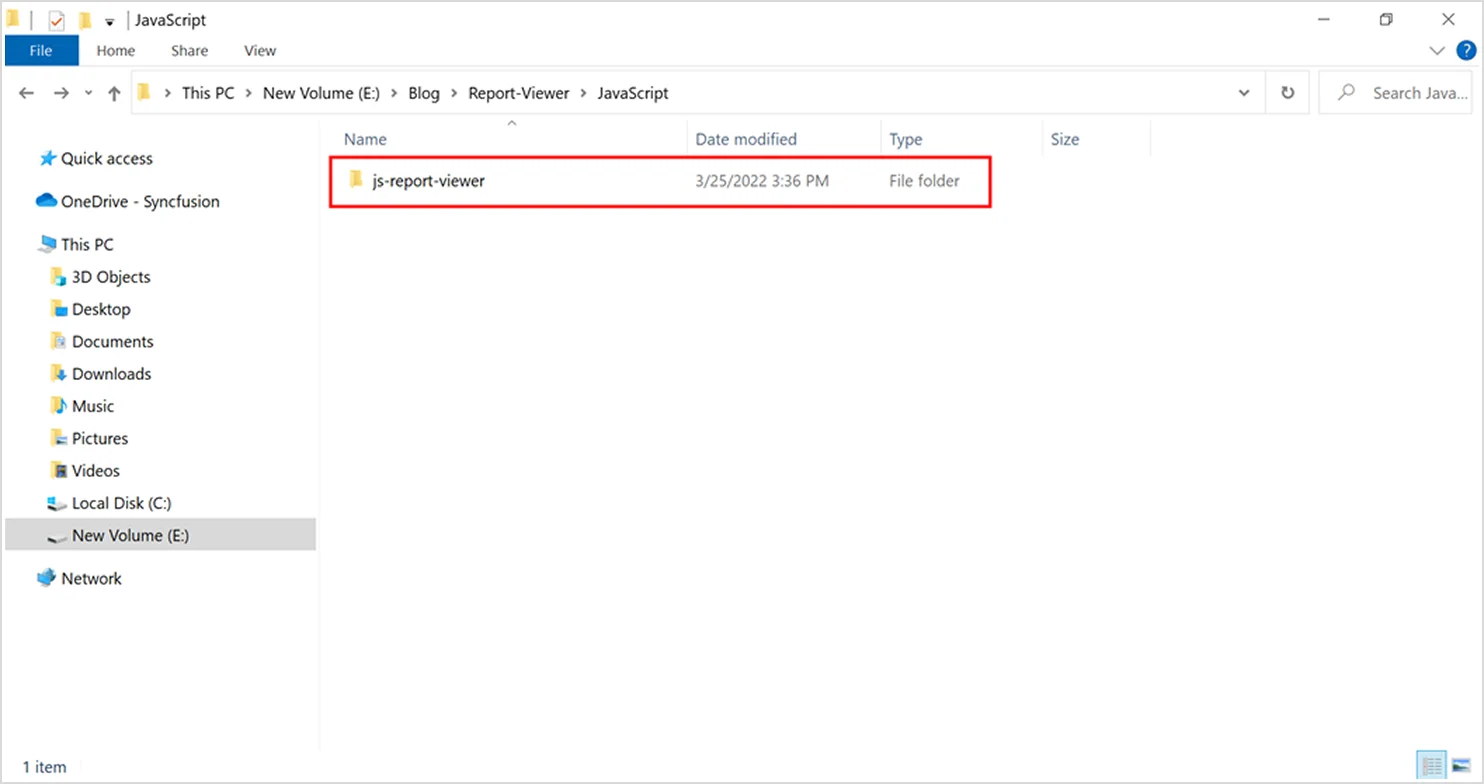
Open the folder in Visual Studio Code.
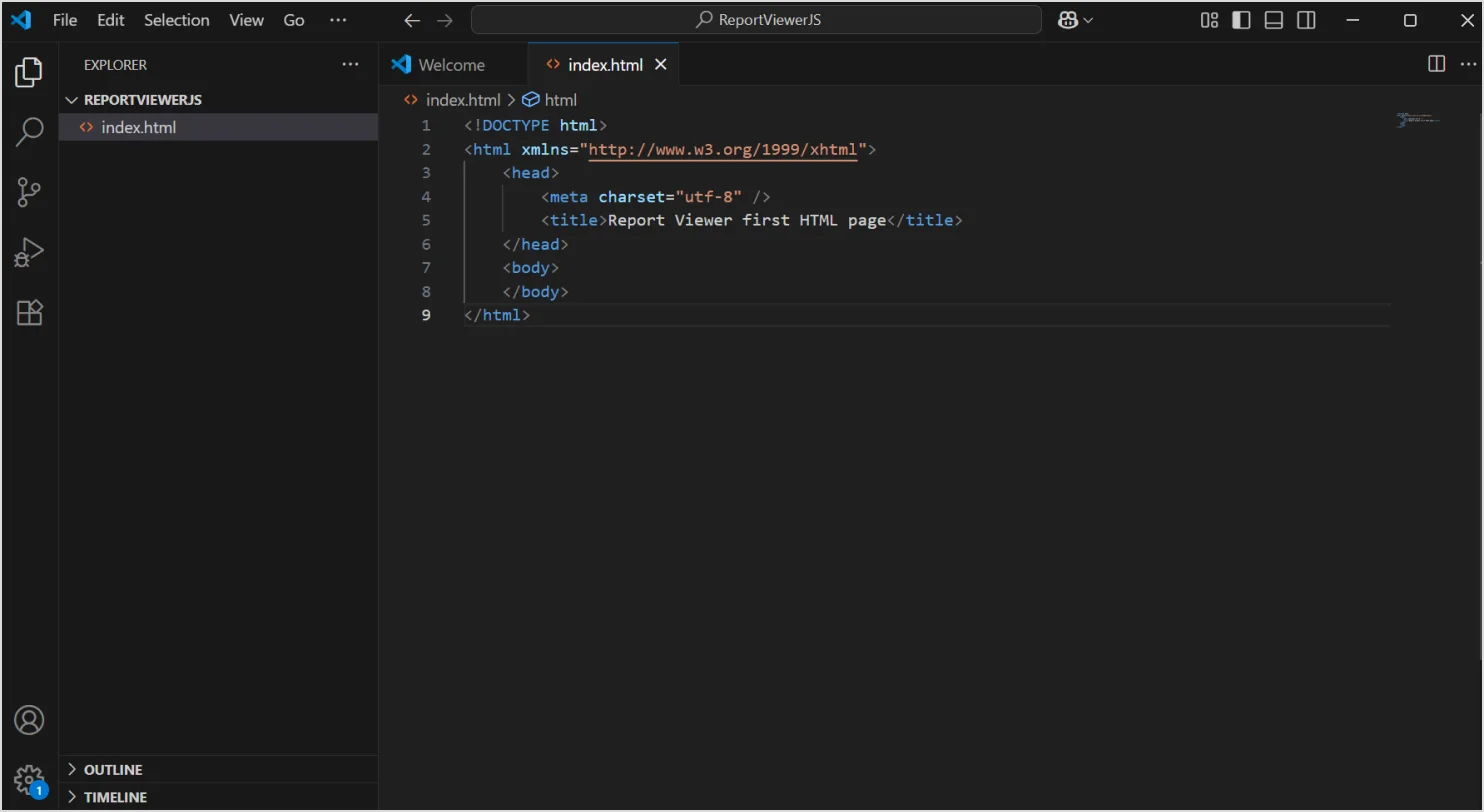
Create a new HTML file, name it html, and place the following code into it:
<!DOCTYPE html>
<html xmlns="http://www.w3.org/1999/xhtml">
<head>
<meta charset="utf-8" />
<title>Report Viewer first HTML page</title>
</head>
<body>
</body>
</html>
Reference the scripts and CSS
Reference the following scripts and style sheets in the <head> tag:
<!-- Report Viewer component styles -->
<link href="https://cdn.boldreports.com/10.1.11/content/v2.0/tailwind-light/bold.report-viewer.min.css" rel="stylesheet" />

<!-- Report Viewer component dependent script -->
<script src="https://cdnjs.cloudflare.com/ajax/libs/jquery/3.6.0/jquery.min.js"></script>
<script src="https://cdn.boldreports.com/10.1.11/scripts/v2.0/common/bold.reports.common.min.js"></script>
<script src="https://cdn.boldreports.com/10.1.11/scripts/v2.0/common/bold.reports.widgets.min.js"></script>

<!-- Report Viewer component script -->
<script src="https://cdn.boldreports.com/10.1.11/scripts/v2.0/bold.report-viewer.min.js"></script>
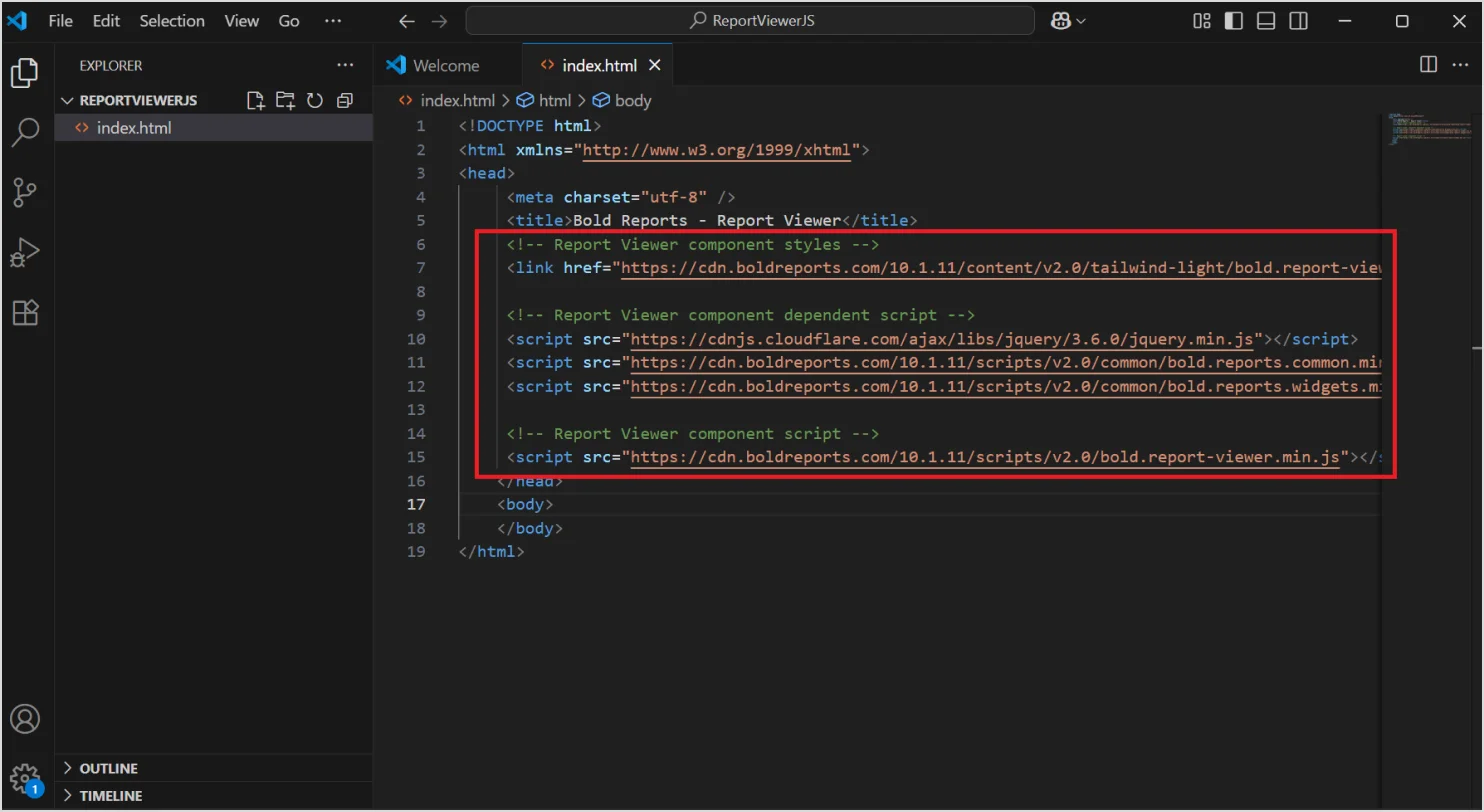
Purpose of the scripts and CSS
Let’s take a look at the scripts and style sheets required to render the web Report Viewer. Directly refer all the required scripts and style sheets from the content delivery network links that are mandatorily required to use the Report Viewer, in the following order:
- bold.report-viewer.min.css
- jquery.min.js
- bold.reports.common.min.js
- bold.reports.widgets.min.js
- bold.report-viewer.min.js
In Bold Reports, report processing and in-browser rendering will be handled using a server-side web API and a client-side HTML page respectively.
Add a Report Viewer widget
Now, let’s add the Report Viewer widget on the client side. Add the following <div> element and script within the body tag:
<div style="height: 600px; width: 950px;">
<!-- Creating a div tag which will act as a container for boldReportViewer widget.-->
<div style="height: 600px; width: 950px; min-height: 400px;" id="viewer"></div>
<!-- Setting property and initializing boldReportViewer widget.-->
<script type="text/javascript">
$(function () {
$("#viewer").boldReportViewer();
});
</script>
</div>
This <div> acts as a container for the Report Viewer widget.
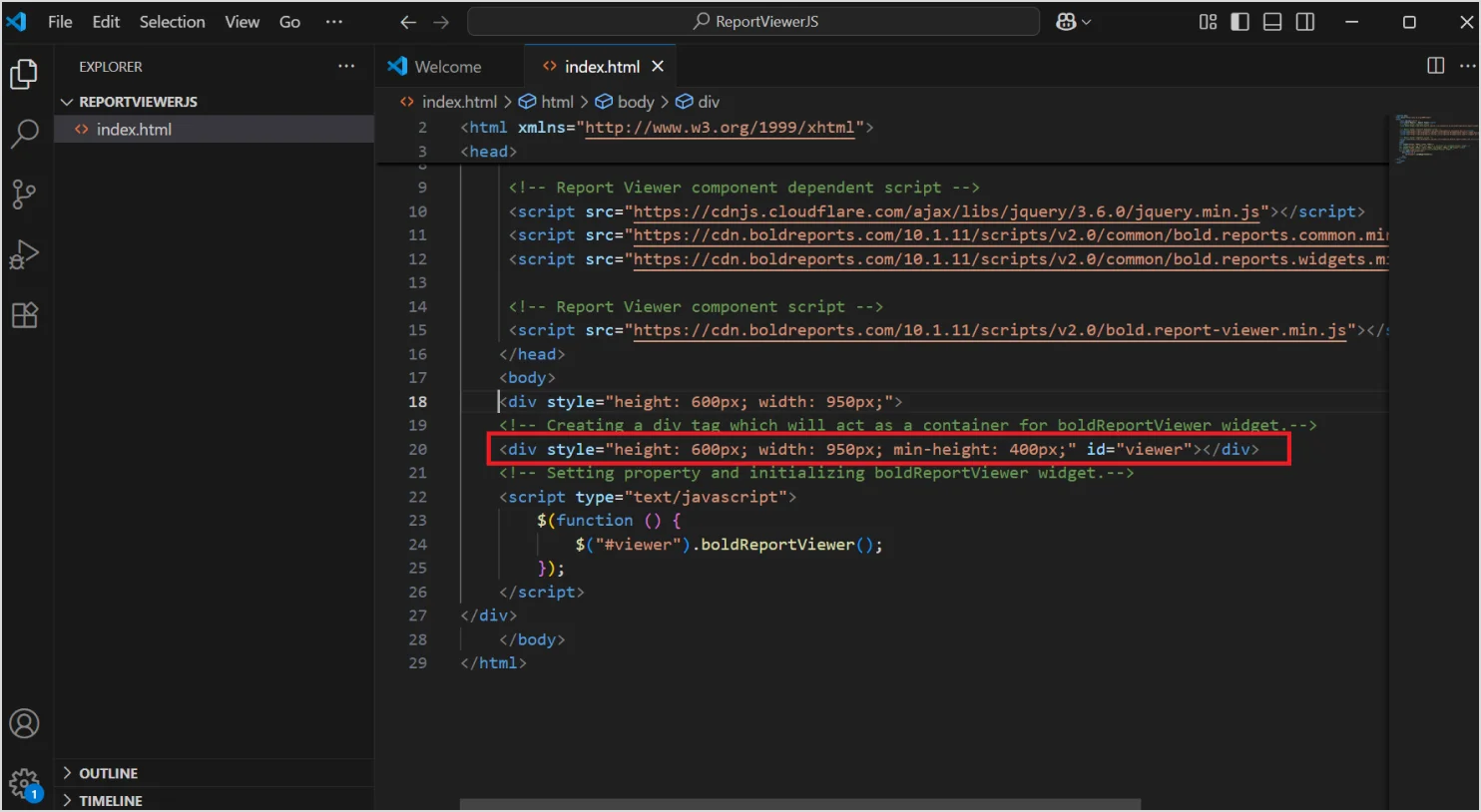
The script is used to set the required property and initialize the Report Viewer widget.
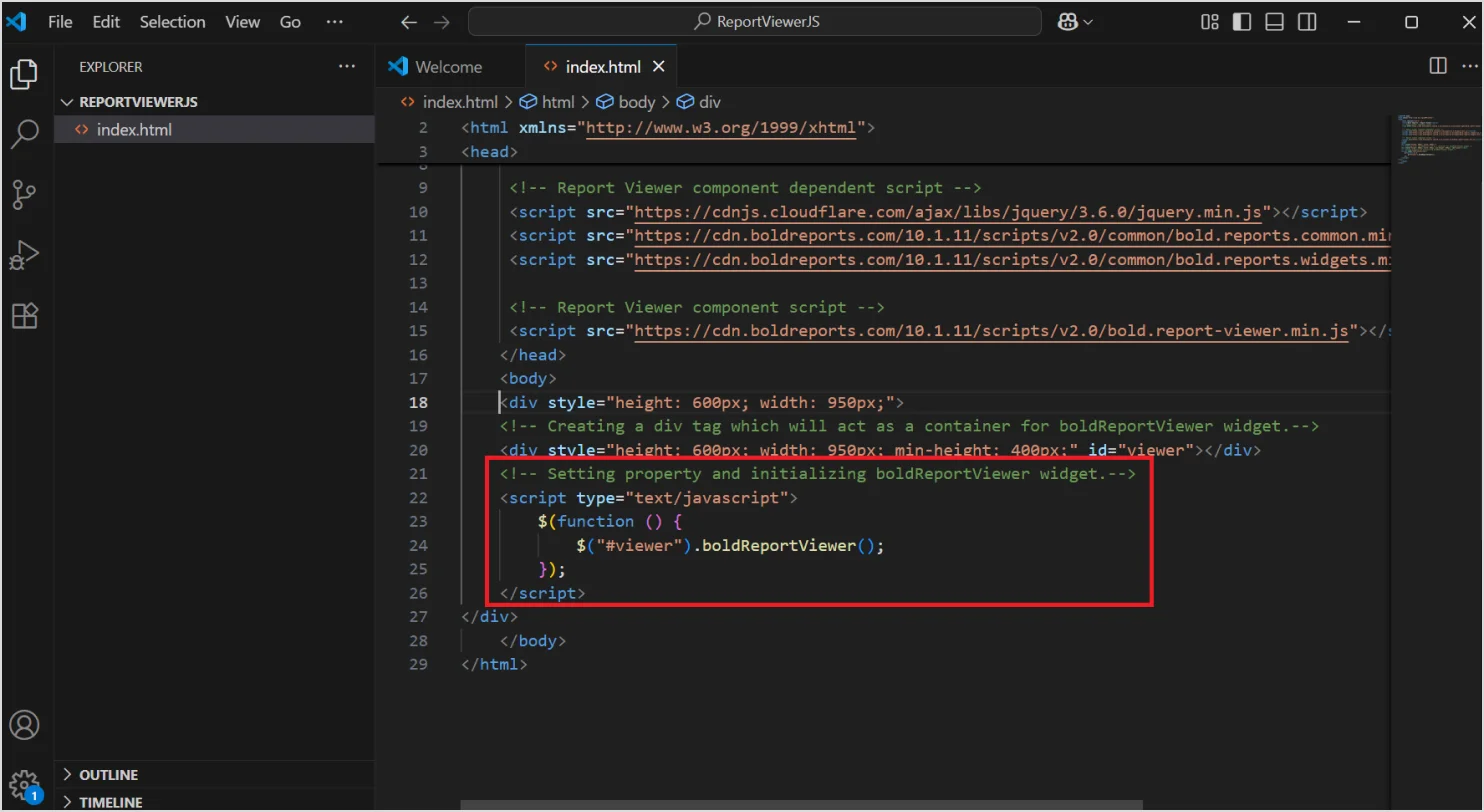
Set the web API service
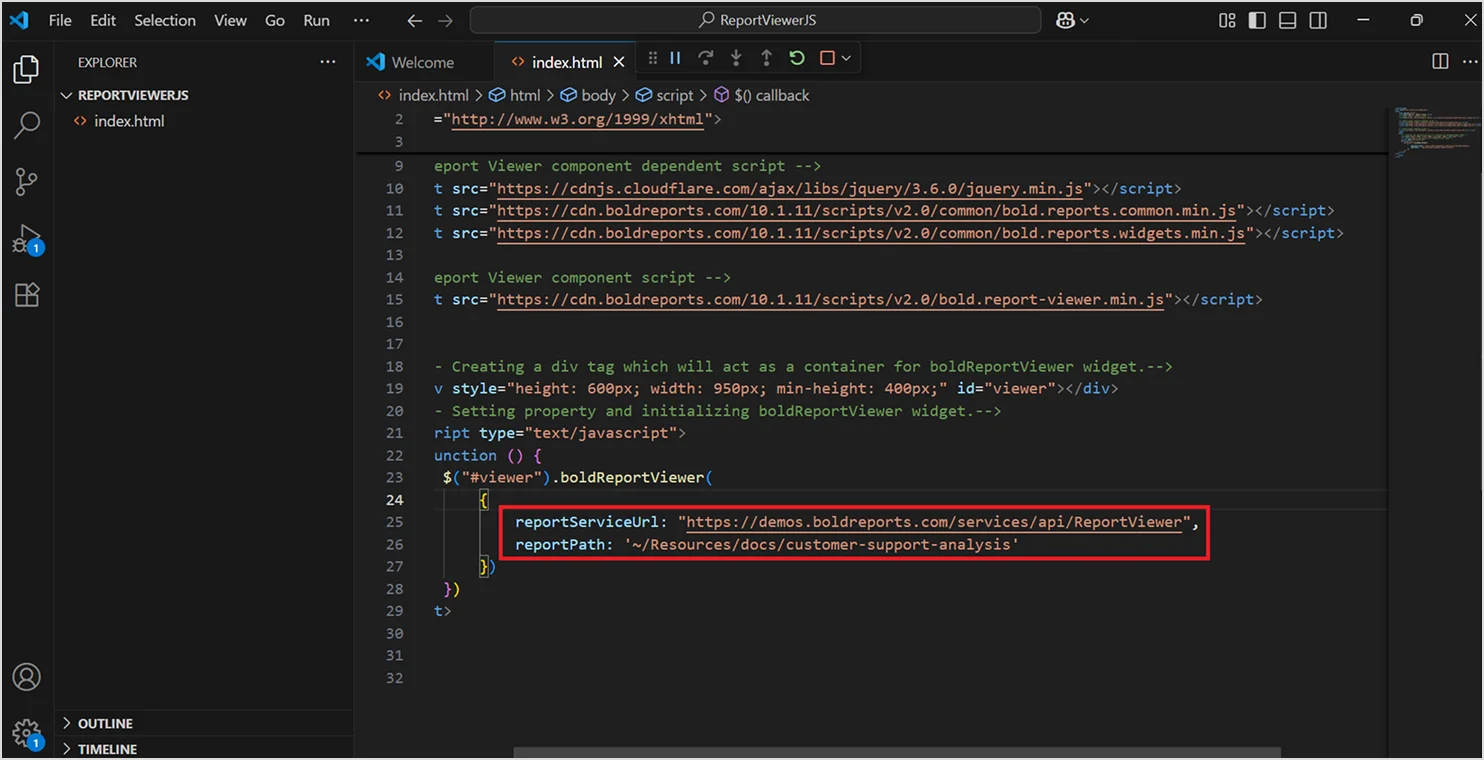
The RDL report is processed and rendered in the browser using the web API service. In this blog, I’m using the render path unit, which requires reportServiceUrl and reportPath. The web API service is hosted as an Azure web app. The report path property sets the path of the report file, and the report service URL property specifies the report web API service URL.
To render the reports available in your application, set the reportPath and reportServiceUrl properties of the Report Viewer as follows:
<div style="height: 600px; width: 950px;">
<!-- Creating a div tag which will act as a container for boldReportViewer widget.-->
<div style="height: 600px; width: 950px; min-height: 400px;" id="viewer"></div>
<!-- Setting property and initializing boldReportViewer widget.-->
<script type="text/javascript">
$(function () {
$("#viewer").boldReportViewer({
reportServiceUrl: "https://demos.boldreports.com/services/api/ReportViewer",
reportPath: '~/Resources/docs/customer-support-analysis'
});
});
</script>
</div>
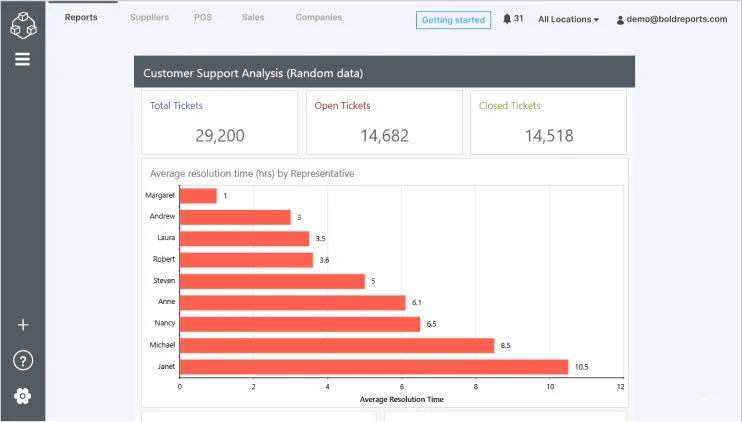
Here, I’m using the customer-support-analysis report from the demo server location.
Save the file. To preview the report, open the html file in a browser. You can see the sales-order-detail report loaded in the Report Viewer.
I hope these steps help you successfully embed the Report Viewer into your JavaScript application. For more advanced configurations, troubleshooting tips, or additional features, check out the Bold Reports help documentation. It’s a valuable resource to guide you through every stage of your reporting integration.
Key takeaways
With Bold Reports® , you can embed reports directly into JavaScript apps without complex setup or external servers. Start your free trial or request a demo today to see how it works in your environment.
If you have any questions, please post them in the comments section. You can also contact us through our contact page, or if you already have an account, you can log in to submit your support question. Explore Bold Reports JavaScript reporting today!