How to Connect Oracle Data to RDL Report Using Bold Reports

TL; DR: Teams often struggle to connect Oracle data to RDL reports due to failed configurations, authentication issues, and datasets that don’t load correctly during design or preview. Bold Reports® simplifies this workflow with secure basic and advanced Oracle connection options that help you validate the setup and build stable, accurate datasets. This guide walks you step‑by‑step through connecting your Oracle data source and preparing reliable, production‑ready RDL reports.
Introduction
When teams need Oracle data inside operational or executive reports, the first step is to connect Oracle data to an RDL report reliably, then build a reusable dataset that report designers can work with confidently. In Bold Reports, you can configure a secure Oracle data source in minutes, validate the connection, and then design queries visually to generate accurate, performant datasets for your RDL layouts.
This guide walks you through basic and advanced connection options, shows how to preview and validate your dataset, and highlights best practices for security, parameters, and performance.
Benefits of connecting Oracle data to an RDL report
Connecting Oracle data directly to your RDL report allows you to:
- Centralize logic: Keep datasets, parameters, and expressions within the report for simpler maintenance.
- Speed up development: Preview data earlier to catch issues sooner.
- Ensure consistent performance: Parameterized queries and governed Oracle connections promote reliability from design to deployment.
- Lower risk: Early validation helps reduce late‑stage reporting errors.
- Improve governance: SQL transparency and visual query builders make audits and reviews easier.
Now, let’s learn the challenges report designers encounter while building RDL reports.
Challenges when designing RDL reports with Oracle data
Challenges that arise after connecting Oracle data to an RDL report, especially during dataset creation, layout design, preview, and publishing can include:
- Incorrect or incomplete datasets: Misconfigured Oracle data source settings, missing fields, or unsupported data types can cause datasets to load incorrectly when building the report.
- Connection and authentication issues: Differences between design‑time and server‑side authentication often result in failed previews or reports that won’t load after publishing.
- Slow or inconsistent preview performance: Large Oracle tables, unfiltered queries, or mishandled parameters can cause preview delays or timeouts inside the RDL designer.
- Parameter and datatype mismatches: Oracle parameter formats and bind variable requirements may cause reports to return empty results or errors across different environments.
- High maintenance overhead: Schema changes, such as renamed columns or datatype updates, easily break existing datasets and require revisiting the Oracle data source configuration during report updates.
Let’s now look at how Bold Reports simplifies the workflow, from raw Oracle data to actionable insights.
How Bold Reports solves Oracle query challenges in RDL design
Here’s how Bold Reports resolves these issues:
- Accurate dataset results: Bold Reports ensures Oracle data loads correctly by honoring schema definitions, data types, and connection settings, preventing missing fields, empty datasets, or inconsistent values.
- Reliable Oracle connection handling: Whether using basic or advanced options, Bold Reports maintains consistent authentication and server‑side behavior, reducing connection failures during preview or after publishing.
- Predictable preview performance: With proper parameterization, filtering, and Oracle‑aware dataset execution, reports run smoothly during preview and closely mirror production‑level performance.
- Clear parameter behavior: Oracle parameters and bind‑variable formats are handled correctly, preventing data mismatch errors across design, preview, and published environments.
- Easier maintenance: When Oracle schemas evolve, such as column changes or data type updates, Bold Reports makes it simpler to adjust the dataset without rebuilding the entire report.
Now, let’s look at how Bold Reports supports the entire workflow, from connecting your Oracle data source to designing, previewing, and publishing accurate RDL reports.
How to Connect Oracle Data to an RDL Report
There are two ways to connect Oracle data to an RDL report in Bold Reports, using the basic connection option or the advanced connection option. Let’s explore them in detail.
- First, sign up for a free trial or sign in to Bold Reports Designer. After logging in, click the blue button to open the report designer and start creating your report.
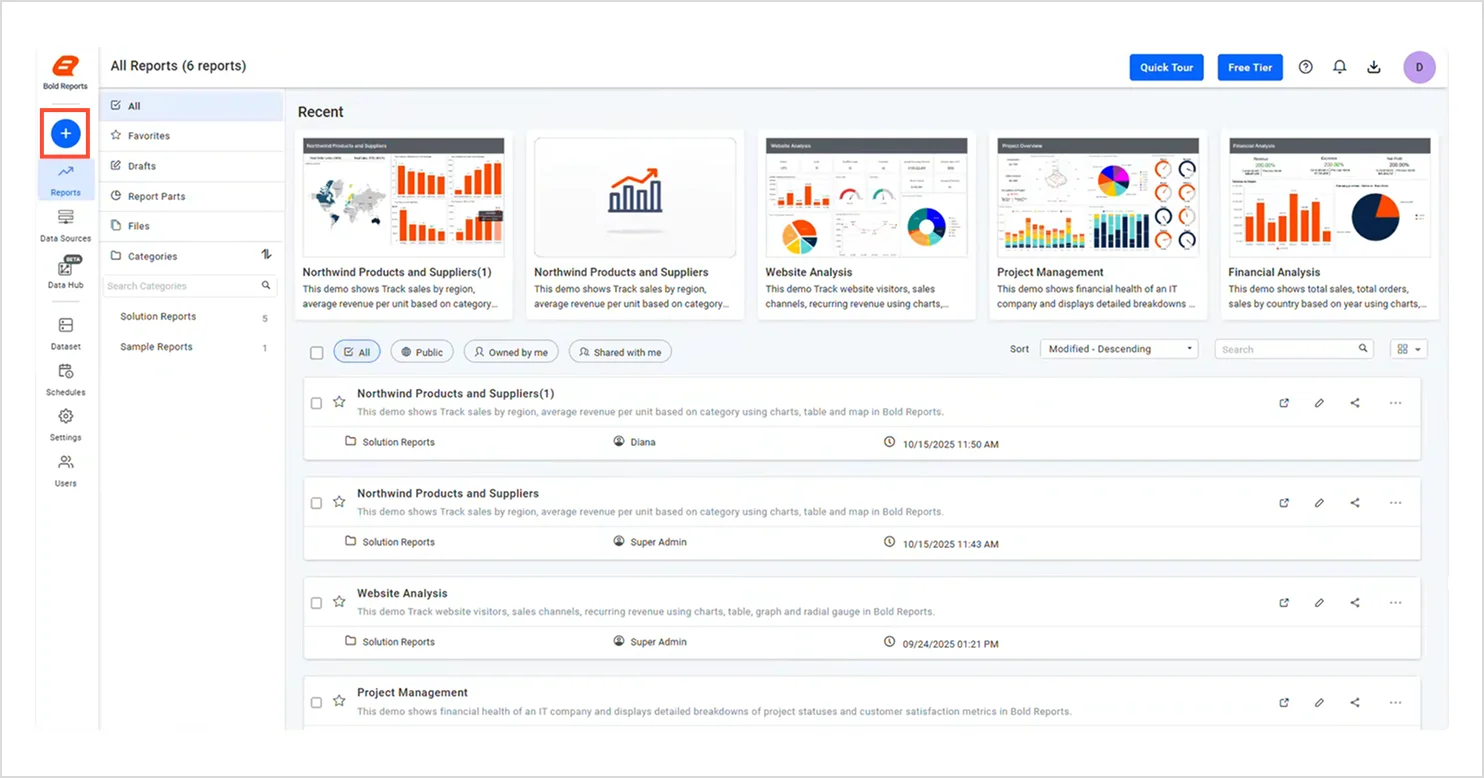
Bold Reports designer data icon for oracle query setup - Once it opens, select Start from scratch to begin the setup.
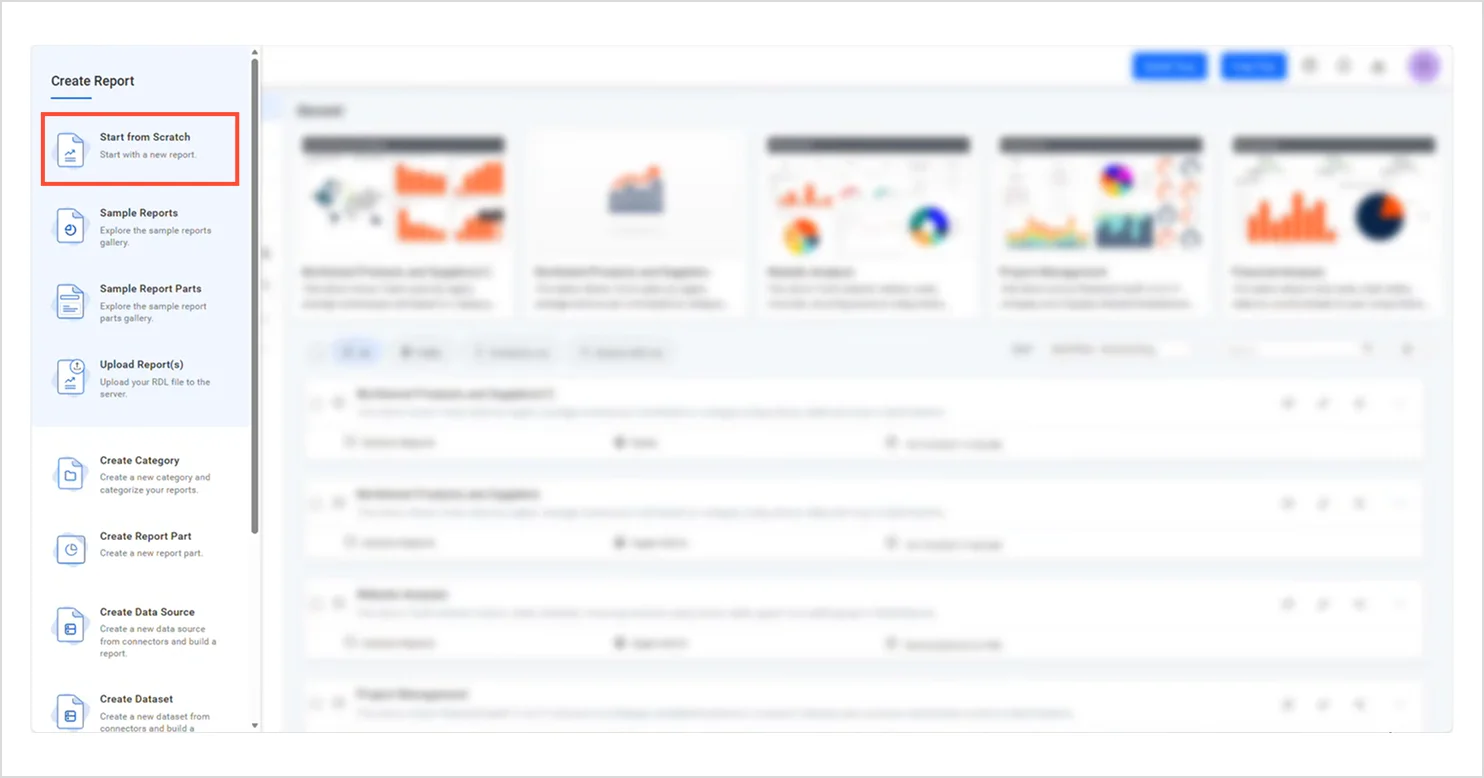
Select start from scratch option - Then, name the report and select Add and design to begin creating your report.
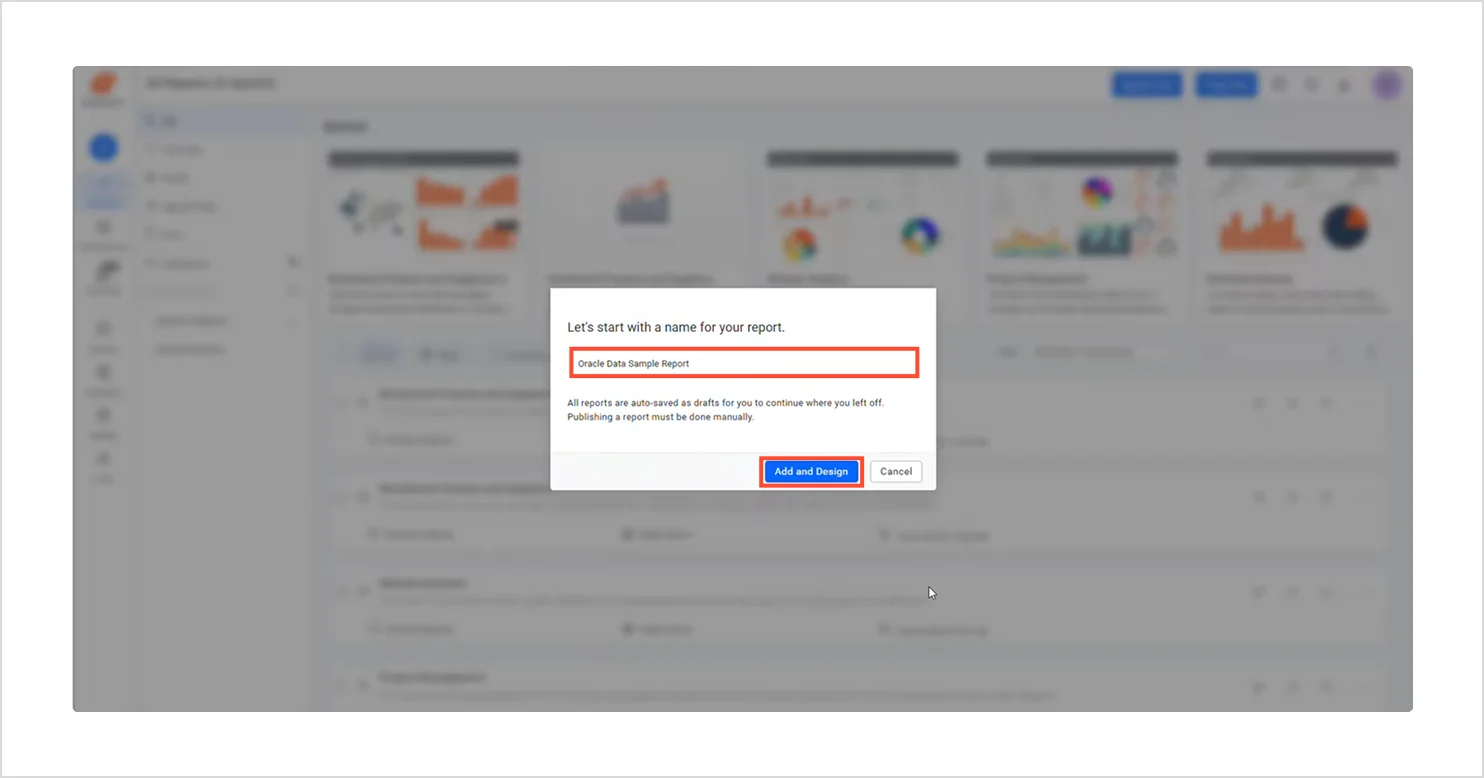
Name the report and click add and design - Once the configuration panel opens, click the data icon to start your Oracle Data source integration setup.
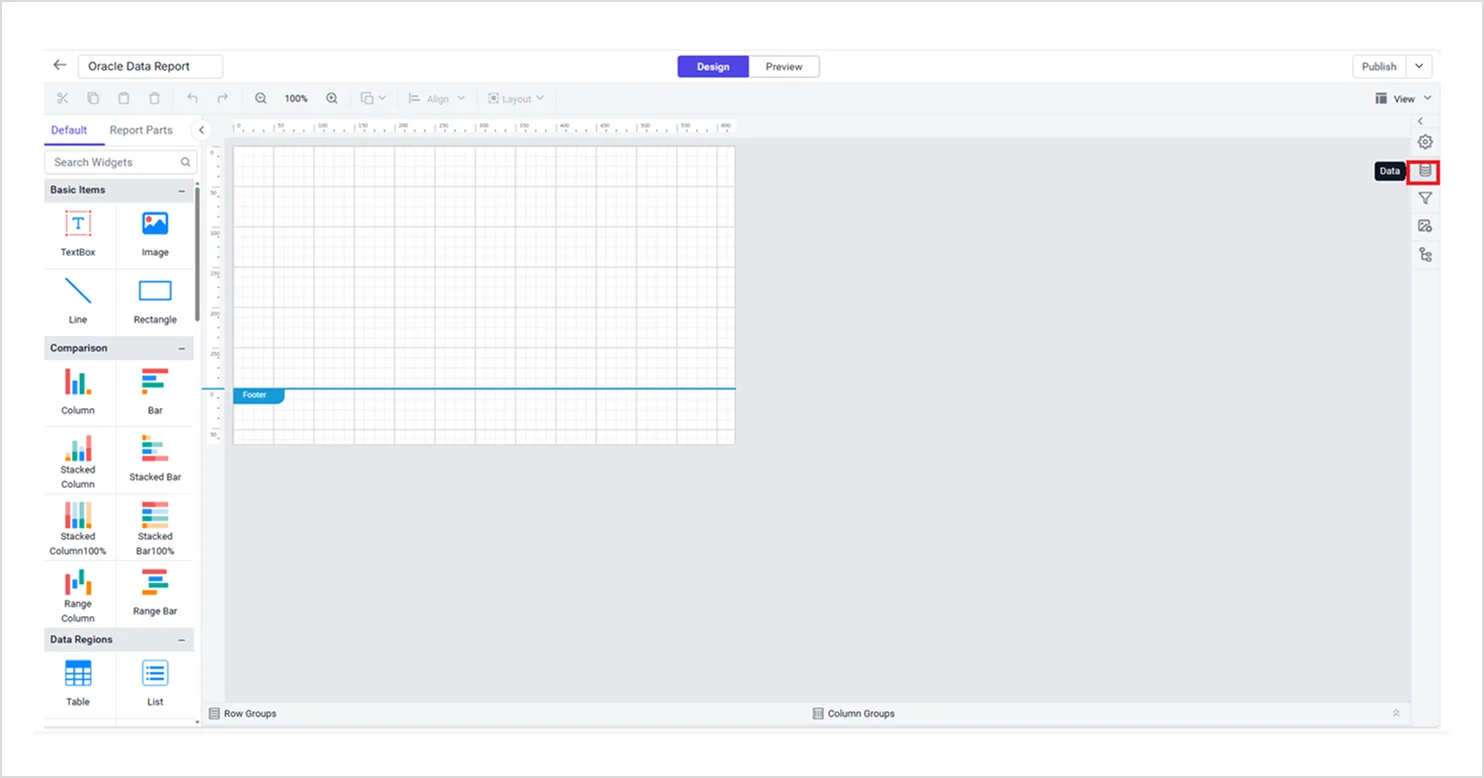
Click data icon in Bold Reports designer - Once it opens, select NEW DATA to see the available supported data sources to choose from.
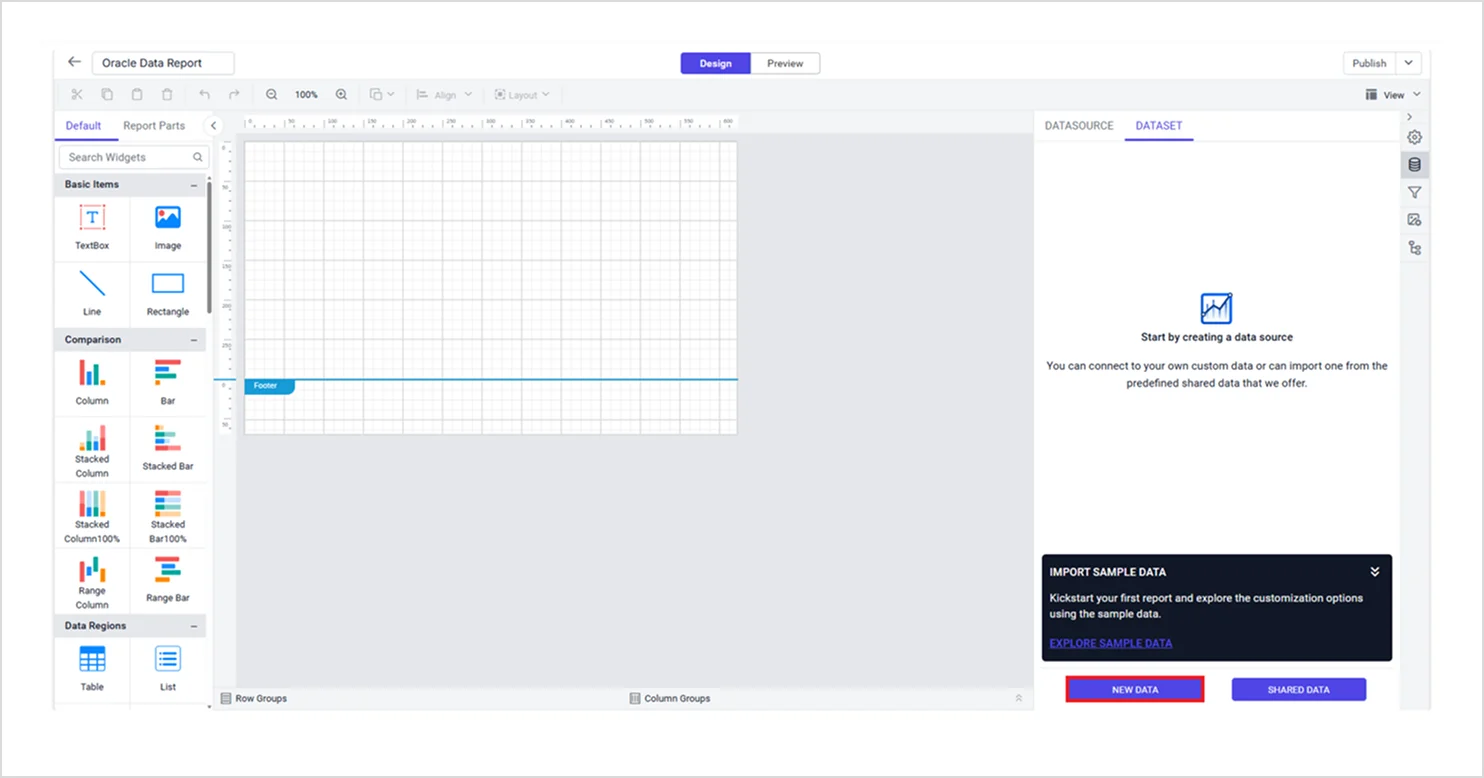
Click on new data - Once the connection type panel opens, select Oracle as your data source from the list of available data connectors.
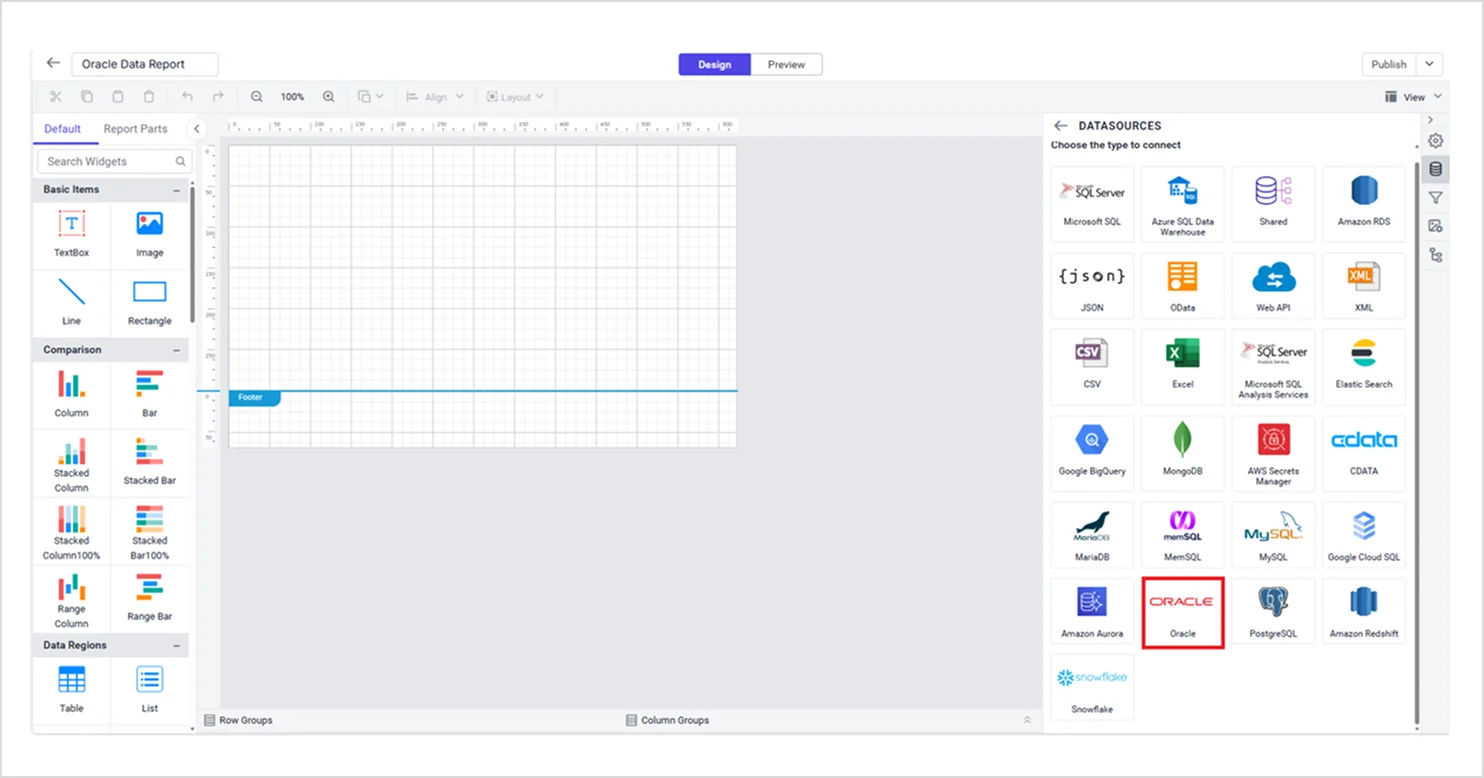
Select Oracle as your data source - Once it opens, enter the following details in the configuration window:
- Name: Provide a unique identifier without special characters.
- Server Name: Specify the remote server’s name (e.g., myserver.domain.com).
- Port: The default port is 1521.
- Service Name: Enter the Oracle service name.
- Authentication: Select Basic or Windows Authentication.
- Credentials: Enter your username and password, then enable Save Password to embed credentials.
- Database: Select or enter a valid database (e.g., ADVENTUREWORKS).
- Then, select Connect to validate the connection.
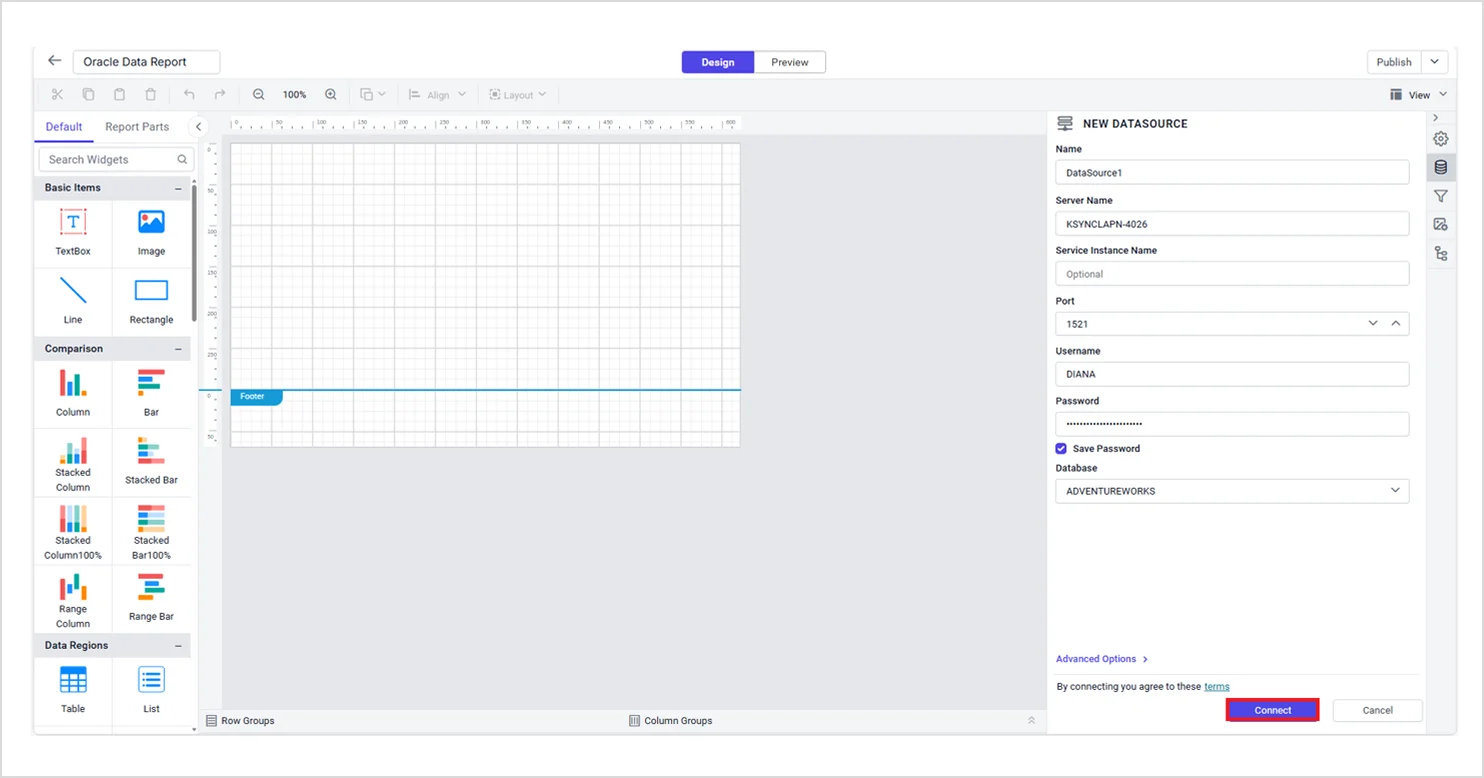
Click connect Tip: You can also use the advanced option if your Oracle environment requires a custom connection string, by selecting Advanced Options in the same panel to switch from basic mode.
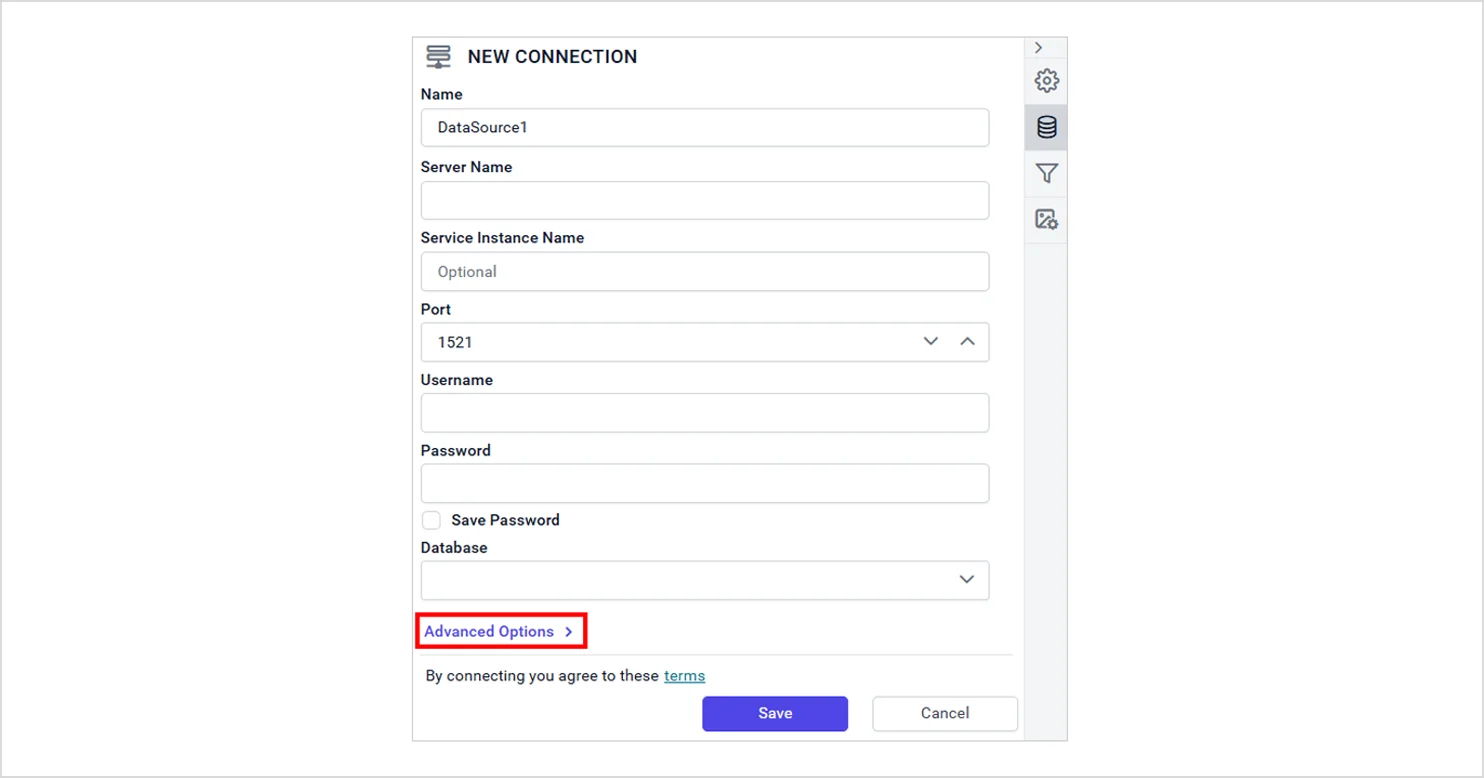
Advanced Oracle connection settings in Bold Reports query designer Refer to the advanced options connection documentation to learn more.
- Once connected using either basic or advanced options, the Oracle query designer will open, allowing you to drag and drop tables, define relationships, and apply filters. Select Finish to save the data source with a relevant name and proceed to design the report.
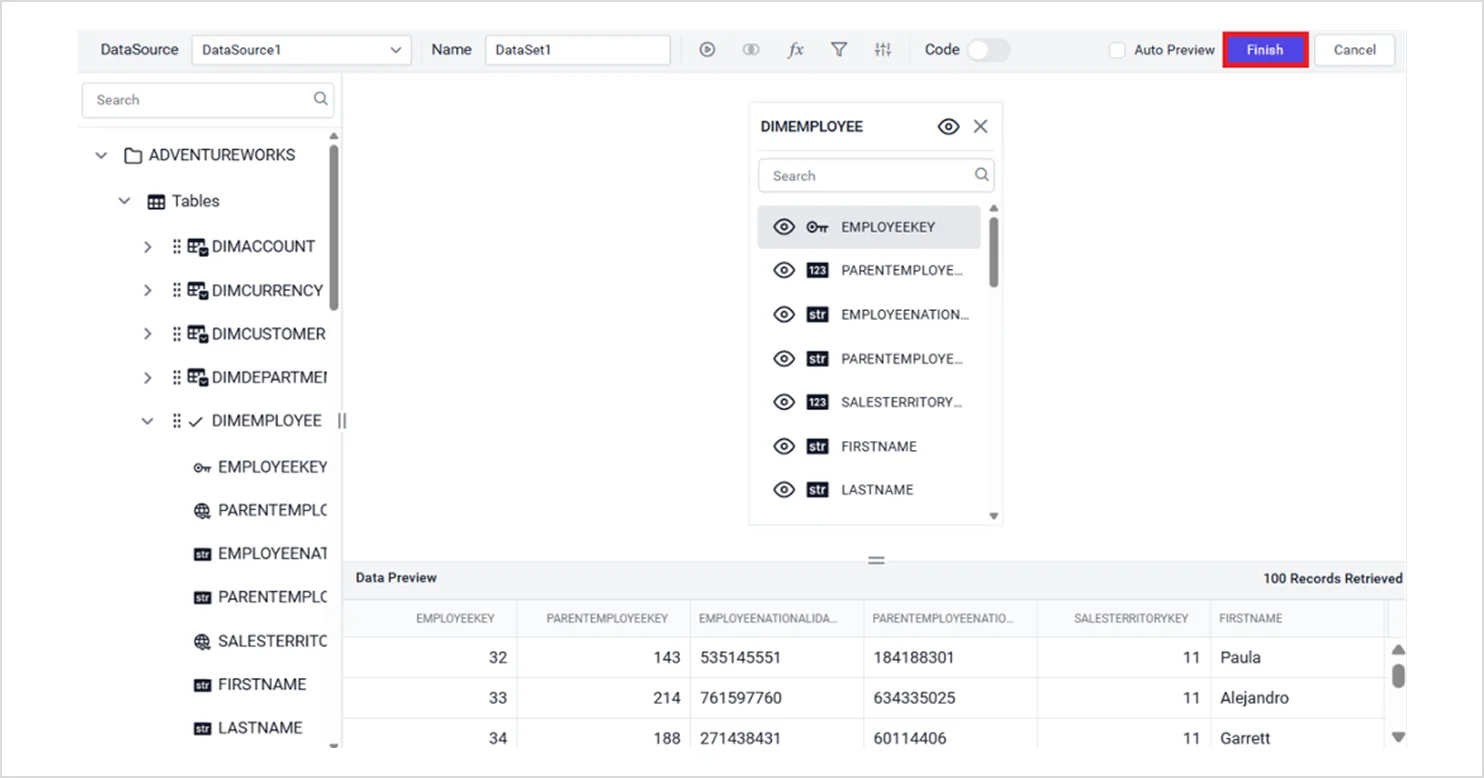
Drag and drop table then Click finish
After successfully connecting, the Oracle Query Designer opens, allowing you to view your tables and begin shaping your query. At this point, your data source is ready, and the remaining steps, designing the full report layout, binding fields, adding visuals, and final preview, are demonstrated in this video.
Lastly, let’s explore how to create a report using Oracle data.
How to create a report using Oracle data
After successfully connecting to your Oracle data source, you can begin designing your RDL report by dragging and arranging elements from the available widgets and data fields in Bold Reports. To build an interactive report, simply define the metrics or fields you want to display, select the appropriate visualization, such as tables, charts, KPIs, or matrices, and bind them to your Oracle dataset.
With the visual designer, you can easily format layouts, apply filters, add parameters, and preview your report to ensure your connected Oracle data appears exactly as expected. For more detailed steps on creating reports, please refer to our help documentation. You can also refer to the specific for more details on configuring Oracle connections.
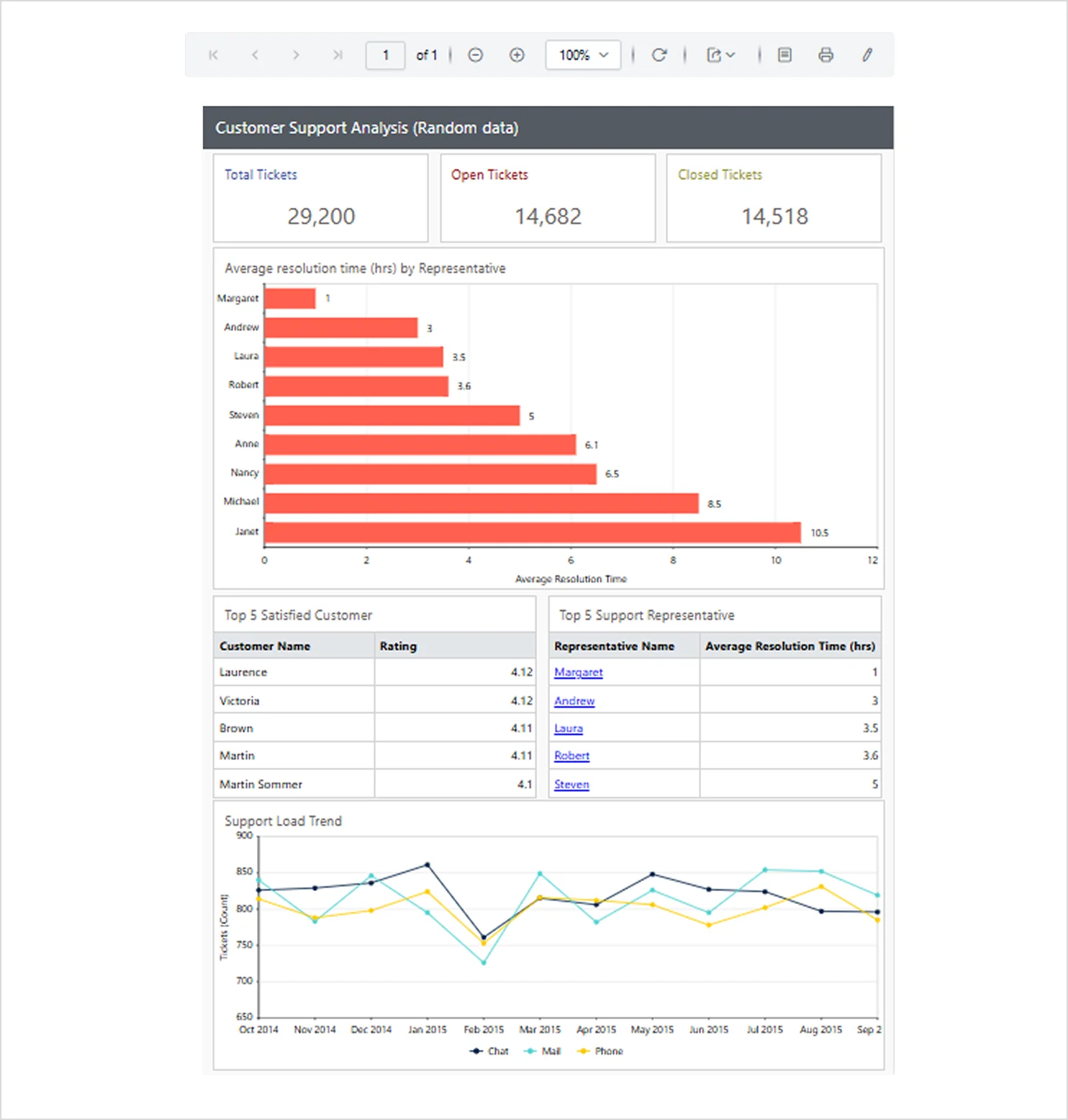
Below is a sample customer support analysis report output generated using the connected Oracle dataset.
Conclusion
Connecting Oracle data to RDL report doesn’t have to be slow or complicated. With Bold Reports®, developers can securely configure Oracle connections, validate datasets early, and build reliable, production‑ready reports. By supporting both Basic and Advanced connection options, Bold Reports streamlines the entire workflow from setup to publishing.
Whether you’re creating operational dashboards or executive reports, the platform ensures your Oracle data is accurate, stable, and ready for decision‑making with confidence. Ready to design interactive reports using Oracle data? Sign up for a free 30-day trial is you are new to Bold Reports or request a personalized demo today and see how easy Oracle reporting can be.
Frequently asked questions
-
- 1.
Do I need to write SQL to connect Oracle data to RDL report?
You can still switch to SQL view if you need full control.
- 2.
Can I reuse the Oracle data source across multiple reports?
Save the data source (or create a shared data source) and reuse it across reports to standardize connections.
- 3.
How do I keep up my dataset’s performance?
Filter at the source, select only required columns, use parameters and bind variables, and join on indexed keys. Validate with a preview before publishing.
- 4.
Is the Oracle connection secure?
Use your organization’s required authentication, encrypt credentials where supported, and limit privileges to the minimum necessary.
- 1.