How to Embed RDL Reports in React App: Step-by-Step Guide

TL; DR: Embedding the Bold Reports® React Report Viewer into your application is simple once you understand the architecture, authentication flow, and required dependencies. In this guide, you’ll learn the exact steps to integrate the viewer, avoid common challenges, and securely render RDL/RDLC reports inside your React application.
Introduction
Building a reporting feature in a React application sounds simple until you try to integrate SSRS or RDL reports. Most front-end and full-stack developers quickly discover the challenges:
- No native support for React: SSRS was designed for traditional web apps, not modern SPAs.
- Iframe limitations: Styling breaks, authentication fails, and user experience suffers.
- Custom UIs are costly: Creating and maintaining a reporting interface from scratch can take weeks and cost both time and money.
- Secure rendering is complex: RDL and RDLC reports require token-based authentication and back-end coordination.
These hurdles often lead to wasted time and frustration. Front-end and full-stack developers spend weeks configuring workflows only to hit issues with dependencies, performance, or security.
Bold Reports’ React Report Viewer provides a ready-to-use component for embedding interactive reports in a React application. With proper setup and architecture, you can integrate reporting seamlessly into your SPA.
In this guide, you’ll learn step-by-step how to embed reports in a React application, plus best practices for security, performance, and seamless integration.
Challenges of Embedding Reports in React and How to Solve Them
Embedding reports in React comes with setup, security, and performance challenges. Here’s what you’ll face—and how Bold Reports makes it easier:
- Dependency scripts and viewer setup: React apps often need multiple dependency scripts and careful viewer initialization, which can lead to load-order issues and version conflicts. Bold Reports helps by offering a dedicated React component approach that reduces manual configuration and simplifies viewer setup.
- Authentication and secure token handling: SPAs make it tricky to pass tokens securely between the React front end and the back end without exposing sensitive logic. Bold Reports helps with token-based security patterns and back-end-friendly integration options that support secure, controlled access to reports.
- Performance with large RDL and RDLC reports: Rendering heavy RDL and RDLC reports can slow down React screens when the browser is forced to handle too much processing. Bold Reports helps by enabling server-side report processing so the UI stays responsive while reports render smoothly.
- UI and UX conflicts with React styling: Embedded viewers can clash with global CSS frameworks and layout systems, causing spacing, responsiveness, or styling inconsistencies. Bold Reports helps by providing fully featured viewer UI with a toolbar, parameters, exporting, paging, and search options, so you avoid building and maintaining custom reporting UI elements.
Embedding architecture for React applications
Integrating the Bold Reports Report Viewer into a React application involves secure communication between the client, your backend, and the Bold Reports Server. The diagram below illustrates how authentication, filtering, and report rendering flow across the system:
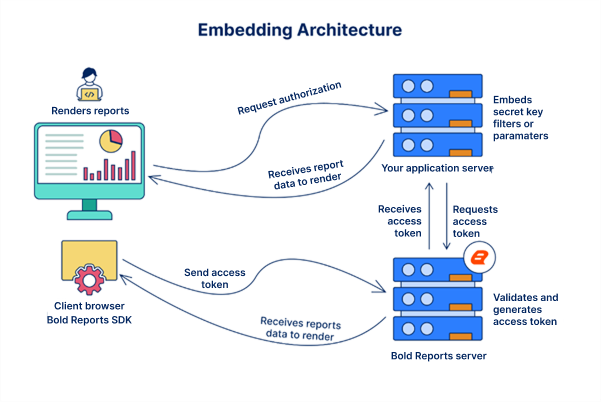
Key flow explained
- Client (React app)
-
- Loads the Bold Reports React Viewer component.
- Sends authentication tokens when requesting a report.
- Renders the report interactively inside your UI.
- Your application server
-
- Validates the incoming token from the client.
- Applies embedded parameters like filters, user context, and tenant ID.
- Requests a secure access token from the Bold Reports server.
- Bold Reports server
-
- Validates the server request.
- Generates a secure access token.
- Returns report data to your application server.
- Report rendering
-
- The React app receives the processed report data.
- React Reports Viewer renders the report interactively within the UI.
Security highlights
- Token-based authentication ensures only authorized users access reports.
- Embedded parameters allow dynamic filtering and personalization.
- Data isolation guarantees tenant-specific data integrity.
Let’s take a look at the step-by-step process on how to embed the React Report Viewer right into your React application.
How to embed RDL reports in a React application
To embed reports in a React application, you need to integrate the Bold Report Viewer component into your project. This allows you to display interactive reports directly within your React UI. Follow these steps:
Prerequisites
Now, let’s go through the step-by-step process on how to embed the Report Viewer into a React application.
Step 1: Install the Create React App package.
The easiest way to get started is by using Create React App, a tool that helps you build a single-page React application with zero setup. To install a Create React App globally on your machine, just open your command prompt and run the command below:
npm install create-react-app-g
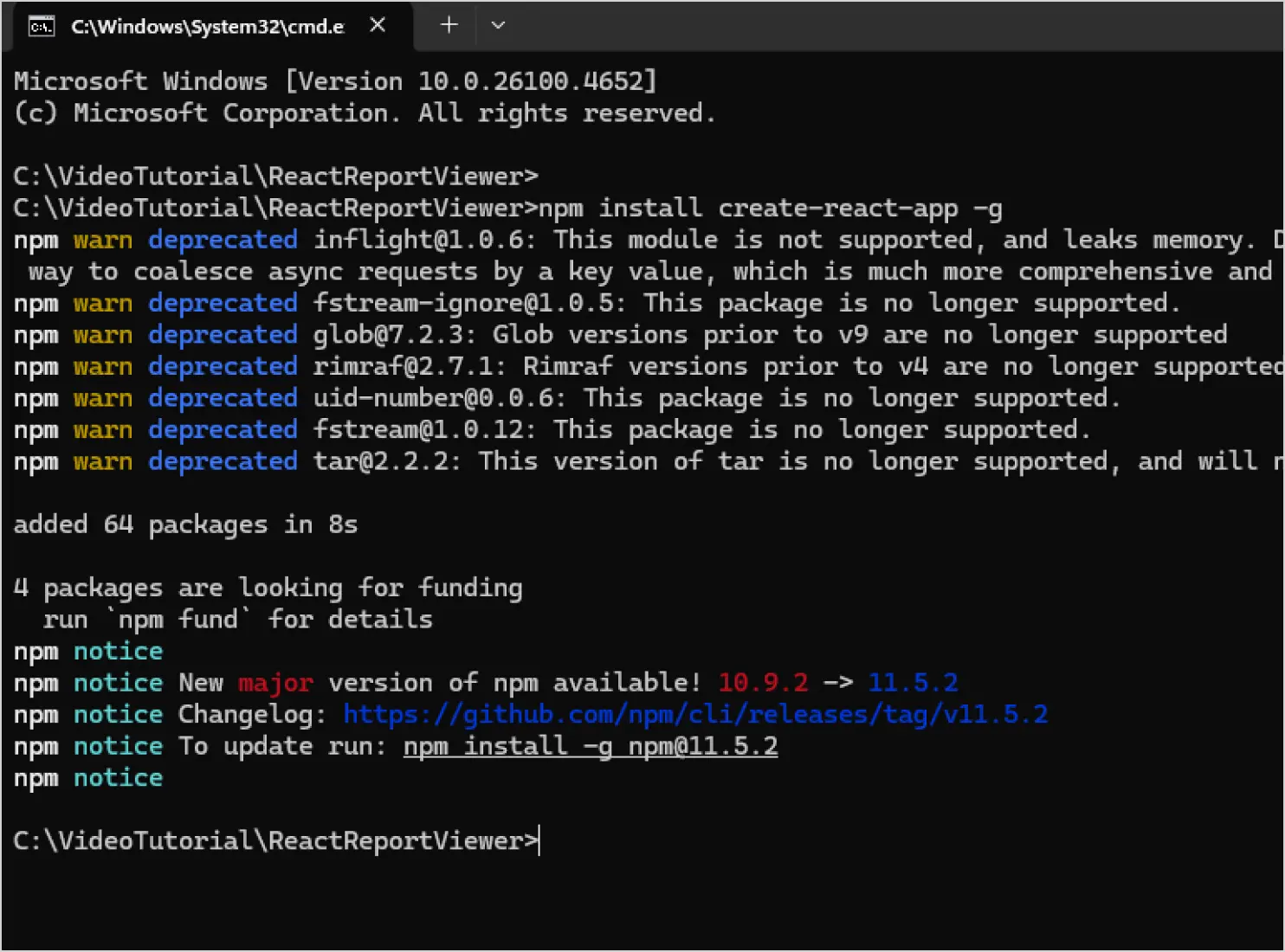
To learn more about the Create React App package, check out this page. Next, let us create a new React application.
Step 2: Create a new React application.
To create a new React application, run the following command in the command prompt.
create-react-app reports
The create-react-app command adds the dependencies required for your React application like React, React-dom, and React-scripts.
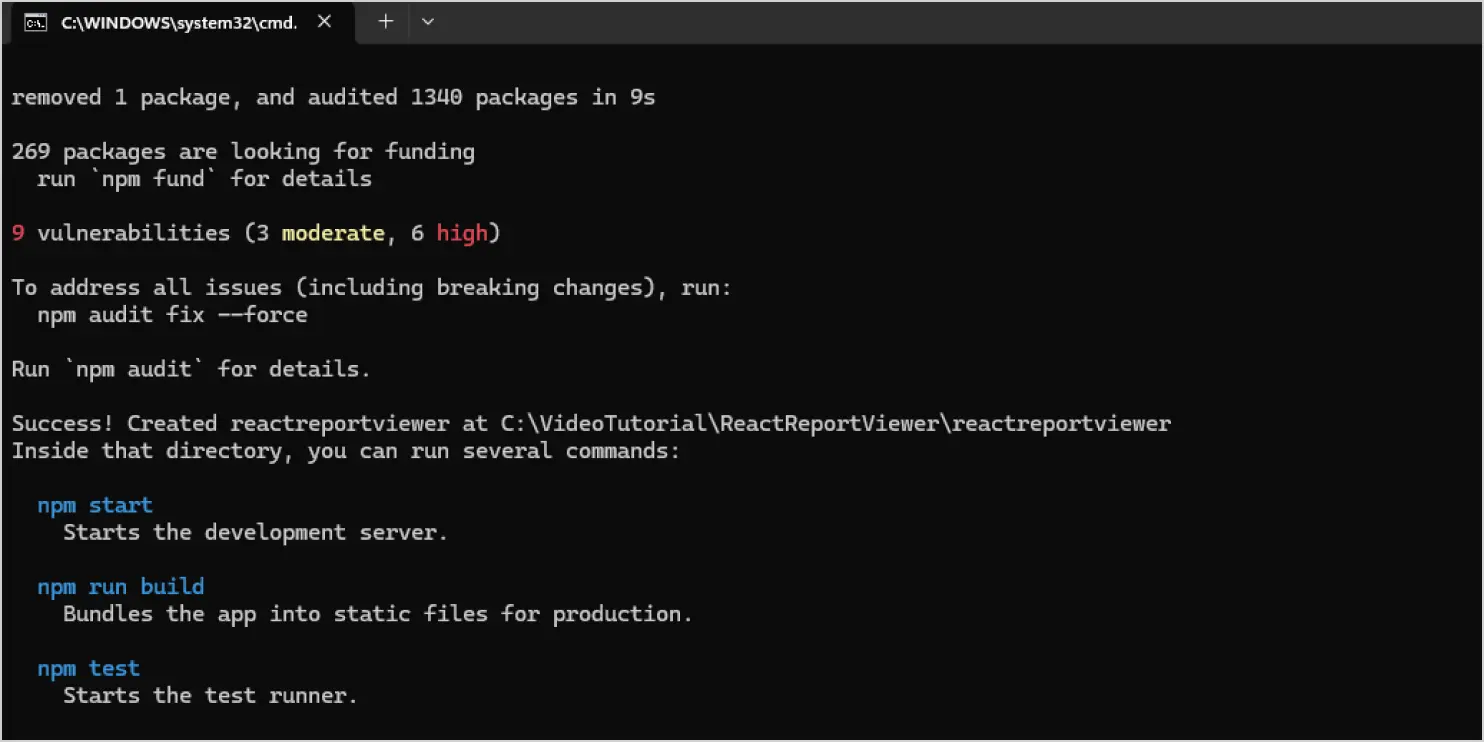
Once the report application is created, next, we’ll install the create-react-class package to enable you to define React components.
Step 3: Install the Create React class.
To configure the Report Viewer component, change the directory to your application’s root folder
cd reports
To install the type definitions for create-react-class, run the following command in the command prompt.
npm install create-react-class --save
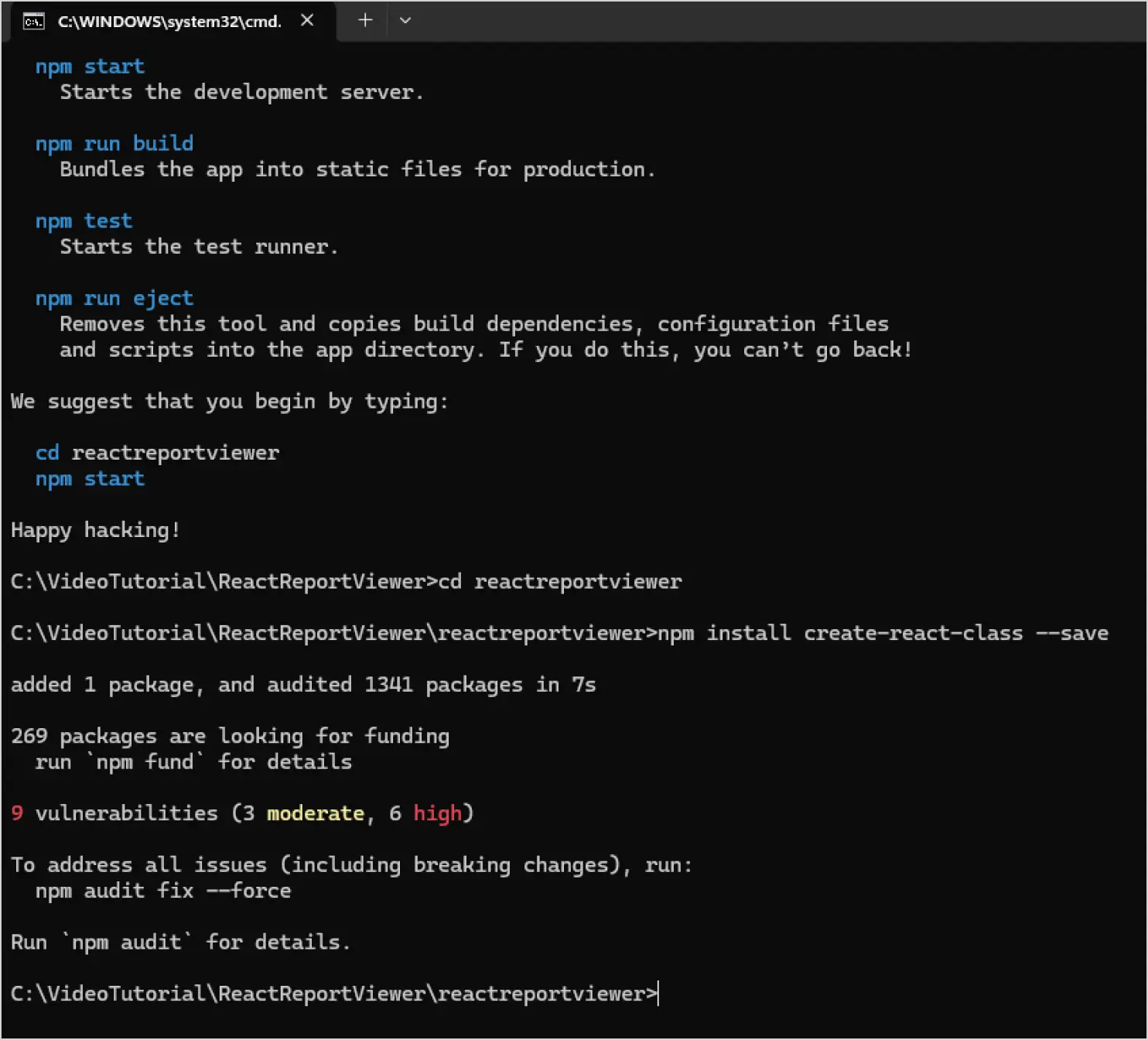
Now that we have installed the create-react-class, we can install the Bold Reports React package.
Step 4: Install the Bold Reports React package.
To install the Bold Reports React package, run the following command in the command prompt.
npm install @boldreports/react-reporting-components@latest —save-dev
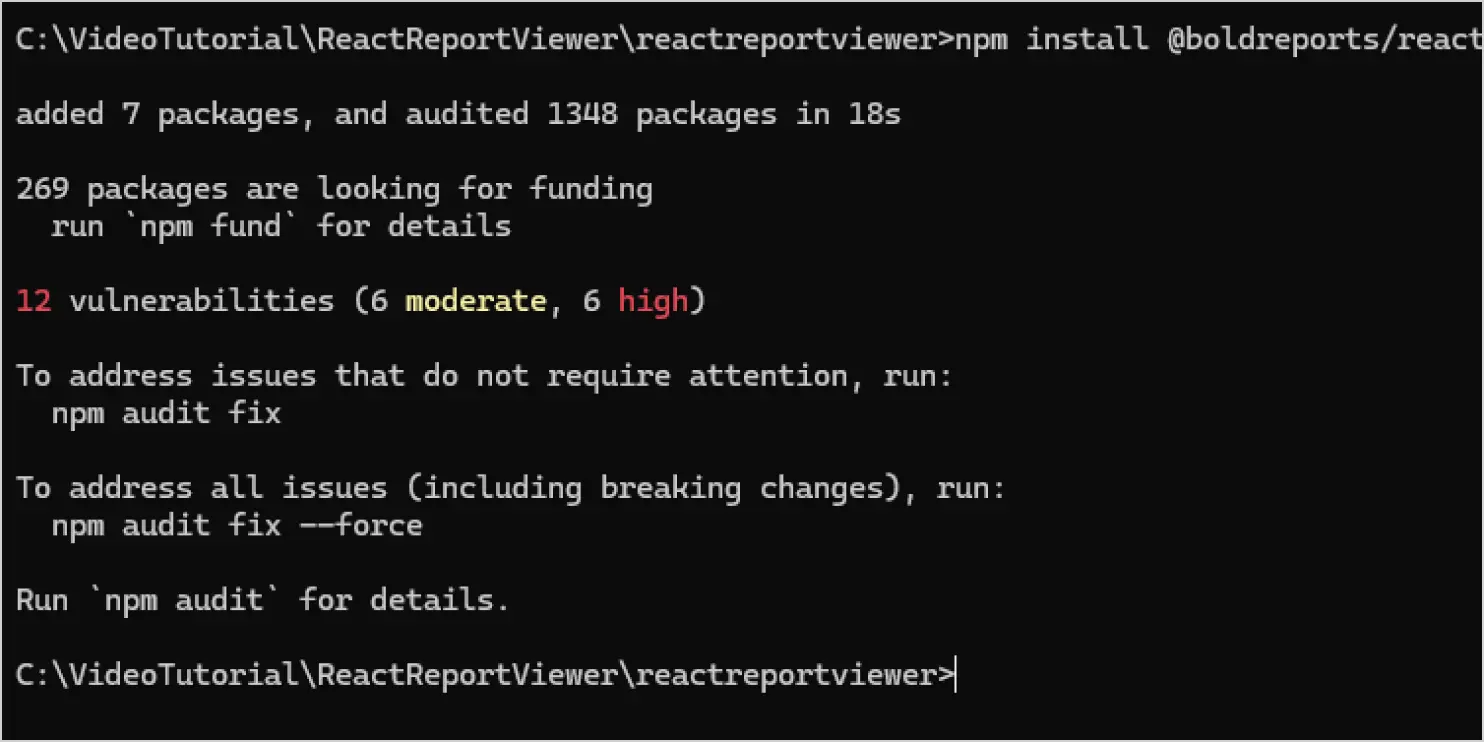
Next, we’ll add the required script references to ensure the Report Viewer component functions correctly within your React application.
Step 5: Add script references.
Bold Reports requires an object to render React components. To set this up, create a file named globals.js in the src directory and import jQuery into it, as shown in the following code snippet.
import jquery from 'jquery';
import React from 'react';
import createReactClass from 'create-react-class';
import ReactDOM from 'react-dom';

window.React = React;
window.createReactClass = createReactClass;
window.ReactDOM = ReactDOM;
window.$ = window.jQuery = jquery;
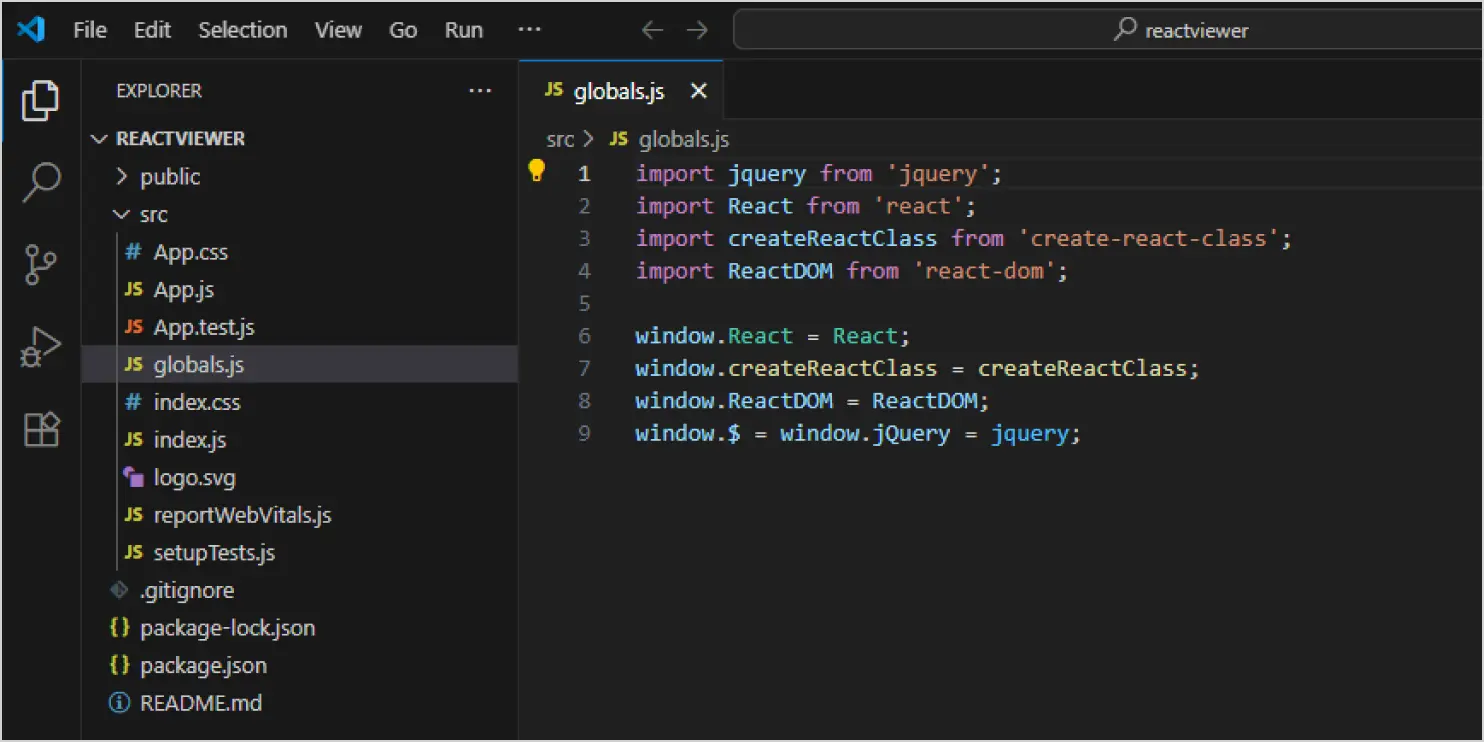
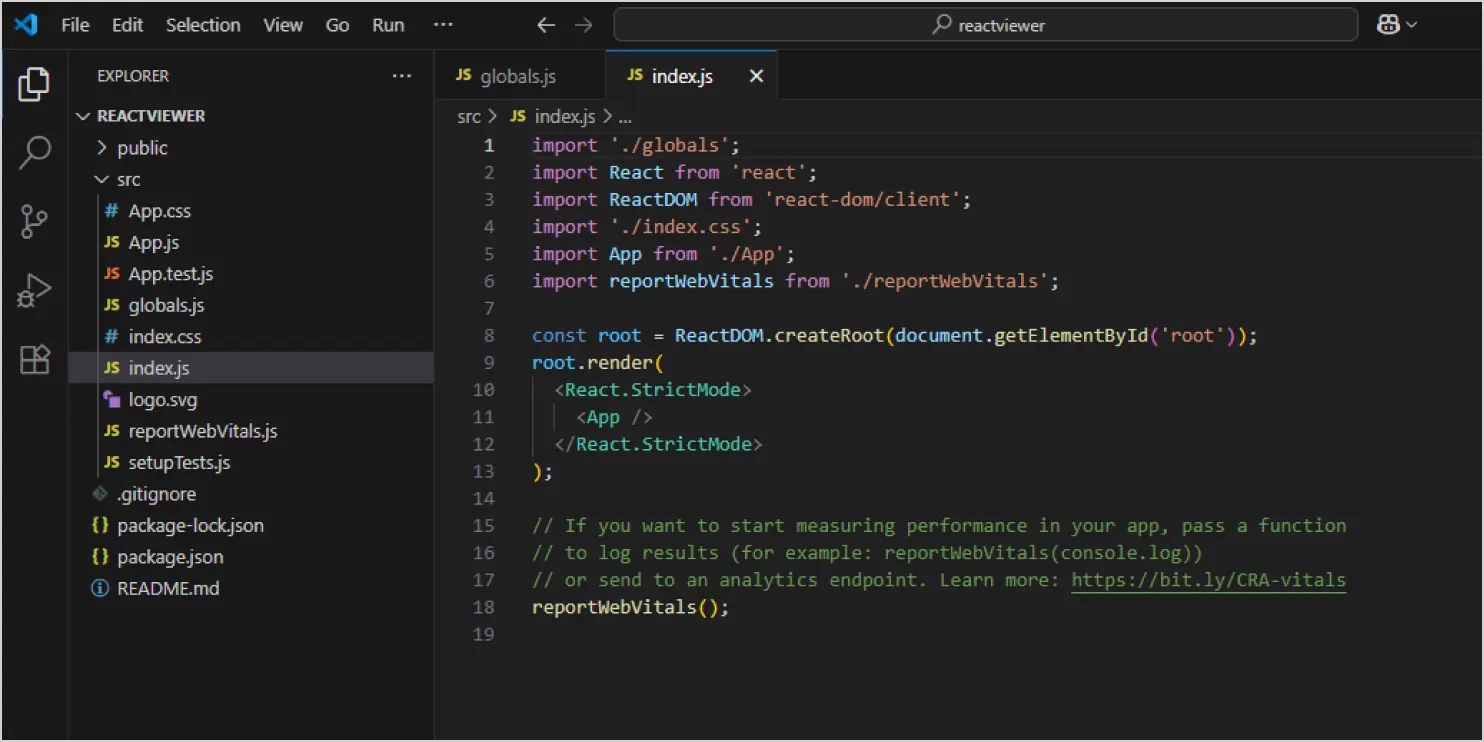
Reference the globals.js file in the index.js file, like in the following code snippet.
Step 6: Add the Report Viewer component.
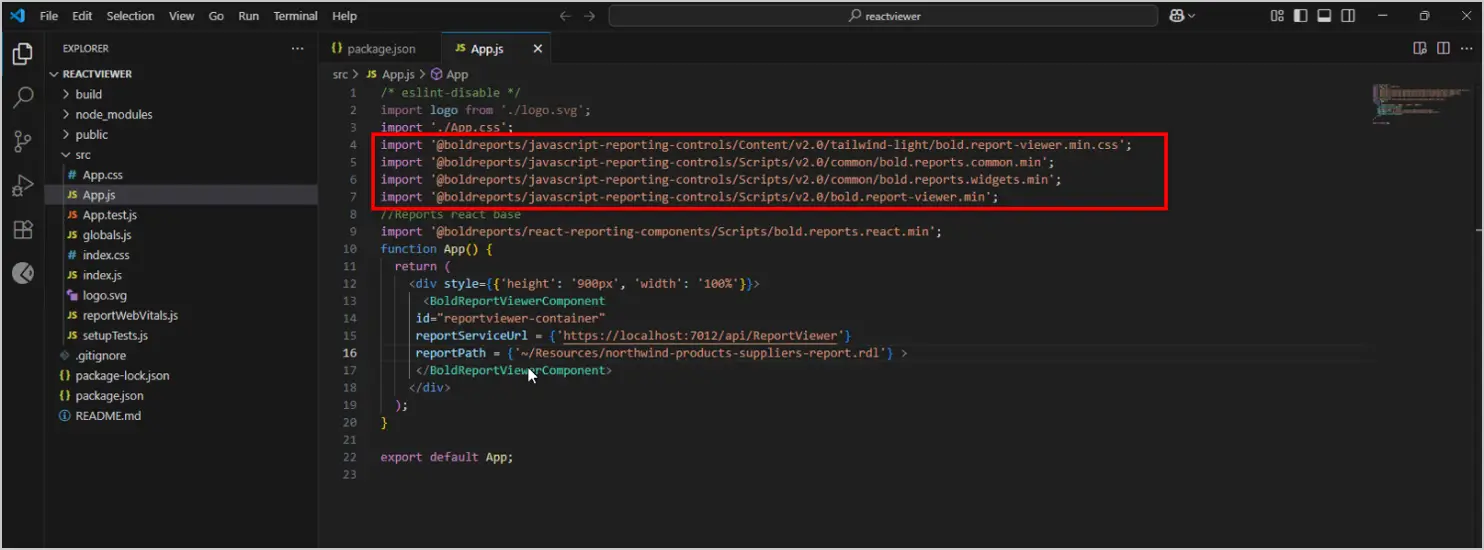
Now, let’s add the Report Viewer component. The Bold Report Viewer script and style files must be imported to run the web Report Viewer. Import the following files into the App.js file.
This is where Report Viewer React comes into play. By adding this component, you successfully embed the React Report Viewer into your application.
/* eslint-disable */
import logo from './logo.svg';
import './App.css';
import '@boldreports/javascript-reporting-controls/Content/v2.0/tailwind-light/bold.report-viewer.min.css';
import '@boldreports/javascript-reporting-controls/Scripts/v2.0/common/bold.reports.common.min';
import '@boldreports/javascript-reporting-controls/Scripts/v2.0/common/bold.reports.widgets.min';
import '@boldreports/javascript-reporting-controls/Scripts/v2.0/bold.report-viewer.min';
//Reports react base
import '@boldreports/react-reporting-components/Scripts/bold.reports.react.min';
function App() {
return (
<div style={{'height': '700px', 'width': '100%'}}>
<BoldReportViewerComponent
id="reportviewer-container"
reportServiceUrl = {'https://demos.boldreports.com/services/api/ReportViewer'}
reportPath = {'~/Resources/docs/northwind-products-and-suppliers-report.rdl'} >
</BoldReportViewerComponent>
</div>
);
}

export default App;
The highlighted viewerStyle is an object used to define the width and height of the Report Viewer control. To embed a report, set the reportPath property to the desired RDL file. You can download the Northwind Products and Suppliers RDL file using the Save option in the Report Designer. Check out Bold Reports React demos for your reference.
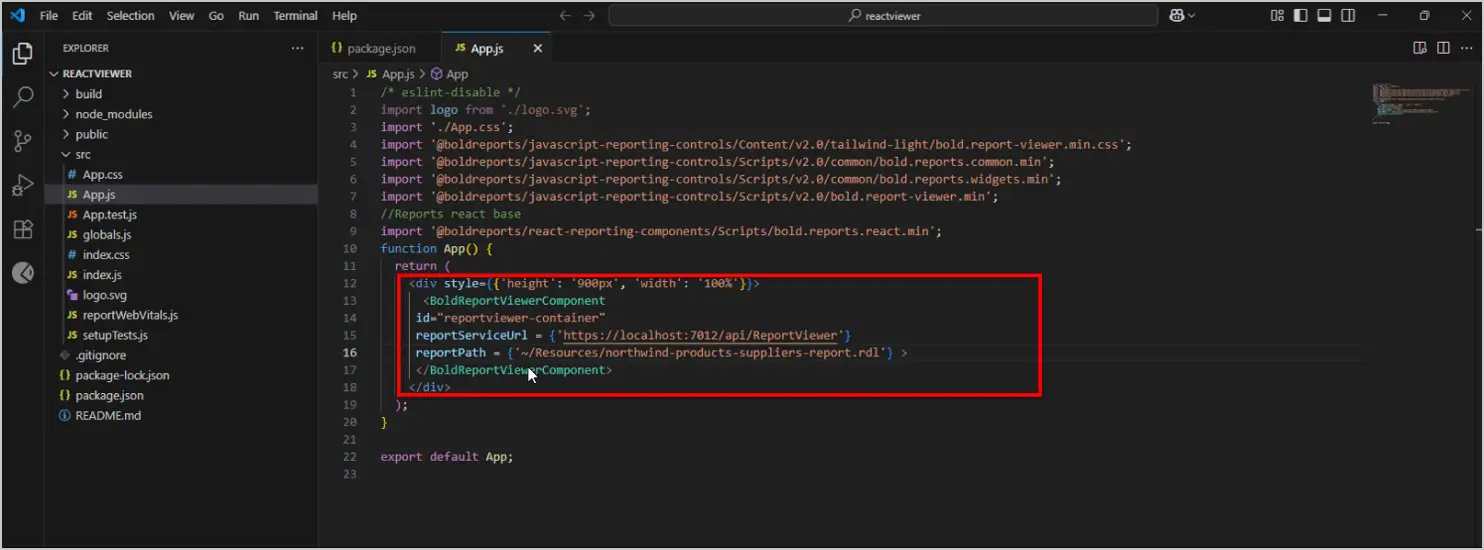
Once the Report Viewer is added, create a web API service to analyze the data and file actions on the viewer component.
Step 7: Create a web API service.
The Bold Report Viewer needs a web API service to process and evaluate the data and file actions. You can create your own web API service by referring to our documentation.
Next, we will set up a web API service URL to establish a connection between the Report Viewer component and the Report Server. This ensures that your application can securely fetch and display reports in real time.
Step 8: Set a Bold Reports web API service URL.
To successfully render the report, open the App.js file and replace the existing code with the code below:
/* eslint-disable */
import React from 'react';
import './App.css';
//Report Viewer source
import '@boldreports/javascript-reporting-controls/Content/v2.0/tailwind-light/bold.report-viewer.min.css';
import '@boldreports/javascript-reporting-controls/Scripts/v2.0/common/bold.reports.common.min';
import '@boldreports/javascript-reporting-controls/Scripts/v2.0/common/bold.reports.widgets.min';
import '@boldreports/javascript-reporting-controls/Scripts/v2.0/bold.report-viewer.min';
//Reports react base
import '@boldreports/react-reporting-components/Scripts/bold.reports.react.min';

var viewerStyle = {'height': '700px', 'width': '100%'};

function App() {
return (
<div style={viewerStyle}>
<BoldReportViewerComponent
id="reportviewer-container"
reportServiceUrl = {'https://demos.boldreports.com/services/api/ReportViewer'}
reportPath = {'~/Resources/docs/northwind-products-suppliers-report.rdl'} >
</BoldReportViewerComponent>
</div>
);
}

export default App;
Lastly, we’ll run the application to verify that the Report Viewer component is properly integrated and functioning as expected. This final step ensures your React app is ready to deliver dynamic, data-driven reports to your customers.
Step 9: Run the application.
To run the application, run the following command in the command prompt.
npm run start
The npm run start command automatically opens your browser “http://localhost:3000/“.
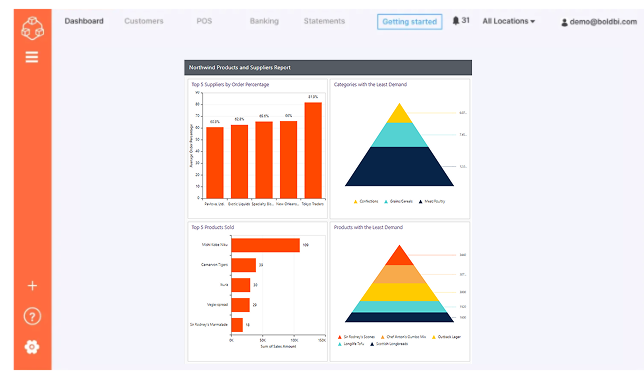
The Northwind-product and suppliers report will be loaded in the Report Viewer. This provides a clear overview of sales performance, helping you identify growth opportunities and optimize your strategy with confidence.
For more information on how to embed the Report Viewer in a React application, refer to our documentation.
Summary
By following these steps and understanding the architecture, you can confidently embed reports in a React application with clarity and precision. This approach supports React SSRS integration, helps you Embed SSRS in React, and complements JavaScript reporting tools. Finally, with the React Report Viewer, you unlock high-quality Reporting in React app workflows without extra complexity.
Ready to get started? Sign up for a 30-day free trial or request a demo today to experience seamless SSRS integration in your React applications.
Frequently asked questions
- 1.
How do I embed SSRS reports in a React application?
You can embed SSRS reports by using the Bold Reports® React Report Viewer component, which supports RDL and RDLC formats and integrates seamlessly with React.
- 2.
Is Bold Reports compatible with React?
Yes, Bold Reports provides a dedicated React package that makes integration straightforward and secure.
- 3.
Do I need a Bold Reports Server to use the Report Viewer?
No, you can render RDLC reports without a server. However, for RDL reports and advanced features, a Bold Reports Server is recommended.
- 4.
How do I secure reports in a React app?
Use token-based authentication and configure embedded parameters for dynamic filtering and secure access.