SSRS Migration: Modernize RDL Reports Without Breaking
TL;DR:
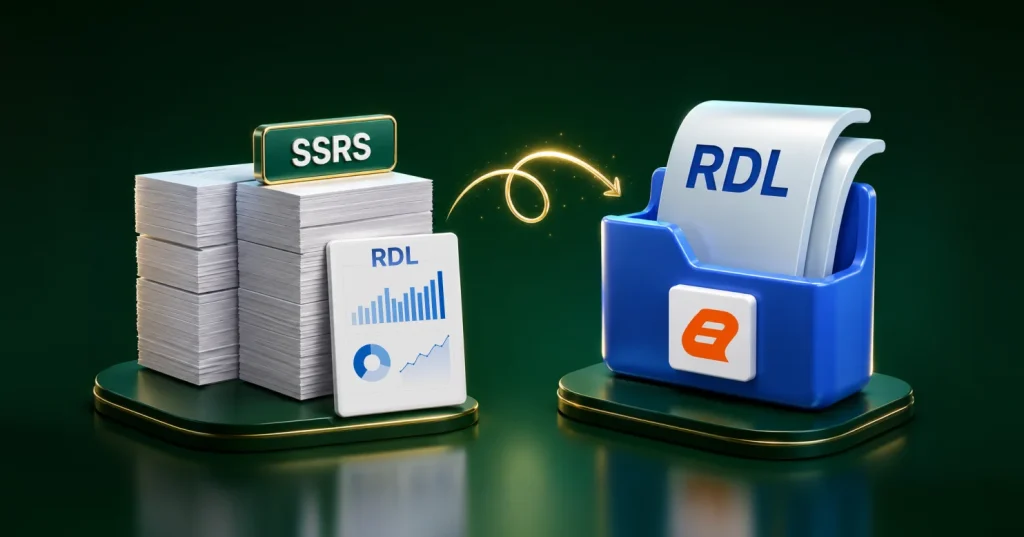
A safe SSRS migration is more than copying RDL files. To prevent downtime and broken reports, migrate SSRS reports along with permissions, shared data sources, and subscriptions, then validate report output and schedules in a parallel environment. Compare results side by side for rendering, parameters, exports, and data accuracy. Fix issues early and complete a phased cutover that minimizes disruption.
Introduction
SQL Server Reporting Services (SSRS) has been a trusted reporting solution for over two decades, powering mission-critical reporting systems across finance, healthcare, manufacturing, and government sectors. Its strength lies in structured, paginated reporting driven by RDL, a format deeply embedded in enterprise ecosystems. However, the reporting landscape has evolved. Organizations are now expected to deliver:
-
- Real-time insights instead of batch reports.
- Web-based access rather than desktop-bound tools.
- Seamless embedding into applications.
- Cloud-ready and scalable reporting infrastructure.
This shift makes SSRS modernization no longer optional. Yet, modernization introduces a major dilemma: How do you migrate hundreds or thousands of RDL reports without breaking them?
Even small compatibility issues can lead to:
-
- Broken layouts.
- Incorrect data rendering.
- Authentication failures.
- Business disruption.
This guide follows a practical, low-risk path so you can move from problem to foundation to execution to solution without losing control of stability.
What is SSRS migration?
SSRS migration is the process of moving SSRS reports (RDL files), shared resources, permissions, and delivery schedules to a newer SSRS version or a compatible reporting platform while maintaining consistent report output. SSRS is Microsoft’s platform for building and delivering operational reports. RDL files define the report layout, datasets, parameters, expressions, and export behavior (HTML, PDF, Excel).
Most SSRS migrations follow one of these paths:
-
- Upgrade: Move to a newer SSRS version with minimal report changes.
- Replatform: Keep existing RDL reports but run them on newer infrastructure.
- Modernize: Maintain RDL compatibility while improving automation, embedding, governance, and scalability.
Migration is typically needed when the current setup is outdated, hard to maintain, slow under load, or no longer meets security and delivery requirements. The goal is to preserve data accuracy, layouts, exports, access controls, and schedules while setting the environment up for long-term growth.

Why modernizing SSRS reports is no longer optional
Most organizations know their reporting needs to evolve, but many still delay modernizing SSRS. The reporting landscape has moved on, and what once felt dependable can now limit speed and usability. The longer modernization is postponed, the further reporting falls behind business needs.
1. Traditional SSRS cannot meet modern user expectations
Today’s users expect more than static, paginated reports. Business teams want:
-
- Interactive dashboards with drill-down capabilities.
- Real-time or near real-time insights.
- Self-service analytics without IT dependency.
- Seamless access across devices.
While SSRS remains strong for pixel-perfect reporting, it struggles to deliver the dynamic and exploratory experiences that modern users demand. This results in slower decision-making and increased reliance on workarounds.
2. Legacy architectures limit scalability and flexibility
Many SSRS deployments are still tightly coupled to on-premises infrastructure. As organizations adopt cloud and hybrid data platforms, this creates friction:
-
- Difficulty integrating with cloud-native data sources.
- Limited scalability for growing workloads.
- Higher infrastructure and maintenance costs.
- Slower adaptation to changing business requirements.
Modern reporting solutions are designed to operate seamlessly across distributed environments, making scalability and flexibility a built-in capability rather than an ongoing challenge.
3. Maintenance overhead continues to grow
Maintaining legacy SSRS environments requires continuous effort:
-
- Managing report servers and dependencies.
- Applying patches and updates manually.
- Troubleshooting performance issues.
- Supporting complex report customizations.
Over time, this operational burden consumes valuable IT resources. Modern platforms reduce this overhead through managed services, automated updates, and simplified administration.
4. Advanced governance and security are now essential
Data governance and compliance requirements have become stricter across industries. Organizations now need:
-
- Fine-grained role-based access control.
- Detailed audit trails and usage tracking.
- Centralized governance across reporting assets.
- Stronger data protection mechanisms.
While SSRS can be secured, it lacks the advanced governance frameworks that newer platforms offer out of the box, making modernization critical for risk management.
5. Slower development cycles impact business agility
Enhancing or building SSRS reports often involves manual processes and specialized expertise. This slows down innovation:
-
- Longer development and deployment timelines
- Difficulty reusing report components
- Limited collaboration between teams
Modern reporting platforms improve developer productivity through intuitive tools, reusable components, and rapid deployment, helping businesses respond more quickly to changing needs.
SSRS has served enterprises well, but modern reporting, cloud adoption, and user expectations have outgrown it. Modernization is now a strategic necessity to stay competitive, agile, and data-driven.
The hidden risks of SSRS migration and what can break
Most organizations assume SSRS migration is mainly about moving RDL files from one environment to another. But SSRS reports are often tied to data sources, permissions, subscriptions, stored procedures, custom code, and business workflows.
That means a report can open successfully after migration and still fail in ways that affect accuracy, performance, security, or usability.
1. RDL compatibility and rendering pitfalls
RDL files move easily, but rendering can change across SSRS versions and environments. A report may open after migration and still look different or export differently.
What can break:
-
- Layout and pagination in tables, charts, headers, and footers
- PDF and Excel export formatting
- Subreports and report references
- Hidden parameters and expressions
Even small rendering differences can create major issues for invoices, compliance reports, financial statements, and executive reporting.
2. Data source and connectivity challenges
Reports rely on the data layer behind them. During migration, data connections and database objects can shift, causing reports to run but return the wrong results.
What can break:
-
- Connection strings and authentication
- Shared data sources and datasets
- Stored procedures, views, and schema dependencies
- Reports pointing to the wrong environment
A migrated report may appear to run but still return incomplete or incorrect data. That makes data source validation essential before going live.

3. Performance regressions in new environments
Some reports do not fail after migration, but they slow down. Changes in server resources, configuration, or network latency can affect load time and exports.
What can break:
-
- Slow rendering and timeouts on large datasets
- Sluggish parameter dropdowns
- Failed or inconsistent PDF and Excel exports
- Caching and snapshots not behaving as expected
Slow reports can frustrate users and reduce confidence in the new environment, even when the report logic itself is correct.
4. Security and role mapping gaps
Permissions often change across servers and domains. If security is not migrated and validated carefully, users may lose access or see data they should not.
What can break:
-
- Folder and report permissions
- Active Directory group mapping
- Custom roles and stored credentials
- Row-level security behavior
Security should not be copied blindly. Every migrated report should be tested against the correct users, roles, and data access rules.
5. Overlooked dependencies that derail migrations
Migration issues often come from missing dependencies, not broken RDL files. Reports can work in manual testing and still fail when scheduled or delivered.
What can break:
-
- Shared assets such as shared datasets, shared data sources, subreports, and linked reports
- Custom code and assemblies used by reports
- Subscriptions, schedules, and delivery settings
- Email configuration, file paths, and service accounts
These dependencies can derail migration if they are not identified early. A report may run manually but fail when delivered by email, or a parent report may open while its subreport fails.
Pre-migration assessment: The foundation of a safe SSRS upgrade
A safe SSRS upgrade starts with reviewing your current reporting environment. This helps identify critical reports, key dependencies, and potential migration risks. Skipping this step can lead to moving unused reports, missing dependencies, or finding compatibility issues too late.
1. Build a complete report inventory
Start by documenting all SSRS assets, not just RDL files. Reports often rely on shared resources, schedules, permissions, and data connections.
The inventory should include:
-
- Report names, folders, owners, and usage patterns
- Shared data sources, shared datasets, and data connections
- Subreports, subscriptions, schedules, and delivery settings
- Key parameters, dependencies, and sensitive data exposure
A clear inventory helps teams decide what to migrate, archive, consolidate, or retire.
2. Classify and prioritize critical reports
Not every report deserves the same migration effort. Some reports support daily operations, finance, compliance, or executive decision-making, while others may be rarely used.
Prioritize reports based on:
-
- Business criticality and number of affected users
- Usage frequency and operational impact
- Data sensitivity and access requirements
- Report complexity and dependency depth
High-priority reports should be migrated and tested first. Low-value or unused reports can be retired or redesigned later.
3. Detect deprecated features early
Legacy SSRS environments may contain outdated features that do not work well in newer versions or modern platforms. Identifying them early prevents failures during testing or go-live.
Teams should check for:
-
- Old RDL schema versions and legacy report features
- Deprecated drivers, data providers, or authentication settings
- Custom assemblies, embedded code, and hardcoded server paths
- Known compatibility gaps in expressions, rendering, and exports
Finding these issues early gives teams time to update, replace, or redesign affected reports before migration.
4. Validate target environment readiness
Before migration begins, the target environment must be ready to support existing reports, users, and delivery workflows.
Readiness checks should confirm:
-
- The platform is configured correctly, and required drivers are installed
- Data sources connect successfully and credentials work as expected
- Permissions, roles, and service accounts are defined and validated
- Email, file shares, subscriptions, and capacity meet workload needs
Validating the target environment early reduces deployment issues and helps reports work reliably after migration.
Choosing the right SSRS migration strategy for your organization
There is no single best way to migrate SSRS reports. The right approach depends on your report inventory, timeline, budget, and risk tolerance. Some teams need to move fast to a supported environment, while others use migration to improve performance and reduce long-term maintenance.
Choosing a strategy early helps avoid rework, delays, and post-migration issues.
1. Lift and shift
Move reports to a new server or environment with minimal changes. This is the fastest option when reports already meet business needs, and the goal is mainly an infrastructure upgrade.
Best fit when:
-
- Reports are stable and still actively used.
- Business logic and layouts do not need changes.
- You have a tight timeline.
- The target environment supports existing RDLs and dependencies.
This approach is fast, but it also moves existing problems into the new environment, such as slow queries, duplicate reports, and fragile dependencies.
2. Replatforming
Move to newer infrastructure while keeping most report design intact, such as a newer SSRS version, Power BI Report Server, or a more scalable hosted setup.
Best fit when you need:
-
- Better scalability and reliability.
- Stronger security and access control.
- Improved performance and modern deployment practices.
- A stronger foundation for future reporting.
This approach still requires thorough validation of connections, permissions, subscriptions, and rendering behavior.
3. Refactoring
Improve reports during migration by optimizing queries, simplifying layouts, removing unused datasets, and redesigning slow or fragile reports.
Best fit when reports have:
-
- Performance or timeout issues.
- Large datasets and slow parameters.
- Complex logic that is hard to maintain.
- High business value and frequent usage.
This takes more time but delivers better long-term stability and maintainability.
4. Hybrid migration
Use different strategies for different reports. Lift and shift stable reports, refactor critical reports, and retire low-value ones.
Best fit when:
-
- The report estate is large or uneven in quality.
- You need quick progress without ignoring critical fixes.
- Some reports are outdated or rarely used.
- You want to control risk and effort.
For many organizations, hybrid migration is the most practical option because it balances speed, stability, and modernization.
| Strategy | Best for | Speed | Effort | Risk level | Long-term value |
| Lift and shift | Moving fast when reports already work | High | Low | Medium | Low |
| Replatforming | Modern infrastructure with minimal redesign | Medium | Medium | Medium | Medium to high |
| Refactoring | Fix performance and maintenance issues during migration | Low | High | Low to medium | High |
| Hybrid migration | Mixed report estate with different priorities | Medium to high | Medium | Low to medium | High |
A step-by-step SSRS migration framework that minimizes risk
A low-risk SSRS migration follows a clear sequence: back up the current environment, prepare the target server, migrate data sources and datasets, publish reports, and validate everything before going live. In Bold Reports®, you typically upload each report along with its required dataset and data source, then confirm it runs correctly.
Step 1: Secure backups and version control
Back up the current SSRS environment, so you have a rollback option and a reliable baseline.
Backups should include:
-
- RDL files, shared datasets, and data sources.
- Parameters, dependencies, and folder structure.
- Permissions, subscriptions, and schedules.
Use version control to track changes made during migration.
Step 2: Set up the target environment
Configure the target server before moving reports to avoid deployment issues.
Confirm that:
-
- The server is accessible, and folders are ready.
- Roles and permissions are defined.
- Database connectivity and upload access are working.
Step 3: Migrate and standardize data sources
Create data sources before uploading reports, then migrate or recreate the required datasets.
Focus on:
-
- Connection strings, credentials, and access validation.
- Shared and standardized data sources to reduce maintenance.
Step 4: Deploy reports in batches
Upload reports in controlled batches rather than all at once.
Ensure you:
-
- Preserve folder structure where needed.
- Validate subreport and linked report paths.
- Log upload errors for quick fixes.
Step 5: Validate output and exports
Compare migrated reports with the original SSRS version to confirm accuracy and formatting.
Validation should cover:
-
- Parameters, calculations, and totals.
- Layout and rendering.
- PDF and Excel exports.
Step 6: Check performance
Test key reports for load time, parameter responsiveness, and export speed. Optimize slow reports before production rollout.
Step 7: Run user acceptance testing
Have business users confirm access, expected results, and export quality for the migrated reports in the Bold Reports Report Server before going live.
How Bold Reports enables zero-disruption SSRS modernization
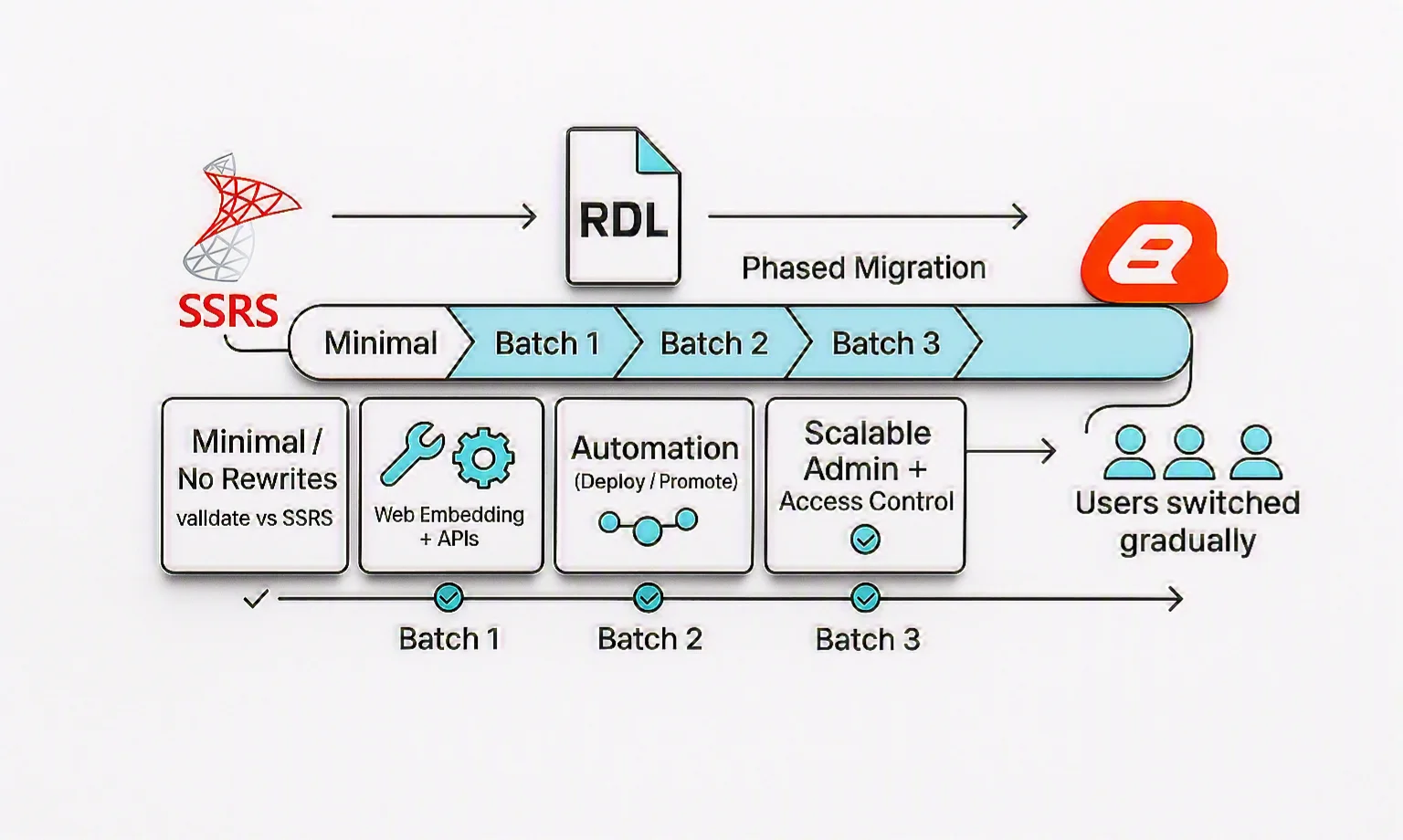
SSRS modernization projects stall when teams must rebuild reports, retrain users, or change delivery workflows. Bold Reports supports a low-disruption approach by keeping existing RDL investments usable while enabling modern embedding, automation, and phased migration.
-
- Native RDL compatibility: Bold Reports supports RDL-based reports, helping teams reuse existing report definitions while preserving established layouts and report logic during migration. This avoids redesigning reports from scratch.
- Minimal or no report rewrites: With RDL compatibility, teams can often reduce manual edits and focus effort on validating results against SSRS output. This shortens migration timelines and lowers the chance of logic regressions during cutover.
- Web embedding and APIs: Teams can embed reports into internal portals or customer-facing applications. APIs enable automation for tasks like deployments and environment promotion, so reporting fits into existing engineering workflows.
- Scalable, modern reporting infrastructure: A web-based delivery model with centralized administration simplifies management as report volume and concurrent usage grow. This helps when access control and catalog organization become harder to maintain on legacy SSRS deployments.
- Migration-friendly architecture: Migrate reports in batches, validate output quickly, and switch users over gradually. This avoids big bang disruption and reduces risk for business-critical reporting.
Bold Reports provides a practical path off SSRS by preserving RDL investments while enabling modern embedding and automation. The result is a phased rollout that reduces disruption for both developers and report consumers.
Final thoughts
SSRS migration is no longer just about moving reports; it’s about building a secure, reliable, future-ready reporting environment while preserving the business logic users already trust.
Before cutover, validate security and compliance end-to-end. Confirm least-privilege access at the folder, report, and data source levels; secure stored credentials; audit ownership and subscriptions; and keep dev, QA, and production clearly separated.
After migration, optimize using real performance data. Separate query time from rendering time, apply caching where it improves repeat access, and monitor failures, latency spikes, and queue buildup, so issues are caught early.
The biggest risks come from skipping assessment and regression testing, overlooking PDF/Excel exports, migrating without standardized shared data sources, cutting over without a rollback plan, and carrying unused reports into the new platform.
A structured, tool-supported approach reduces disruption and helps ensure long-term value through clear inventory, phased rollout, security validation, and performance tuning.
Modernize your SSRS reports with less risk and more confidence. Start your free 30-day trial or book a personalized demo today.
Frequently asked questions
- 1.
What is the safest way to perform an SSRS migration?
Inventory all reports, classify them by criticality, standardize shared data sources, and run side-by-side validation using real parameters and real exports before cutover.
- 2.
Why do RDL reports break even when the target supports RDL?
Because rendering depends on fonts, pagination behavior, expression evaluation, data providers, and external resources. Small differences can change layout and exports.
- 3.
What should I validate first during SSRS migration testing?
Start with Tier 0 reports and validate the export formats users rely on most, usually PDF and Excel, plus totals, grouping, and parameter behavior.
- 4.
How do I migrate SSRS security roles without creating access issues?
Document current folder inheritance and role assignments, map groups and users to the target identity system, and test by role with non-admin accounts.
- 5.
How do I handle SSRS subscriptions and schedules during migration?
Treat them as first-class migration objects: inventory them, validate data-source permissions for subscription owners, and run schedules in staging with real-time windows.
- 6.
Is “SSRS to Power BI” migration the same as SSRS migration?
No. SSRS migration preserves RDL-based operational reporting. Moving to Power BI often requires redesigning reports, data models, and distribution patterns.
- 7.
What is an SSRS migration tool, and when do I need one?
A migration tool helps automate inventory, deployment, and validation tasks. It is most useful when you have many reports, strict uptime requirements, or need repeatable environments.
- 8.
How can I automate SSRS reports after modernization?
Use API or scriptable workflows for deployments, rebinding data sources, permission setup, and scheduled validations. This reduces manual errors and speeds up releases.