Crystal Reports Viewer vs. Modern Web Report Viewers

TL;DR:
The real difference between the Crystal ReportViewer control used in .NET Framework applications and a modern web report viewer is the runtime.is tied to the .NET Framework and Web Forms, and SAP Crystal Reports has no support for .NET Core or .NET 5+. A web report viewer runs natively in ASP.NET Core, renders in the browser with no client install, and embeds inside your app. When you move to a web report viewer, the catch is that your .rpt files can’t migrate directly; you have to convert them to a modern report format like RDL.
Introduction
When teams compare the Crystal Reports Viewer with a modern web report viewer, the choice rarely comes down to report design. Both render tables, group and total data, take parameters, and export to PDF and Excel. What separates them is everything around the report: the runtime each one needs, whether it renders in a browser or through an installed control, and how cleanly it fits into an application you’re modernizing.
For clarity, this article focuses primarily on the CrystalReportViewer control used in .NET Framework applications rather than the standalone SAP Crystal Reports Viewer desktop application. This is the component most teams encounter when evaluating ASP.NET Core and .NET modernization projects.
However, reporting requirements have evolved. Organizations increasingly need to deliver reports through web browsers, provide access to external customers, embed reporting into applications, support mobile users, and simplify report administration across growing audiences.
As these requirements become more common, many teams begin evaluating whether their current Crystal Reports viewing approach can support future needs as effectively as it supports existing ones. In many cases, the comparison shifts from the traditional Crystal Reports Viewer to a modern web report viewer designed for browser-based access, application embedding, and centralized report management.
This guide is written for teams facing that choice, particularly any whose reporting is stuck in the middle of a .NET Framework to .NET Core migration. It covers the differences that actually affect the decision, what happens to your .rpt files when you switch, and a staged path to migrate without freezing the business.
Why developers are comparing these in the first place
Almost nobody sits down to compare a Crystal Reports Viewer against a web report viewer out of curiosity. The comparison starts because something broke or is about to.
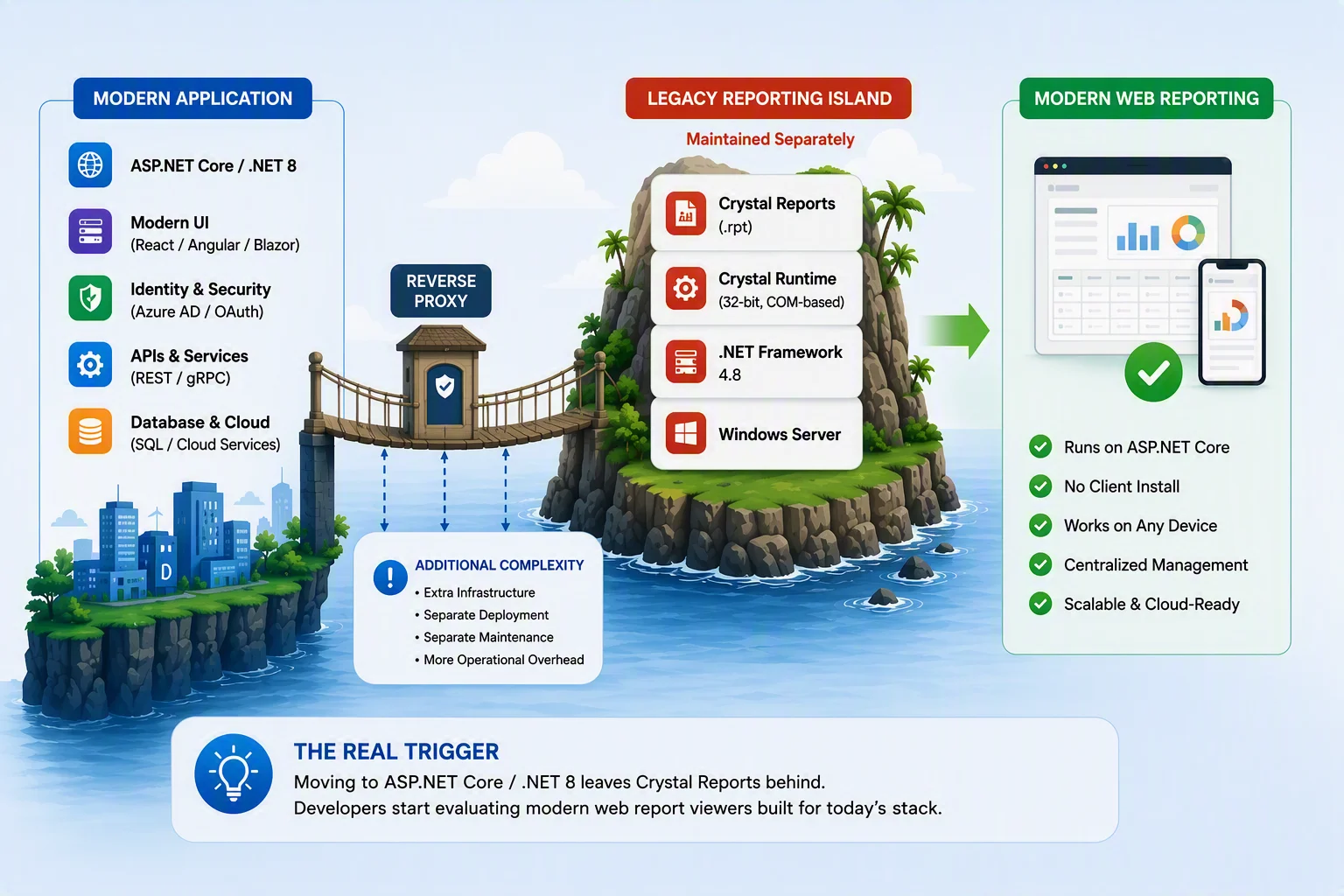
The most common trigger looks like this: a team is moving a line-of-business app from ASP.NET Web Forms or MVC on .NET Framework to ASP.NET Core on .NET 8, and they hit a wall. The app has dozens or hundreds of .rpt reports rendered through the CrystalReportViewer control, and that control does not come along for the ride. Crystal Reports for Visual Studio relies on a 32-bit, COM-based runtime tied to the Windows registry, the GAC, and .NET Framework internals that don’t exist in .NET Core.
The usual advice in developer forums makes the problem clear: keep the reports in a separate .NET Framework 4.8 web app and reverse-proxy to it from your Core app, because a .NET Core app can’t call a 4.8 reporting DLL directly. That works, but it leaves you indefinitely maintaining a legacy reporting island bolted onto a modern application. For a lot of teams, that’s the moment the comparison becomes serious.
The timing pressure is real, too. SAP Crystal Reports has no roadmap for native .NET Core support, and mainstream maintenance for the current Crystal Reports release is winding down. When the framework moves and the reporting layer can’t follow, the decision is made for you.
What is Crystal Reports Viewer?
Crystal Reports Viewer is a component that renders, navigates, and exports Crystal Reports (.rpt) files for end users. In the .NET world, it usually means one of two things:
-
- The CrystalReportViewer control, embedded in a .NET Framework application (Web Forms or WinForms) to display a report inside an app.
- The SAP Crystal Reports Viewer desktop application, used to open and browse standalone .rpt files.
Both are built around the .rpt format and the Crystal Reports runtime. They work well inside the environment they were designed for: established .NET Framework apps where Crystal Reports is already part of the reporting lifecycle. Where they struggle is anywhere that environment has changed, such as browser-only access, ASP.NET Core, containers, external users, or embedding reports into a modern SaaS product.
What is a web report viewer?
A web report viewer is a browser-based viewing component designed to render reports using HTML and JavaScript and run inside current application stacks. Instead of depending on a desktop control or a specific framework version, it’s built to embed in web apps, authenticate through modern identity systems, and scale behind normal web infrastructure.
A modern web report viewer is typically designed to:
-
- Render in any browser with no client-side installation or plugin.
- Embed inside ASP.NET Core, Angular, React, and Blazor apps through SDKs and NuGet packages.
- Handle concurrent users and export workloads on standard server or cloud infrastructure.
- Support role-based access, single sign-on, auditing, scheduling, and export controls from a central place.
Bold Reports® is one example of this approach: it’s a browser-based report viewer and platform for embedding reporting into .NET and web applications, with centralized management across cloud, on-premises, and hybrid deployments.
Side-by-side comparison: The differences that decide it
| Area | Crystal Reports Viewer | Modern Web Report Viewer |
| Runtime | .NET Framework, 32-bit COM-based runtime. | Runs natively on .NET Core and .NET 8+. |
| ASP.NET Core support | None (needs a .NET Framework 4.8 host and reverse proxy). | First-class ASP.NET Core support. |
| Where it renders | In-app control or desktop app. | In the browser, on any device, without any installation. |
| Embedding in web apps | Bound to Web Forms, making it hard to embed in modern SPAs. | Built to embed in ASP.NET Core, Angular, React, and Blazor. |
| Report format | .rpt (specific to Crystal Reports) | RDL (Report Definition Language) |
| Deployment | Windows and .NET Framework dependent. | Cloud, on-premises, or hybrid. |
| Access control | App and environment dependent. | Centralized RBAC, SSO, and auditing. |
| Scaling | Tied to the host application. | Reporting services can scale independently of the application. |
| Best fit | Stable .NET Framework apps staying on the .NET Framework. | Apps modernizing to Core or going browser-first. |
The rest of this guide explains the rows that matter most.
The five differences that matter most
1. Runtime and framework support
This is the one that starts most migrations. The CrystalReportViewer control only runs on .NET Framework. There is no supported way to drop it into an ASP.NET Core app. Your options are to keep a parallel .NET Framework 4.8 service alive for reporting, or move to a viewer that runs on Core.
A web report viewer built for .NET Core removes the parallel-service problem. You install a NuGet package, add the viewer to your Core app, and render through the same runtime as the rest of your application. If your reason for looking is “we’re on .NET 8 now,” the decision is clear.
2. Browser access and deployment
The CrystalReportViewer control was designed for an in-app or desktop experience on Windows. Serving reports to users on any device, without a plugin or install, and often to people outside your network, wasn’t the original design goal.
A web report viewer renders standard HTML in the browser. That matters most when reporting must reach customers, partners, or a distributed workforce, not just internal staff on managed machines. It also simplifies deployment: you’re serving a webpage, not distributing a runtime.
3. Embedding into your application
Reporting has moved from a separate destination to part of the product. Users expect to open a report inside the CRM, the ERP, the portal, or the SaaS app they’re already in, not launch a different tool.
Embedding Crystal Reports into a modern web app usually means custom integration work, and it gets harder the further you move from Web Forms. A modern web report viewer is built for this. It often provides SDKs for ASP.NET Core, Angular, React, and Blazor, with parameters and deep-linking so a report drops into a page as a first-class part of the UI.
4. What happens to your .rpt files?
This is the question every migration hinges on, so here’s the straight answer: .rpt files do not move over as is. A web report viewer that renders RDL cannot open a Crystal Reports .rpt file directly. Existing Crystal Reports must be converted to the RDL format before they run in the new viewer.
That’s the real switching cost, and you should determine it before committing. Simple tabular and parameterized reports usually convert cleanly. Reports that lean on Crystal Reports-specific formulas, subreports, or heavy custom formatting need review and, in some cases, rebuilding.
The practical approach is to convert a representative sample first (your most complex report and your most-used report) and measure the effort before you plan the full set. Any vendor who tells you the conversion is effortless is skipping this step.
5. Governance, scaling, and administration
While reporting stays inside one department on one app, the Crystal Reports setup is manageable. As reporting spreads to more users, more apps, and external audiences, administration becomes the hard part: permissions, scheduling, distribution, export policies, and audit trails.
A modern web report viewer usually pairs with a management layer, so role-based access, SSO, auditing, and export controls live in one place instead of being wired into each application. The reporting infrastructure can also scale independently of the application, which helps prevent high export volumes and spikes in concurrent users from affecting overall application performance.
Who should stay, and who should move
-
- Crystal Reports Viewer is still a reasonable fit if your app is staying on the .NET Framework, your reporting audience is internal and stable, and you have no near-term modernization or browser-access requirement. If nothing is forcing a change, a working Crystal Reports setup can keep serving day-to-day needs.
- A web report viewer is the better fit if you’re migrating to ASP.NET Core and .NET 8, you need browser-based or customer-facing reporting, you want reports embedded inside your app, or you’re tired of maintaining a legacy .NET Framework service just to render reports. If any of these are on your roadmap, the CrystalReportViewer control tends to become the blocker rather than the solution.
What migrating actually looks like
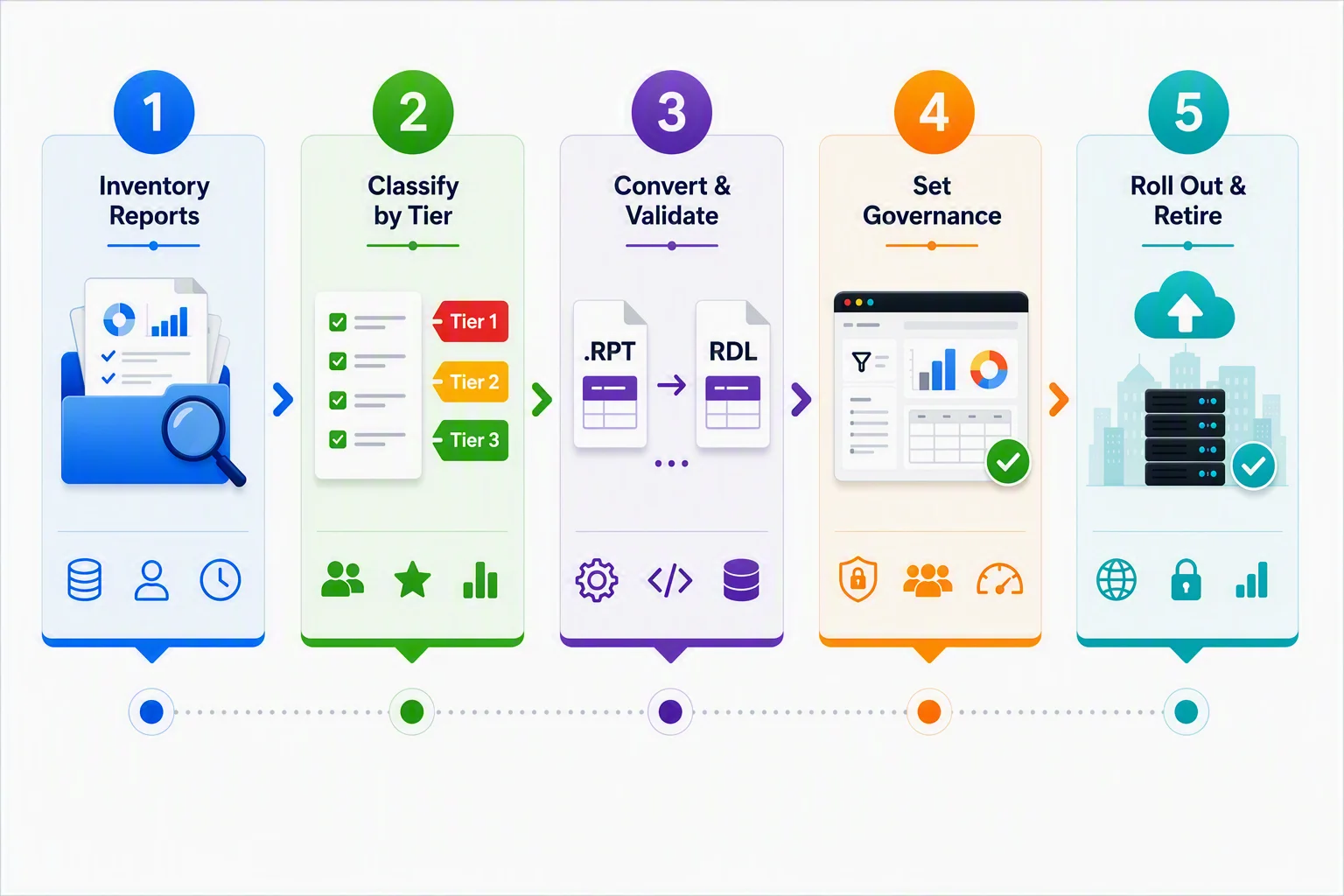
You don’t have to move everything at once. A staged approach lowers risk and lets you prove the effort on a small set first.
- Inventory: List your reports with owner, format, audience, access method, frequency, and data source. You’ll usually find a chunk of reports nobody runs anymore. Those can be retired.
- Classify by criticality: Tier 1 is executive, revenue, and compliance reports, tier 2 is operational and day-to-day reports, and tier 3 is legacy, low-use, and duplicate reports.
- Validate representative reports end to end: Convert your most complex .rpt report and your most-used .rpt report to RDL, wire them into the new viewer inside a real application, and confirm that authentication, parameters, exports, and performance all work as expected.
- Set governance before you scale: Define roles, permissions, data-connection policies, and audit requirements once so they apply everywhere as you expand.
- Roll out tier by tier: Migrate by business value and complexity, add scheduling and distribution where needed, and retire the legacy .NET Framework reporting service once the last report is off it.
How Bold Reports fits
Bold Reports is a browser-based reporting platform for teams moving off legacy report viewers. It runs natively on ASP.NET Core/.NET, renders reports in the browser with no client install, and embeds into web and .NET applications through SDKs and NuGet packages. Its centralized management covers role-based access, scheduling, distribution, and export control, and you can deploy to cloud, on-premises, or hybrid environments.
On the .rpt question: Bold Reports renders RDL, so Crystal Reports are converted to RDL as part of the move rather than opened directly. That’s worth validating a sample of your reports early, which is exactly what the “validate one real report” step is for.
Final thoughts
The choice to stick with Crystal Reports Viewer or move to a modern web viewer comes down to where your application is heading, not how your reports look today. If you’re staying on the .NET Framework with a stable internal audience, Crystal Reports Viewer will keep doing its job. The moment .NET Core, browser access, external users, or embedded reporting lands on the roadmap, Crystal Reports Viewer stops being a viewer and becomes the thing blocking your migration.
When that happens, the smart move isn’t picking a replacement from a feature table; it’s proving the switch with your own reports. Take representative reports, such as your most complex report and your most-used report, convert them to RDL, and run them in a browser-based viewer inside a real .NET Core application. Those tests will tell you more about effort, fidelity, and fit than any comparison chart, and they turn an open-ended migration into a scoped one.
Ready to plan your migration? If you’re moving off Crystal Reports because of .NET Core, browser access, or embedding, the fastest way to know what your migration involves is to try it on a real report. Start a 30-day free trial or request a demo to see a report running in a browser-based viewer inside a .NET Core app and to preview what converting your .rpt files will require.
Frequently asked questions
- 1.
What’s the difference between the CrystalReportViewer control and a web report viewer?
The CrystalReportViewer control renders .rpt reports inside a .NET Framework application and doesn’t run on .NET Core. A web report viewer renders in the browser, runs on ASP.NET Core, and embeds into modern web apps.
- 2.
Can I use Crystal Reports in ASP.NET Core?
Not natively. SAP Crystal Reports has no .NET Core support. Teams either keep reporting in a separate .NET Framework 4.8 app and reverse-proxy to it or move to a viewer that runs on .NET Core.
- 3.
Can I keep my .rpt files if I move to a web report viewer?
Not directly. A viewer that renders RDL cannot open .rpt files as is. Your Crystal Reports are converted to RDL during migration. Simple reports convert cleanly; complex ones may need rework.
- 4.
Which report viewer is better for customer-facing portals?
A web report viewer is better because it’s built for browser-only access, centralized permissions, and embedding into portal pages without a client install.
- 5.
Do I have to migrate everything at once?
No. Inventory and tier your reports, validate one or two end to end, and then migrate tier by tier.
- 6.
What should I test in a proof of concept?
Convert your most complex and most-used reports, and then check rendering accuracy, parameters, the exports your users rely on (PDF/Excel), peak concurrency, and your permission model.
- 7.
Why do web report viewers scale better operationally?
They let you run and scale the reporting tier independently and manage scheduling, distribution, and permissions centrally, instead of coupling all of it to a single app.