
Embedding Bold Reports® reports in your Blazor WebAssembly (WASM) app can be tricky, often requiring a separate web API. Bold Reports streamlines this by offering a built-in web API, allowing you to easily display report server reports directly within your Blazor WASM app using the Bold Reports Report Viewer.
In this step-by-step guide, we’ll walk through how to embed using Bold Reports Report Viewer within a Blazor WASM application.
Let’s get started!
Prerequisites
Ensure that your development environment includes the following:
- Visual Studio Code
- .NET 8.0 SDK or higher
Create Blazor WebAssembly application
To create a new Blazor WASM Server application, open a command prompt, navigate to the directory where you want to create the project by using the cd command, and then run the following command:
dotnet new blazorwasm -n ReportViewerApp
A new Blazor WASM application named ReportViewerApp will be created.
Add scripts and themes for Blazor Report Viewer
Include the following CDN links along with the boldreports-interop.js file in the head section of the wwwroot\index.html file to integrate the Bold Reports JavaScript reporting controls into your Blazor application.
<link href="https://cdn.boldreports.com/6.1.34/content/material/bold.reports.all.min.css" rel="stylesheet" />
<script src="https://cdnjs.cloudflare.com/ajax/libs/jquery/3.6.0/jquery.min.js"></script>
<!--Used to render the gauge item. Add this script only if your report contains the gauge report item. -->
<script src="https://cdn.boldreports.com/6.1.34/scripts/common/ej2-base.min.js"></script>
<script src="https://cdn.boldreports.com/6.1.34/scripts/common/ej2-data.min.js"></script>
<script src="https://cdn.boldreports.com/6.1.34/scripts/common/ej2-pdf-export.min.js"></script>
<script src="https://cdn.boldreports.com/6.1.34/scripts/common/ej2-svg-base.min.js"></script>
<script src="https://cdn.boldreports.com/6.1.34/scripts/data-visualization/ej2-lineargauge.min.js"></script>
<script src="https://cdn.boldreports.com/6.1.34/scripts/data-visualization/ej2-circulargauge.min.js"></script>
<!--Used to render the map item. Add this script only if your report contains the map report item.-->
<script src="https://cdn.boldreports.com/6.1.34/scripts/data-visualization/ej2-maps.min.js"></script>
<!-- Report Viewer component script-->
<script src="https://cdn.boldreports.com/6.1.34/scripts/common/bold.reports.common.min.js"></script>
<script src="https://cdn.boldreports.com/6.1.34/scripts/common/bold.reports.widgets.min.js"></script>
<!--Used to render the chart item. Add this script only if your report contains the chart report item.-->
<script src="https://cdn.boldreports.com/6.1.34/scripts/data-visualization/ej.chart.min.js"></script>
<script src="https://cdn.boldreports.com/6.1.34/scripts/bold.report-viewer.min.js"></script>
<!-- Blazor interop file -->
<script src="boldreports-interop.js"></script>
Report Server configuration to render the report
To embed reports from your Report Server in the Report Viewer, here’s the information you’ll need to add:
- reportServiceUrl: The URL for the Report Server reporting service.
- reportServerUrl: The URL for the Report Server.
- serviceAuthorizationToken: A security token if your reports require login. You can refer to the documentation on how to generate the token within an application.
- reportPath: The path of the report, which should be formatted with the category and report name. For example: /{category name}/{report name}.
Depending on your Report Server type, you can follow one of the following procedures:
Initialize the Report Viewer
To set up the Report Viewer with the required parameters, you’ll have to incorporate the Bold Reports Report Viewer control by generating an interop file. Follow these steps:
- Create a new class file called cs in the Data folder. This file will store properties for configuring the Report Viewer.
namespace BlazorReportingTools { public class BoldReportViewerOptions { public string? reportPath { get; set; } public string? reportServiceUrl { get; set; } public string? reportServerUrl { get; set; } public string? serviceAuthorizationToken { get; set; } } } - Create a folder named scripts inside the wwwroot directory. Inside this folder, create a file called boldreports-interop.js. Add the following code to make the Bold Report Viewer work properly, setting up the reportPath, reportServiceurl, reportServerUrl, and serviceAuthorizationToken:
// Interop file to render the Bold Report Viewer component with properties.
window.BoldReports = {
    RenderViewer: function (elementID, reportViewerOptions) {
        $("#" + elementID).boldReportViewer({
            reportPath: reportViewerOptions.reportPath,
            reportServiceUrl: reportViewerOptions.reportServiceUrl,
            reportServerUrl: reportViewerOptions.reportServerUrl,
            serviceAuthorizationToken: reportViewerOptions.serviceAuthorizationToken
        });
    }
}
Embed Blazor Report Viewer in a Razor page
Open the Pages/home.razor file and insert the following code. This code injects IJSRuntime and calls the JavaScript interop with the Report Viewer URL created in the Index.razor file. It allows you to view reports.
@page "/"
@using Microsoft.JSInterop
@using Microsoft.AspNetCore.Components
@inject IJSRuntime JSRuntime
@using BlazorReportingTools;

<div id="report-viewer" style="width: 100%;height: 700px"></div>
@code {
    // ReportViewer options
    BoldReportViewerOptions viewerOptions = new BoldReportViewerOptions();
    // Used to render the Bold Report Viewer component in Blazor page.
    public async void RenderReportViewer()
    {
        viewerOptions.reportPath = "/Sample Reports/Sales Order Detail";
        viewerOptions.reportServiceUrl = "http://{report_server_name}/reporting/reportservice/api/Viewer";
        viewerOptions.reportServerUrl = "http://{ report_server_name}/reporting/api/site/site";
        viewerOptions.serviceAuthorizationToken = "bearer token";
        await JSRuntime.InvokeVoidAsync("BoldReports.RenderViewer", "report-viewer", viewerOptions);
    }
    // Initial rendering of Bold Report Viewer

    protected override void OnAfterRender(bool firstRender)
    {
        RenderReportViewer();
    }
}
This code includes the following methods to render the Blazor Report Viewer:
| Method | Description |
| RenderReportViewer | Renders the Report Viewer components in a Blazor page. |
| OnAfterRender | Initializes the Report Viewer by calling the newly created RenderReportViewer method. |
Run the Blazor WebAssembly application
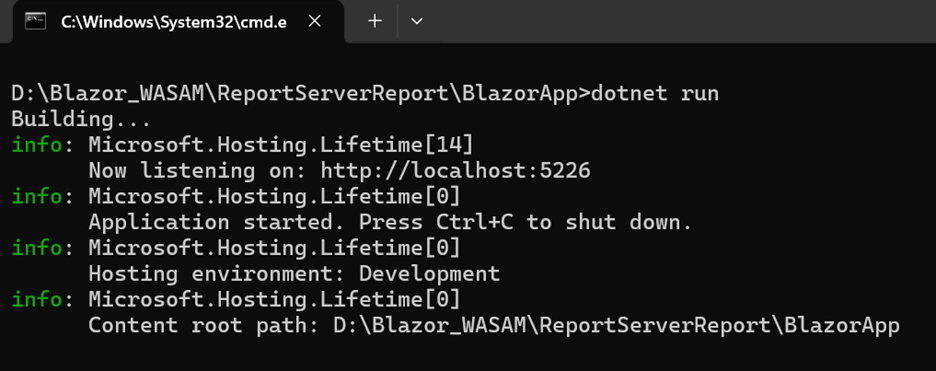
To run your Blazor application and view the , open the command prompt window and navigate to the root directory of your Blazor Server project. Then, execute the following command:
dotnet run
Once your application is running, open the local host URL in your browser.
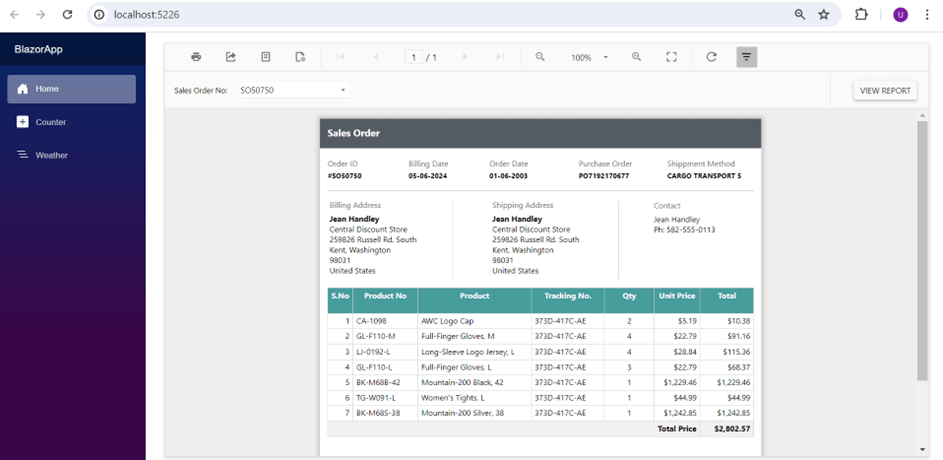
Your Blazor WASM application will load, and the report will be rendered and displayed in the Report Viewer.
Conclusion
Integrating reports into your Blazor WebAssembly app is seamless with Bold Reports® and its built-in web API. Enhance your Blazor WASM app with Bold Reports for a robust and user-friendly reporting solution.
To experience the capabilities of Bold Reports® firsthand, we offer a 30-day free trial with no credit card required. We value your feedback, so please don’t hesitate to let us know your thoughts.