Single Sign-On (SSO) for Secure Embedded Reporting

TL;DR: Embedded reporting should feel like a native part of your product, not a separate tool your customers have to “re-authenticate” into. But in many SaaS and enterprise applications, the moment someone opens an embedded report, the experience breaks: a second login prompt appears, access rules don’t match what the app already enforces, and teams start relying on manual user mapping or shared credentials just to keep things moving. At SaaS scale, this stops being a minor annoyance and becomes a security risk, permissions drift, workarounds spread, and the chance of unauthorized or cross-tenant report access increases.
Single Sign-On (SSO) solves this by centralizing authentication and permissions, so users access embedded reports with one trusted sign-in. With SSO for embedded reporting in Bold Reports®, reporting stays seamless, secure, and scalable, without managing separate credentials.
Introduction
A user logs into your application, clicks Reports, and reporting suddenly feels like a separate system. Some users abandon the flow. Others attempt shared or previously issued credentials. A few open support tickets because “reports aren’t working.” Meanwhile, your IT or security team asks the harder question: Who has access to which reports, and how can that access be verified?
In many products, reports appear inside the application while login and permissions happen elsewhere. That split creates inconsistent access rules and a poor user experience, especially when reporting is embedded from a different system. As usage grows, permissions drift, support teams spend more time resolving login issues, and admins end up managing users across multiple places. What starts as friction quickly becomes an operational and security challenge in multi-tenant applications.
This guide is written for product managers and IT managers who embed reports into their applications and want to deliver seamless, secure access without managing separate credentials.
What is Single Sign-On for embedded reporting?
Single Sign-On (SSO) is an authentication approach that allows you to access multiple applications using one login. Instead of managing separate passwords for each system, you sign in through a trusted identity provider, then access connected services without repeated sign-ins.
In embedded reporting, SSO allows users to view and interact with reports inside the host application without logging in again, even when reports are delivered from a different system. By securely passing user identity and enforcing permissions defined in the reporting system, SSO removes extra sign-ins, prevents permission mismatches, and centralizes authentication, resulting in a seamless user experience with stronger security and consistent access control.
Why Single Sign-On matters for embedded reporting
Single Sign-On for embedded reporting matters because of the following reasons:
- Better user experience: Users access embedded reports without repeated login prompts.
- Centralized authentication: Authentication and security policies are enforced through a single authentication provider.
- Reduced security risk: Fewer credentials and no shared secrets lower the attack surface.
- Simpler administration: User provisioning and role changes are handled centrally.
- Scalable embedded reporting: Access remains consistent as enterprise usage or SaaS customers grow.
With this foundation in place, let’s look at the problems caused by multiple logins in embedded reporting.
Challenges faced with multiple logins in embedded reporting
When reporting access is authenticated outside your application, security responsibilities split across systems, introducing gaps in access enforcement, visibility, and control that become harder to manage as usage grows. Here are some of the challenges this might cause:
- Repeated login prompts: Teams log in to your application and then hit a second login screen when opening embedded reports.
- Broken user experience: The extra login prompt disrupts workflows and makes reporting feel like a disconnected tool.
- Security risks and workarounds: Teams may resort to shared credentials, storing secrets, or custom session hacks each increasing risk.
- Duplicate identity management: Users and roles must be managed in multiple places, leading to mismatched permissions and admin overhead.
- Support and access issues: Authentication failures become harder to diagnose when user accounts are managed in multiple systems. Support teams are pulled into access-related tickets users locked out of reports, losing access unexpectedly slowing resolution times and increasing operational cost.
This is exactly why Single Sign-On for embedded reporting matters; it removes login friction while keeping access secure and consistent.
How embedded reporting with Single Sign-On works in Bold Reports
Bold Reports uses secure iframe-based embedding with signed URLs:
- Users authenticate in your application
- Your server generates a signed embed URL that includes user identity and permissions
- Bold Reports validates the signature server-side
- The report renders inside your application without showing a login screen
This ensures secure access while keeping the reporting experience fully embedded and product-native.
How does Bold Reports support Single Sign-On?
Bold Reports supports multiple Single Sign-On (SSO) providers, allowing users to sign in through an existing identity provider (IdP) instead of managing separate Bold Reports credentials. This improves security, reduces password fatigue, and helps IT teams centralize access control.
The following are the different login providers in Bold Reports. Let’s explore how to set them up for smoother embedded reporting.
- Office 365: If your organization manages identities through Microsoft 365, you can configure Office 365 support so users can access Bold Reports using their Microsoft-managed identities. This is especially useful when your teams already manage users and access through Microsoft accounts and policies.
- Azure Active Directory: If your organization uses Azure AD for identity and access management, you can enable Azure Active Directory authentication so product managers can sign in to Bold Reports with their existing Microsoft credentials. These supports enforcing Azure AD security controls like multi-factor authentication (MFA) and conditional access while eliminating the need to manage separate Bold Reports passwords.
- OAuth 2.0 authentication: Bold Reports supports OAuth 2.0–based authentication flows to integrate with trusted identity providers that use OAuth standards. This provides a secure, standard-based way to authenticate users without exposing or storing passwords across systems.
- OpenID Connect: OpenID Connect (OIDC) support enables federated authentication using an existing identity provider. Since OIDC is built on OAuth 2.0, it provides a modern and widely adopted approach for centralized login and identity validation.
To learn more about Bold Reports SSO, see the “How Does Bold Reports Support Single Sign-On (SSO)?” and our help documentation.
Real-world use cases of Single Sign-On in Bold Reports
Below are common real-world examples where SSO in Bold Reports embedded reporting becomes essential.
Internal portals: Single login for website performance reports
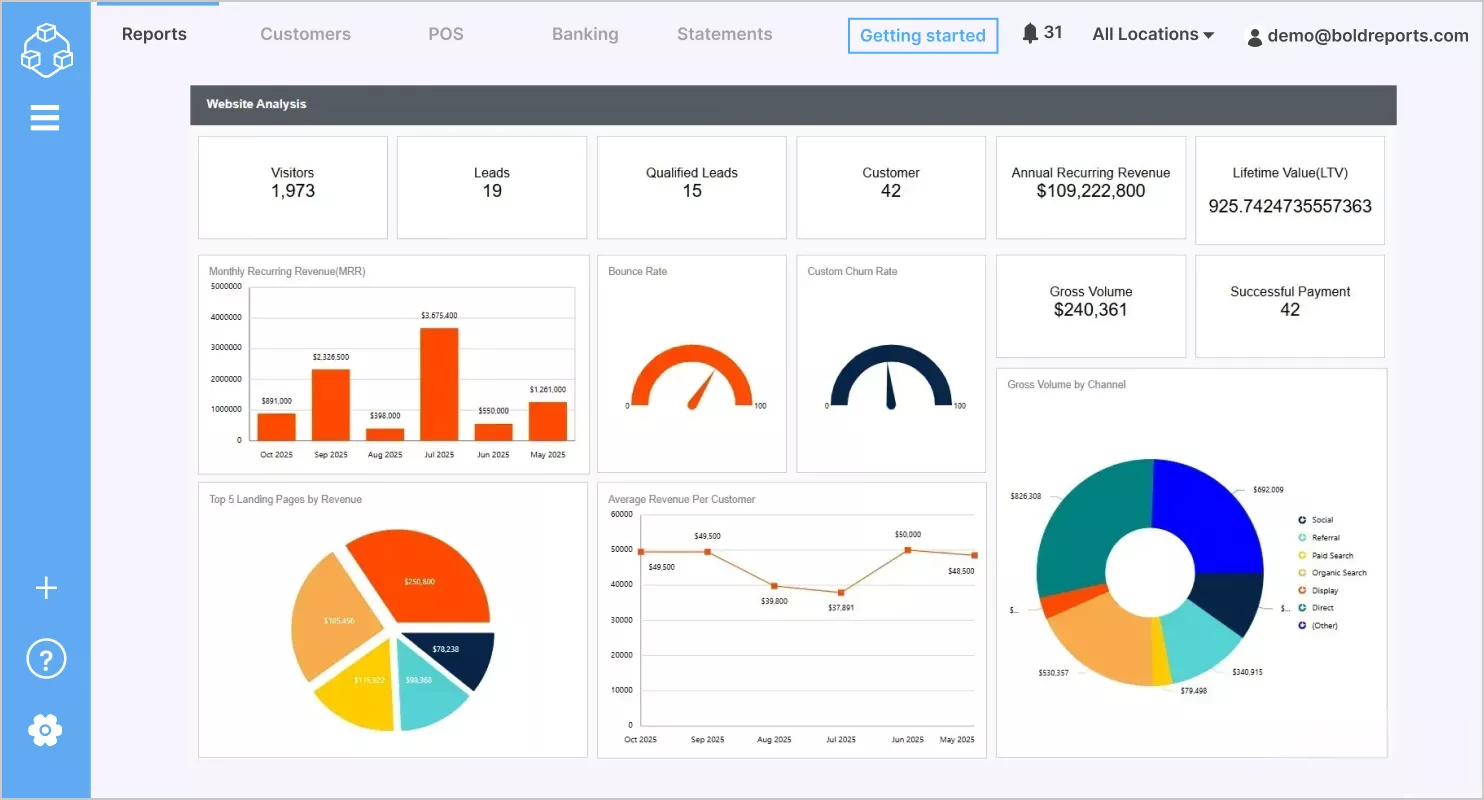
The website analysis report combines key metrics like visitors, leads, revenue, and churn into one view. A common challenge employees face is juggling multiple logins to access embedded reports, which disrupts workflows and creates inconsistent permissions. With Single Sign-On (SSO), users access the embedded Website Analysis report with the same trusted sign-in they already used for the portal. This streamlines reporting workflows, centralizes access control, and improves security and visibility across the organization.
IT platforms: Secure access to project performance reports
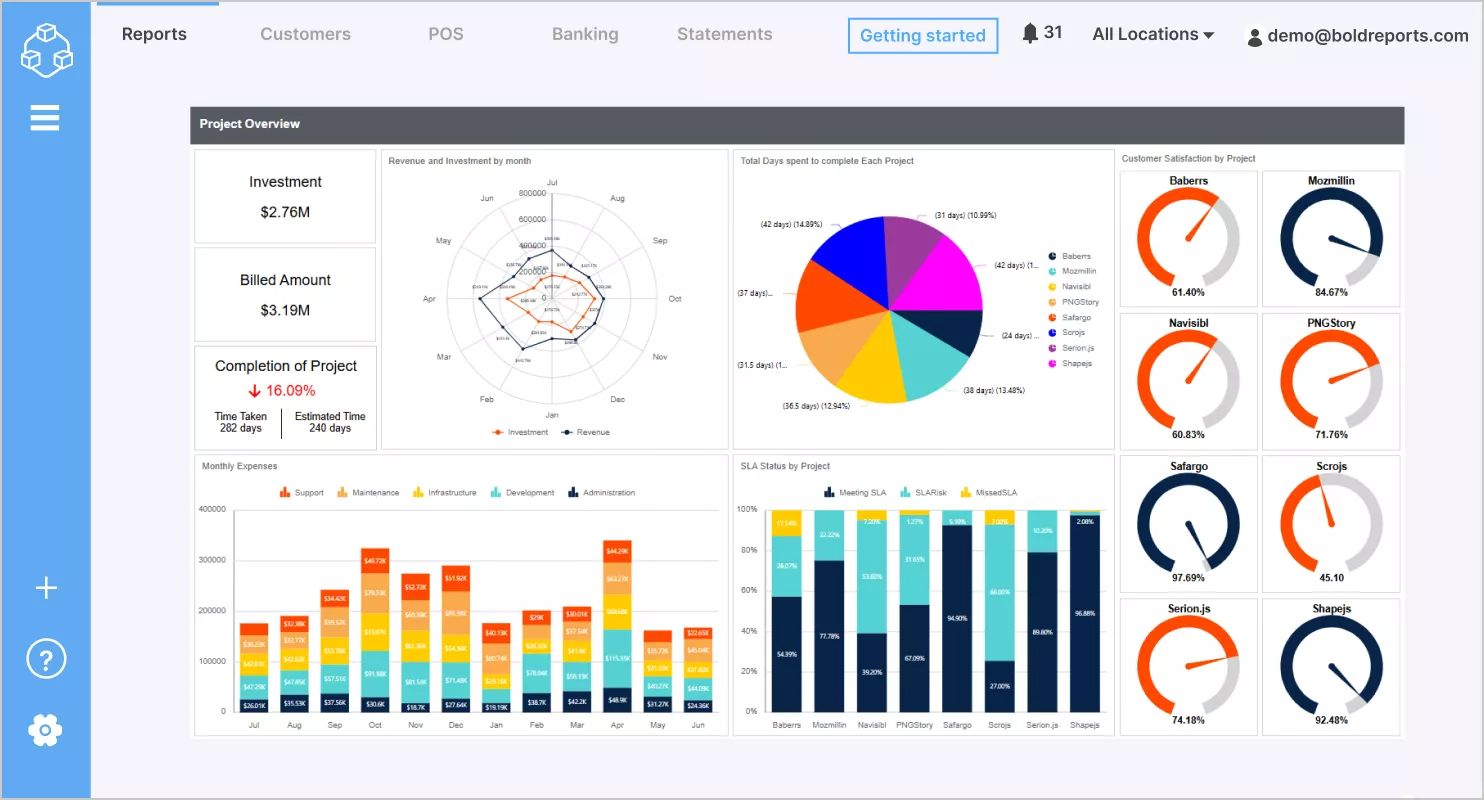
IT and engineering platforms embed project performance report to track sprints, resource usage, and delivery timelines. SSO ensures that when team roles change, reporting access updates automatically so users see only the projects and metrics relevant to them, without manual intervention or security gaps.
For further insights, try Bold Reports for free to learn how using SSO for embedded reporting can simplify access and improve user experience across your applications.
How to embed reports with Single Sign-On in Bold Reports
Bold Reports supports iframe-based embedding. To avoid repeated logins in embedded reports, your application generates a signed embed URL server-side. Bold Reports validates the signature and renders the report inside the iframe without showing a separate login screen.
Prerequisites
-
- Bold Reports Cloud tenant or Bold Reports Enterprise (On-Premises) set up
-
- Admin access to generate the Embed Secret Key
-
- A report URL to embed
-
- A user identity (email) that maps to your permission model
-
- At least one SSO provider configured (Office 365, Azure AD, OAuth 2.0, or OpenID Connect), if you want IdP-based login across the platform
For full installation details and environment requirements, refer to the Bold Reports documentation.
Now, let’s explore step-by-step guide on how to embed reports with SSO in Bold Reports.
Steps to run the sample
Step 1: Download the iframe embedding SSO sample.
Step 2: Set the following embed properties in the Program.cs file.
| Parameter | Description |
| report URL | URL of the report to be embedded. |
| secret code | Authorized key for the report to be embedded. |
| userinfo
|
The email ID of the user. |
class Program
    {
        static void Main(string[] args)
        {
            // Variable declaration to form the embed URL
            string secretCode = "W1oqFY6MvJ2lxCwCwLHWihSd19jPfzr";  // secret code generated in the Bold Reports application
            var reportUrl = "http://test.com/reporting/en-us/site/site2/reports/5ff24040-cd74-42cf-a168-57f8cb7dafed/Sample%20Reports/Invoice?"; // URL of the report to be embedded. Add '? or &' at the end of the URL based on your report URL
            // Variable declaration to form the signature for the embed URL
            var nonce = Guid.NewGuid().ToString(); // random string
            var userInfo = "[email protected]"; // email address of the user
            bool canSaveView = true; // enable or disable permission to create, open, update, delete view
            bool hasViews = true; // enable or disable the permission to check the views of the reports
            bool hasExport = true; // enable or disable the permission to export the reports
            bool hasReportComments = true; // enable or disable the permission to comment related actions to report
            double timeStamp = DateTimeToUnixTimeStamp(DateTime.UtcNow); // current time as UNIX time stamp
            var expirationTime = "100"; // token expiration time
            string embedMessage = "embed_nonce=" + nonce + "&embed_user_email=" + userInfo + "&embed_report_views_edit=" + canSaveView + "&embed_report_views=" + hasViews + "&embed_report_export=" + hasExport + "&embed_report_comments=" + hasReportComments + "&embed_timestamp=" + timeStamp + "&embed_expirationtime=" + expirationTime;
            string signature = SignURL(embedMessage.ToLower(), secretCode);
            string embedSignature = embedMessage.ToLower() + "&embed_signature=" + signature;
            var embedUrl = reportUrl + embedSignature;
            var iframe = "<iframe src='" + embedUrl + "' id='report-frame' width='1200px' height='600px' allowfullscreen frameborder='0'></iframe>";
            var filePath = @"..\..\..\embed.html"; // file named embed will be created in the extracted location in which the embed URL will be maintained
            File.WriteAllText(filePath, iframe);
            string url = filePath;
            Process.Start("chrome.exe", url); // By default, the embed report will be rendered in Google Chrome. Can update the browser as you wish
        }
    }
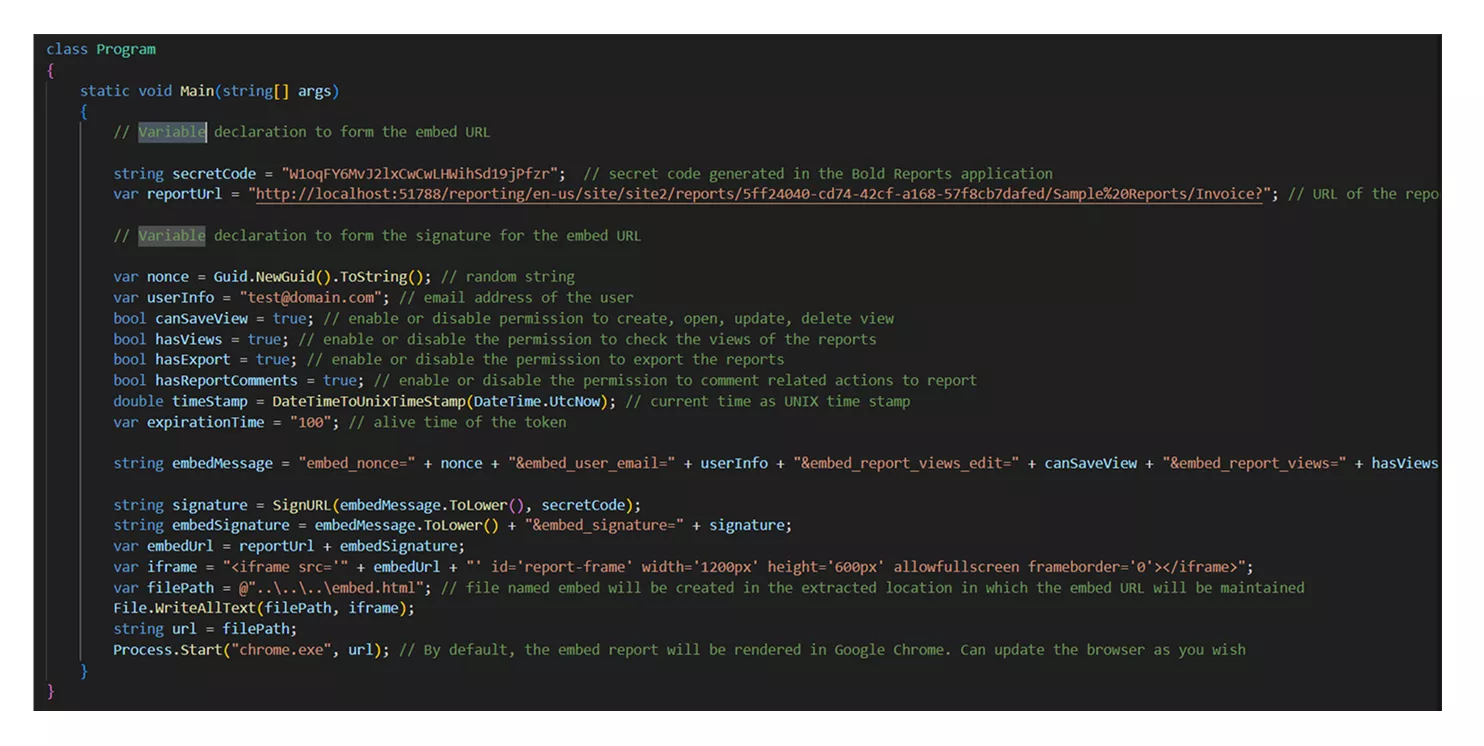
In the Bold Reports Report Server, you can get an embed secret key to enable the embed SSO authentication from the administrator settings section.
Step 3: In the cs file, set the URL of the report that you want to render in the variable reportUrl. Please follow this link to see how to get the report URL.
var secretCode = "7tFaq2zidmxJN8Pid6IUAiGFqAUwMfK";
var reportUrl= "https://cloud.boldreports.com/reporting/site/b1355596/reports/e3db8d03-3a23-44c8-91a3-d31ee734fd8a/Solution%20Reports/Northwind%20Products%20and%20Suppliers?showmyreports=1"

Step 4: For SSO authentication while embedding, the secretcode parameter is added to the encryption to generate an encrypted signature.
static string SignURL(string embedMessage, string secretcode)
            {
                var encoding = new UTF8Encoding();
                var keyBytes = encoding.GetBytes(secretcode);
                var messageBytes = encoding.GetBytes(embedMessage);
                using (var hmacsha1 = new HMACSHA256(keyBytes))
                {
                    var hashMessage = hmacsha1.ComputeHash(messageBytes);
                    return Convert.ToBase64String(hashMessage);
                }
            }
            static double DateTimeToUnixTimeStamp(DateTime dateTime)
            {
                DateTime unixStart = new DateTime(1970, 1, 1, 0, 0, 0, 0, System.DateTimeKind.Utc);
                long unixTimeStampInTicks = (dateTime.ToUniversalTime() - unixStart).Ticks;
                return unixTimeStampInTicks / TimeSpan.TicksPerSecond;
            }

Step 5: Based on the provided embed properties, we include the iframe URL with its mandatory parameters while sending a request to the Bold Reports Server and running the sample.
string signature = SignURL(embedMessage.ToLower(), secretCode);
                string embedSignature = embedMessage.ToLower() + "&embed_signature=" + signature;
                var embedUrl = reportUrl + embedSignature;
                var iframe = "<iframe src='" + embedUrl + "' id='report-frame' width='1200px' height='600px' allowfullscreen frameborder='0'></iframe>";
                var filePath = @"..\..\..\embed.html"; // file named embed will be created in the extracted location in which the embed URL will be maintained
                File.WriteAllText(filePath, iframe);
                string url = filePath;
                Process.Start("chrome.exe", url); // By default, the embed report will be rendered in Google Chrome. Can update the browser as you wish

Step 6: The Server then identifies the encrypted signature and decrypts it server-side. Then, it is authenticated and the report is allowed to render.
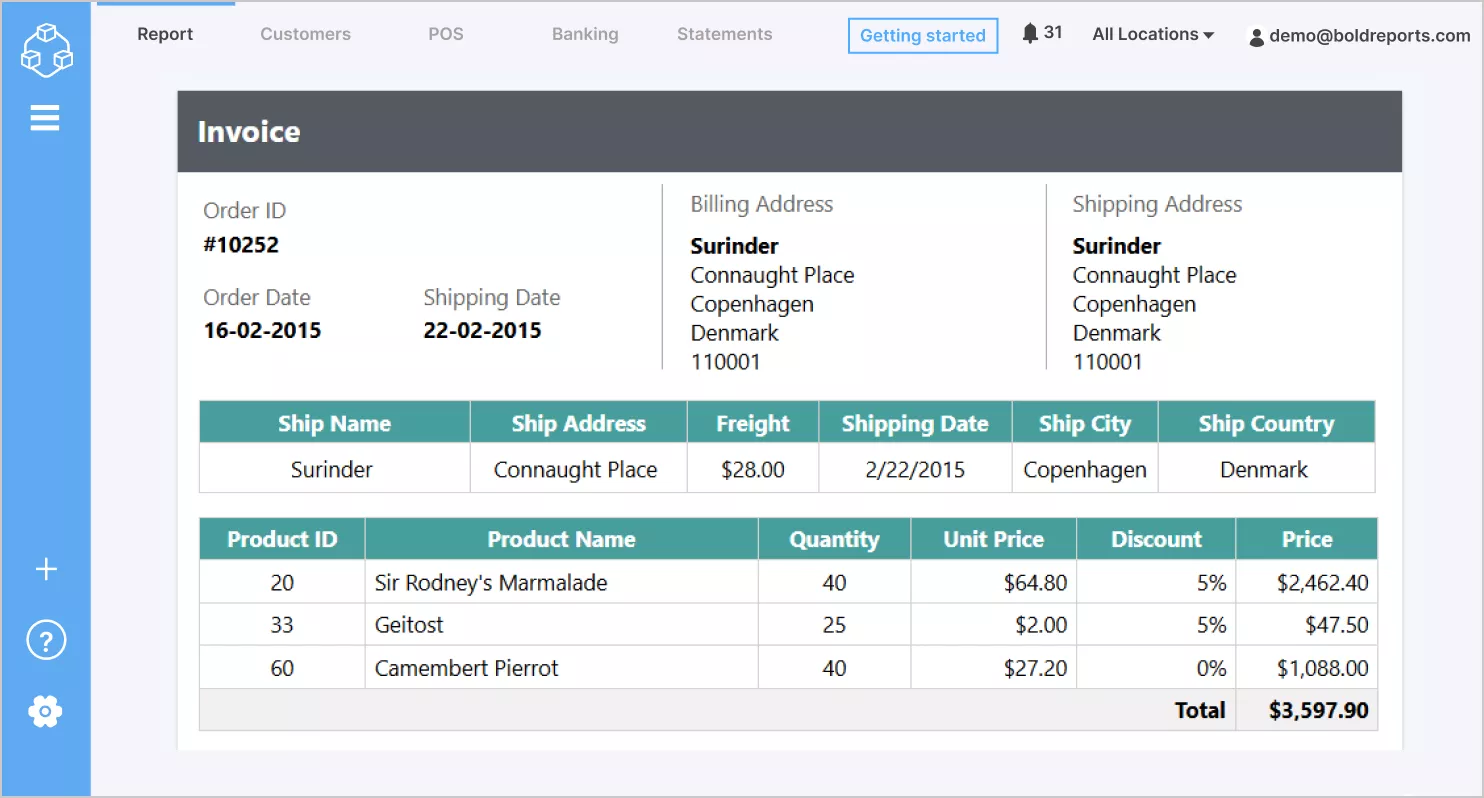
Step 7: The embedded report will be rendered as shown in the following image.
Check out our blog to learn how to implement SSO in Azure AD with a step-by-step guide.
Final thoughts and next steps
Single Sign-On is essential for secure, scalable embedded reporting. Without it, teams face repeated logins, higher support costs, and increased security risk. With SSO and secure embed authentication, reporting becomes seamless, governed, and truly part of your product.
Next steps:
-
- Configure SSO using your preferred identity provider
- Generate and protect the Embed Secret Key
- Validate access using real user roles
Ready to get started? Sign up for a 30-day free trial or request a live demo in Bold Reports® to plan your SSO for embedded reporting rollout.
Frequently asked questions
- 1.
How do I set up SSO in Bold Reports?
Go to Admin → Authentication, choose your provider (Office 365, Azure AD, OAuth 2.0, or OpenID Connect), and configure the required credentials.
- 2.
Why does SSO fail with a redirect error?
Ensure the redirect URL matches exactly, including HTTPS, domain, and trailing slashes.
- 3.
Do I need a Bold Reports Server to use the Report Viewer?
RDLC reports can be rendered without a server. For RDL reports and advanced features, a Bold Reports Server is recommended.
- 4.
Where do I get the Embed Secret Key?
From Admin → Security / Embedding settings. Keep it server-side and never expose it publicly.
- 5.
Can I control what users can do in embedded reports?
Yes. Embed parameters lets you allow or restrict actions like export, saved views, and comments.