Upgrading Bold Reports on Kubernetes Just Got Reversible
TL;DR:
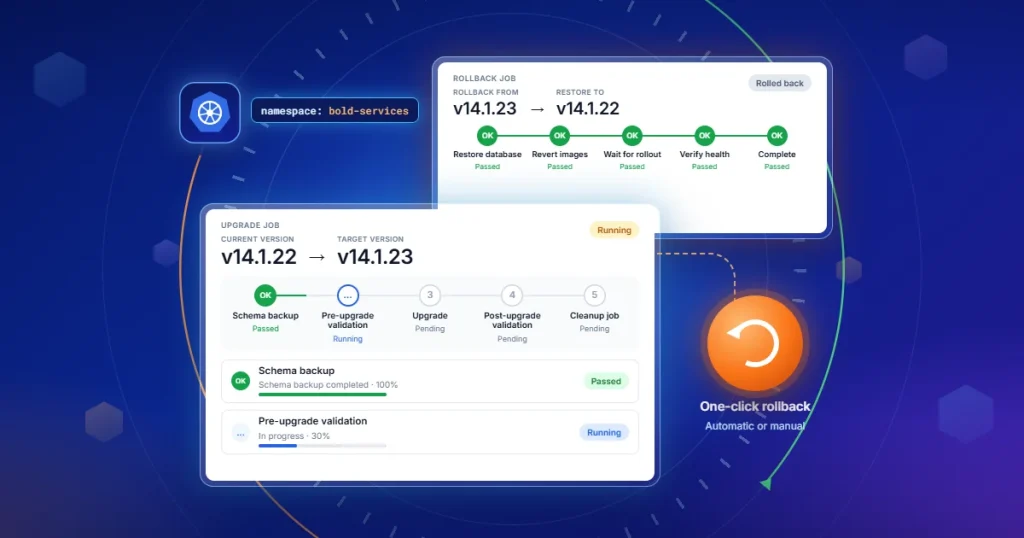
The Bold Reports® Upgrade Center handles Kubernetes version upgrades from inside the product: it checks for new releases, validates the environment, backs up whatever database tables a release will touch, rolls out updated deployment images in controlled groups, and tracks the whole job with rollback, automatic or manual, built in.
Introduction
Picture an ISV running Bold Reports® across a fleet of Kubernetes-hosted tenant environments. Every new release means updating deployment images, tracing which database tables might change, and babysitting the rollout to make sure nothing breaks for customers actively pulling reports. That’s the job the Upgrade Center was built to take off your plate.
This walkthrough covers how the Upgrade Center handles a Bold Reports upgrade on Kubernetes end to end: checking for a release, applying it (or a patch the support team sent you), watching the rollout, and rolling back if something goes sideways.
The Manual Upgrade Problem
On Kubernetes, upgrading Bold Reports without help means juggling several things at once: which deployment images need to change, which database tables a given release touches, and whether the rollout is healthy before you move on. Get any of that wrong and you’re either stuck mid-upgrade or explaining a rollback to your team.
Here’s the shift the Upgrade Center makes:
| Aspect | The Manual Process | With the Upgrade Center |
| Finding a new version | Cross-reference release notes and GitHub separately. | Listed in the product menu, with release notes attached. |
| Schema changes | Trace affected tables yourself and hope you caught them all. | Identified and backed up automatically before anything runs. |
| Rolling out | Update images and watch the status by hand. | Sequenced, grouped rollout with health checks between groups. |
| Undoing a bad upgrade | Restore from whatever backup process you set up separately. | Roll back with one action, manual or automatic. |
None of this reinvents what Kubernetes already does well. A deployment update already rolls out incrementally on its own: new pods come up on available nodes, and Kubernetes waits for them to be ready before removing the old ones (Kubernetes documentation: Performing a rolling update, retrieved September 22, 2026). What the Upgrade Center adds on top is everything that rollout mechanism has no visibility into: which database tables a release will touch, whether the schema backup actually succeeded, and whether the upgraded application is healthy, not just the pods.
What the Upgrade Center Actually Does
Strip away the interface and the Upgrade Center comes down to five jobs:
-
- Surfaces available versions and release notes in the product menu, so nobody’s cross-checking a separate changelog.
- Flags exactly which database tables a release will change, before you commit to anything.
- Backs up those tables automatically, so “did we back this up” isn’t a question you have to ask mid-upgrade.
- Rolls deployments out in sequenced groups, each one confirmed healthy before the next group starts.
- Rolls back the same way it rolled forward: from inside the product, manually or on its own.
Setting Up the Upgrade Center
The Upgrade Center supports Kubernetes-based Bold Reports deployments, and has been validated on Google Kubernetes Engine, Azure Kubernetes Service, Amazon Elastic Kubernetes Service, and Oracle Container Engine for Kubernetes. Deploy it with kubectl or Helm, following the manifests in the Upgrade Center on Kubernetes documentation:
-
- Using kubectl: Deploy the Upgrade Center using kubectl
- Using Helm: Deploy the Upgrade Center using Helm
Permissions are namespace-scoped: the Upgrade Center only needs access inside the namespace it’s deployed to, not the whole cluster, so a leaked credential doesn’t hand over more than it has to.
Before enabling it, confirm three things:
- Database permissions: The startup database user must be able to create and drop databases.
- Compute headroom: The node running the Upgrade Center and its validation jobs needs at least two vCPU and 4 GB of free memory available.
- Kubernetes permissions: Whoever applies the manifests needs permission to create a service account, role, and role binding in the Bold Reports namespace.
Limitations and Things to Confirm First
The Upgrade Center is currently in beta.
-
- Deployment and database support: Non-Kubernetes deployments, Oracle database configurations, and environments with insufficient Kubernetes permissions are not supported. Oracle database configurations are excluded because the current the Bold Reports Playwright validation workflow does not support Oracle.
- Backups are still on you: The Upgrade Center’s table-level backup supports the upgrade and rollback processes, but it’s not a substitute for a full, customer-managed database backup made before you start.
- Image repository access: Custom patches are validated against the registry’s allowed repository rules, so the Upgrade Center needs to reach the configured image repository during validation and upgrade.
- Rollback has a shelf life: By default, only the most recent successful upgrade is eligible, and only within seven days. After that, the rollback option simply doesn’t appear.
Running an Upgrade, Start to Finish
Once it’s enabled, the Upgrade Center shows up in the product menu for admins. Here’s the whole path, from noticing a release exists to rolling it back if needed.
Step 1: Spotting a New Version
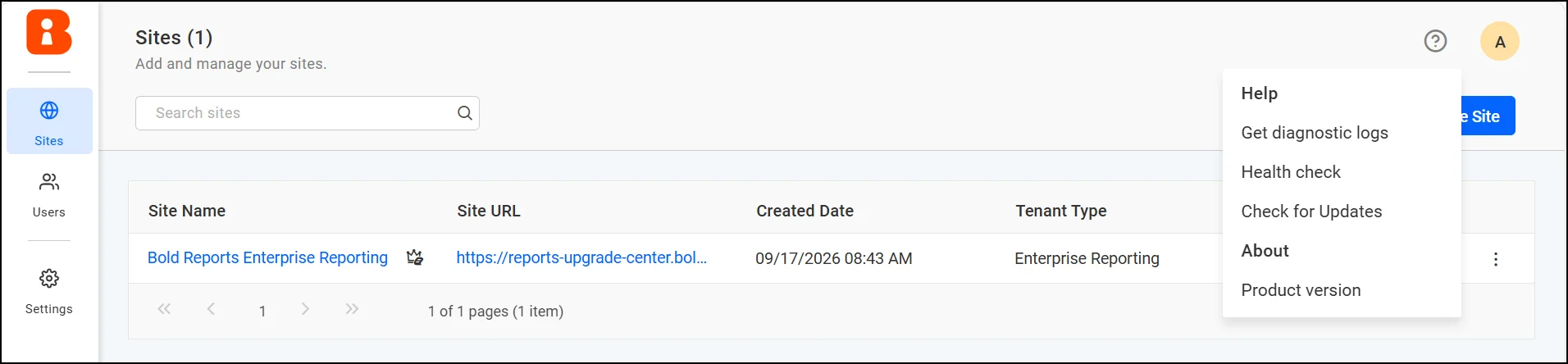
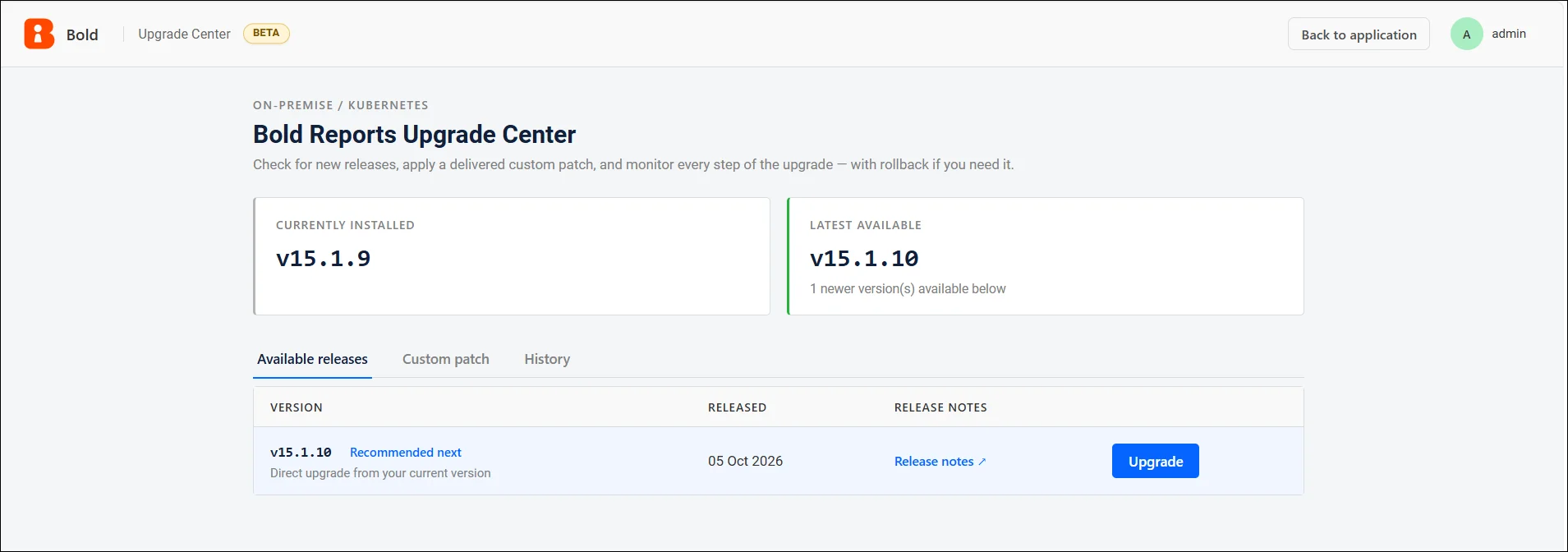
Open the admin menu and select Check for Updates. That’s the whole Upgrade Center landing page: what you’re running, what’s available, a custom patch tab, and your history. Nothing new to install? It says so, and the release list stays hidden.
Step 2: Applying a Standard Release
Moving from one supported version to the next is a short path:
- Open the Upgrade Center.
- Go to available releases.
- Review the available versions.
- Select the target version.
- Click Upgrade.
- Review the confirmation dialog.
- Check the affected database tables and any warnings.
- Click Start Upgrade.
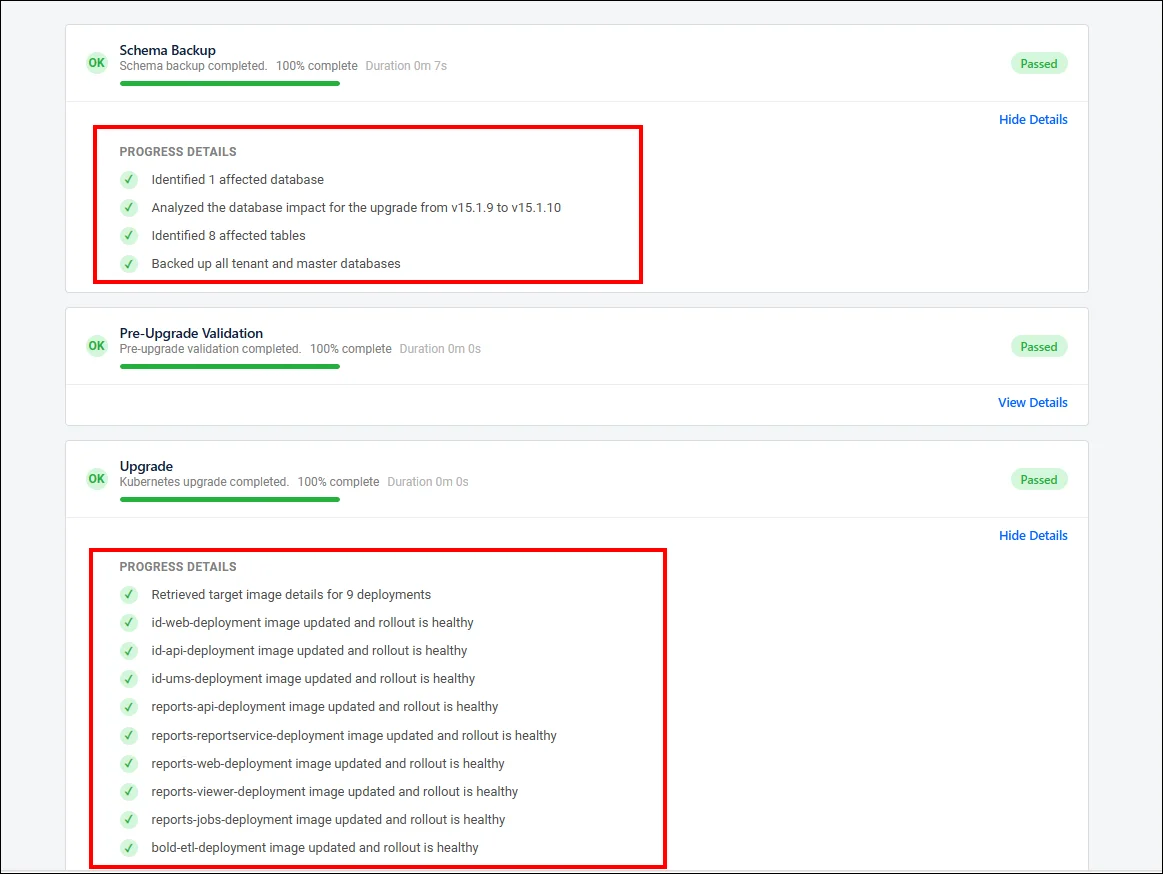
For example, moving a PostgreSQL-backed deployment from v15.1.9 to v15.1.10 might come back with eight affected tables. The confirmation dialog names them and gives a short rundown of what’s about to happen: schema backup first, pre-upgrade validation before anything changes, rollback available if post-upgrade validation doesn’t pass.
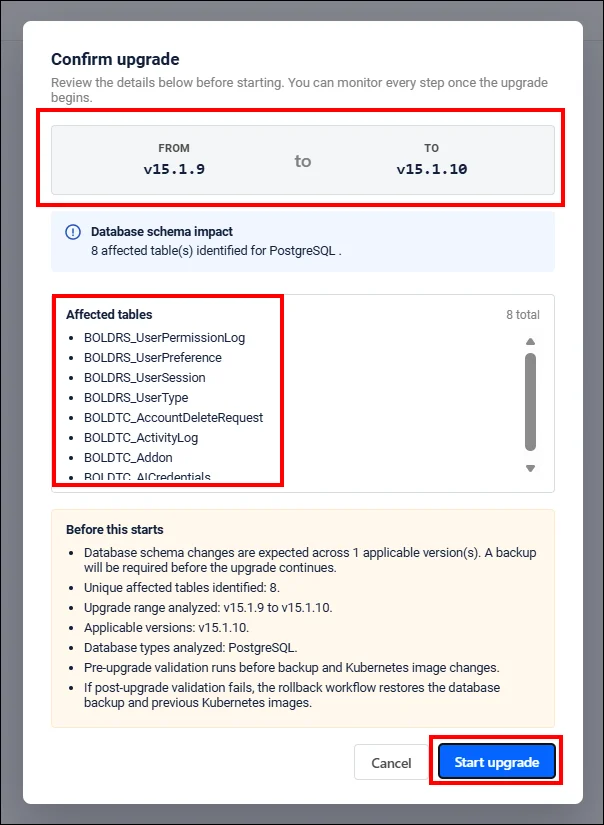
Confirm, and the Upgrade Center takes it from there: validation, backup, rollout, cleanup. No further clicking is required.
Step 3: Applying a Patch from Support
Sometimes the Bold Reports support team resolves a specific issue with a custom image tag ahead of the next full release. The Custom patch tab exists for exactly that case:
- Open Upgrade Center and go to Custom patch.
- Enter the custom patch version or image tag the support team gave you.
- Optionally point to a custom image repository. This field is prefilled from your current deployment, so you only touch it if the patch lives elsewhere.
- Click Validate to confirm the image references.
- Review the validation results.
- Proceed only when every required image checks out.
- Confirm and start the upgrade.
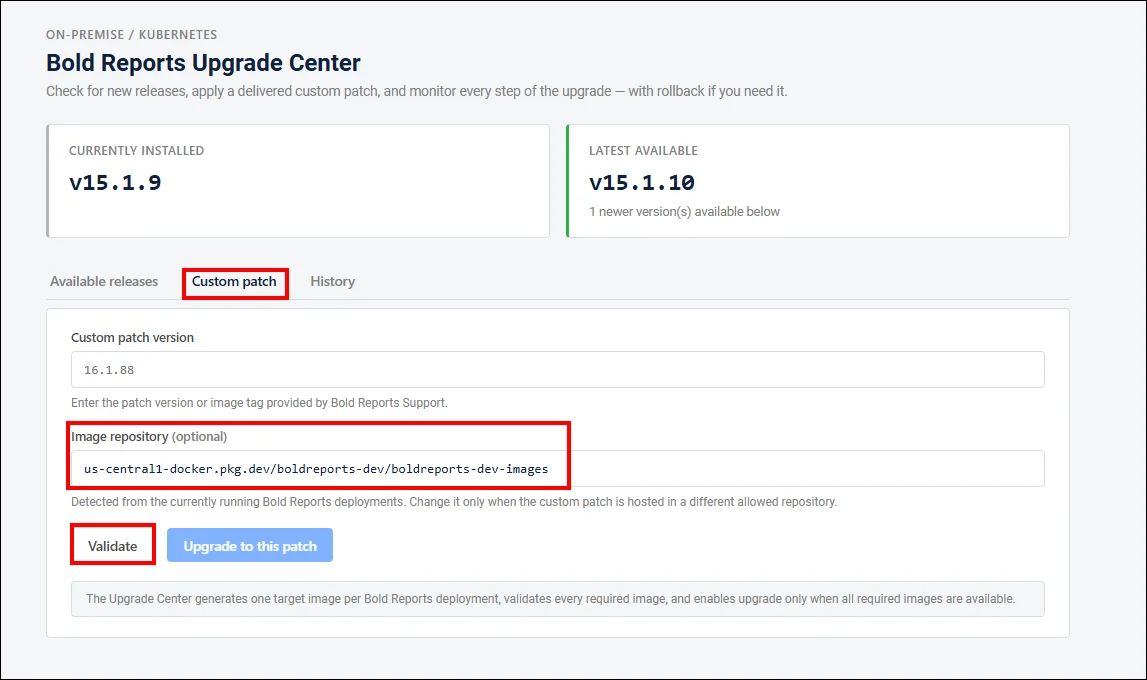
Worth knowing: The tag has to be valid and accessible, the repository has to be one the registry validation rules allow, and the patch version has to be newer than what’s installed. The tag can carry extra text after the version, like 15.1.11_patch, since the Upgrade Center only reads the version portion for comparison. Custom patches run through the same monitoring, cleanup, and rollback views as a standard upgrade, but schema backup is skipped, since patches typically don’t touch the database.
Step 4: What’s Actually Happening Behind the Scenes
A standard upgrade moves through five stages:
-
- Database backup: Finds and backs up the affected tables across every active tenant site before any application image changes.
- Pre-upgrade validation: Confirms the environment is actually ready. Fail here, and nothing gets touched.
- Kubernetes upgrade: Images roll out in predefined groups, parallel within a group, one group at a time overall. One run we’ve seen updated nine deployments, including reports-api-deployment, reports-web-deployment, and reports-viewer-deployment, each confirmed healthy before the next group started. Once rollout finishes, the Upgrade Center also runs health checks against the live services, not just the pods.
- Post-upgrade validation: Confirms Bold Reports is actually working. Fail here, and automatic rollback kicks in wherever a valid rollback point exists.
- Cleanup job: Clears out whatever validation is created, test users, sites, data, using the Playwright Kubernetes runner. A failed cleanup shows up as its own failed stage; it doesn’t mean the upgrade failed.
Step 5: Watching It Happen
The monitoring page tracks all five stages on one screen: status, progress percentage, duration, and a View Details option for each. Status values are pending, running, passed, failed, skipped, rolled back, or cancelled. So, there’s never a guessing game about where things stand.
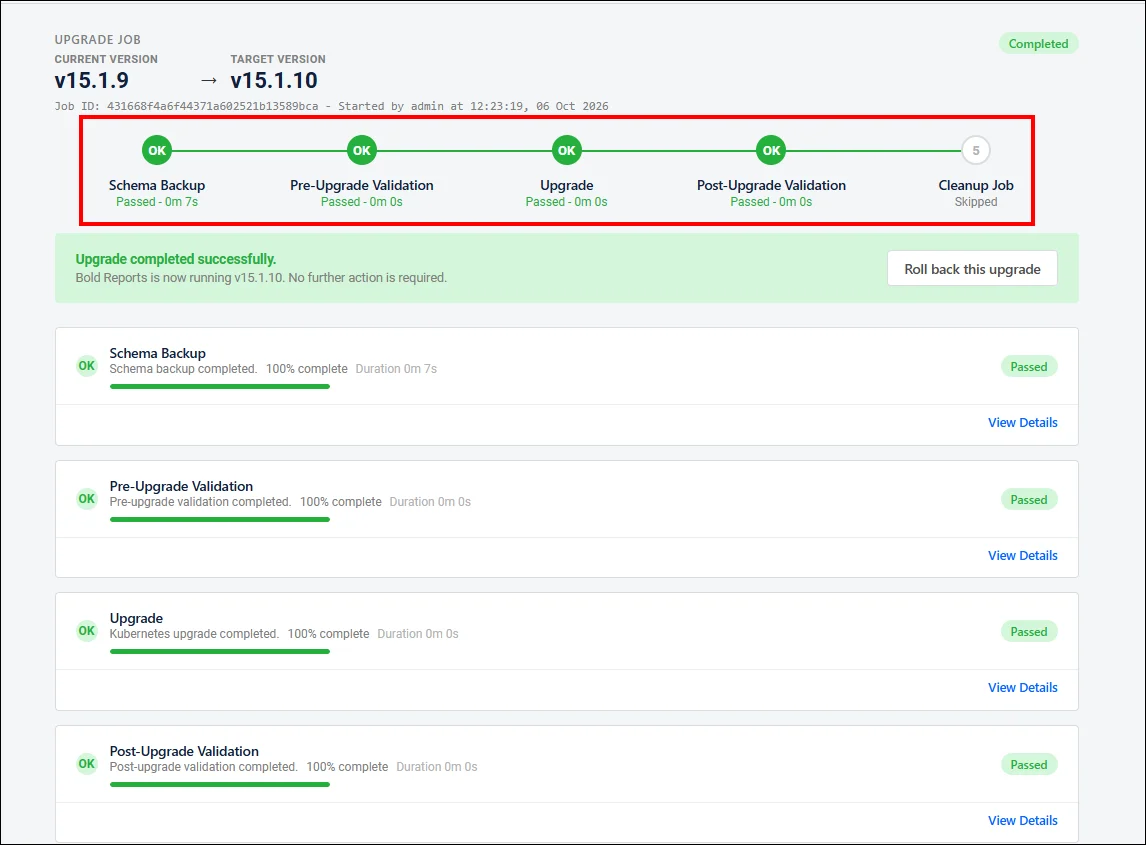
Expand a stage and you get the specifics, which tables were backed up, which deployments rolled out cleanly.
Need the full trail? Download Complete Logs pulls the operation-level details: backup and restore messages, rollout progress, validation execution, warnings, errors, and the final status.
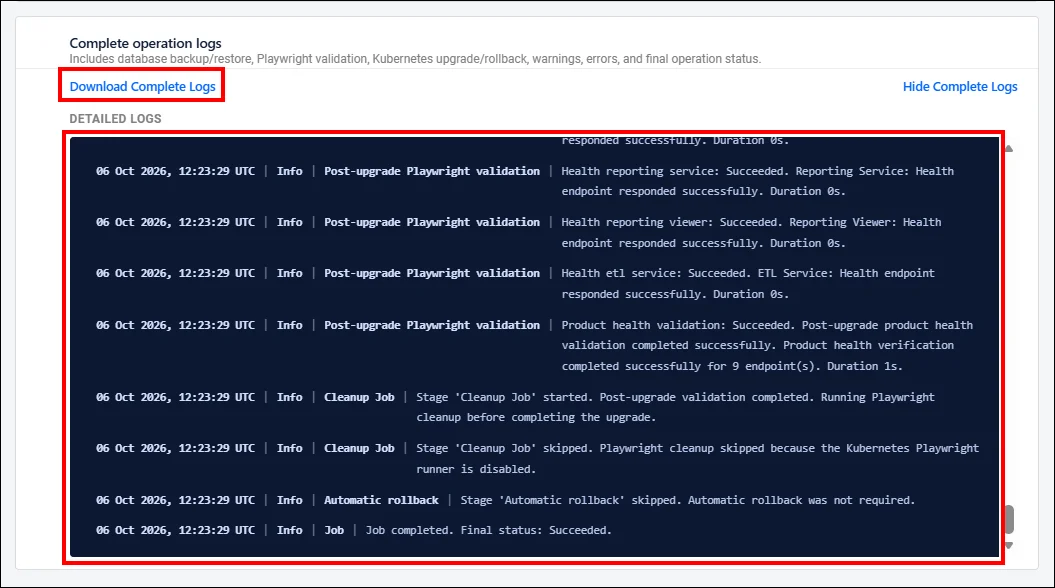
Validation itself runs as a Playwright-based Kubernetes job. Its results report total, passed, failed, and skipped test numbers, a pass percentage, and a final status measured against a configured pass-rate threshold. HTML reports are stored per job and per stage, with the latest seven upgrade jobs kept. One caveat for anyone on a nonpersistent volume: those reports live in nonpersistent application storage, so recreating the Upgrade Center pod wipes them.
Step 6: Everything Logged in History
Every upgrade and rollback lands in the History section: source version, target version, operation type, status, who kicked it off. Failed and rolled-back jobs stay open, too, each with an open option for the details, and a roll back action right on the row wherever a valid rollback point exists.
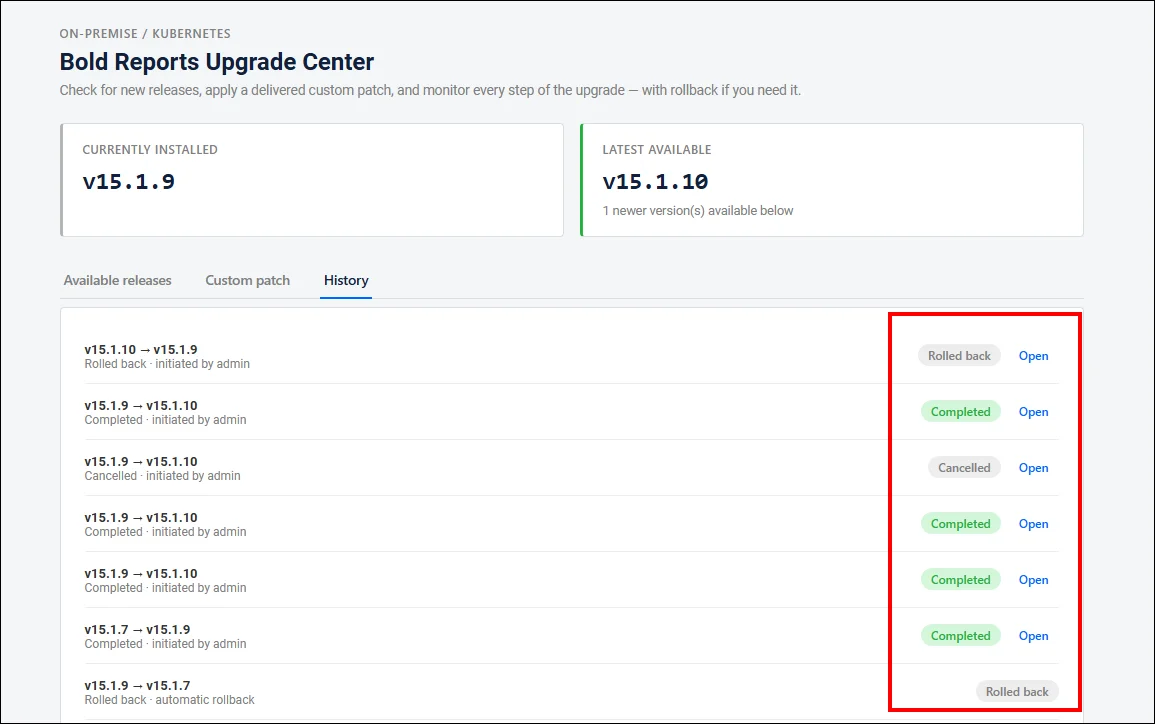
Step 7: Undoing an Upgrade
Manual rollback:
- Open the Upgrade Center.
- Go to the History section.
- Select the available rollback point.
- Review the rollback confirmation dialog.
- Confirm rollback.
- Monitor rollback progress.
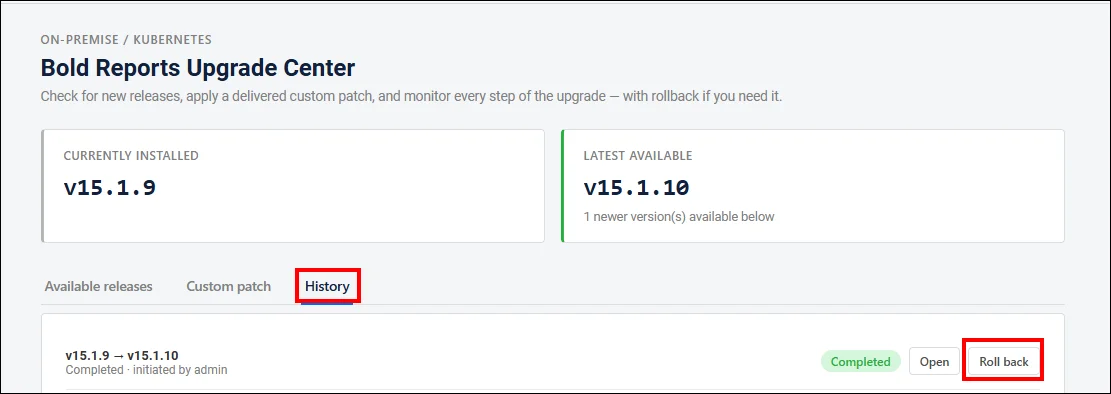
The confirmation dialog spells out exactly what’s about to change: the rollback point ID and when it was created, how many database backups and Kubernetes image references it’s tied to, and a plain-language summary of the impact. One warning worth repeating from that screen: don’t stop the Upgrade Center pod while a rollback is mid-restore.
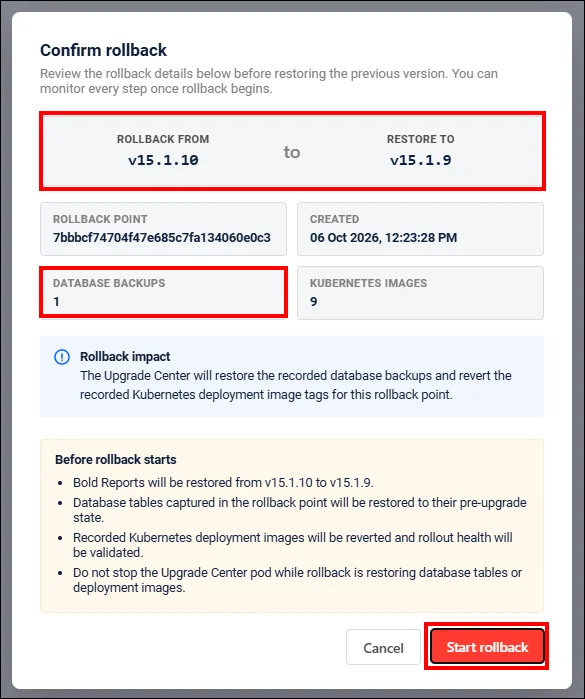
Rollback runs through its own five tracked stages, the same kind of visibility as the upgrade itself: restore database, revert Kubernetes image tags, wait for Kubernetes rollout completion, verify deployment health, and complete rollback.
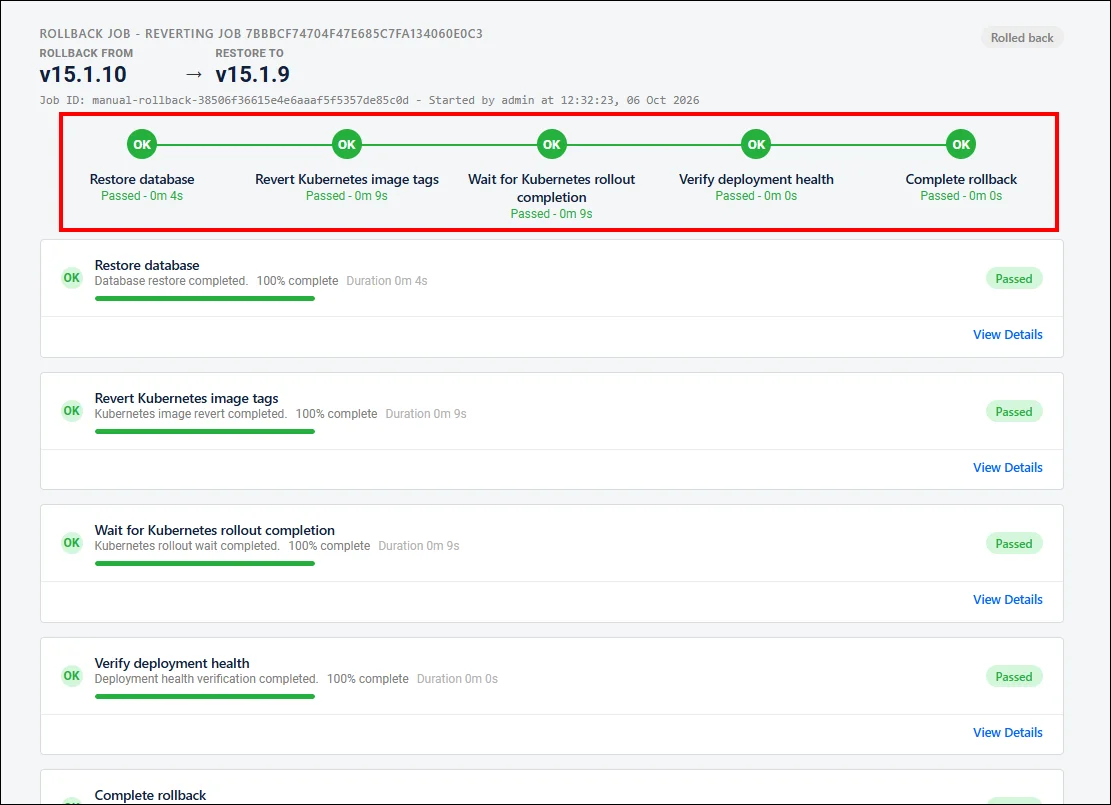
Automatic rollback kicks in when something fails after changes are already applied and rollback context still exists: a rollout failure, a failed health check, a failed post-upgrade validation. It uses the same restore and image-revert path as a manual rollback. If the failure happens before anything’s actually changed, there’s nothing to roll back.
You can cancel an active operation whenever it’s safe for that stage. Before images change, cancelling just stops the remaining steps. After, it triggers a rollback, instead. Either way, running validation and cleanup jobs get stopped or cleaned up. And if the Upgrade Center pod happens to get recreated mid-operation, it reconciles its own job state against the actual Kubernetes state before it’ll let another operation start.
What This Actually Helps
-
- Routine upgrades: Moving to the next minor version the day it ships, without booking a maintenance window for it.
- A patch from the support team: Applying a fix the support team already built, instead of waiting on the next full release to get it.
- Regulated environments: Having something to show, stage by stage and time stamped, when someone asks how an upgrade was validated.
- Multitenant ISVs: Rolling an upgrade across every tenant in the same controlled order, instead of hoping nothing drifts between accounts.
Fewer Fire Drills, More Routine Upgrades
More tenants, more report types, tighter compliance asks: the infrastructure underneath Bold Reports has to keep up without turning every release into an event. That’s the point of the Upgrade Center: it’s one place to check, apply, watch, and, if it comes to that, undo a version change.
Follow the previous steps, or the full Upgrade Center documentation, to get it configured in your environment. Or start a free trial and see how Bold Reports handles deployment, monitoring, and upgrades from one place.
Frequently asked questions
-
- 1.
Who can use the Bold Reports Upgrade Center?
Administrators can access the Upgrade Center from the product menu. It’s available for Kubernetes-based Bold Reports deployments that meet the required database and Kubernetes permissions.
- 2.
What happens if a database schema is affected by the upgrade?
The Upgrade Center identifies which tables a release will change and backs them up before any application images update. This table-level backup supports rollback, but it doesn’t replace a full, customer-managed database backup made before the upgrade begins.
- 3.
Can I cancel an upgrade once it has started?
Yes. Cancelling before application images change simply stops the remaining stages. Cancelling after images have changed triggers a rollback to restore the previous version, including the database tables and Kubernetes deployment images captured at that rollback point.
- 4.
What happens if an upgrade fails partway through?
If a Kubernetes rollout, product health check, or post-upgrade validation fails after application images have changed, the Upgrade Center starts automatic rollback when a valid rollback point exists, restoring the backed-up database tables and reverting deployment images to their previous state.
- 5.
Is the Bold Reports Upgrade Center available outside Kubernetes?
Not currently. The Upgrade Center is built specifically for Kubernetes-based Bold Reports deployments, validated against the Google Kubernetes Engine, Azure Kubernetes Service, Amazon Elastic Kubernetes Service, and Oracle Container Engine for Kubernetes. Non-Kubernetes deployments aren’t supported at this time.
- 6.
How long is a rollback point available after an upgrade?
By default, rollback is available only for the most recent successful upgrade, within 7 days of completion. After that window, the rollback option no longer appears.
- 1.