How to Add Images to an SSRS Report
TL;DR
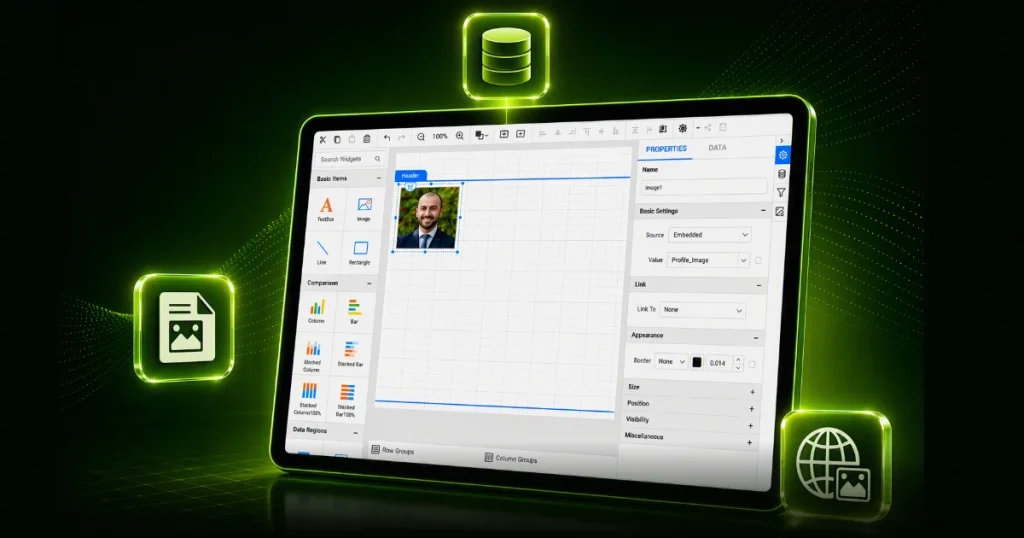
An SSRS image is a report item that displays a logo, product photo, employee headshot, or document using embedded, external, or database image sources. SSRS supports BMP, JPG, PNG, and X-PNG formats, making it easy to add branding, visual context, and dynamic images to reports.
Introduction
A report filled with only text and numbers may communicate data effectively, but it often lacks the visual context and engagement users expect. A company logo in the header, a product photo beside a line item, or an employee image in a directory report can transform raw data into a professional business document. In SSRS, the image report item handles this visual layer and displays pictures from embedded, external, or database sources. SSRS images offer more than visual appeal. Visual elements can make reports easier to understand by providing context, highlighting key information, and helping users interpret data quickly.
Understanding SSRS images is important for three key reasons:
- Branding and trust. Logos in invoices, statements, and operational reports reinforce brand identity and make reports look more professional when viewed, printed, or exported.
- Improved data comprehension. Product photos, employee headshots, and signature images help users quickly identify and verify information that may be less intuitive in text-only reports.
- Performance and maintainability. Choosing the wrong image source can create issues later. Embedding too many images can increase report size; external links may break, and improperly configured database images can fail to render. Selecting the right image source from the start helps avoid these problems.
Whether you’re adding a logo to an SSRS report, displaying database images, or comparing SSRS embedded, external, and database images, choosing the right image source is essential for report performance and maintainability. This article covers SSRS image types, implementation steps, best practices, common use cases, and troubleshooting tips.
What is an SSRS image?
An SSRS image is a visual element added through the image report item, allowing reports to display logos, photos, icons, signatures, product images, and scanned documents. Images can be sourced from Embedded, External, or Database locations, providing flexibility for different reporting scenarios.
You can place the image report item anywhere in a report, including headers, footers, and Tablix cells. SSRS supports common formats such as BMP, JPG, PNG, and X-PNG, making it easy to enhance report branding and readability.
Types of images in SSRS
SSRS supports three image source types. Choosing the right source affects report maintenance, performance, and flexibility.
Embedded images
An embedded image is added through the image manager and stored directly within the report definition. Because the image is saved inside the RDL file, it remains available wherever the report is deployed.
Best for: Logos, icons, watermarks, and other static branding assets that rarely change.
External images
An external image is stored outside the report. The image report item’s Value property contains a URL or file path, and SSRS retrieves the image each time it renders the report.
Best for: Frequently updated images, centrally managed assets, and CDN-hosted content.
Database images
A database image is stored as binary data in a database column and retrieved through a dataset field. Set the image report item’s Source to Database to allow different records to display different images dynamically.
Best for: Employee photos, product images, signatures, ID scans, and other record-specific images.
| Aspect | Embedded image | External image | Database image |
| How it’s stored | Stored inside the RDL file as MIME-encoded data. | Loaded from a URL or file path at runtime. | Stored as binary data (BLOB/varbinary) in a database and retrieved through a dataset field. |
| Performance | Fast rendering with no network dependency but increases RDL size. | Depends on network availability and image source performance. | Requires database retrieval but no external network dependency. |
| Maintenance | Requires updating and republishing the report when images change. | Easy to maintain because source updates are reflected automatically. | Updating the database record automatically updates reports using the image. |
| Security | Most secure because images are stored within the report. | Depends on external access permissions and URL availability. | Secure when database access is properly controlled. |
| Portability | Fully portable and available wherever the report is deployed. | May fail if the URL changes or becomes unavailable. | Requires access to the connected database environment. |
| Best use cases | Logos, icons, watermarks, and static branding assets. | Frequently updated images and centrally managed assets. | Employee photos, product images, signatures, and document attachments. |
Step-by-step guide to adding images to an SSRS report
Prerequisites
Before adding images to an SSRS report, confirm the following:
-
- Designer access: You can access the Bold Reports® Enterprise server demo site (or your own Bold Reports/SSRS environment) and create or edit reports. See the steps to create a report documentation for guidance.
- Image files ready: For embedded images, have image files in a supported format such as BMP, JPG, PNG, or X-PNG.
- Accessible image URL: For external images, ensure the URL is reachable from the report environment and points directly to an image file.
- Dataset with image data: For database images, verify that your dataset contains a field mapped to a varbinary, image, or BLOB column and identify the corresponding image format for MIME type configuration.
Option 1: Add an image to report using the image manager
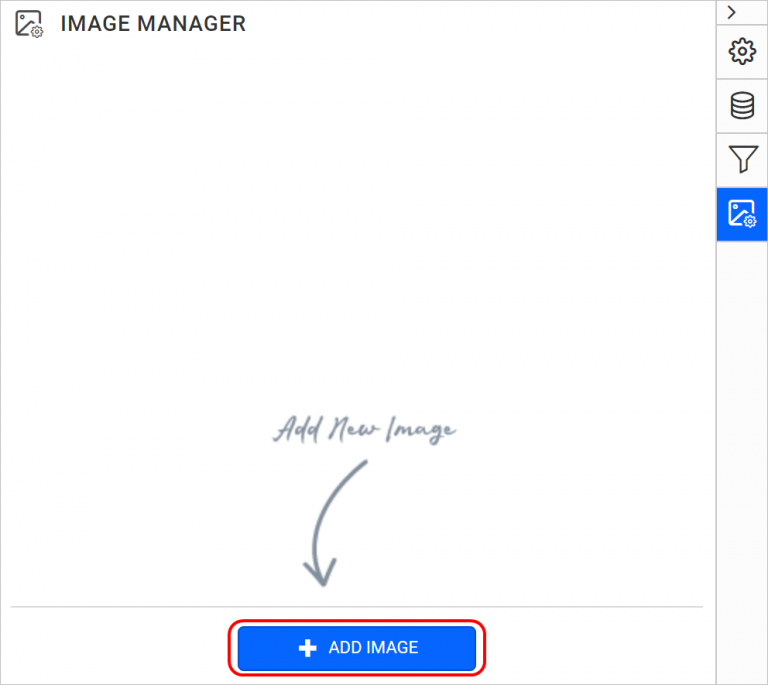
- First launch the Bold Reports designer from your Windows Start menu or desktop shortcut. In the configuration panel, click the Image Manager icon.

Image manager option 2. Click ADD IMAGE.
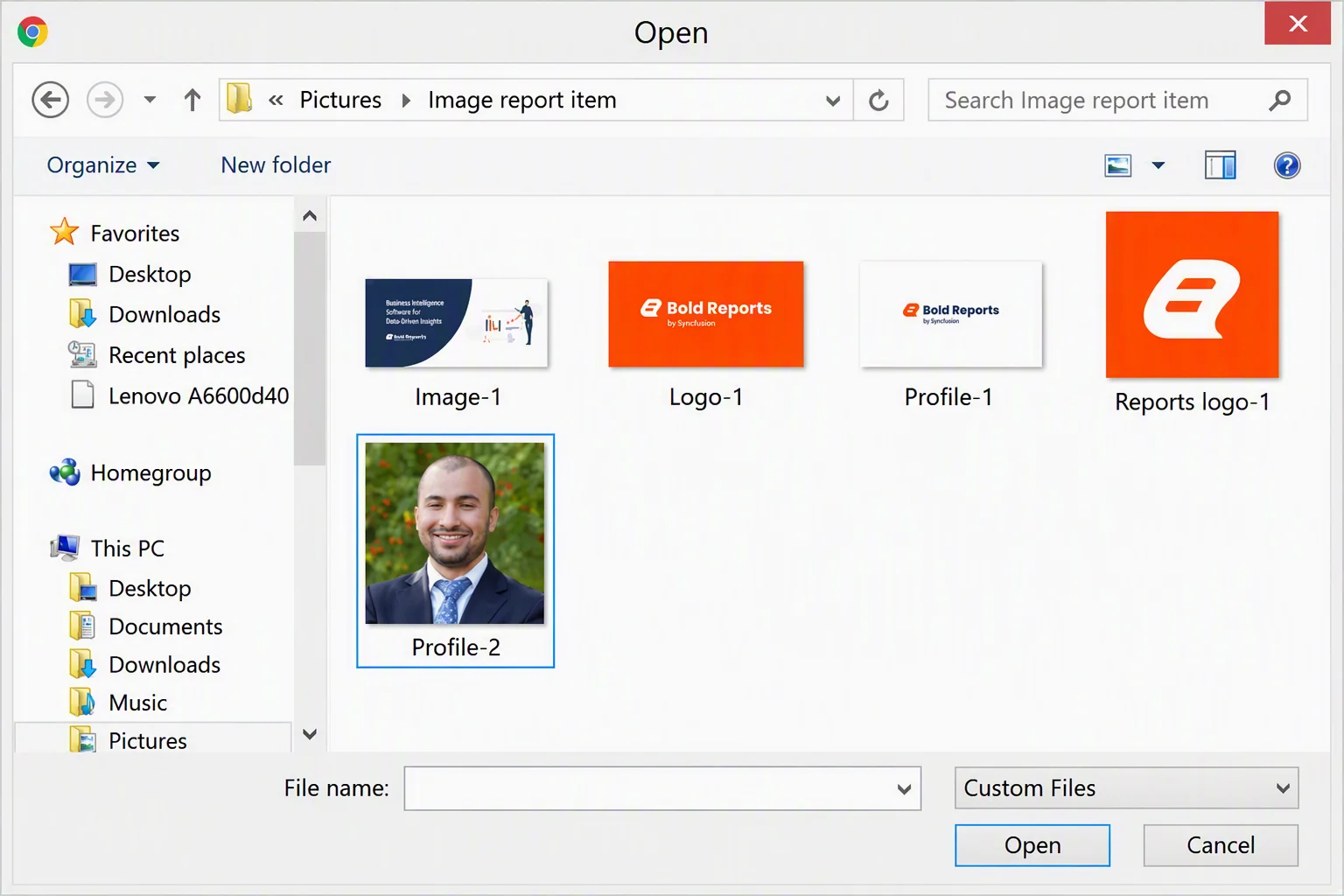
Add image button 3. Browse and select an image in the local disk, then click Open.
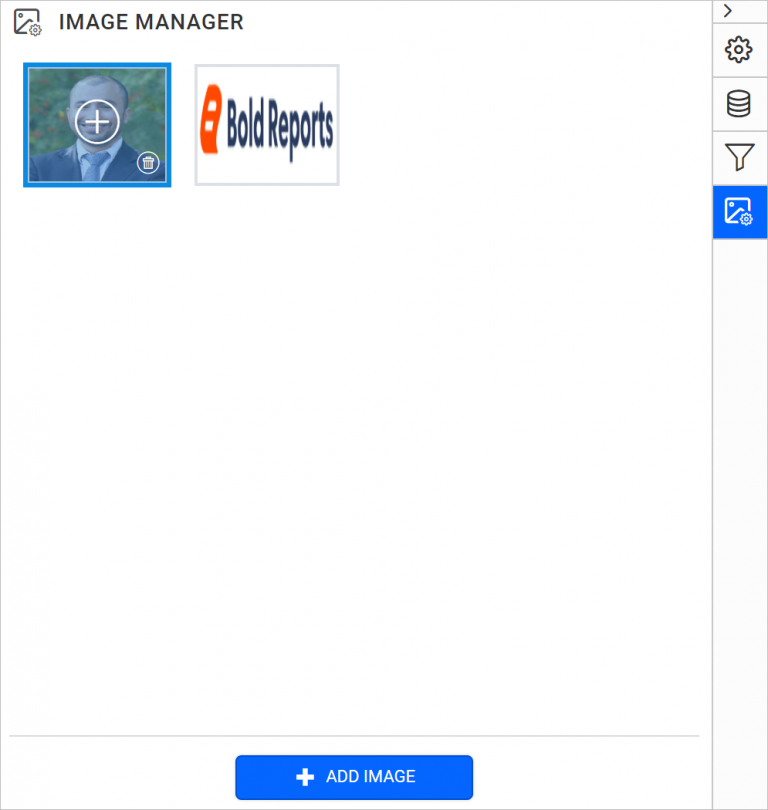
Browse and select image from file explorer 4. The chosen image will be listed in the image manager panel, and the image data will be saved as part of the report definition.
Embedded images listed in image manager


Note: You can import only one image into the image manager at a time, so repeat the previous steps to add more images to the image manager panel.
Delete an embedded image from a report
To delete an embedded image from a report, open the image manager panel and hover the mouse over the image you want to delete. Now, click the Delete icon.

It will launch the following confirmation dialog.

Click Yes to remove the image from the report.
To replace it, add the new image through the image manager and update the image report item’s Value property to reference the new file.
Option 2: Display images using image report item
You can use the image report item as a container to display an image in a report. It is listed in the item panel in the Basic Items category.
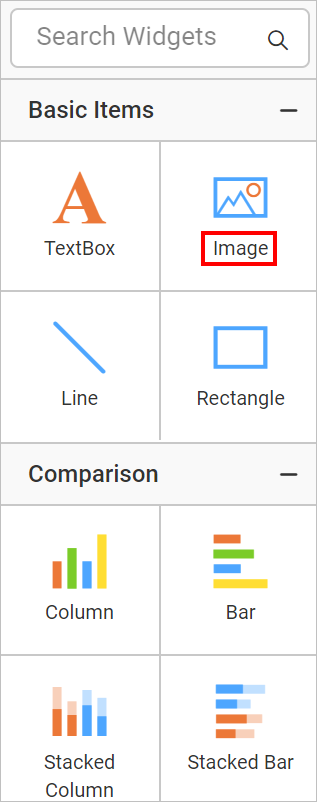
Drag the image report item into the design surface.
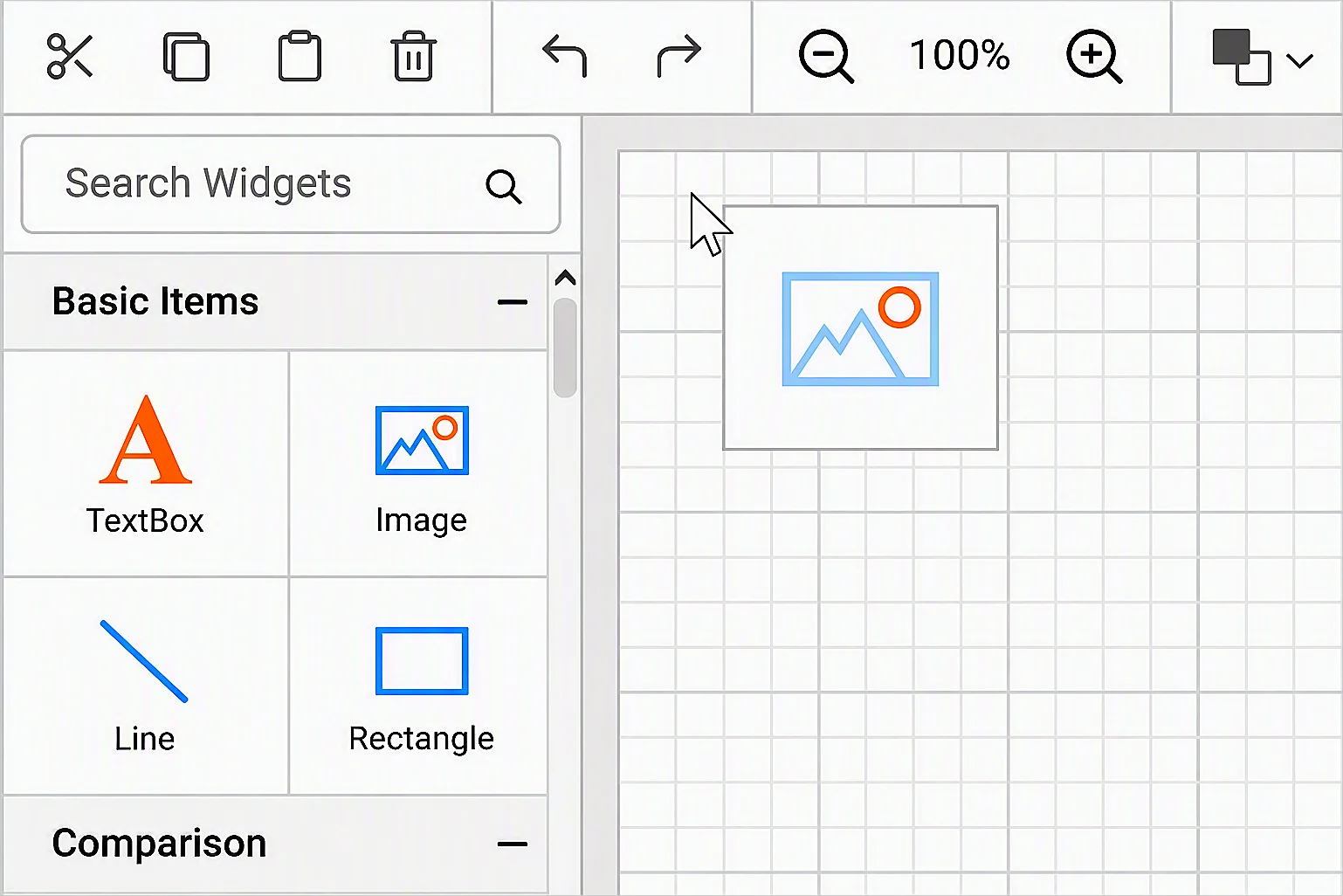
The image report item is added to the design surface, and its properties appear in the properties panel.
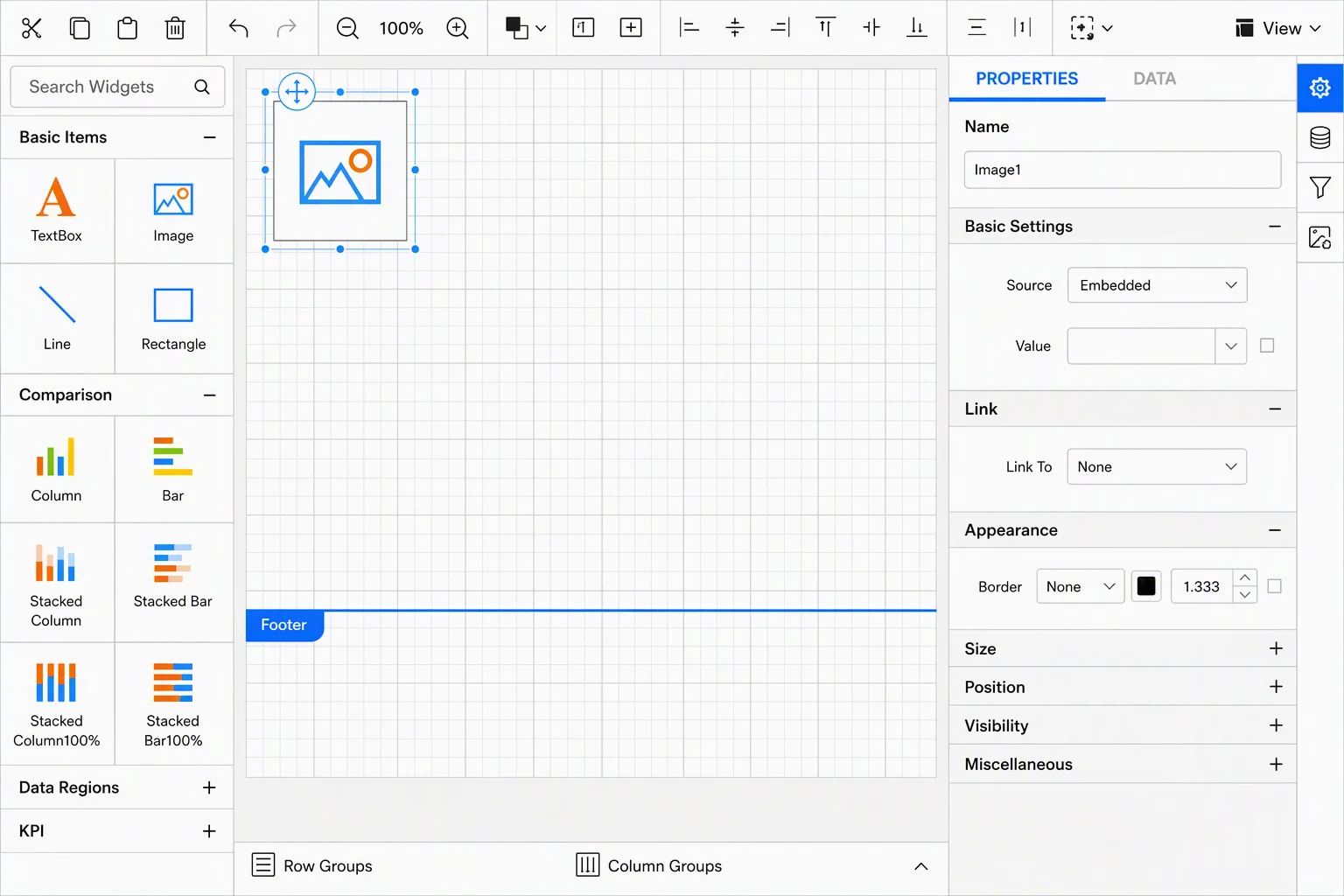
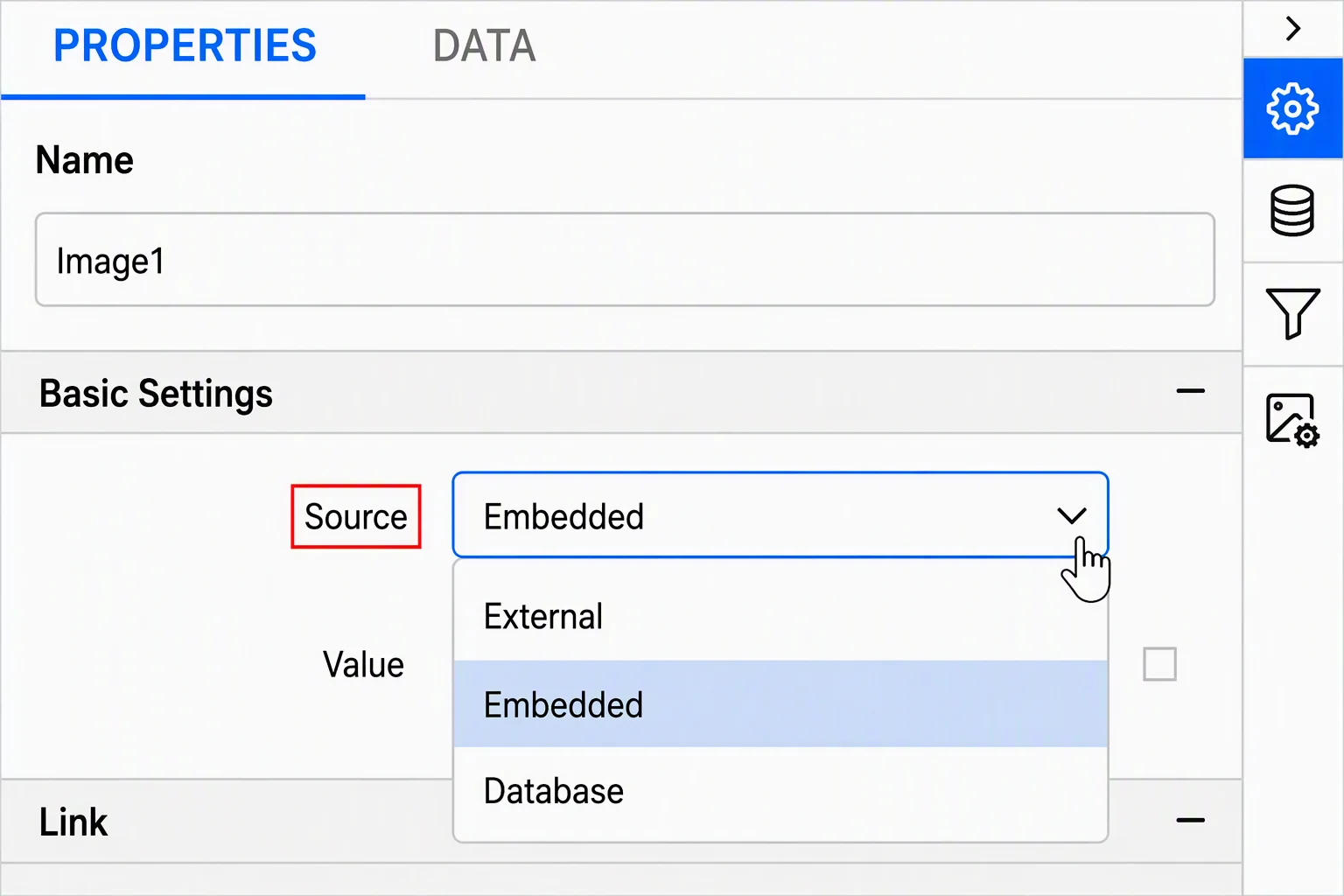
a.) Display an embedded image in image report item
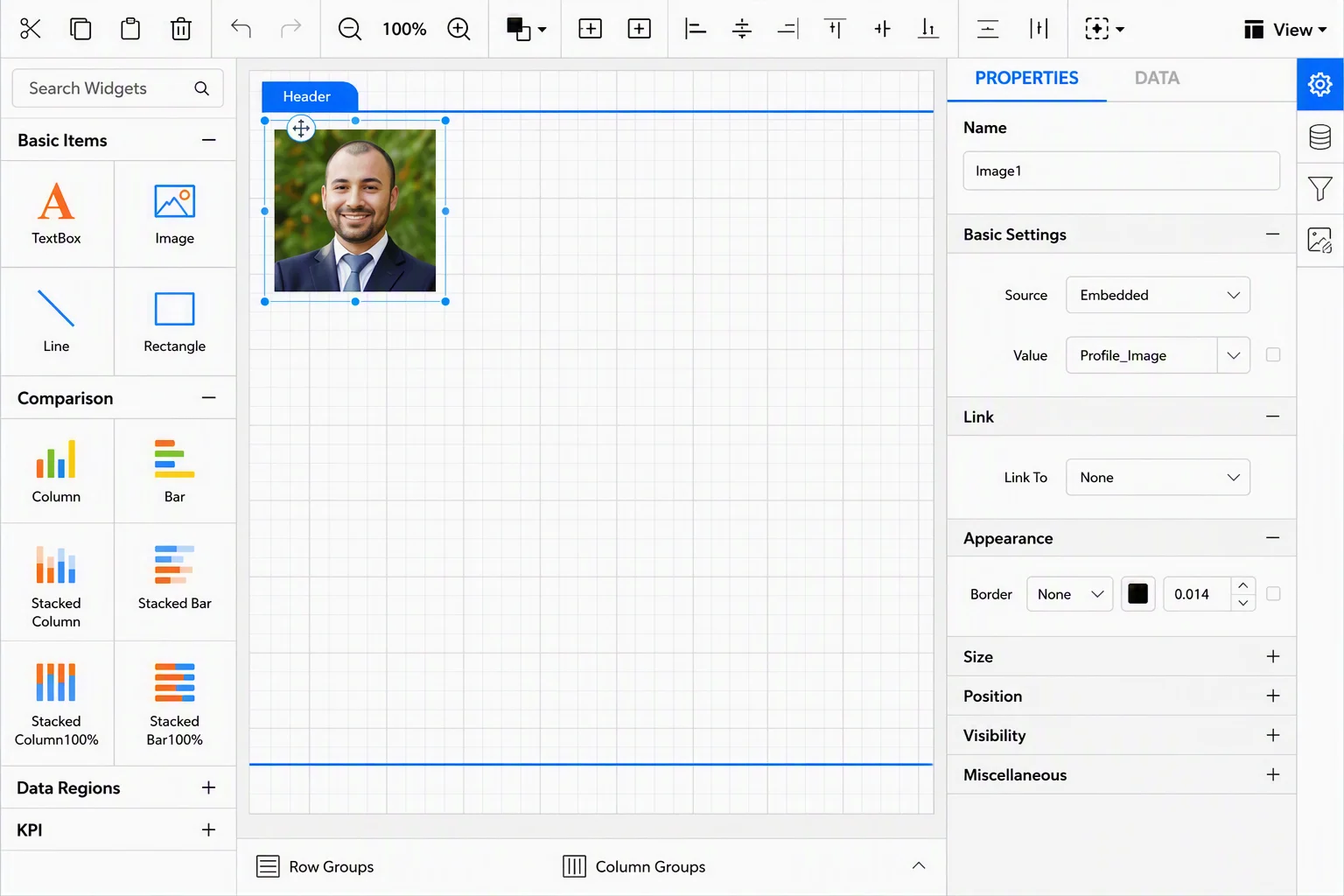
Select an image report item and open the properties panel. Under the Basic Settings category, select the Source type Embedded.
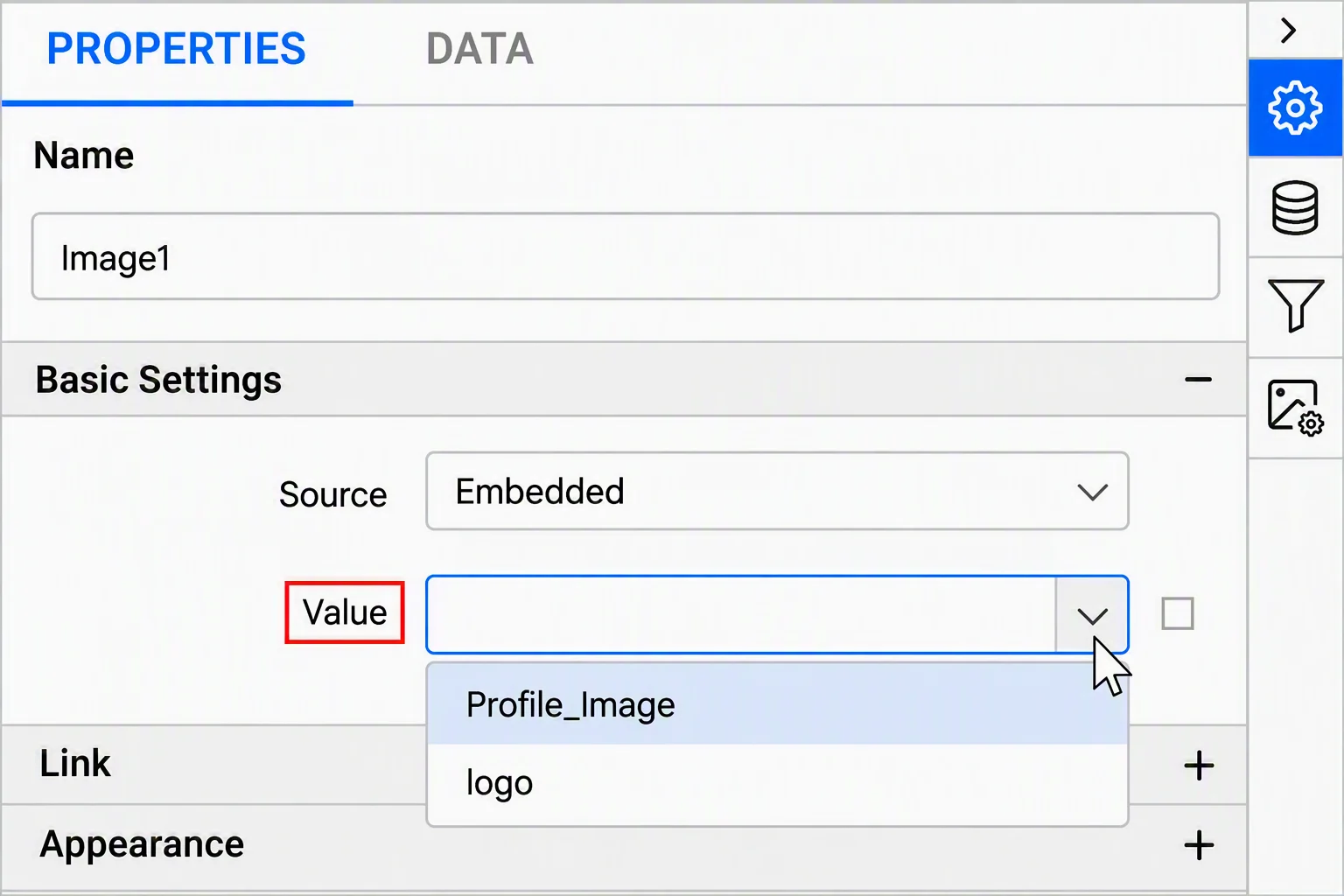
The images added under the image manager panel will be listed in the Value drop-down. Choose the name of the image that you want to display in the report.
You can also display an image in the design surface directly from the image manager itself. Hover the mouse over the required image and click the Add symbol.
The chosen image will now display in the design surface using the image report item.
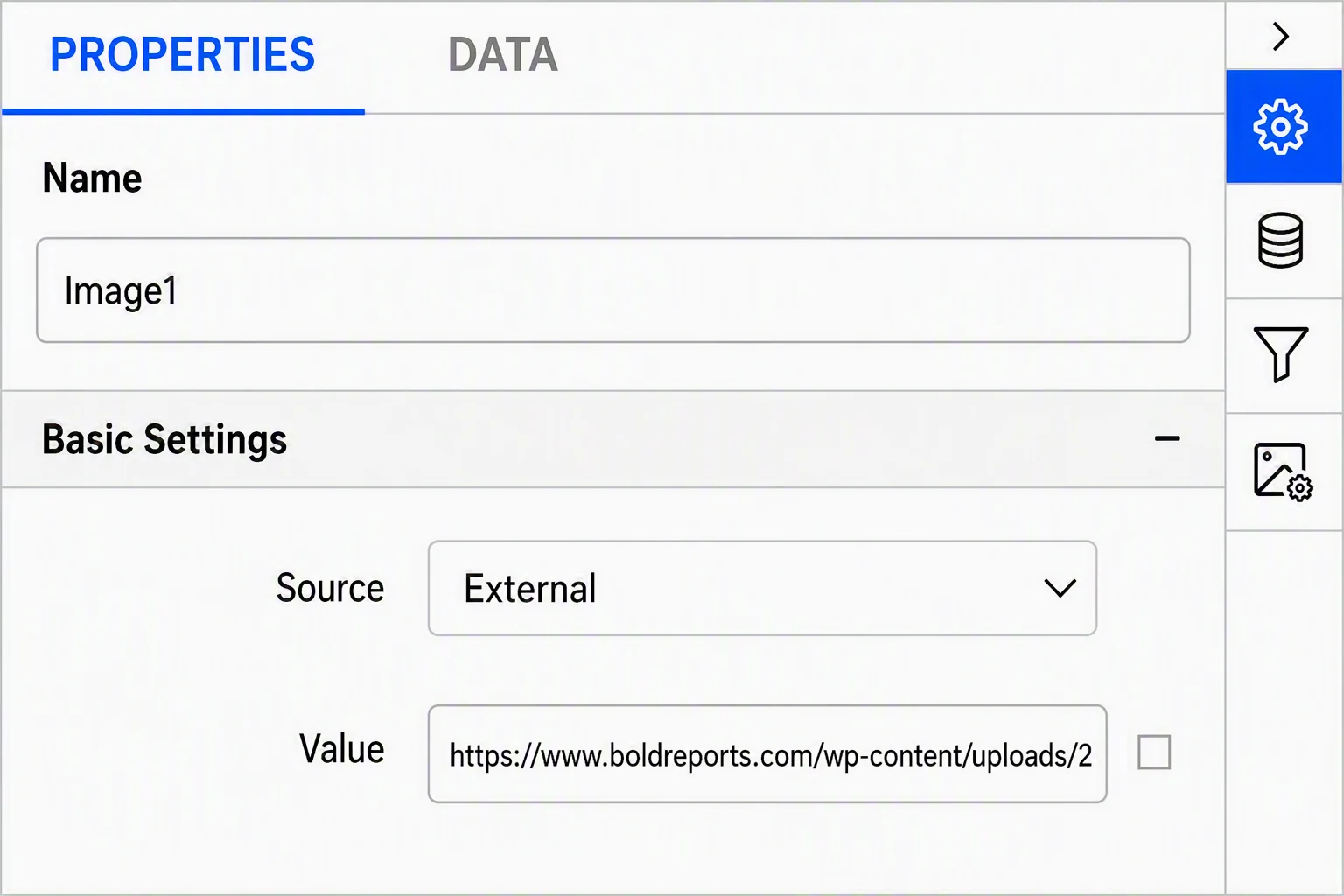
b.) Display image in image report item from external link
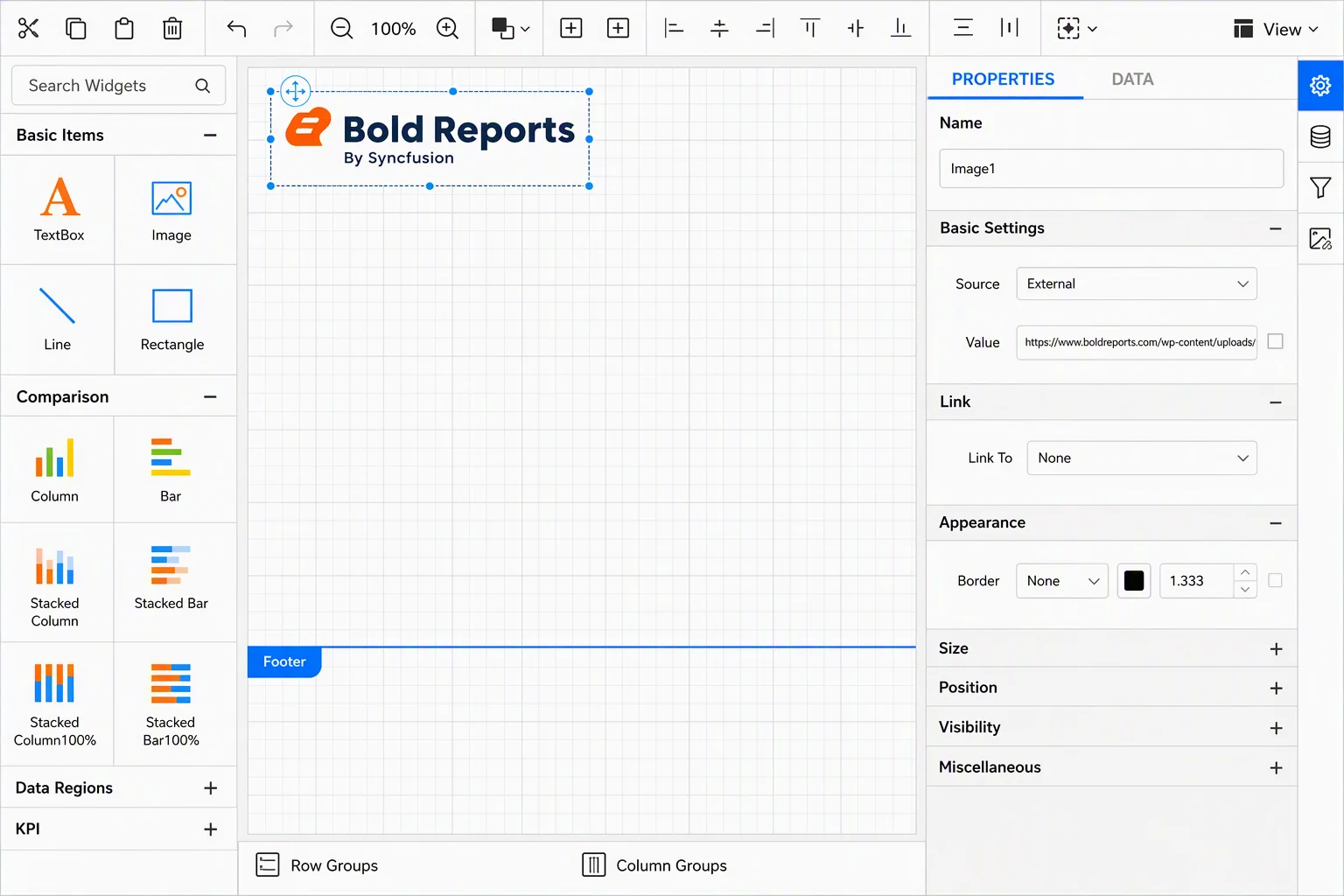
You can add external images to the report from the web or other websites. Select an image report item in the design surface and select the Source type External. Then, specify the URL in the Value property or set an expression that evaluates the URL.
The image now displays in the image report item container on the design surface.
c.) Display an image in image report item from database
You can display an image in an image report item that is stored in a database. To display an image from a database in your report, select Database as the Source. Now the data set fields available in the report will be listed in the Value drop-down. Choose the data set field that holds image data in the database.
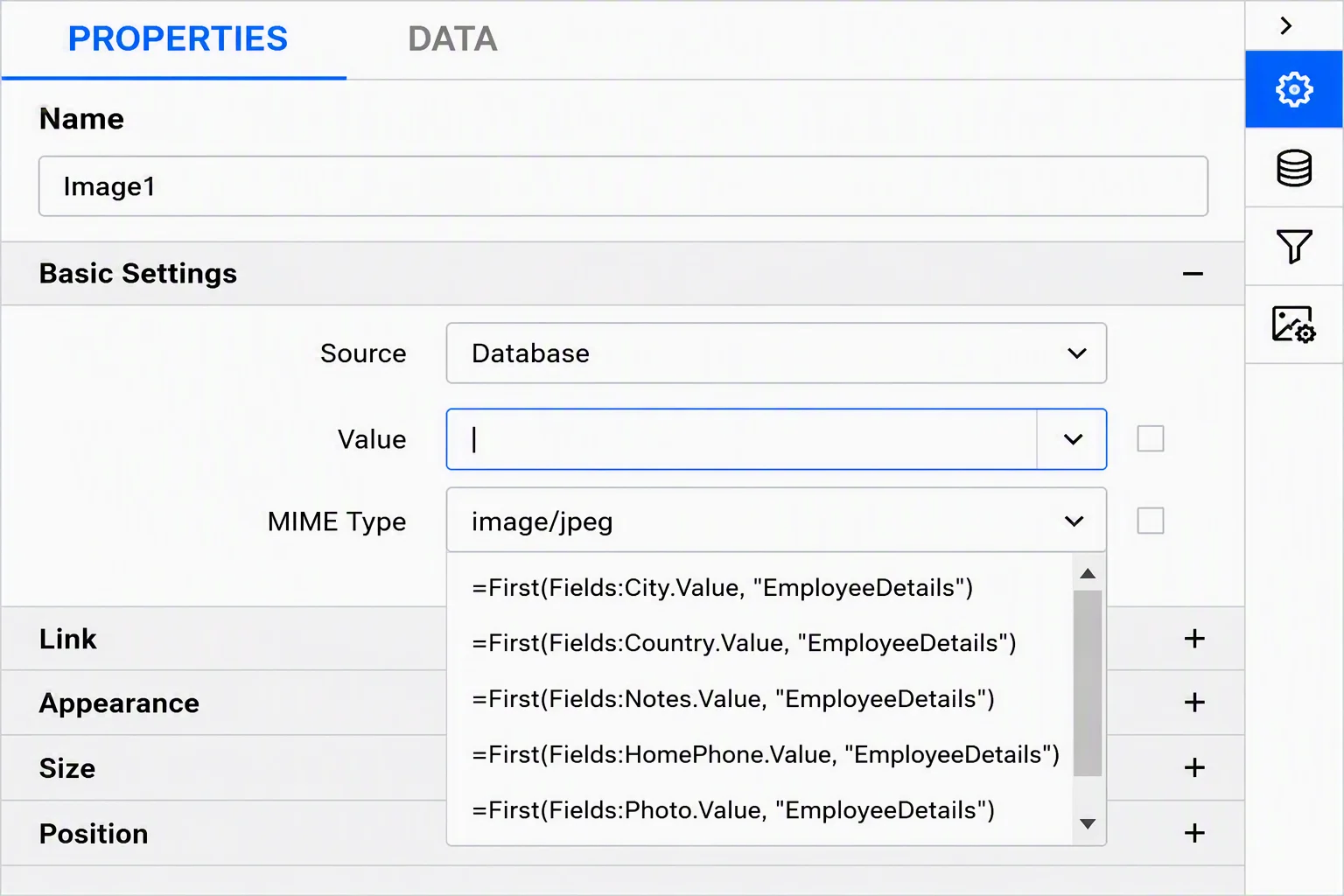
While displaying an image from a database, additionally we must specify the MIME type. Supported MIME types are listed in the MIME property drop-down list. Choose the MIME type according to your image type. The MIME type is a property used to decide the format of the image to be added in the report.
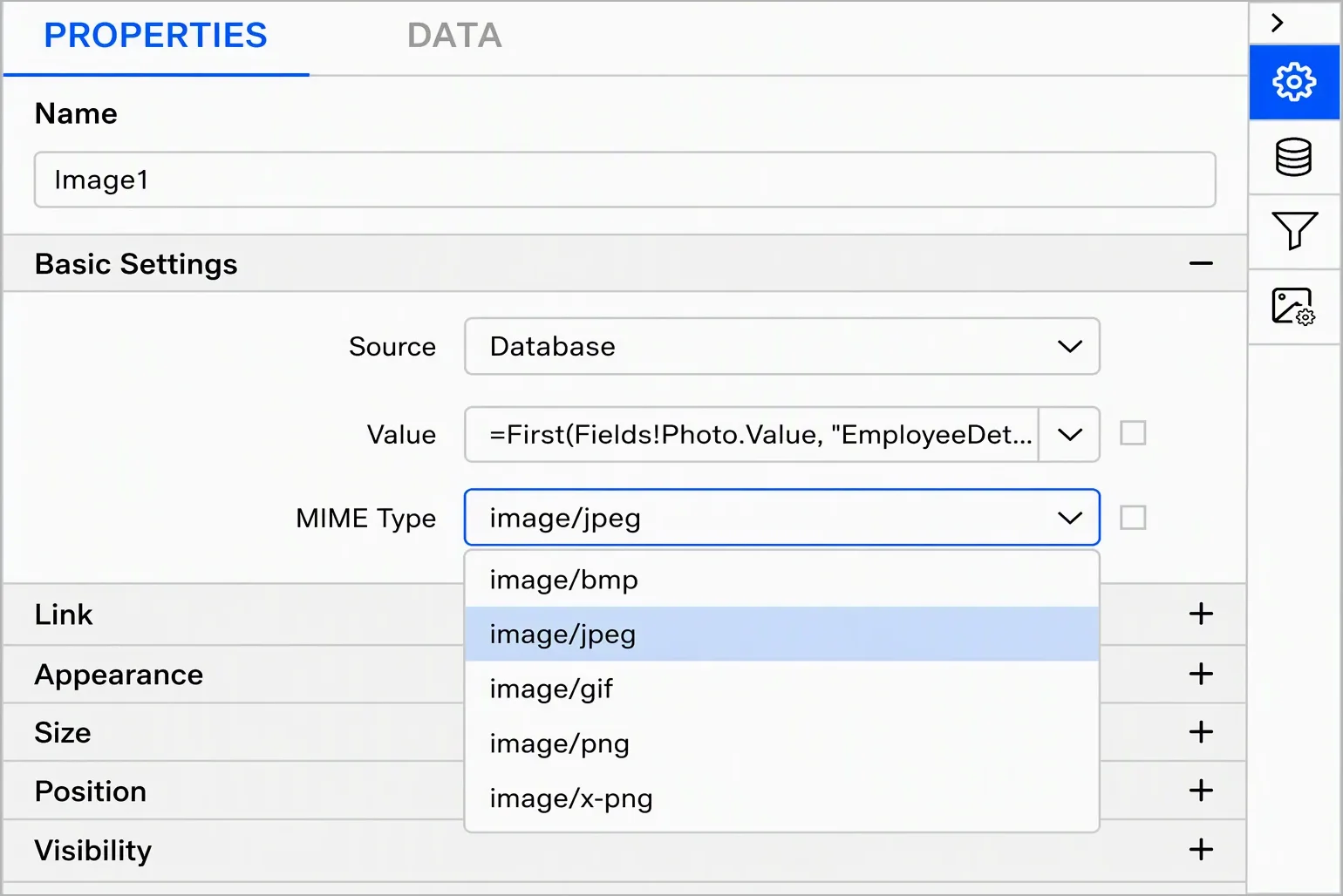
When you set database as the image source, the processed image will be displayed in the image report item only during report preview.

Validation checklist for SSRS images
Before publishing or deploying a report, use this checklist to verify that your SSRS image is configured correctly and displays as expected:
-
- The image renders in Preview mode, not just on the design surface. This is especially important for database images.
- The image uses a supported format, such as BMP, JPG, PNG, or X-PNG.
- The MIME type is configured correctly for database images and matches the stored image format.
- The external image URL is accessible from the environment where the report will be rendered.
- The Sizing property is configured appropriately, with FitProportional recommended in most cases to preserve the image’s aspect ratio.
- The image displays correctly in exported reports, including PDF, Word, and Excel formats.
- The image file size is optimized, with large images resized or compressed where appropriate to avoid unnecessary report bloat.
Common use cases for SSRS report images
SSRS images help improve report branding, readability, and user experience. Here are some of the most common use cases:
-
- Company logos: Add embedded logos to report headers or footers to maintain consistent branding across printed, exported, and shared reports.
- Product images: Display database-stored product photos alongside SKUs, product names, or descriptions in catalogs, inventory reports, and sales reports.
- Employee photos: Use database-sourced images in employee directories, ID card reports, attendance reports, and organizational charts.
- Invoices and statements: Combine embedded company logos with database-stored signatures, approval stamps, or QR codes to create professional invoices, receipts, and financial statements.
- Database-driven image galleries: Display a unique image for each dataset record, making this approach ideal for real estate listings, e-commerce catalogs, vehicle inventories, and similar image-rich reports.
- Watermarks and branded backgrounds: Use semi-transparent embedded images as watermarks or background elements to reinforce branding while maintaining report readability.
SSRS image best practices
Following these SSRS image best practices can help improve report performance, maintain visual quality, and ensure consistent image rendering across preview, export, and deployment environments.
- Embed logos and other static brand assets. Use embedded images for logos and branding elements that rarely change. For dynamic or frequently updated images, use database or external image sources to keep the report definition lightweight and easier to maintain.
- Always specify the correct MIME type for database images. The MIME type must match the image format stored in the database. Incorrect MIME type settings commonly cause image rendering failures.
- Use FitProportional sizing whenever possible. This option preserves the image’s aspect ratio and prevents logos, photos, and other visuals from appearing stretched or distorted.
- Optimize image size before adding it to the report. Resize and compress images to the dimensions required by the report. Large images increase RDL file size and can negatively affect report performance without improving visual quality.
- Verify external image URLs from the report server. An image URL that works in a browser may not be accessible from the report server due to network restrictions, firewall rules, or authentication requirements.
- Test images in Preview and export formats. Validate image rendering in all formats your users rely on, including HTML, PDF, Word, and Excel, as image behavior can vary between renderers.
- Use descriptive names for embedded images. Clear names such as CompanyLogo_2026 or ProductBanner_Main make images easier to identify and manage within the image manager.
Common SSRS image issues and solutions
Even when configured correctly, SSRS images can occasionally cause rendering or performance issues. The following troubleshooting tips can help you identify and resolve the most common problems.
1. Database image displays as a blank box.
This is usually caused by a missing or incorrect MIME type. Ensure the MIME type matches the image format stored in the database, such as image/jpeg for JPG files or image/png for PNG files.
2. Image appears in Preview but not after export.
Different export formats may handle image sizing and transparency differently. Test your report in the required export format (PDF, Word, or Excel) and adjust the Sizing property if the image appears cropped or distorted.
3. External image fails to load.
Verify that the URL is accessible from the report server, points directly to the image file, and does not require authentication that the report server cannot provide.
4. Embedded logo appears stretched or distorted.
This typically occurs when the Sizing property is set to Fit. Use FitProportional to maintain the image’s original aspect ratio.
5. Report size increases significantly after adding images.
Large, embedded images can increase RDL file size and impact performance. Compress and resize images before embedding, or store large images in a database or external location.
6. A deleted embedded image still appears in the report.
Removing an image from the image manager does not automatically update existing image controls. Manually update the Value property of affected image items to reference the correct image.
7. Database images display for some records but not others.
This often indicates inconsistent MIME types or corrupted image data. Verify that all records use supported image formats and contain valid binary data.
8. The updated image file does not appear in the report.
Embedded images are stored within the report definition. If you update the original file, you must re-embed the image for the changes to be reflected in the report.
Why use Bold Reports for SSRS report design?
Bold Reports® is an RDL-compatible report designer that supports the same image report item, image manager, and Source/Value/MIME-type model used in SSRS. This means you can apply the image-management techniques covered in this guide seamlessly across Bold Reports Designer, SSRS Report Builder, and Visual Studio Report Designer.
Key benefits include:
-
- A dedicated image manager for uploading, previewing, and managing report images without manually editing RDL files.
- Drag-and-drop image placement, making it easy to add embedded images directly to the report design surface.
- Full support for Embedded, External, and Database images, including MIME type configuration and image sizing controls.
- Consistent image rendering across HTML, PDF, Word, and Excel exports, helping minimize formatting and display issues.
- Ongoing support for RDL standards, ensuring compatibility with existing SSRS reports and reporting workflows.
- A 30-day free trial with no credit card required, allowing teams to evaluate image handling and report design capabilities in their own environment.
Expand your SSRS report design skills
Adding images to SSRS reports is often just one part of the report design process. If you’re displaying images within tables, matrices, or grouped data, the SSRS Tablix data region guide explains how Tablix layouts work and how to incorporate images alongside data. To understand how the image report item works alongside text boxes, tables, charts, gauges, and other report elements, explore overview of basic SSRS report items guide
For dynamic image paths and other data-driven report elements, the SSRS expressions cheat sheet provides guidance on expression syntax and calculated values. To improve readability in image-rich reports, explore alternating row colors in an SSRS Tablix. Beginners can build a strong foundation with create your first RDLC report using report designer, while developers looking to display reports in applications can learn more from RDLC reports in an ASP.NET Core Report Viewer. Together, these resources will help you create more professional, visually engaging, and SSRS-compatible reports.
Conclusion
SSRS images enable report authors to display logos, employee photos, product images, signatures, and other visual elements using embedded, external, or database image sources. Choosing the right SSRS image type helps improve report performance, simplify maintenance, and create more professional, visually engaging reports.
By following the techniques and best practices covered in this guide, you can confidently add images to SSRS reports and ensure consistent rendering across preview, export, and deployment environments. Ready to build professional reports with images and advanced customization? Request a demo or start a 30-day free trial to design, customize, and deploy SSRS-compatible reports. Need help getting started? Contact us for expert guidance.
Frequently asked questions
-
- 1.
How do I display an image from a database in SSRS?
Set the Image report item’s Source to Database, select the dataset field containing the image data in the Value property, and specify the correct MIME type. The image will render when the report is previewed or deployed.
- 2.
Why is my SSRS database image not showing?
A missing or incorrect MIME type is the most common cause. Verify that the MIME type matches the image format stored in the database column.
- 3.
Can I use an expression to set an image source in SSRS?
Yes. For External Images, the Value property can contain an expression that dynamically generates a URL based on dataset values.
- 4.
How many images can I add to the image manager at once?
The image manager lets you add images one at a time. Repeat the import process for each additional image.
- 5.
Why does my embedded image look stretched?
The image report item’s Sizing property may be set to Fit, which stretches the image to fill the container. Use FitProportional to maintain the original aspect ratio.
- 6.
Does updating the original image file update an embedded SSRS image?
No. Embedded images are stored within the report definition. To reflect changes, you must re-embed the updated image or use an external or database image source.
- 7.
Can I place an image inside a Tablix cell?
Yes. You can add image report items to Tablix cells, allowing you to display product images, employee photos, icons, and other visuals alongside row-level data.
- 1.