RDLC Reports in ASP.NET Core: Report Viewer Guide 2026
TL;DR:
ASP.NET Core does not provide a native Microsoft ReportViewer control for rendering RDLC reports. The Bold Reports ASP.NET Core Report Viewer enables organizations to display existing RDLC and RDL reports in modern web applications without redesigning report files. This guide covers RDLC architecture, RDL versus RDLC differences, implementation, deployment, security, troubleshooting, and modernization considerations
Introduction
If your organization built reporting features any time between roughly 2005 and the early 2020s on the .NET Framework, there’s a very good chance some of your most business-critical reports, invoices, financial statements, operational dashboards, and compliance documents are still saved as RDLC files. RDLC (Report Definition Language Client-side) was Microsoft’s client-side reporting format, designed to be authored in Visual Studio and rendered locally by the WinForms or WebForms ReportViewer control without requiring a dedicated report server.
That worked well for over a decade, until .NET Core and .NET 5+ arrived. Microsoft never shipped a native ReportViewer control for ASP.NET Core, and while Microsoft.Reporting.NETCore exists for WinForms/WPF desktop scenarios, there has been no first-party, browser-based way to render RDLC reports inside an ASP.NET Core web application. That gap is exactly why “ASP.NET Core Report Viewer” and “RDLC viewer for .NET Core” remain some of the most consistently searched terms in the .NET reporting space, even years into the .NET Core era.
Three realities keep RDLC reports, and the search demand around them, relevant in 2026:
-
- Rewriting hundreds of production reports is expensive and risky: Many organizations have dozens or hundreds of RDLC reports encoding years of accumulated business logic, formatting rules, and compliance requirements. A full rewrite in a new format is rarely the first choice when a lower-risk path exists.
- .NET Framework is being phased out, but the reports don’t have to be: As teams migrate application backends from .NET Framework to modern ASP.NET Core (and eventually to newer LTS releases like .NET 8, .NET 9, and beyond), they need a way to carry existing RDLC report files forward without a parallel reporting-layer rewrite project.
- “Modernize the app, keep the reports” is a legitimate, common strategy: Rather than treating reporting modernization as an all-or-nothing decision, most organizations extend the life of existing RDLC reports with an embedded Report Viewer control while they plan a longer-term reporting architecture, which may eventually include RDL-based, server-processed, or cloud-native reporting.
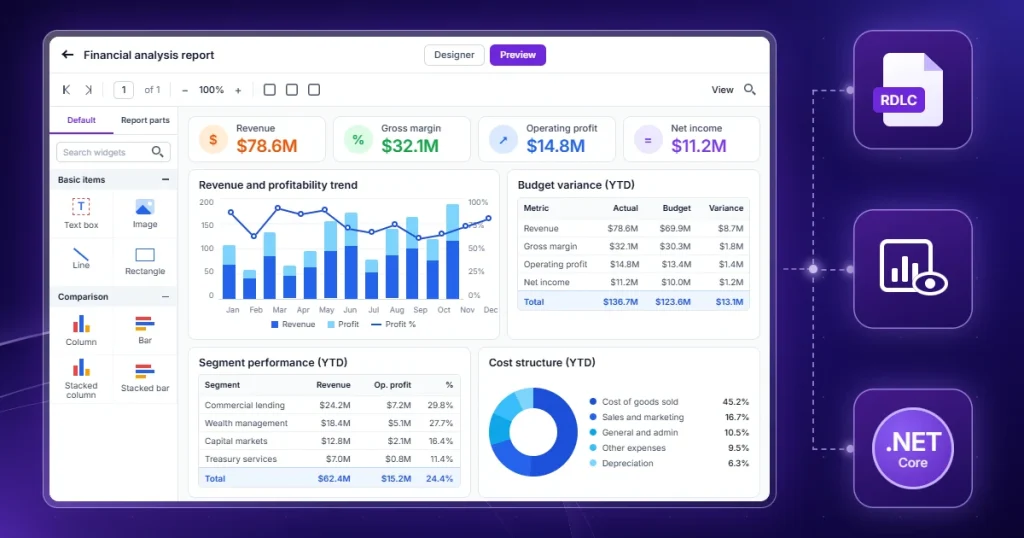
This is where the Bold Reports® ASP.NET Core Report Viewer fits in. It’s a client-side control, paired with a small Web API report service, that lets you display RDLC reports in ASP.NET Core applications exactly as they were originally authored, no re-authoring, no report-server migration required, while you plan whatever modernization timeline makes sense for your organization. The remainder of this guide covers how RDLC reporting works, how it compares to RDL, how to implement the Report Viewer step by step, and how to deploy, secure, troubleshoot, and eventually modernize this part of your reporting stack.
What is an RDLC report?
An RDLC report (Report Definition Language Client-side) is Microsoft’s client report definition format. According to Microsoft Learn, Visual Studio Report Designer produces client report definition (.rdlc) files for use with the ReportViewer control, and those .rdlc files can be converted to .rdl files for use with Reporting Services Report Designer.
Historically, RDLC reports were created in Visual Studio’s Report Designer and rendered inside WinForms or ASP.NET WebForms applications using the Microsoft ReportViewer control, with no dependency on SQL Server Reporting Services (SSRS) or another report server. RDL and RDLC use the same XML schema; the primary differences are where processing occurs and whether the report contains its own data connection.
RDLC architecture and local report processing
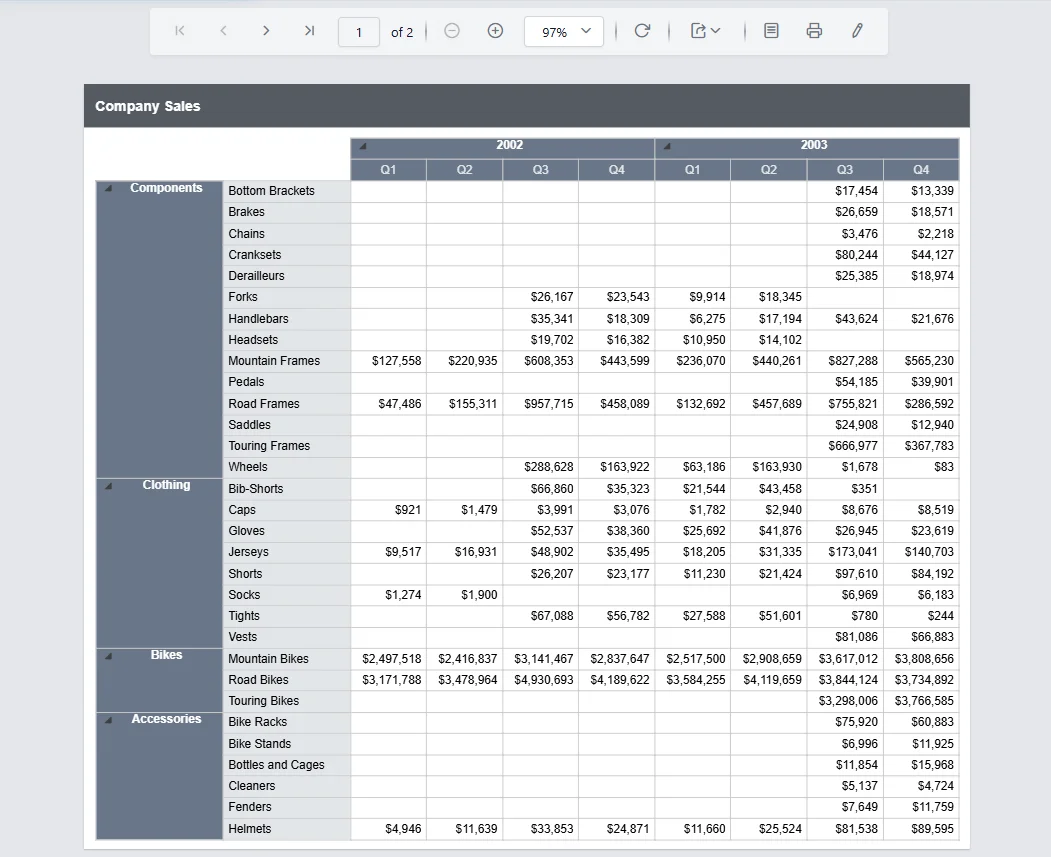
The defining architectural characteristic of an RDLC report is that the hosting application does the processing work, not a separate report server. In local processing mode, the host application, not a server, retrieves the data and passes it to the report engine. The RDLC file holds the layout and expressions, but no live data connection, so your application code fetches rows from a database, an API, or an in-memory object collection and supplies them as a dataset. At a high level:
- The RDLC file (the report definition, layout, expressions, data regions) is loaded from disk or an embedded resource into memory as a stream.
- The hosting application supplies the actual data at runtime, typically as an in-memory collection, DataTable, or business object list, rather than the report connecting directly to a database itself.
- A local report-processing engine merges the report definition with the supplied data and produces the rendered output (HTML for interactive viewing, or PDF/Word/Excel/image for export).
- Because there’s no report server round-trip, this model is often described as embedded or local report processing, the report “lives inside” the application rather than being served from a centrally hosted reporting platform.
This is precisely the model the Bold Reports ASP.NET Core Report Viewer reproduces for ASP.NET Core. ProcessingMode.Local tells the Report Viewer to process the RDLC file and supplied data sources directly within your ASP.NET Core application’s own Web API service, rather than delegating to an external report server.
RDLC vs RDL reports: What’s the difference?
RDLC and RDL are both XML-based report definition formats that share the same underlying Report Definition Language schema and design surface. The practical difference is where the report gets processed. RDLC reports are processed locally, inside the hosting application, with the app supplying data at runtime. RDL reports are processed on a report server, such as SSRS or Bold Reports Server, which manages data source connections, scheduling, caching, and centralized distribution independently of any single consuming application.
Because they share the same design language, a report author can often move between the two formats with the report layout mostly intact, but the deployment and operations story differs significantly, as shown in the following comparison table.
RDLC vs RDL reports: Comparison table
| Aspect | RDLC Reports | RDL Reports |
| Processing location | Local, processed inside the hosting application | Server, processed by a dedicated report server, e.g., SSRS, Bold Reports Server |
| Report server required | No | Yes |
| Data source binding | Bound at runtime in application code (ReportDataSource) | Configured centrally on the report server (shared data sources/datasets) |
| Deployment complexity | Lower, ships as part of the app deployment | Higher, requires provisioning, configuring, and maintaining report-server infrastructure |
| Maintenance effort | App-coupled, report changes typically follow the app’s release cycle | Centralized, reports can be updated independently of any consuming application |
| Scalability | Scales with the host application’s own resources | Scales independently via the report server, often with dedicated caching and load handling |
| Sharing across apps | Not centrally shared; each app instance has its own copy | Centrally hosted; multiple applications can consume the same report |
| Caching | Limited to what the hosting app implements | Built-in server-side caching and scheduled snapshot support |
| Typical origin | WinForms / WebForms ReportViewer, Visual Studio Report Designer | SQL Server Reporting Services (SSRS), enterprise reporting platforms |
| Modernization readiness | Lower out of the box; requires an embeddable viewer control to run in ASP.NET Core | Higher, server-based architecture aligns naturally with containerized, cloud-native, and multi-tenant deployments |
| Best for | Legacy or app-bound reporting, offline/on-prem scenarios, preserving existing report investments | Centrally managed enterprise reporting, multi-application consumption, scheduled distribution |
Report Viewer components explained
A Report Viewer is the runtime component that opens, paginates, displays, prints, and exports a report. In the classic .NET Framework era, Microsoft shipped a ReportViewer control for WebForms and WinForms; it never ported that control to .NET Core, which is the exact gap this article addresses.
The ASP.NET Core Report Viewer fills that gap with two pieces that work together: a client-side tag helper component (BoldReports.AspNet.Core) and a server-side Web API service (BoldReports.Net.Core) that processes the report. An ASP.NET Core RDLC reporting solution built with Bold Reports has three moving parts:
-
- The Report Viewer control: a client-side, tag-helper-based component (<bold-report-viewer>) that renders the interactive report UI: toolbar, pagination, export options, print, and parameter panels.
- The Web API report service: a controller (implementing IReportController) that receives the Report Viewer’s requests, loads the RDLC file, supplies data sources, and returns rendered report data back to the client. See the ASP.NET Core Web API report service documentation for the full service contract.
- The RDLC report file itself: unchanged from its original authoring, stored either on disk (e.g., in wwwroot) or as an embedded resource, and loaded as a stream by the Web API service at request time.
Data source binding in RDLC
Because RDLC reports are processed locally, data source binding happens in code, not inside the report file’s connection string. The typical pattern:
- Retrieve or compute the data your report needs from a database, API, in-memory collection, etc., as a strongly typed list or DataTable.
- In the OnInitReportOptions method of your report controller, add that data to reportOption.ReportModel.DataSources as a ReportDataSource, matching the name to the dataset name defined inside the RDLC file.
- The report engine merges the supplied data with the RDLC layout and expressions at render time.
This runtime binding model is powerful; you can source data from anywhere your application can reach, but it’s also the single most common source of implementation errors. A dataset name mismatch between your code and the RDLC file’s dataset definition is the #1 cause of “report renders blank” support tickets, covered in the troubleshooting section below.
Advantages of RDLC reports
RDLC reports remain a practical choice for embedded reporting, especially for organizations that want to retain existing report investments while modernizing their applications.
-
- No report server infrastructure required: reports are embedded directly in the application, reducing infrastructure footprint and operational overhead for smaller deployments.
- Full control over data supply: since data is passed in code, you can source it from any combination of databases, APIs, files, or computed business objects.
- Preserves years of existing report design investment: RDLC files created in Visual Studio’s Report Designer, sometimes over a decade ago, can continue to render without redesign.
- Simple, predictable deployment unit: the report ships as part of the application deployment, so there’s no separate report-server release cycle to coordinate.
Limitations of RDLC reports
While RDLC reports remain useful in many scenarios, they also come with constraints that organizations should consider when planning long-term reporting strategies.
-
- No native ASP.NET Core/.NET Core support from Microsoft: This is the core problem this entire guide exists to solve. You need a third-party or embedded Report Viewer control to render RDLC reports in a modern ASP.NET Core web app.
- Reports are tied to the application’s deployment cycle: Unlike centrally hosted RDL reports, updating an RDLC report typically means redeploying the application, or at minimum, the file it’s stored alongside.
- No built-in central caching, scheduling, or multi-app sharing: Each application instance processes its own copy of the report; there’s no shared report-server layer distributing load or caching rendered output across consumers.
- Scaling is tied to the host application’s resources: not a dedicated reporting tier. Under heavy concurrent report load, this can compete with your application’s own request-handling capacity.
Common enterprise use cases for RDLC reports
RDLC reports continue to be used across a wide range of business applications where embedded reporting, report stability, and long-term compatibility are important requirements.
-
- Line-of-business (LOB) applications: with a fixed, well-known set of internal reports (invoices, work orders, purchase orders) embedded directly in the app.
- Legacy application modernization projects: where the backend is being migrated from .NET Framework to ASP.NET Core, but the RDLC reports themselves don’t need to change yet.
- Offline or low-connectivity deployments: where a dependency on a separate report server isn’t practical.
- Regulatory and compliance documents: where the report layout has been signed off and validated, and organizations want to avoid the risk of redesigning it in a new format.
- Single-tenant or on-premises deployments: where the operational simplicity of “the report ships with the app” outweighs the benefits of centralized report management.
Choosing the right reporting approach
Not every organization needs the same reporting architecture, and RDLC is only one option on a spectrum. Use this framework to decide:
- You have existing RDLC reports and need them working in ASP.NET Core now: Use an embeddable ASP.NET Core Report Viewer control with local processing. This preserves your existing report files with minimal rework. This guide covers this primary scenario.
- You’re building new reports and want centralized management across multiple applications: Design new reports as RDL reports targeting a report server, so updates, scheduling, and caching are handled centrally rather than per-application.
- You need report authors, not just developers, to build or edit reports visually: Pair your Report Viewer with a Report Viewer control for consumption and a dedicated standalone Report Designer for authoring. See the Report Designer guide for a full walkthrough of the design experience.
- You need programmatic report generation without an interactive UI: E.g., scheduled PDF generation, batch invoicing. Use a reporting API to render reports headlessly on a schedule or trigger, rather than embedding an interactive viewer.
- You want reporting fully embedded inside your product’s UI, matching your app’s branding: An embedded reporting solution, Report Viewer + Web API service, themed to match your app, is the right fit. This guide implements this architecture end-to-end.
- You’re planning a multi-year reporting modernization and want a platform that scales with you: Evaluate a full enterprise reporting platform that supports RDL, RDLC, and modern data connectors together, so today’s RDLC reports and tomorrow’s cloud-native reports can coexist on the same platform roadmap rather than requiring a second migration later.
If you are modernizing a legacy application and weighing framework and lifecycle timelines rather than a feature swap, Bold Reports‘ SSRS migration and Crystal Reports end-of-life resources cover the framework-compatibility and support-lifecycle considerations that shape those decisions.
Steps to create RDLC Reports in ASP.NET Core with Report Viewer
Prerequisites & compatibility considerations
Before starting the implementation, confirm the following:
-
- .NET version compatibility: Bold Reports’ ASP.NET Core Report Viewer supports ASP.NET Core 2.x through current LTS releases, including ongoing updates for newer .NET versions. Always check the RDLC report documentation for the exact version matrix supported by your installed Bold Reports package version before starting a new project.
- Development environment: Visual Studio 2022 (or later) is recommended, though the .NET CLI works equally well for cross-platform development on macOS/Linux.
- NuGet package access: Confirm your build environment (including any CI/CD pipeline) can reach nuget.org or your internal NuGet feed to restore BoldReports.AspNet.Core and BoldReports.Net.Core.
- Database driver packages, if applicable: If your RDLC report’s data ultimately comes from SQL Server, install System.Data.SqlClient or Microsoft.Data.SqlClient (recommended for new projects, as System.Data.SqlClient is in maintenance mode).
- Existing RDLC files: Have your existing .rdlc report file(s) ready, along with a clear understanding of each report’s expected dataset name(s) and field structure; you’ll need this to correctly bind data sources later.
- Licensing: Confirm your Bold Reports license (trial or commercial) covers the ASP.NET Core Report Viewer control for your deployment target (development, staging, and production environments typically each need to be licensed appropriately).
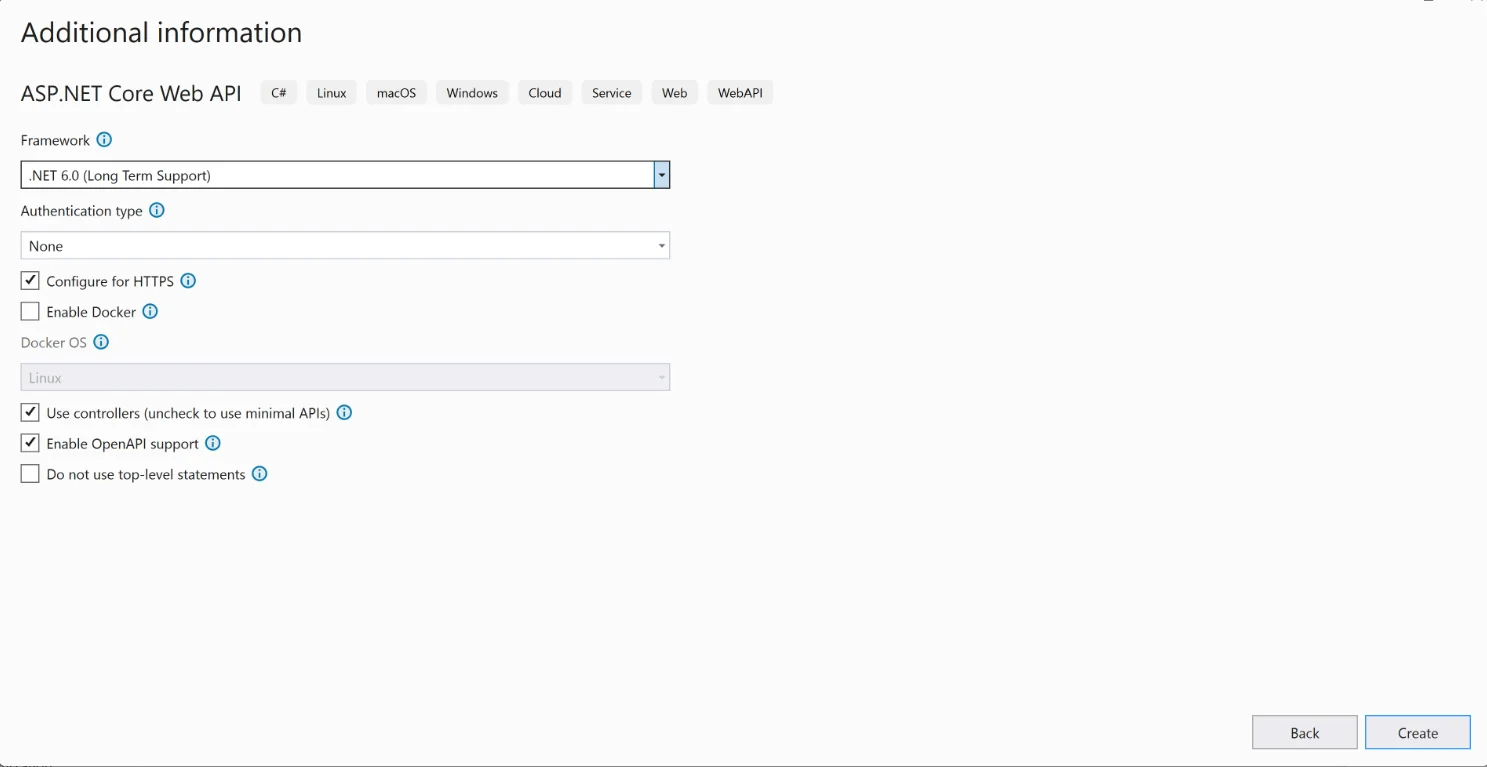
Step 1: Create a new ASP.NET Core Web Application
What it does: Establishes the MVC project structure that will host the Report Viewer control, views, and Web API report service.
- Open Visual Studio 2022 (or later) and select Create a new project.
- Choose the ASP.NET Core Web App (Model-View-Controller) template and click Next.
- Name the project and click Next.
- Set the Target framework to your target .NET version (e.g., .NET 8.0 or later) and click Create.
Prerequisites: Visual Studio 2022+ with the ASP.NET and web development workload installed, or the .NET SDK if using the CLI (dotnet new mvc).
Compatibility considerations: The Bold Reports ASP.NET Core Report Viewer supports ASP.NET Core 2.x and later. Always verify the specific version matrix in the RDLC report documentation against your target framework before committing to a version in a new project.
Expected output: A runnable, empty MVC project with default Home controller and views.
Step 2: Install the required NuGet Packages
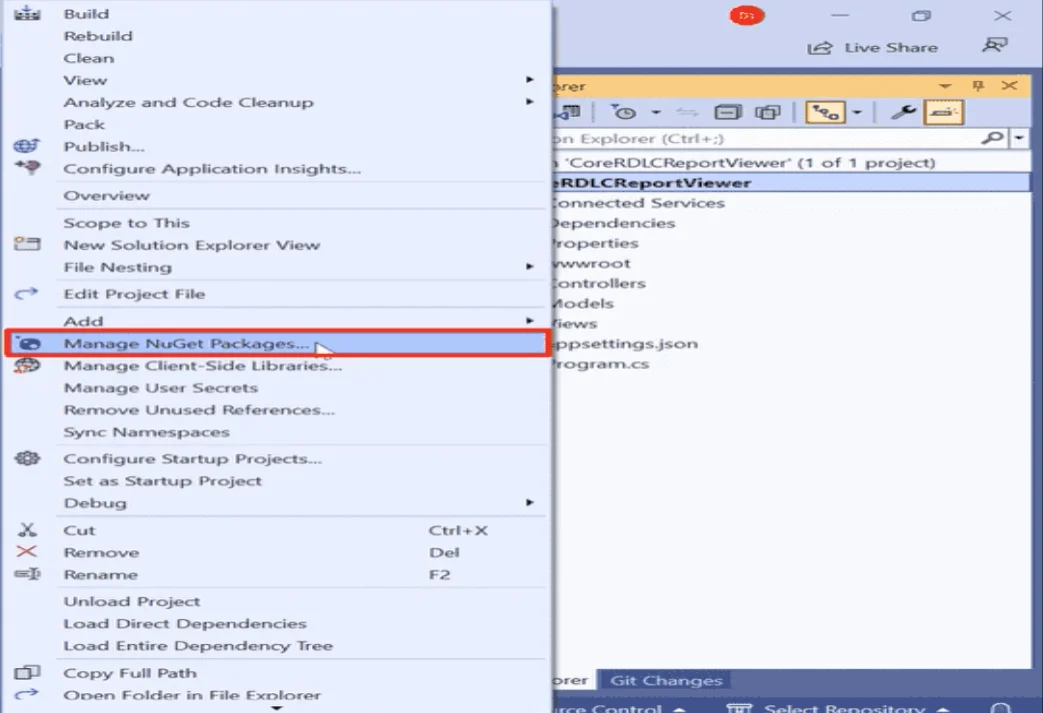
What it does: Adds the client-side reporting control and the server-side report-processing engine to your project.
In Solution Explorer, right-click the project and select Manage NuGet Packages.
In the Browse tab, install:
-
- BoldReports.AspNet.Core: provides the client-side Report Viewer tag helper control.
- BoldReports.Net.Core: provides the server-side report-processing engine used by your Web API service.
- Microsoft.Data.SqlClient (optional): install if your report’s data ultimately originates from SQL Server or SQL Azure.
Click Install. Dependent packages install automatically alongside BoldReports.Net.Core.
Troubleshooting tip: If package restore fails in a CI/CD pipeline, confirm the pipeline’s NuGet configuration includes any private feed required for licensed Bold Reports packages, in addition to nuget.org.
Step 3: Reference Scripts and CSS for the Report Viewer
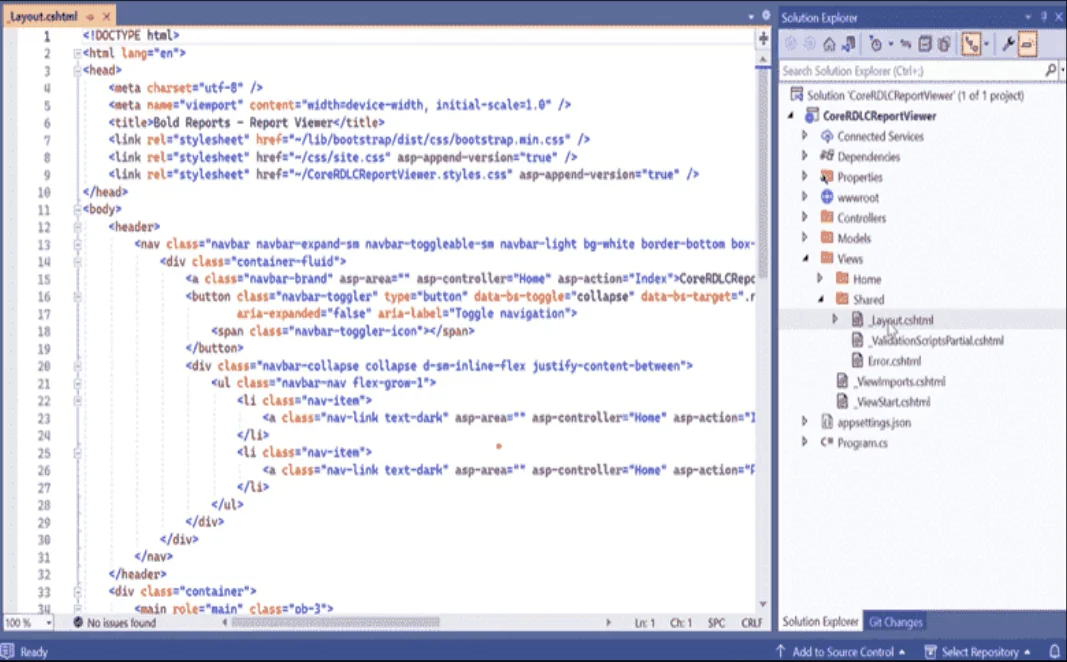
What it does: Loads the client-side rendering engine (JavaScript/CSS) the Report Viewer control depends on to draw the interactive report UI in the browser.
- Open Views/Shared/_Layout.cshtml.
- Inside the <head> tag, add the Report Viewer CSS theme and the required scripts: jQuery, ej2-base, ej2-data, ej2-pdf-export, ej2-svg-base, gauge/map scripts (only if your reports use those items), bold.reports.common, bold.reports.widgets, the chart script (only if used), and finally bold.report-viewer.
Compatibility considerations: You can use CDN-hosted scripts (fastest to set up) or self-hosted local scripts (recommended for regulated environments, air-gapped deployments, or strict Content Security Policy requirements where third-party CDN resources aren’t permitted).
Security consideration: If using CDN references, add Subresource Integrity (integrity attributes) where the CDN provider supports it, and ensure your Content-Security-Policy header explicitly allow-lists the CDN domain. Otherwise, the Report Viewer’s scripts may be silently blocked in production.
<!-- Report Viewer component style -->
<link href="https://cdn.boldreports.com/14.1.12/content/v2.0/tailwind-light/bold.report-viewer.min.css" rel="stylesheet" />
<!-- Report Viewer component dependent scripts -->
<script src="https://cdnjs.cloudflare.com/ajax/libs/jquery/3.6.0/jquery.min.js"></script>
<script src="https://cdn.boldreports.com/14.1.12/scripts/v2.0/common/bold.reports.common.min.js"></script>
<script src="https://cdn.boldreports.com/14.1.12/scripts/v2.0/common/bold.reports.widgets.min.js"></script>
<!-- Report Viewer component script -->
<script src="https://cdn.boldreports.com/14.1.12/scripts/v2.0/bold.report-viewer.min.js"></script>
Step 4: Configure the Script Manager and Tag Helpers
What it does: Registers the Bold Reports script manager, which places the Report Viewer’s initialization script correctly in the page, and enables the <bold-report-viewer> tag helper.
- In _Layout.cshtml, replace the <body> content to include @RenderBody(), @RenderSection(“Scripts”, required: false), and <bold-script-manager></bold-script-manager>. The script manager must be placed at the end of <body> so initialization scripts run after the DOM and other scripts have loaded.
- Open Views/_ViewImports.cshtml and add:
<body>
<div style="min-height: 600px;width: 100%;">
@RenderBody()
</div>
@RenderSection("Scripts", required: false)
<!-- Bold Reports<sup>®</sup> script manager -->
<bold-script-manager></bold-script-manager>
</body> @using BoldReports.TagHelpers
@addTagHelper *, BoldReports.AspNet.Core
Step 5: Initialize the Report Viewer Control
What it does: Places the actual Report Viewer UI on the page.
-
- Open Views/Home/Index.cshtml, remove the scaffolded content, and add:
<bold-report-viewer id="viewer"></bold-report-viewer>
-
- Create a Resources folder inside wwwroot to hold your RDLC files and copy your existing .rdlc file(s) into it.
Expected output: A page that loads the Report Viewer shell (toolbar and canvas) but shows no report yet, since the report path hasn’t been configured.
Step 6. Configure the Web API Report Service
What it does: Implements the server-side endpoint the Report Viewer calls to load the RDLC file, process it, and return rendered output.
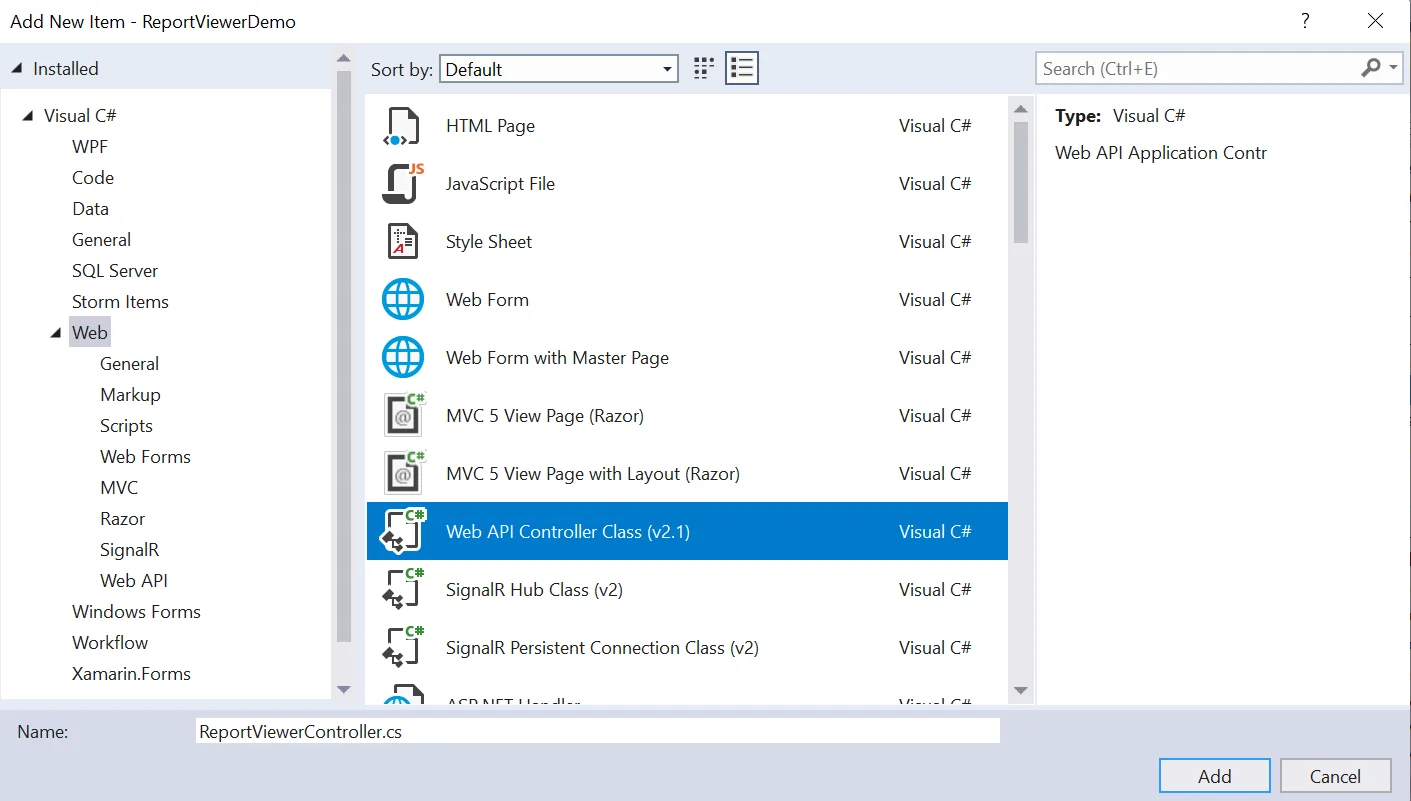
-
- Add a new controller, e.g., ReportViewerController.cs.
- Add using System.IO; and using BoldReports.Web.ReportViewer;.
using Microsoft.AspNetCore.Mvc;
using System.IO;
using BoldReports.Web.ReportViewer;
-
- Apply [Route(“api/[controller]/[action]”)] and inherit from Controller, IReportController.
[Route("api/[controller]/[action]")]
public class ReportViewerController : Controller, IReportController
{
...
}
Inject IMemoryCache (to cache in-flight report state between client requests) and IWebHostEnvironment (to resolve the wwwroot/Resources path).
    //Report Viewer requires a memory cache to store the information of consecutive client request and have the rendered report viewer information in server
    private Microsoft.Extensions.Caching.Memory.IMemoryCache _cache;
    // IWebHostEnvironment used to get the report stream from application `wwwroot\Resources` folder.
    private Microsoft.AspNetCore.Hosting.IWebHostEnvironment _hostingEnvironment;
Implement PostReportAction, OnInitReportOptions, OnReportLoaded, GetResource, and PostFormReportAction using the ReportHelper methods provided by BoldReports.Net.Core, exactly as documented in the ASP.NET Core Web API report service guide for Report Viewer.
[Route("api/[controller]/[action]")]
public class ReportViewerController : Controller, IReportController
{
    // Report viewer requires a memory cache to store the information of consecutive client request and
    // have the rendered Report Viewer information in server.
    private Microsoft.Extensions.Caching.Memory.IMemoryCache _cache;
    // IWebHostEnvironment used with sample to get the application data from wwwroot.
    private Microsoft.AspNetCore.Hosting.IWebHostEnvironment _hostingEnvironment;
    // Post action to process the report from server-based JSON parameters and send the result back to the client.
    public ReportViewerController(Microsoft.Extensions.Caching.Memory.IMemoryCache memoryCache,
        Microsoft.AspNetCore.Hosting.IWebHostEnvironment hostingEnvironment)
    {
        _cache = memoryCache;
        _hostingEnvironment = hostingEnvironment;
    }
    // Post action to process the report from server-based JSON parameters and send the result back to the client.
    [HttpPost]
    public object PostReportAction([FromBody] Dictionary<string, object> jsonArray)
    {
        //Contains helper methods that help to process a Post or Get request from the Report Viewer control and return the response to the Report Viewer control
        return ReportHelper.ProcessReport(jsonArray, this, this._cache);
    }

    // Method will be called to initialize the report information to load the report with ReportHelper for processing.
    [NonAction]
    public void OnInitReportOptions(ReportViewerOptions reportOption)
    {
        string basePath = _hostingEnvironment.WebRootPath;
        // Here, we have loaded the sales-order-detail.rdl report from application the folder wwwroot\Resources. sales-order-detail.rdl should be there in wwwroot\Resources application folder.
        FileStream inputStream = new FileStream(basePath + @"\Resources\" + reportOption.ReportModel.ReportPath, FileMode.Open, FileAccess.Read);
        MemoryStream reportStream = new MemoryStream();
        inputStream.CopyTo(reportStream);
        reportStream.Position = 0;
        inputStream.Close();
        reportOption.ReportModel.Stream = reportStream;
    }
    // Method will be called when report is loaded internally to start layout process with ReportHelper.
    [NonAction]
    public void OnReportLoaded(ReportViewerOptions reportOption)
    {
    }
    //Get action for getting resources from the report
    [ActionName("GetResource")]
    [AcceptVerbs("GET")]
    // Method will be called from Report Viewer client to get the image SRC for Image report item.
    public object GetResource(ReportResource resource)
    {
        return ReportHelper.GetResource(resource, this, _cache);
    }
    [HttpPost]
    public object PostFormReportAction()
    {
        return ReportHelper.ProcessReport(null, this, _cache);
    }
}
Security considerations:
-
- Restrict the report resource path: Never accept an arbitrary, client-supplied file path directly as a filesystem path. Resolve report-path values against a fixed, known base directory (as shown using _hostingEnvironment.WebRootPath) to prevent path traversal.
-
- Authenticate and authorize the API route: The ReportViewerController endpoints should sit behind the same authentication/authorization middleware as the rest of your application. An unauthenticated report API can leak sensitive report data or allow denial-of-service via repeated heavy report requests.
-
- Validate report parameters server-side: If your report accepts user-supplied parameters, validate and sanitize them in OnInitReportOptions rather than trusting client input directly in any downstream query.
Troubleshooting tip: A 404 on the report API route almost always indicates a route attribute mismatch between the controller and the report-service-url set on the client. Confirm both use the same casing and path.
Note for teams also building Report Designer functionality: If you’re pairing this Report Viewer implementation with in-app report authoring, the Report Designer requires its own, similarly structured Web API service. See the ASP.NET Core Web API service guide for Report Designer for the designer-specific controller contract.
Step 7. Set the Report Path and Service URL
What it does: Tells the Report Viewer control which RDLC file to load and which API endpoint to call.
<bold-report-viewer id="viewer" report-path="productlist.rdlc" report-service-url="/api/ReportViewer">
</bold-report-viewer>
<script type="text/javascript">
</script>
Compatibility consideration: The report-path value must exactly match the filename resolved inside your OnInitReportOptions logic. Case sensitivity matters on Linux-hosted deployments even if it didn’t cause issues locally on Windows.
Step 8: Bind Data Sources for Local Processing Mode
What it does: Binds a business object collection to the RDLC report during local processing. The Report Viewer supports rendering RDLC reports using data supplied through IList, DataTable, and DataSet objects.
Create a model class (or reuse an existing one) exposing the fields your RDLC report’s dataset expects.
public class ProductList
{
public string ProductName { get; set; }
public string OrderId { get; set; }
public double Price { get; set; }
public string Category { get; set; }
public string Ingredients { get; set; }
public string ProductImage { get; set; }
public static IList GetData()
{
List<ProductList> datas = new List<ProductList>();
ProductList data = null;
data = new ProductList()
{
ProductName = "Baked Chicken and Cheese",
OrderId = "323B60",
Price = 55,
Category = "Non-Veg",
Ingredients = "grilled chicken, corn and olives.",
ProductImage = ""
};
datas.Add(data);
data = new ProductList()
{
ProductName = "Chicken Delite",
OrderId = "323B61",
Price = 100,
Category = "Non-Veg",
Ingredients = "cheese, chicken chunks, onions & pineapple chunks.",
ProductImage = ""
};
datas.Add(data);
data = new ProductList()
{
ProductName = "Chicken Tikka",
OrderId = "323B62",
Price = 64,
Category = "Non-Veg",
Ingredients = "onions, grilled chicken, chicken salami & tomatoes.",
ProductImage = ""
};
datas.Add(data);
return datas;
}
}
In OnInitReportOptions, set reportOption.ReportModel.ProcessingMode = ProcessingMode.Local;, load the RDLC file into a stream from your Resources folder, assign it to reportOption.ReportModel.Stream, and add your data:
public void OnInitReportOptions(ReportViewerOptions reportOption)
   {
        reportOption.ReportModel.ProcessingMode = ProcessingMode.Local;
        string basePath = Path.Combine(_hostingEnvironment.WebRootPath, "Resources");
        string reportPath = Path.Combine(basePath, reportOption.ReportModel.ReportPath);
        FileStream fileStream = new FileStream(reportPath, System.IO.FileMode.Open, System.IO.FileAccess.Read);
        MemoryStream reportStream = new MemoryStream();
        fileStream.CopyTo(reportStream);
        reportStream.Position = 0;
        fileStream.Close();
        reportOption.ReportModel.Stream = reportStream;
        reportOption.ReportModel.DataSources.Add(new BoldReports.Web.ReportDataSource { Name = "list", Value = ProductList.GetData() });
   }
Critical compatibility note: The Name value (“list” in this example) must exactly match the dataset name defined inside the RDLC file itself and not an arbitrary name you choose in code. This single mismatch is the most common cause of RDLC reports rendering blank or throwing a data-source binding error, covered in more detail in the troubleshooting section below.
Expected output: The report definition and data are configured correctly, and the report is ready to render on the next request.
Step 9: Build, Run & Verify the Rendered Report
- Build and run the application.
- Navigate to the page hosting the Report Viewer.
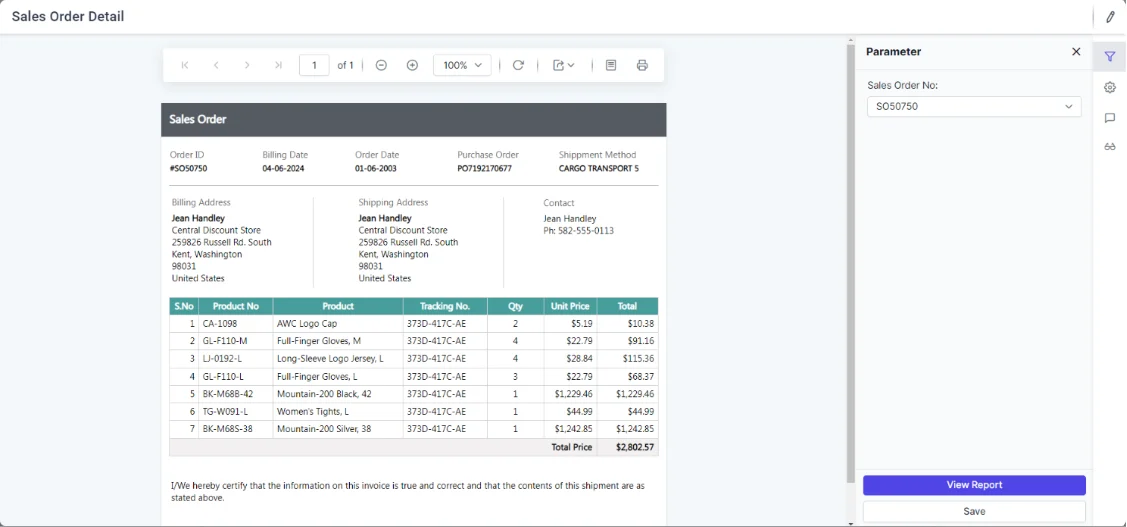
- Confirm the report renders with the expected layout, data rows, and formatting, and that toolbar actions (pagination, export, print, zoom) all function correctly.
Expected output: A fully interactive report rendered in the browser, matching the original RDLC design, with working export to PDF/Word/Excel from the toolbar.
Troubleshooting tip: If the report loads with a visible toolbar but an empty canvas, the most likely causes, in order of frequency, are: a dataset name mismatch (Step 8), an incorrect report-path/file location (Step 7), or a missing script reference for a report item type your report uses, such as charts or gauges (Step 3).
Deploying RDLC Report Viewer Applications
Once the Report Viewer works locally, deployment introduces its own set of considerations that the original tutorial doesn’t cover:
-
- IIS deployment: Ensure the Resources folder containing your RDLC files is included in the published output (confirm it isn’t excluded by a .gitignore-style publish profile setting), and that the application pool identity has read access to that folder.
- Azure App Service: RDLC files deployed under wwwroot publish normally with standard Azure App Service deployment; if reports are large or numerous, consider Azure Blob Storage with a stream-based load in OnInitReportOptions instead of bundling every RDLC file directly in the deployment package.
- Containers (Docker/Kubernetes): Include the Resources folder in your Docker image’s COPY instructions and verify any font dependencies your reports use (custom fonts referenced in RDLC text styles) are installed in the container image. Missing fonts commonly cause visually broken (though not error-throwing) exports in containerized deployments.
- Load balancing and memory cache: The default IMemoryCache used by the Report Viewer’s controller is per-instance. In a multi-instance/load-balanced deployment, either enable session affinity (sticky sessions) so a client’s report requests land on the same instance or move to a distributed cache implementation if you need reports to work reliably behind a load balancer without sticky sessions.
- CDN vs. local scripts in production: For production deployments with strict Content-Security-Policy or offline requirements, self-host the Report Viewer’s JavaScript/CSS assets instead of relying on the Bold Reports CDN referenced in the tutorial steps.
Security Considerations for RDLC Reporting in ASP.NET Core
Beyond the API-level guidance in Step 6, keep the following in mind for any production RDLC Report Viewer deployment:
-
- Authentication on the report API: Every request to your ReportViewerController endpoints should be subject to the same authentication as the rest of the application. Don’t leave the report service URL anonymously accessible by default.
- Row-level or report-level authorization: If different users should see different data (or shouldn’t see a report at all), enforce that authorization inside OnInitReportOptions before assigning data sources; never rely on the client-side control to hide data it was never supposed to receive from the server.
- Sanitize report parameters: Any parameter values passed from the Report Viewer’s parameter panel into a database query must be parameterized (never string-concatenated into SQL), exactly as you would for any other user input in the application.
- Restrict export formats if needed: If your organization has data-loss-prevention requirements, the Report Viewer toolbar’s export options (PDF, Word, Excel, image) can be configured/restricted. Review this against your compliance requirements before go-live.
- Keep the Bold Reports NuGet packages current: As with any third-party dependency, apply version updates promptly to pick up security fixes; track the packages alongside your other NuGet dependency update process.
Common RDLC implementation issues & troubleshooting
RDLC implementations tend to fail in predictable ways. Here’s how to diagnose and fix the most common ones:
- Dataset name mismatch (report renders blank): The Name on your ReportDataSource in code must exactly match the dataset name defined inside the RDLC file. Open the RDLC file’s XML (or the report in a designer) to confirm the exact dataset name, then compare it character-for-character with your OnInitReportOptions code.
- Datasource binding errors (“data source X not found”): This occurs when a report references a dataset your code never supplies, or when a report has multiple datasets and only some are bound. Enumerate every dataset defined in the RDLC file and confirm each one has a corresponding ReportDataSource entry.
- Report rendering failures with no clear error message: Check the browser console first. Many rendering failures surface as client-side script errors before any server-side exception occurs, often because a specific report item (charts, gauges, maps) is missing a script reference in that report.
- .NET compatibility challenges after a framework upgrade: Upgrading the host application’s target framework (e.g., .NET 6 → .NET 8) without also updating BoldReports.AspNet.Core/BoldReports.Net.Core to a compatible version is a common source of build or runtime errors post-upgrade. Always check the compatibility matrix in the RDLC report documentation before and after any target framework change.
- Deployment issues such as report file not found in production: This almost always traces back to the Resources folder (or wherever RDLC files are stored) not being included in the publish/deployment package, or a case-sensitivity mismatch on Linux-based hosting that didn’t surface during local Windows development.
- Export limitations or formatting differences between preview and export. PDF, Word, and Excel exports each use a different rendering path than the interactive HTML preview. Always test exports in every format your users rely on. A report that looks correct in the browser can still have merged-cell or font-rendering differences once exported.
- Performance bottlenecks on large datasets. Because RDLC processing happens inside your application’s own process, a large dataset bound directly to a report (rather than pre-aggregated) can noticeably affect both render time and application memory. Pre-aggregate or page large datasets at the query level before assigning them as ReportDataSource wherever possible.
- Debugging best practices: Enable server-side logging around OnInitReportOptions and PostReportAction to capture the exact dataset names, row counts, and any exceptions thrown during report processing. Most “report doesn’t render” issues are resolved in minutes once you can see the actual data source names and counts the server received, rather than guessing from the client-side symptom alone.
Modernizing legacy RDLC reporting: A migration path
Keeping RDLC reports alive with an embedded Report Viewer is a legitimate long-term strategy for many organizations, but for teams actively planning a broader reporting modernization, it helps to think of this as a staged path rather than an either/or decision:
- Stage 1: Stabilize: Get existing RDLC reports rendering reliably in ASP.NET Core using the ASP.NET Core Report Viewer, exactly as covered in this guide. This removes the immediate blocker (no native ReportViewer in ASP.NET Core) without touching report content.
- Stage 2: Extend authoring capability: If report changes are still needed regularly, introduce the ASP.NET Core Report Designer or the standalone Report Designer so report authors (not just developers) can edit reports directly, referencing the Report Designer guide for the authoring workflow.
- Stage 3: Evaluate centralization: For reports consumed by multiple applications, or that would benefit from scheduling, centralized caching, or independent update cycles, evaluate converting select high-value RDLC reports to server-processed RDL reports on an enterprise reporting platform, using the RDL vs RDLC comparison table above as a starting checklist for identifying good conversion candidates.
- Stage 4: Modern data connectivity: As backend data sources modernize (moving from on-prem SQL Server to cloud databases, APIs, or data warehouses), update report data-source bindings incrementally, report by report, rather than attempting a single big-bang cutover.
This staged approach lets organizations extend the useful life of their existing RDLC reporting investment while making deliberate, lower-risk progress toward a more centralized, cloud-ready reporting architecture, rather than treating “modernize the app” and “modernize the reports” as a single all-or-nothing project.
Where to go next: Related reporting resources
Once your Report Viewer implementation is stable, a few natural next steps extend this foundation:
If you also need report authoring, not just viewing, explore the ASP.NET Core Report Designer for an embedded, in-app design experience, or the standalone Report Designer (with its designer guide) if a dedicated design application better fits your workflow. Designer implementations require their own Web API service, structured similarly to the Report Viewer’s. See the Web API service guide for Report Designer for the setup steps.
To see the ASP.NET Core Report Viewer, RDLC rendering, and export behavior in action before committing engineering time, the Bold Reports live demos let you interact with real report samples directly in the browser. For the full technical reference behind everything covered in this guide’s implementation steps, the RDLC report documentation covers every configuration option in depth, and the general Report Viewer product page outlines the full feature set across all supported frameworks (not just ASP.NET Core).
Final thoughts
RDLC reports remain a practical, lower-risk reporting foundation for organizations that built substantial reporting investments before or during the early years of the shift to ASP.NET Core, and there’s no requirement to rewrite that investment just because Microsoft never shipped a native ReportViewer for the platform.
Existing RDLC files can be rendered, deployed, and maintained reliably in modern ASP.NET Core applications when combined with an embeddable ASP.NET Core Report Viewer, a properly secured Web API report service, and the deployment and troubleshooting practices covered in this guide. This approach preserves existing reporting investments while maintaining a clear, staged path toward RDL-based or centralized enterprise reporting when your organization is ready for the next step.
Ready to put this into practice? Explore the ASP.NET Core Report Viewer product page, try the interactive Bold Reports live demos, or dive into the full RDLC report documentation for every configuration detail covered in this guide. Have a specific implementation question? Contact our team; we’re happy to help.
Frequently asked questions
- 1.
Can RDLC reports run in ASP.NET Core?
Not natively. Microsoft never shipped a ReportViewer control for ASP.NET Core. However, RDLC reports can be displayed in ASP.NET Core applications using a third-party embeddable control, such as the Bold Reports ASP.NET Core Report Viewer, without modifying the original RDLC files.
- 2.
What is the difference between RDL and RDLC reports?
Both share the same underlying Report Definition Language schema, but RDLC reports are processed locally inside the hosting application, with data supplied at runtime in code. RDL reports are processed by a dedicated report server, which manages data connections, scheduling, and caching centrally.
- 3.
How do I display RDLC reports in ASP.NET Core?
Install a Report Viewer control (client-side) and a corresponding Web API report service (server-side) in your ASP.NET Core project, place your existing RDLC file in a resources folder, set the report-path and report-service-url properties, and bind your report’s data sources in the API’s report-initialization method.
- 4.
Why is my RDLC report rendering blank in ASP.NET Core?
The most common cause is a mismatch between the dataset name used in your code’s ReportDataSource and the dataset name defined inside the RDLC file. Confirm both match exactly, including case.
- 5.
What causes a data-source binding error in an RDLC report?
This typically happens when the RDLC file defines a dataset your code never supplies a matching ReportDataSource for, or when the field names or data types in your supplied data don’t match what the report’s dataset schema expects.
- 6.
Can I migrate RDLC reports from ASP.NET WebForms to ASP.NET Core?
Yes. The RDLC file itself typically doesn’t need to change. You replace the WebForms ReportViewer control with an ASP.NET Core-compatible Report Viewer control and rebuild the data binding and Web API layer to fit ASP.NET Core’s architecture, while the report definition and layout remain intact.
- 7.
What are the main limitations of RDLC reports compared to RDL reports?
RDLC reports lack centralized caching, scheduling, and multi-application sharing because each hosting application processes its own copy. Report updates are also typically tied to the application’s deployment cycle rather than being managed independently.