Step-by-Step Guide to Deploying Report Server on Docker

Docker makes it easy to deploy reporting applications in isolated, portable containers. The Bold Reports® Report Server can be quickly deployed in Docker to add reporting capabilities without complex setup. This tutorial guides you through deploying the Report Server on Docker, setting it up, and using its capabilities.
Prerequisites
Before deploying the Bold Reports Report Server on Docker, you should have the following hardware and software in place.
Hardware requirements
- Operating System: Windows, Linux, or Mac.
- CPU: 4-Core.
- RAM: 16 GB.
- Disk Space: 8 GB or more.
Software requirements
- Database: PostgreSQL 13.0+, Microsoft SQL Server 2016+, MySQL 8.0+, or Oracle Database 19+.
- Application: Docker Engine and Docker Compose for Linux; Docker Desktop or Rancher Desktop for Windows and Mac.
- Web Browser: Microsoft Edge, Mozilla Firefox, or Chrome.
Step-by-step guide to deploying a Report Server on Docker
Bold Reports can be deployed using Docker Compose, with Nginx running in a separate container as a reverse proxy to route traffic to other containers. Please see for instructions on deploying Bold Reports using Docker Compose.
Step 1: Prepare deployment scripts.
a) Create a folder with the name “boldreports” and navigate to the the boldreports folder using Linux commands.
mkdir boldreports
cd boldreports

b) Download the docker_compose.yml file from GitHub using the following command. This command will save the fileworking directory.
| wget raw.githubusercontent.com/boldreports/bold-reports-docker/refs/heads/master/deploy/multiple-container/docker-compose.yml |
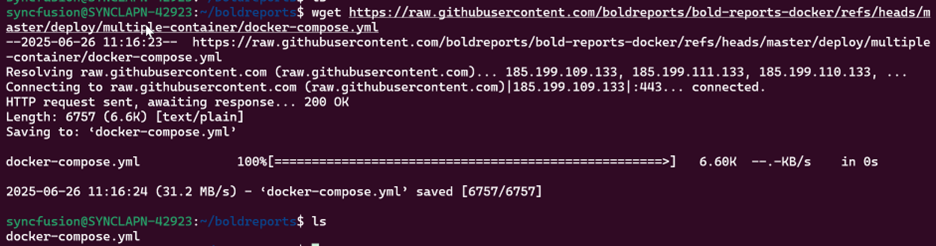
c) Since we are using multiple containers, we need to use the Nginx configuration file to connect all the services defined in this compose file. Please download the conf file by running the following command.
| wget raw.githubusercontent.com/boldreports/bold-reports-docker/refs/heads/master/deploy/multiple-container/default.conf |
d) Keep the default. conf file in the same location as your docker-compose.yml file and specify the path to the default.conf file in the docker-compose file.

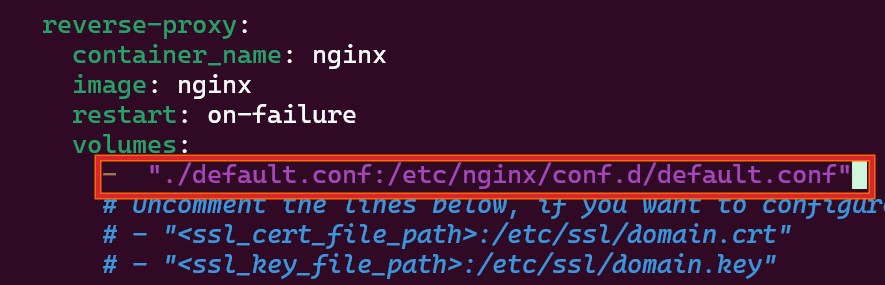
e) Uncomment the APP_BASE_URL and use the public IP address as the APP_BASE_URL. For example: http://172.78.89.98:8085

f) Uncomment the INSTALL_OPTIONAL_LIBS to install the necessary client libraries for connecting to the data sources.

g) Update the port number used in the APP_BASE_URL in a reverse proxy block, as shown, and then save the Docker Compose
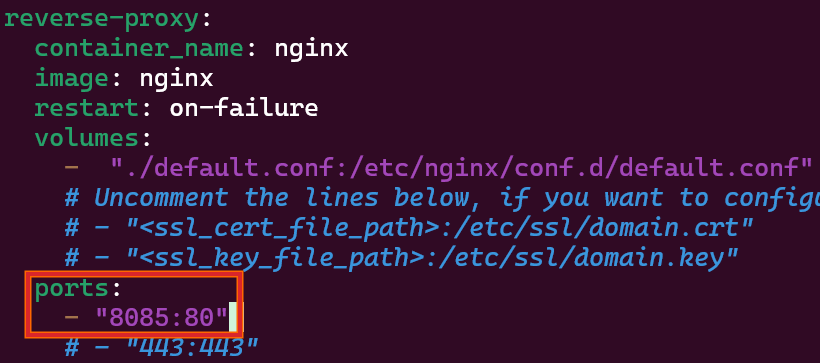
Step 2: Run Bold Reports in Docker.
a) Run the following command to deploy Bold Reports in Docker.
| docker-compose up -d |
b) This command pulls the image and creates the container. Check the container’s status by running the next command.
| docker ps |
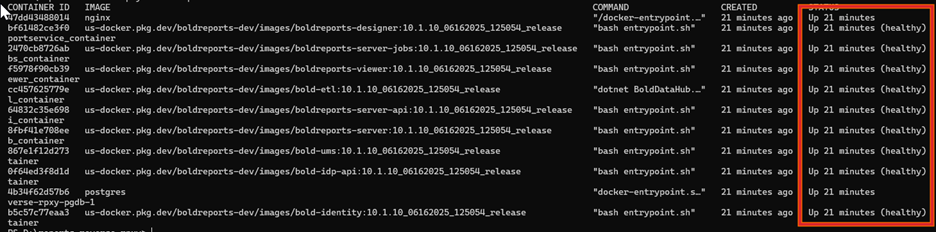
c) Once all containers are in a healthy state, access your APP_BASE_URL in the browser.
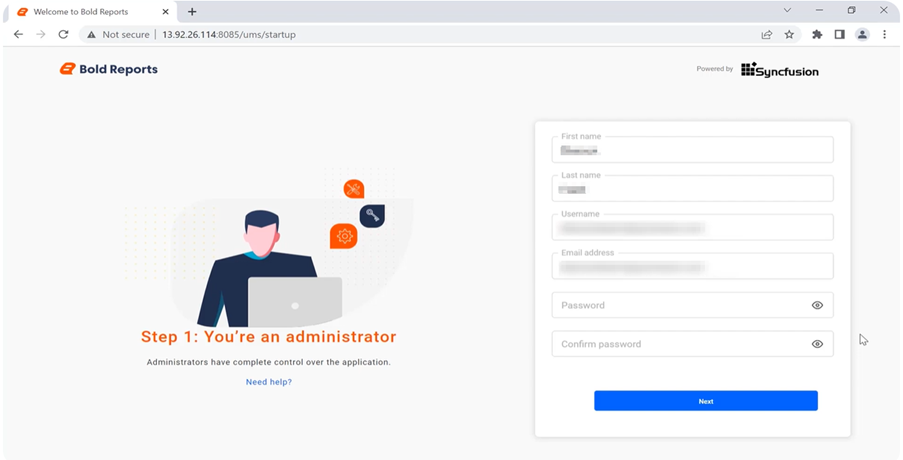
Refer to this documentation for additional guidance.
Step 3: Configure the Report Server after deployment.
Configure the user details and click Next.
Step 4: Set up a database for Report Server storage
a) Choose from SQL Server, PostgreSQL, oracle or MySQL databases. For this demo, we are choosing The fields will be updated accordingly.
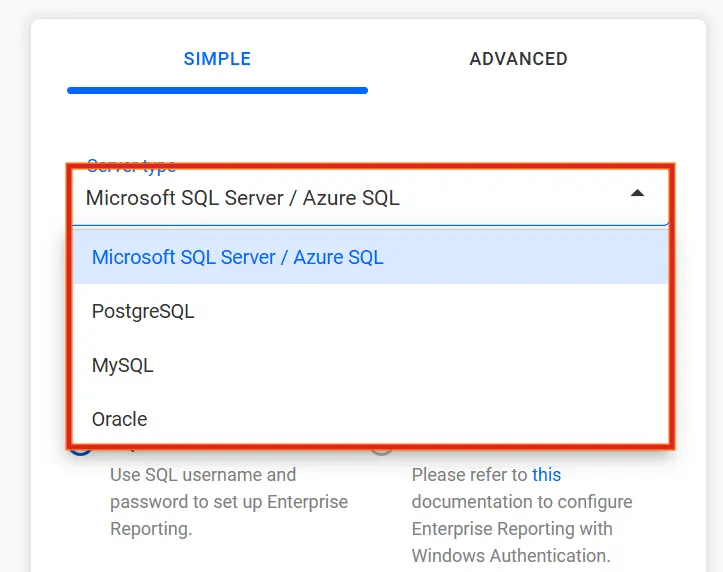
b) Either create a new database or use an existing one with the selected server type. In this case, we’re selecting New Database and entering the name boldservicesdocker. Click Next.
The report tenant deployment has started and will run in the backgroun
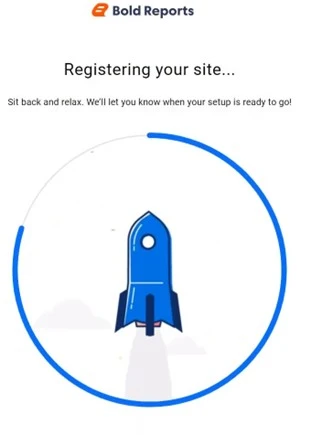
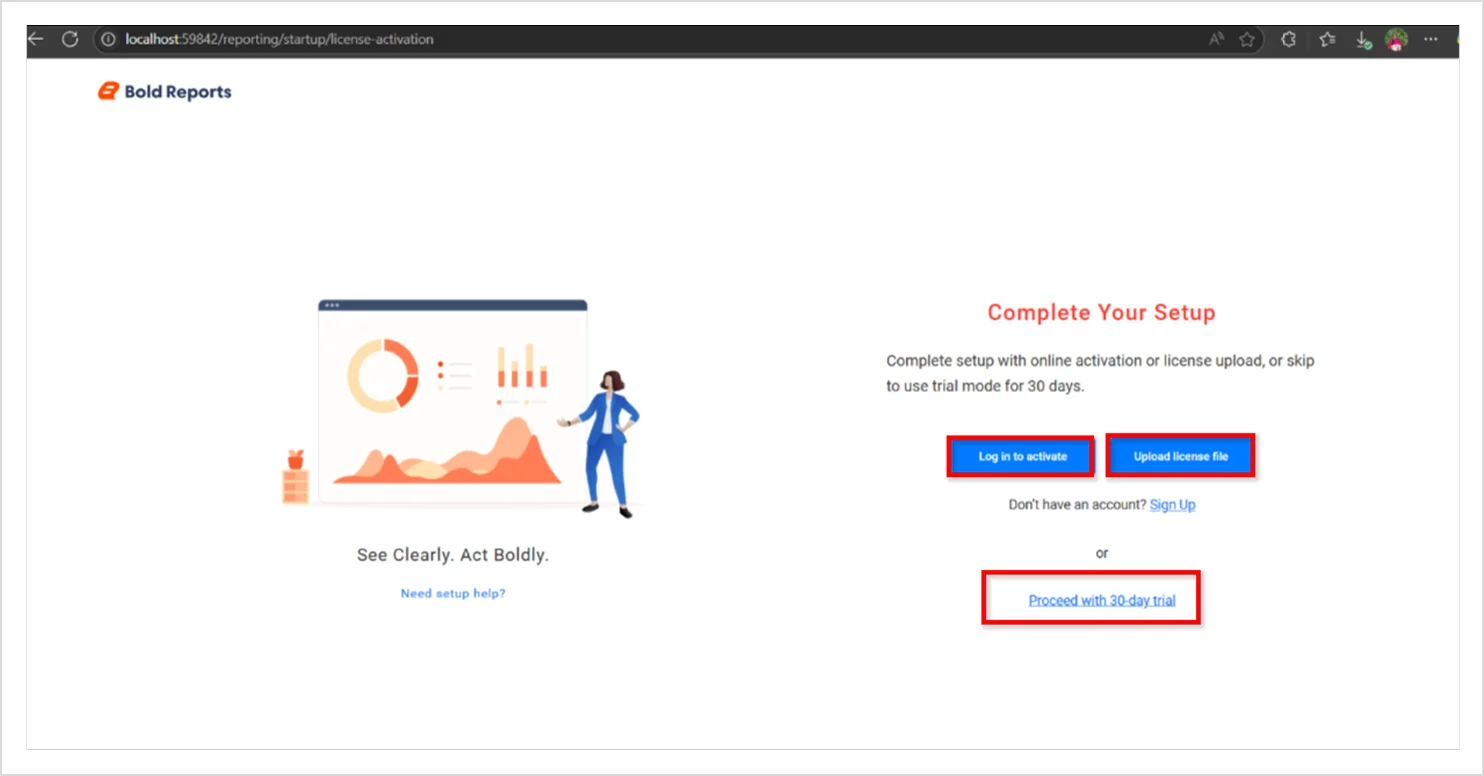
c) Now, we will be redirected to the License page. Upload your license or click Proceed with 30-day trial.
d) Then now you’ll be redirected to the View All page.
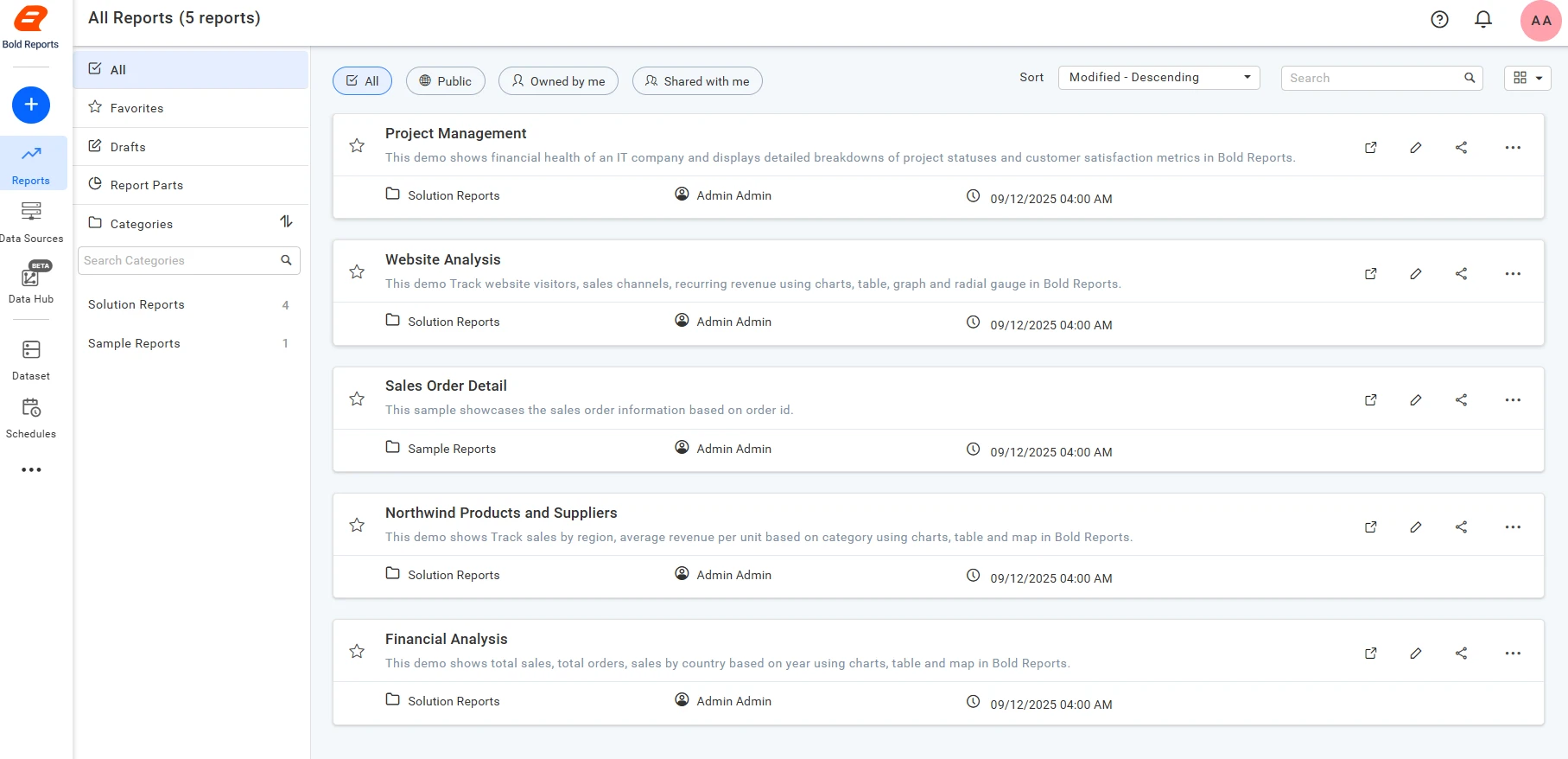
Here, you can explore the available sample reports by clicking Explore in the Report sample pop-up. By clicking Add Report, you can add these sample reports to the Report Server under the Sample Reports category. If you click on a report, it will open in the Report Server.
Step 5: Configure SSL for Bold Reports Docker deployment
a) Add the SSL certificate path with the .key and .crt files and comment out the 443 port in the Docker Compose YAML file.
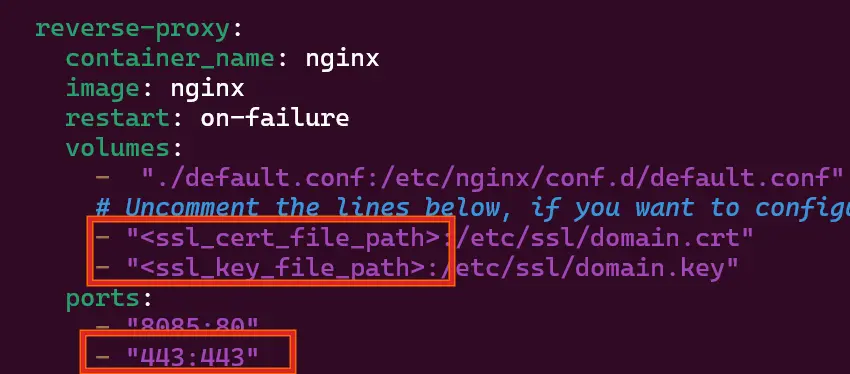
b) Uncomment the following marked lines in the conf file.
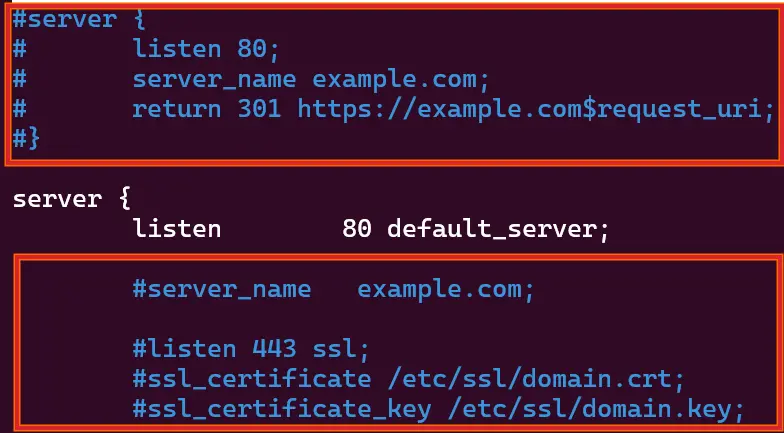
c) Comment the following marked line in the conf file.

d) Replace “example.com” with your domain name and save the file.
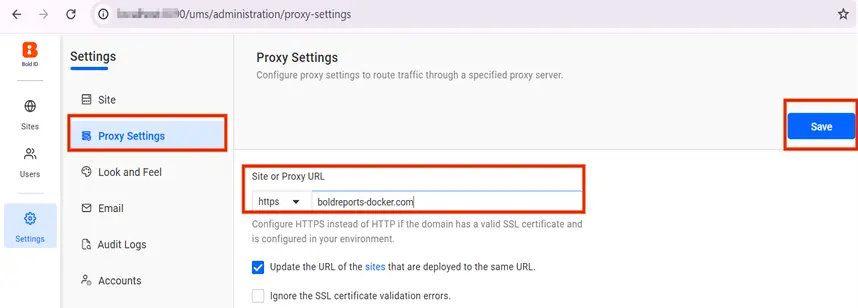
e) Access the site at http://<ip-address>:port/ums/administration. Update the domain name in the proxy settings, change the protocol to HTTPS, and save your changes.
f) Go to the location of the docker-compose file and restart all the containers using the next command.

| docker-compose down |
| docker-compose up -d |
g) Once all the containers are in a healthy state, access your domain name in a browser.
Embedding reports
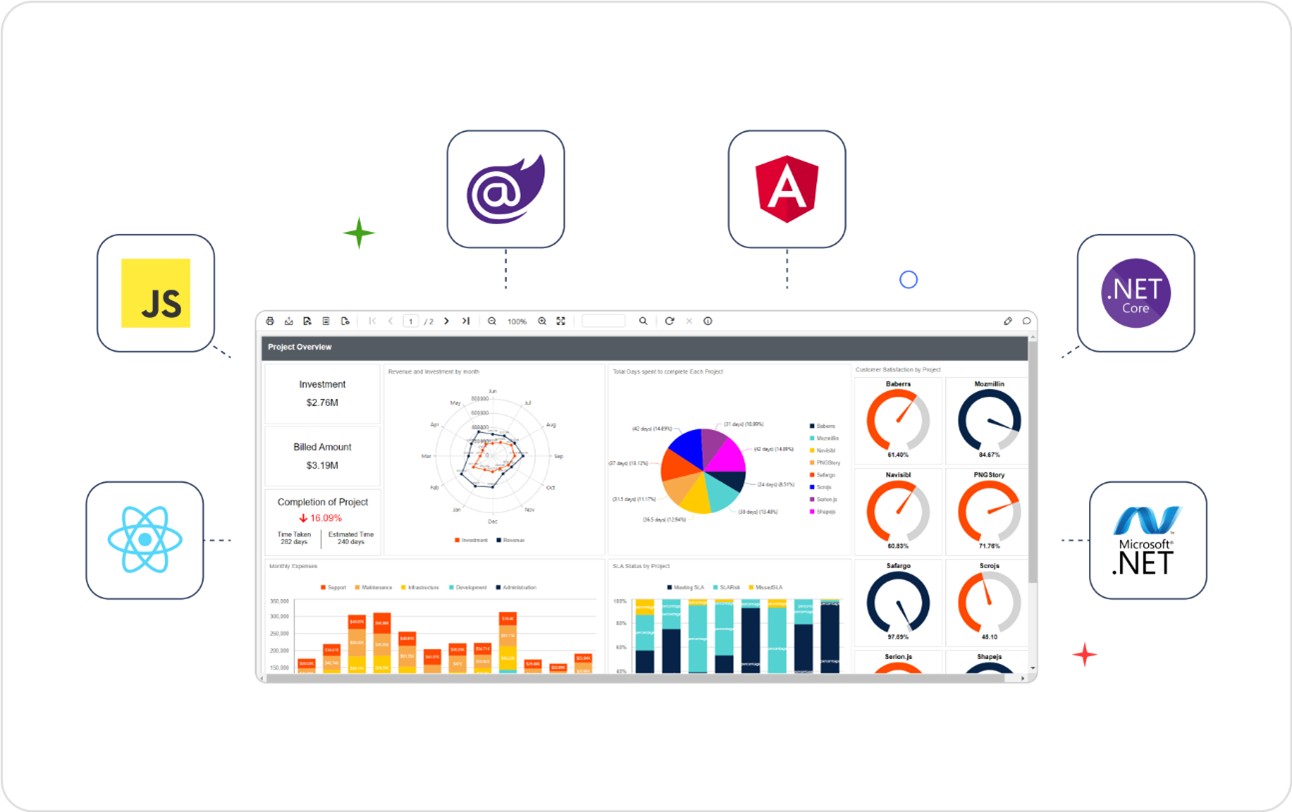
Bold Reports allows you to embed reporting functionalities directly within your applications. Our embedded reporting tools can be integrated with popular application platforms such as ASP.NET Core, Blazor, Angular, and React. The usage of the embedded reporting tools will change depending on the deployment platform. You can find more detailed information about these differences in our documentation.
Conclusion
I hope you can now successfully deploy the Bold Reports® Report Server on Docker and connect it to a database. With the flexibility of Docker and the powerful features of Bold Reports, you’re equipped to build a robust and scalable reporting environment that meets modern business needs.
Sign up for a free 30-day trial today and experience faster, scalable, and hassle-free reporting setups.