TL;DR:
RDL version control stores report definition files in a Git repository so every change is tracked, reviewable, and reversible. Developers edit .rdl files in the Standalone Report Designer, commit them, review XML diffs in pull requests, tag releases, and deploy approved versions to Bold Reports Server.
Introduction
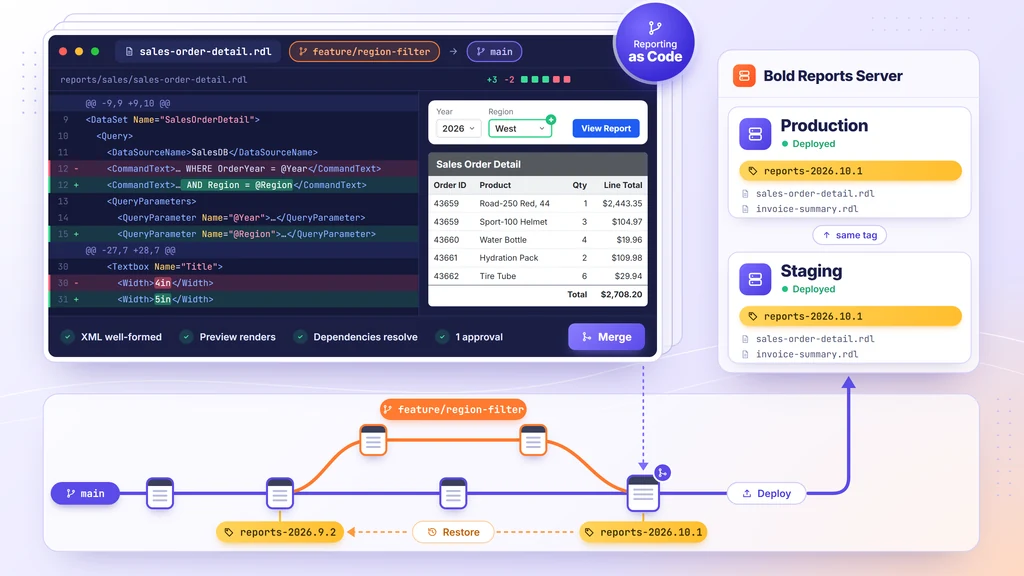
RDL files are plain XML, so Git can track every report change. We call the practice Reporting as Code: each report lives in Git, changes on a branch, passes review, ships by tag, and deploys from that tag. It works for Bold Reports and SSRS, both of which use standard .rdl files.
It assumes Git 2.28 or later, a remote repository, a few sample .rdl files, the Standalone Report Designer (which saves reports locally as RDL), and a Bold Reports Server account with permission to add or update reports.
Only need the basic Git commands? See tracking and comparing report changes. This guide covers reviewing, resolving conflicts, releasing, rolling back, and deploying.
Why does RDL version control matter?
RDL files need version control because a report change that skips review can break a query, layout, or export, with no record of why. Without it, two developers can overwrite each other, and staging and production can drift apart. Source control gives every change an author, a message, and a diff.
On June 19, 2025, Microsoft announced that Power BI Report Server becomes the default for SQL Server 2025, with no new SSRS version. A repository keeps your RDL files portable and independent of any one server. See Using RDL Reports with Bold Reports Instead of SSRS.
How do Git and Bold Reports divide the work?
The working rule for this guide: the repository is the source of truth, and Bold Reports Server is a deployment target. Changes start in a branch, pass review, and then move from Git to the server. For the authoring side, see Report Designer: Build SSRS RDL/RDLC Reports.
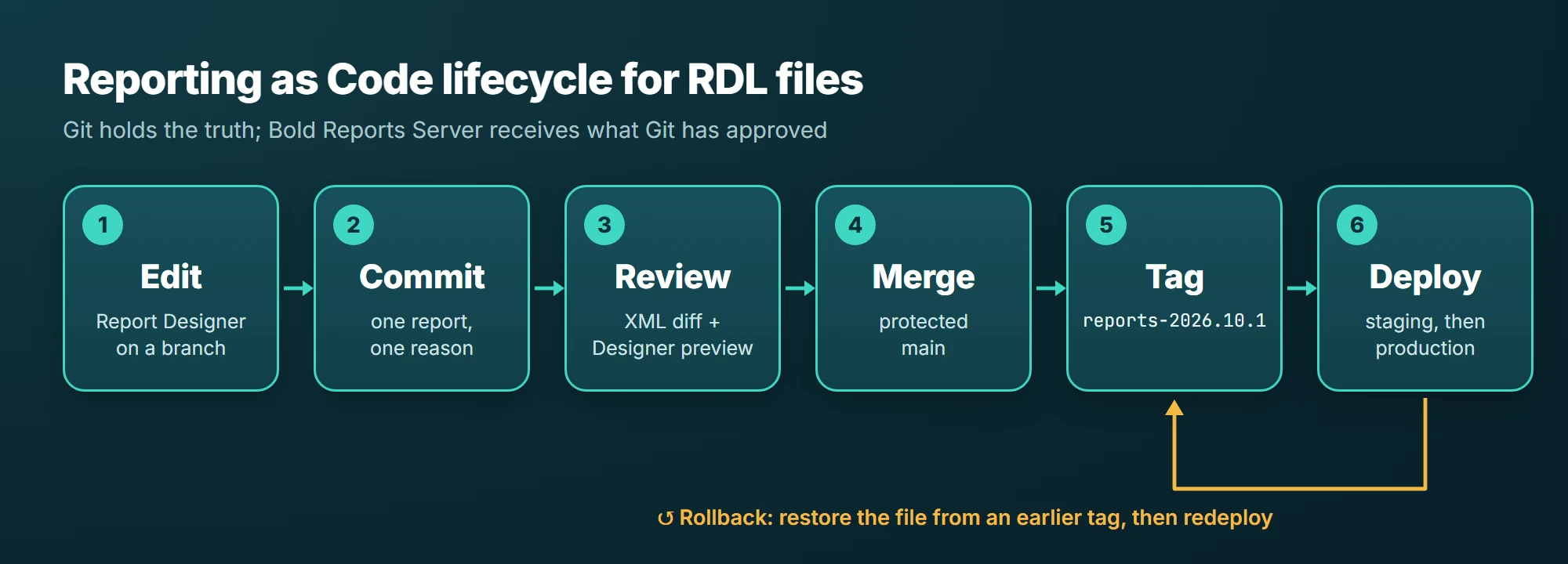
Repository drift happens when someone changes a report on the server after committing the repository version. Publishing straight from a designer does the same thing, so release from the repository.
How do you version control SSRS reports?
SSRS reports are RDL files, so this guide's workflow applies to them unchanged. Download each .rdl file from the report server, or save it from Report Builder or SSDT, commit it to Git, review changes in pull requests, tag releases, and deploy the same files to Bold Reports Server or to your SSRS server.
Bold Reports reads and writes standard RDL, so SSRS reports need no conversion. The Standalone Report Designer opens .rdl files from SSRS Report Builder and can deploy to Bold Reports Server or SSRS.
Do you still need Git if Bold Reports Server keeps version history?
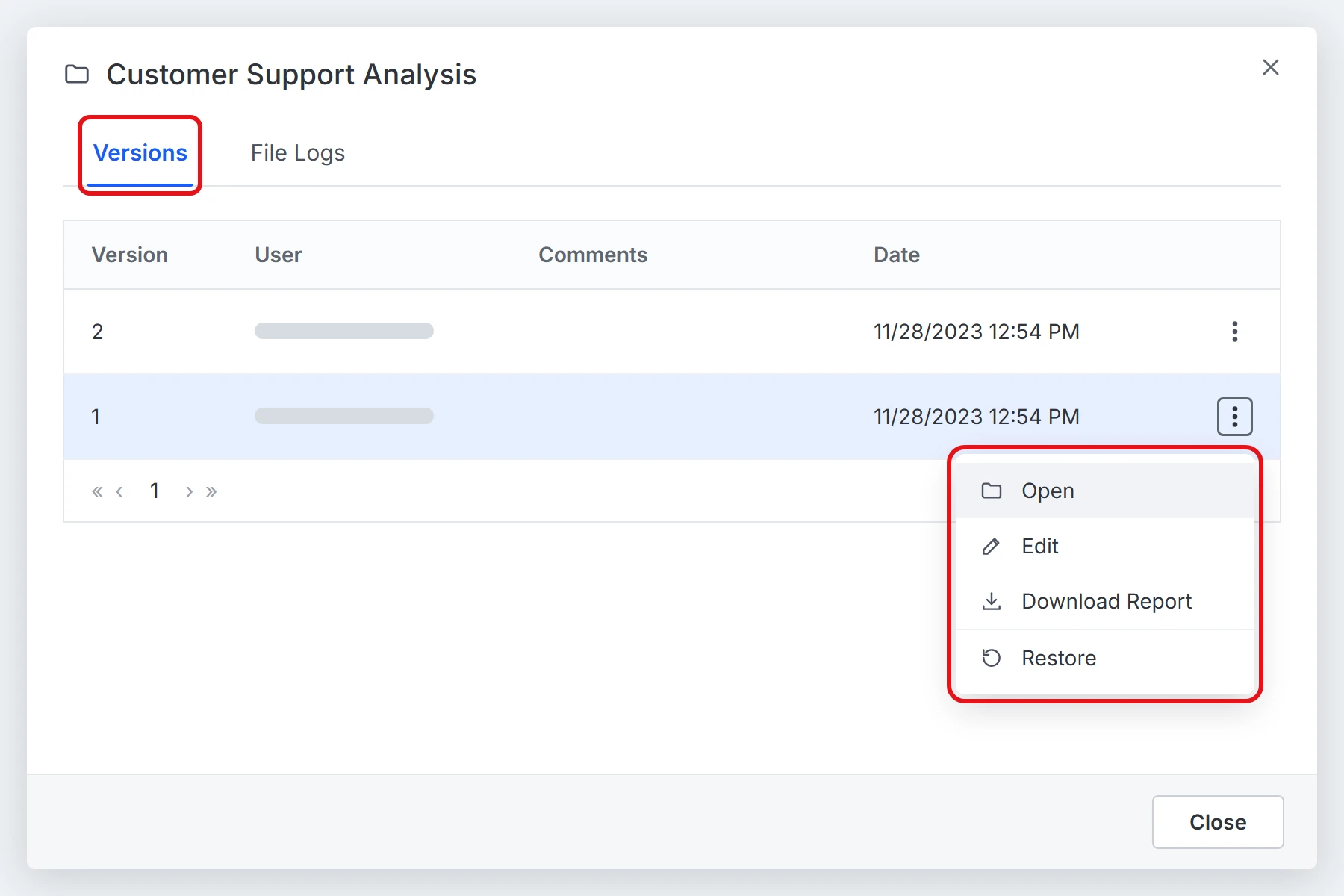
Yes, for review and releases. Bold Reports Server creates a new version each time a report’s .rdl file changes and lets you open, download, or roll back to an older version. Git adds branches, pull-request review before a change reaches the server, one tagged history across all reports, and a way to deploy the same approved files to every environment.
| Need | Bold Reports Server Version History | Git |
|---|---|---|
| See earlier versions of one report | Versions can be opened, edited, or downloaded | git log and git show |
| Peer review a change before release | Not a Version History function | Pull request with required reviewers |
| Release a set of reports together | Reports are versioned one at a time | One tag across all files |
| Keep staging and production identical | History lives on each server | Deploy the same tag to each |
How do you store RDL files in a Git repository?
Create a repository, group reports in folders, set a line-ending rule, and commit the .rdl files to a branch. The steps below produce a repository you can keep using, with one report per file, a line-ending rule that keeps diffs small, and a baseline commit that every later change builds on.
Organize the repository
Keep one report per file and group files by business area, so history and review stay readable:
reports/
  sales/
    sales-order-detail.rdl
  finance/
    invoice-summary.rdl
shared-datasets/
  sales-orders.rsd
shared-data-sources/
  sales-data-source.rsds
.gitattributes
Add a .gitattributes file so every developer saves line endings the same way; mixed endings turn a one-line edit into a whole-file diff:
*.rdl  text eol=lf
*.rdlc text eol=lf
*.rsd  text eol=lf
*.rsds text eol=lf
Never commit credentials. If a data source embeds a username and password, move it to a shared data source on the server first.
Get existing reports into the repository
Copy your existing files into the layout above. On a Bold Reports Server, open a report’s Actions menu and choose Download Report (On-Premise 2.2.28 and later), or download a version from its Version History.
For many reports, use the multi-select Download option (11.1.10 and later) or the Bold Reports REST API to export items and version history before the baseline commit.
Add reports and make the first commit
Initialize the repository, commit the files, and push the baseline:
git init -b main
git remote add origin <your-repository-url>
git add reports/ .gitattributes
git commit -m "Add sales order detail and invoice summary reports"
git push -u origin main
Create a branch for each change
Never edit on main. Create a branch, edit in Report Designer, then commit and push one logical change:
git switch -c feature/region-filter
git add reports/sales/sales-order-detail.rdl
git commit -m "Add Region filter and widen title"
git push -u origin feature/region-filter
How do you compare RDL files in Git?
Run git diff on the .rdl file, then separate the changes that alter report behavior from the ones that only move text around. Because RDL is XML, Git shows each changed element as a line-level diff. Reading it in passes, data first, then layout, then noise, catches most problems before anyone opens a preview.
git diff main...feature/region-filter -- reports/sales/sales-order-detail.rdl
Three dots compare your branch with the point where it left main, so later commits on main do not appear. Add -w to ignore whitespace or --word-diff to show changed words.
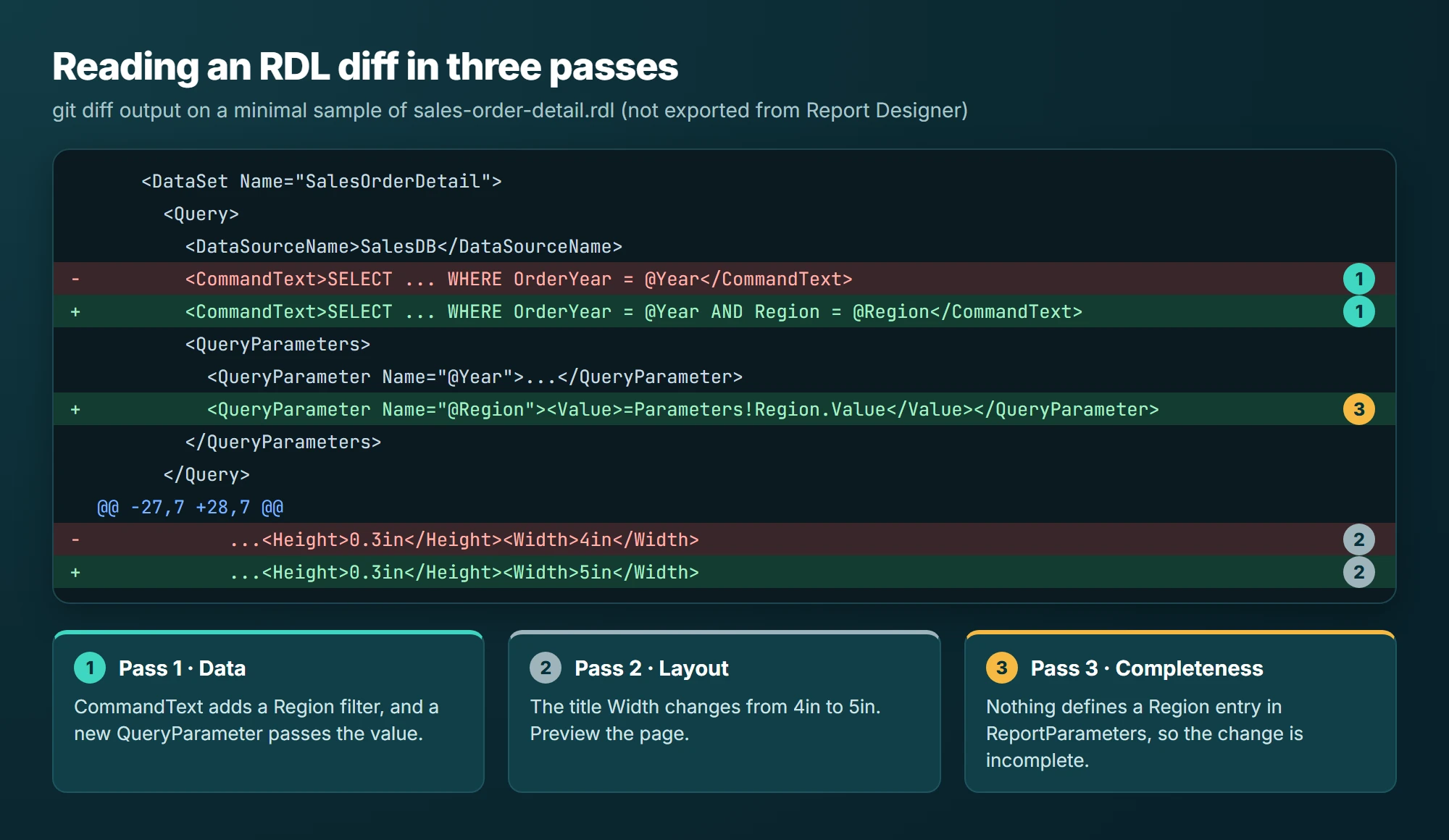
The diff below is real Git 2.43 output on a minimal sample of sales-order-detail.rdl. It shows a Region filter added to the query, a new query parameter, and a wider title.
diff --git a/reports/sales/sales-order-detail.rdl b/reports/sales/sales-order-detail.rdl
--- a/reports/sales/sales-order-detail.rdl
+++ b/reports/sales/sales-order-detail.rdl
@@ -9,9 +9,10 @@
     <DataSet Name="SalesOrderDetail">
       <Query>
         <DataSourceName>SalesDB</DataSourceName>
-        <CommandText>SELECT OrderID, Product, Quantity, LineTotal FROM SalesOrderDetail WHERE OrderYear = @Year</CommandText>
+        <CommandText>SELECT OrderID, Product, Quantity, LineTotal FROM SalesOrderDetail WHERE OrderYear = @Year AND Region = @Region</CommandText>
         <QueryParameters>
           <QueryParameter Name="@Year"><Value>=Parameters!Year.Value</Value></QueryParameter>
+          <QueryParameter Name="@Region"><Value>=Parameters!Region.Value</Value></QueryParameter>
         </QueryParameters>
       </Query>
       <Fields>
@@ -27,7 +28,7 @@
       <Body>
         <ReportItems>
           <Textbox Name="Title">
-            <Top>0in</Top><Left>0in</Left><Height>0.3in</Height><Width>4in</Width>
+            <Top>0in</Top><Left>0in</Left><Height>0.3in</Height><Width>5in</Width>
             <Paragraphs><Paragraph><TextRuns><TextRun><Value>Sales Order Detail</Value></TextRun></TextRuns></Paragraph></Paragraphs>
           </Textbox>
         </ReportItems>
Read it in three passes. First, data: the CommandText change adds a Region filter, and the new QueryParameter passes the value to it. Second, layout: the Width change widens the title from 4in to 5in. Third, completeness: nothing defines a Region entry in ReportParameters, so the change is incomplete until that parameter is added.
Tell meaningful changes from noisy ones
| Change in the diff | Where it appears in the RDL | Reviewer action |
|---|---|---|
| Query text | CommandText inside a dataset Query | Meaningful. Check filters, joins, and parameters. |
| Expression logic | Value and other expression properties starting with = | Meaningful. Test with real data. |
| Parameters | ReportParameter definitions | Meaningful. Confirm defaults and available values. |
| Layout size or position | Top, Left, Width, Height | Meaningful if intended. Preview the page. |
| Indentation or line endings | Whitespace only | Noise. Fix with .gitattributes. |
How do you review and validate RDL changes in a pull request?
Open a pull request from the feature branch, check the XML diff, and prove the report still loads and renders before anyone approves it. A diff shows what changed; only a preview shows whether the report still works. Automate the cheap check and keep the rest with the reviewer.
Run the validation checks
- Check that the XML is well-formed: This catches broken merges and truncated files.
xmllint --noout reports/sales/sales-order-detail.rdl
- Open the file in Report Designer: A report that fails to load here will fail on the server.
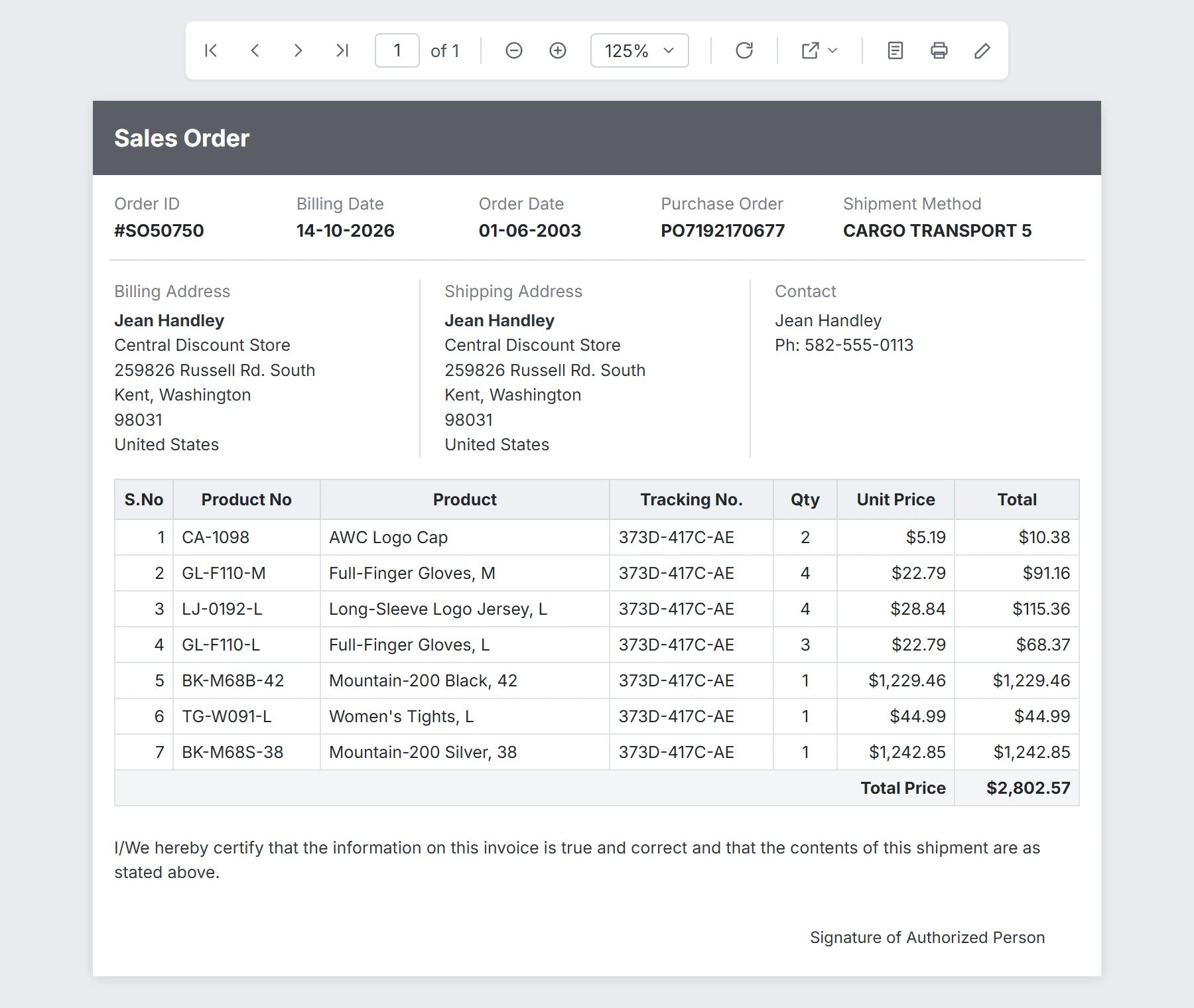
- Preview with real parameter values: Test the default values and at least one edge case, such as an empty result set.
Sales Order Detail Report Preview - Confirm dependencies resolve: Shared data sources, subreports, and images must exist in the target environment.
Check 1 runs automatically on every pull request that changes an .rdl file. The GitHub Actions workflow below fails if any file isn't well-formed XML, which also catches leftover conflict markers. Checks 2 to 4 stay with the reviewer.
name: Validate RDL files
on:
  pull_request:
    paths:
      - 'reports/**/*.rdl'
jobs:
  xml-well-formed:
    runs-on: ubuntu-latest
    steps:
      - uses: actions/checkout@v7
      - name: Install xmllint
        run: sudo apt-get update && sudo apt-get install -y libxml2-utils
      - name: Check every .rdl file
        run: find reports -name '*.rdl' -print0 | xargs -0 -r -n1 xmllint --noout
Protect main so changes arrive only through pull requests with one approval. To make report owners mandatory reviewers, add a CODEOWNERS file and turn on Require review from Code Owners, as the GitHub documentation describes.
Using Azure Repos? Use branch policies: require a pull request and reviewers, add a path-filtered build validation that runs the same xmllint step, and deploy from a separate pipeline triggered by release tags.
How do you resolve RDL merge conflicts?
Merge main into your branch, resolve the conflict markers in the XML, then reopen the report in Report Designer to confirm it still loads. For layout-heavy conflicts, keep one side whole and redo the other change in Designer instead of hand-editing coordinates.
Resolve a conflict step by step
- Bring the latest main into your branch.
git switch feature/region-filter
git merge main
- Git stops and lists the conflicted file. Open it and find the markers.
<<<<<<< HEAD <CommandText>SELECT ... FROM SalesOrderDetail WHERE OrderYear = @Year AND Region = @Region</CommandText> ======= <CommandText>SELECT ... FROM SalesOrderDetail WHERE OrderYear = @Year ORDER BY OrderID</CommandText> >>>>>>> main - Keep the correct lines and delete all three marker lines. Confirm none remain and the XML is well-formed, preview the report in Report Designer, then finish the merge:
git grep -nE "^(<<<<<<<|>>>>>>>)" -- reports/
xmllint --noout reports/sales/sales-order-detail.rdl
git add reports/sales/sales-order-detail.rdl
git commit
Here, one branch added a Region filter, and another added an ORDER BY to the same line, so Git could not choose; the resolved line keeps both. While markers remain, xmllint fails with StartTag: invalid element name. For layout conflicts, keep one side whole and redo the other change in Designer. While merging main into your branch, ours is your branch, and theirs is main:
git checkout --ours -- reports/sales/sales-order-detail.rdl    # keep your branch
git checkout --theirs -- reports/sales/sales-order-detail.rdl  # keep main
git add reports/sales/sales-order-detail.rdl
How do you tag releases and roll back an RDL report?
Tag every set of reports you deploy and roll back by restoring the file from an earlier tag as a new commit. This keeps history intact and tells you exactly which version is on the server. A rollback is then an ordinary, reviewable commit rather than a manual edit.
Tag a release
After a pull request merges and you are ready to deploy, tag main:
git switch main
git pull
git tag -a reports-2026.10.1 -m "Sales order detail grouping, invoice summary fix"
git push origin reports-2026.10.1
Use one tag format. Do not put versions in file names, such as Report_v2.rdl: Git sees separate files and history splits.
Restore one report to an earlier version
Use this when a single report broke, and the rest of the release is fine:
git restore --source reports-2026.9.2 -- reports/sales/sales-order-detail.rdl
git add reports/sales/sales-order-detail.rdl
git commit -m "Restore sales order detail to the 2026.9.2 version"
Bold Reports Server can also roll back a report from its Version History menu. Afterward, restore the same file in Git so the repository matches what users see.
How do you deploy approved RDL files to Bold Reports Server?
Deploy from a release tag, not from a developer’s working copy. You can upload them manually, script the upload against the Bold Reports REST API, or ship the files with an application that renders them. Staging comes before production.
Option 1: Upload by hand
For a handful of reports, check out the tag and upload the .rdl files through the server interface. Importing RDL Files into Bold Reports Server walks through the Upload Report dialog.
git fetch --tags
git switch --detach reports-2026.10.1
To change a report already on the server, use its Update option and choose the new .rdl file. Put the Git tag in the version comment so the server’s history points back to the release.
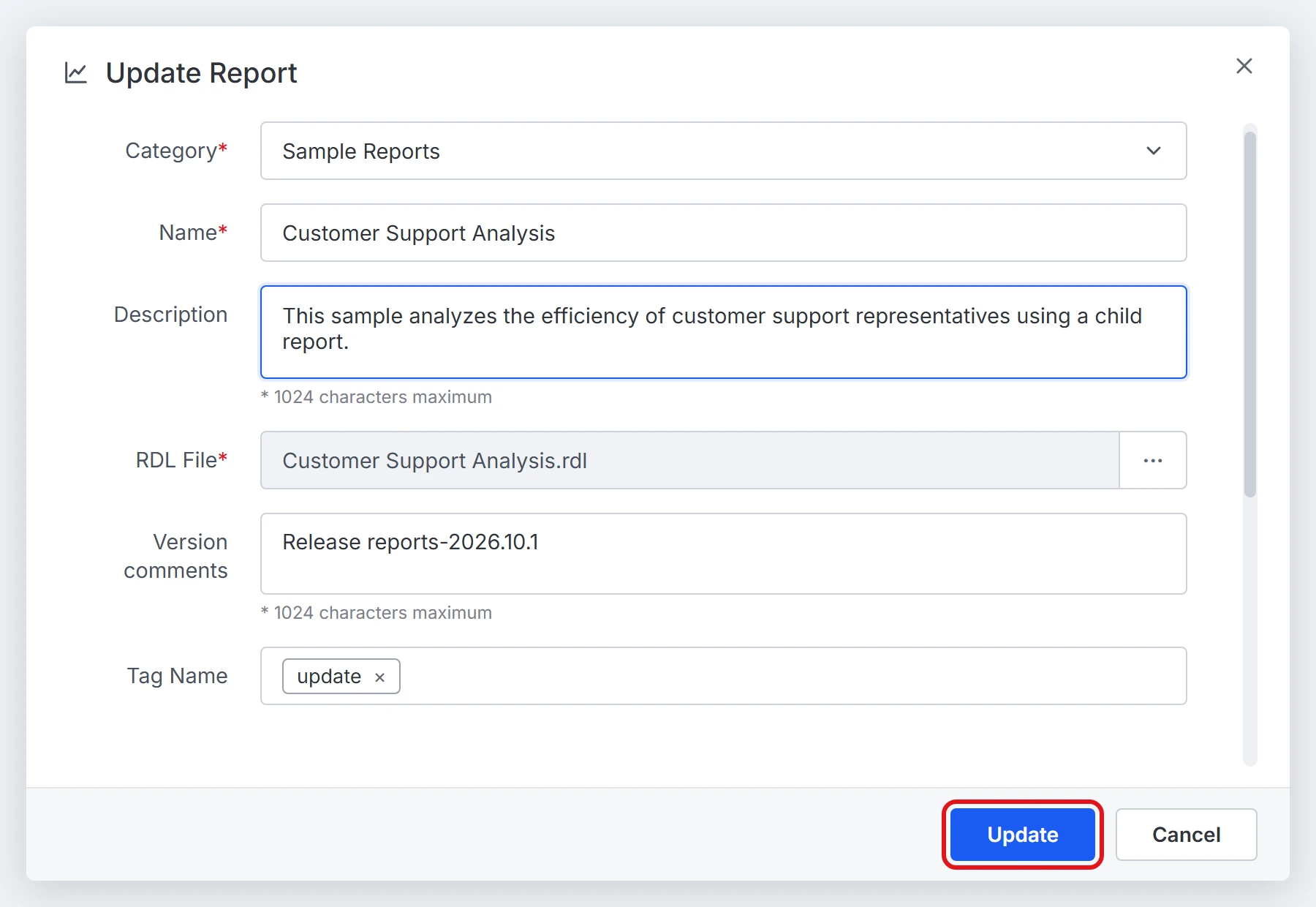
Option 2: Script the upload from the repository
When you release regularly, automate it. Automate RDL Migration from GitHub to Bold Reports Server provides a PowerShell script that reads a GitHub folder and posts each .rdl to your site with a bearer token. Make three adjustments:
- Pin the run to the tag: the GitHub contents API accepts a ref parameter, so append it to the folder URL.
./MigrateReports.ps1 `
   -GitHubApiUrl "https://api.github.com/repos/<USER>/<REPO>/contents/reports/sales?ref=reports-2026.10.1" `
   -ReportServerApiUrl "http://<SERVER>:<PORT>/reporting/api/site/<SITE_NAME>" `
   -Token "bearer <YOUR_AUTH_TOKEN>" `
   -ServerPath "/Sales/"
- Handle updates: the script only adds reports with a POST, so use the update call (PUT /api/site/{tenant-name}/v1.0/reports) for redeploys and rollbacks.
- Make it unattended: remove the final Read-Host line and add a read-only Authorization header if the repository is private.
Keep tokens and credentials in your pipeline’s secret store. Create shared data sources and shared datasets on the server before the reports that use them.
Option 3: Ship the files with your application
RDLC reports are processed locally, so they ship with your application build; build from the same release tag. For a walkthrough, see RDLC Reports in ASP.NET Core: Report Viewer Guide 2026.
Promote through environments
Deploy the tag to staging, preview each changed report with real parameters, then deploy the same tag to production. A rollback redeploys the previous tag.
To follow the deployment steps end to end, start a free Bold Reports trial and use a staging site.
What breaks in an RDL Git workflow, and how do you fix it?
Most RDL Git problems fall into four patterns: noisy diffs, reports that fail only on the server, rollbacks that were never redeployed, and failed uploads. Check them cheapest first. Each entry below names the symptom, its cause, and the fix.
- A tiny edit shows hundreds of changed lines: line endings changed on save. Add the .gitattributes rule, normalize once with git add --renormalize . in its own commit, and review with git diff -w.
- The report loads locally but fails on the server: a data source, subreport, or image exists only on your machine. Create it on the target site first.
- A rollback has no effect: the restored file was committed but never redeployed. Deploy it from its tag and confirm the version in Version History.
- The upload fails: check the site name, token, and file names, and use the update call for existing reports. Read the response body the script prints; it names the cause.
How mature is your Reporting as Code practice?
Five stages show where your team stands, from reports kept on a shared drive to a fully automated pipeline. Each stage includes a check you can run today, so you can honestly assess your team and choose the next step. Move one stage at a time.
- Stage 1, shared files: Reports live on a share or server. Check: nobody can list who changed a report last month.
- Stage 2, tracked: .rdl files are in Git. Check: Git log on a report explains each change.
- Stage 3, reviewed: Pull requests and a protected main. Check: no report reaches main without a second reader.
- Stage 4, released: Deployments come from tags. Check: you can name the tag running in production.
- Stage 5, automated: A pipeline validates and deploys. Check: a rollback is a tested redeploy.
RDL version control turns reports into reviewed, reversible releases
Reporting as Code costs a few conventions and a protected branch. In return, every report change has an author, a reason, a reviewer, and a tag you can redeploy.
Need an editor for local .rdl files? Download the free Standalone Report Designer. Moving off SSRS? See SSRS Migration: Modernize RDL Reports Without Breaking and the SSRS alternative page.
Frequently asked questions
- 1.
Can you store RDL files in Git?
Yes. An RDL file is plain XML, so Git stores, diffs, and versions it like any text file. Keep one report per file in a folder structure, add a .gitattributes rule for line endings, and commit changes from branches. The Standalone Report Designer saves standard .rdl files that Git tracks without extra tooling.
- 2.
How do you compare two versions of an RDL report?
Run git diff between two commits, branches, or tags, limited to the report path. Add -w to ignore whitespace and --word-diff for inline changes. Focus on CommandText, expressions, parameters, groups, and filters, then preview both versions in the Standalone Report Designer to confirm that layout and output match what the diff suggests.
- 3.
How do you resolve an RDL merge conflict?
Merge main into your branch, open the file, and remove the conflict markers after choosing the correct lines. Check for leftover markers and well-formed XML, then open the report in the Standalone Report Designer and preview it. For layout conflicts, keep one side whole and reapply the other change in the designer.
- 4.
How do you restore an earlier version of an RDL report?
Use git restore with the --source option, naming the earlier tag or commit and the report path. Commit the restored file, preview it in the Standalone Report Designer, and redeploy it to Bold Reports Server. For a whole merged change, git revert creates a new commit that undoes it without rewriting shared history.
- 5.
How do you deploy approved RDL files to Bold Reports Server?
Check out the release tag, then upload the .rdl files through Bold Reports Server or script the upload with the PowerShell approach in the support article on GitHub migration, adding ?ref= to the folder URL. Deploy to staging first, preview each changed report, then deploy the same tag to production and record it in your release log.