TL;DR
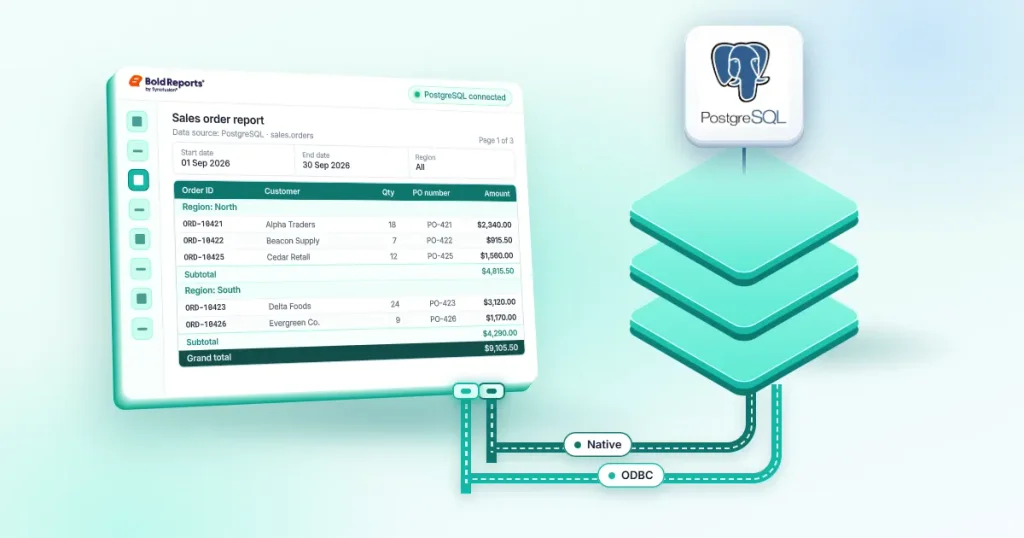
Connect PostgreSQL to SSRS reports using either the psqlODBC driver and a 64-bit System DSN for traditional SSRS deployments or the native PostgreSQL connector in Bold Reports® Designer. Both approaches support parameterized, paginated RDL reports, but the native connector simplifies setup by eliminating the need for separate drivers, DSNs, and additional PostgreSQL connectivity configuration.
Introduction
Connect PostgreSQL to SSRS reports to turn PostgreSQL data into paginated, parameterized, and shareable reports for operational and embedded reporting. Whether you're building a SaaS application, internal business system, or customer-facing portal, connecting reports directly to PostgreSQL helps users access accurate, up-to-date information without manual data preparation.
According to the 2025 Stack Overflow Developer Survey, PostgreSQL is the most-used database among professional developers, making it a popular choice for modern applications and enterprise reporting workloads. As adoption grows, organizations need reliable ways to connect PostgreSQL to SSRS reports and distribute them as paginated reports at scale.
While tools such as psql and pgAdmin can query and manage PostgreSQL data, they do not provide features such as paginated reports, report parameters, scheduling, or embedded reporting. Reporting platforms bridge this gap by transforming PostgreSQL query results into interactive, distributable reports. For a broader look at supported data connections, see “Connecting to Your Data in Bold Reports.”
In this guide, you'll learn how to connect PostgreSQL data sources to reports, create datasets, and build interactive reports using Bold Reports.
How to connect PostgreSQL to SSRS reports in Bold Reports Designer
In Bold Reports Designer, open the Data panel, click New Data, and choose the PostgreSQL connector. Enter the server name, port, username, password, and database, then click Connect. Drag a table into the query designer, click Finish to create the dataset, and use its fields to design the report.
Prerequisites
- Bold Reports standalone report designer installed
- A running PostgreSQL server that you can reach from the machine running the report designer
- A PostgreSQL login with read access to the tables you want to report on (see the security section below)
Step 1: Create a new data source
Launch the Bold Reports Designer from your Windows Start menu or desktop shortcut.
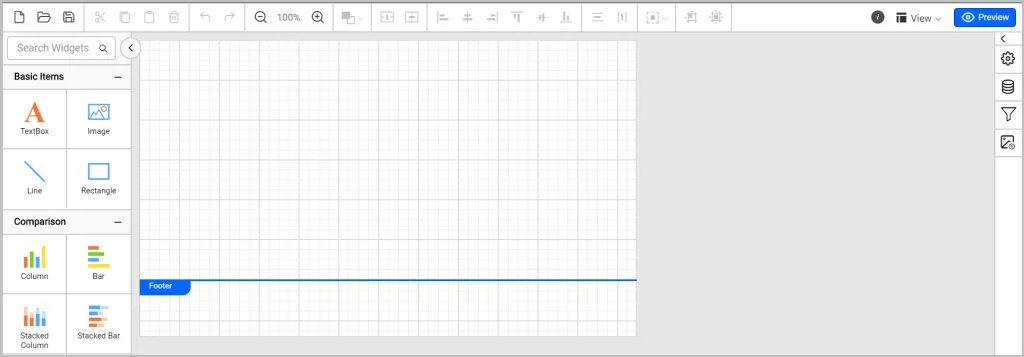
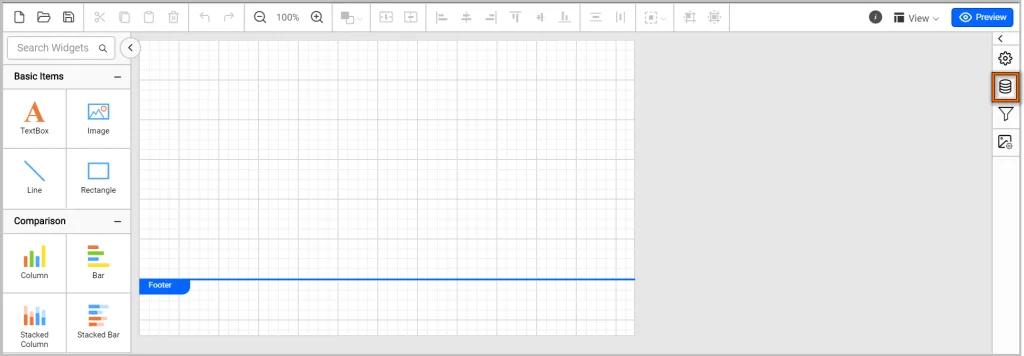
To create a new data source with a PostgreSQL connection, select the data source icon on the right.
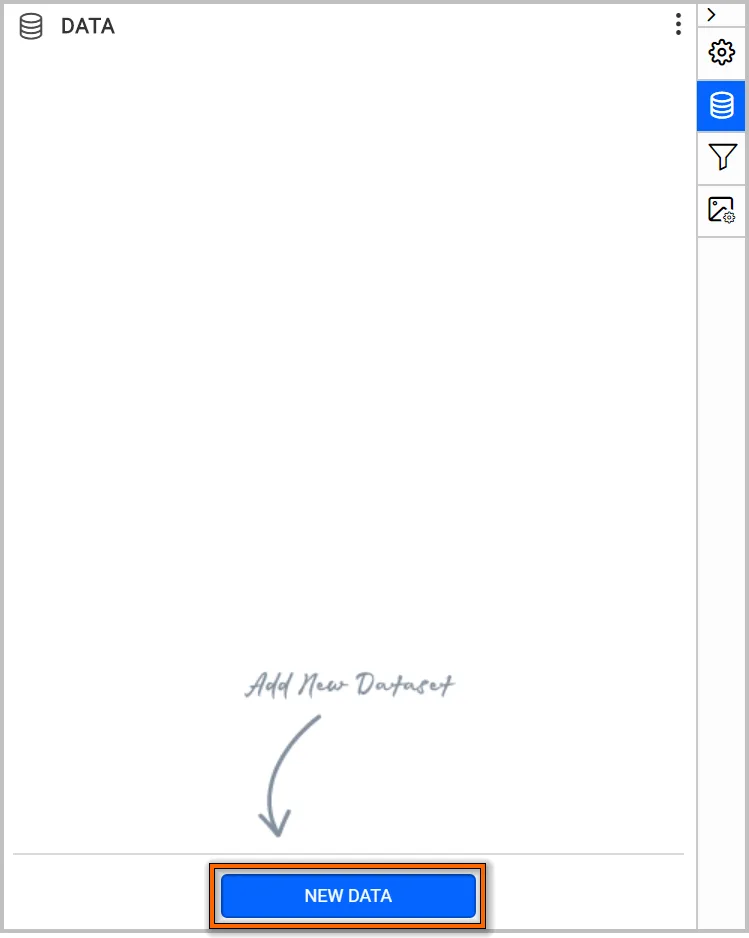
In the Data configuration panel, click NEW DATA.
The Datasources panel lists the data connectors, as shown in the following screenshot.
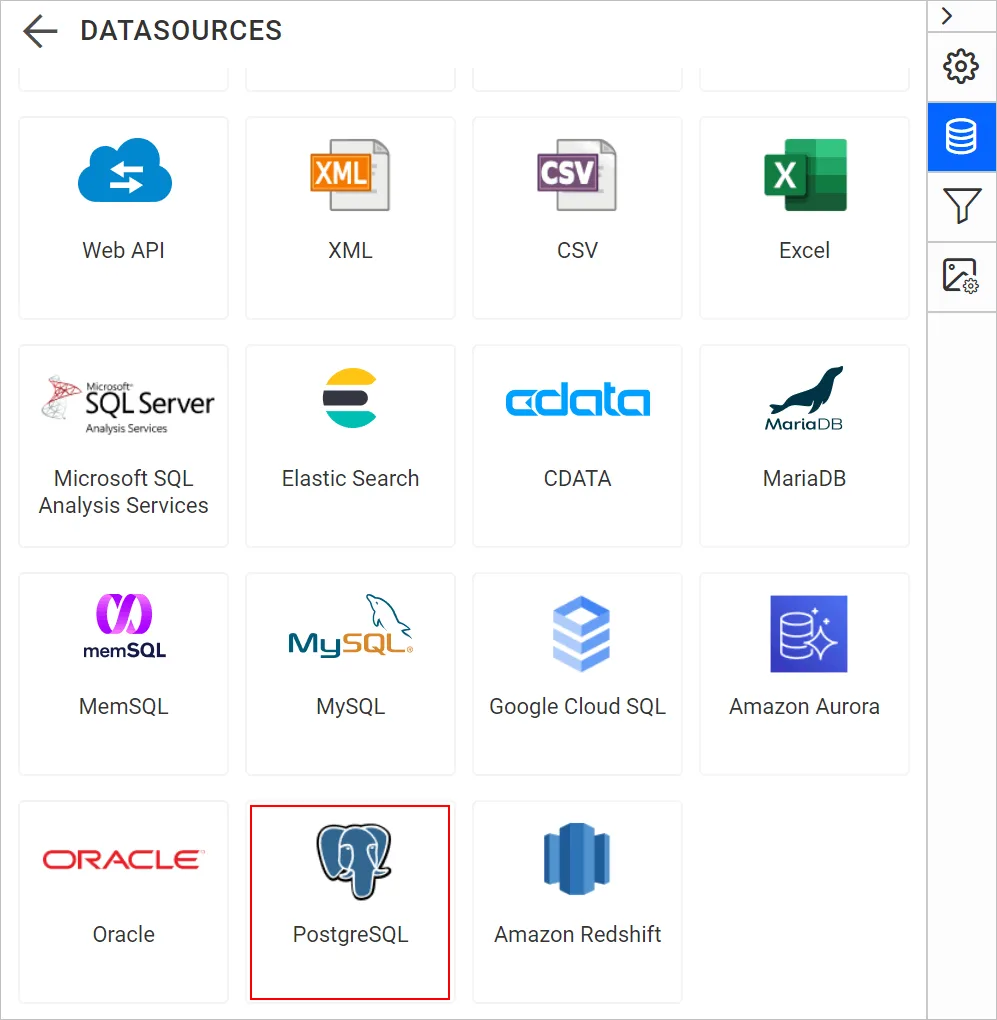
Choose the PostgreSQL connector. The PostgreSQL data configuration panel is displayed.
Step 2: Connect to the PostgreSQL database
This example uses a ProductCatalog table. If the table does not exist in your PostgreSQL database, create it with the psql command-line tool:
- Download and extract the product-catalog.sql file on your system.
- Launch SQL Shell (psql) from the Windows Start menu.
- Enter the server name, database, port number, and username, and provide the password for the postgres user.
- Run the following command to create the ProductCatalog table in the database:
\i {{product catalog file location}}

E.g., \i D:/product-catalog.sql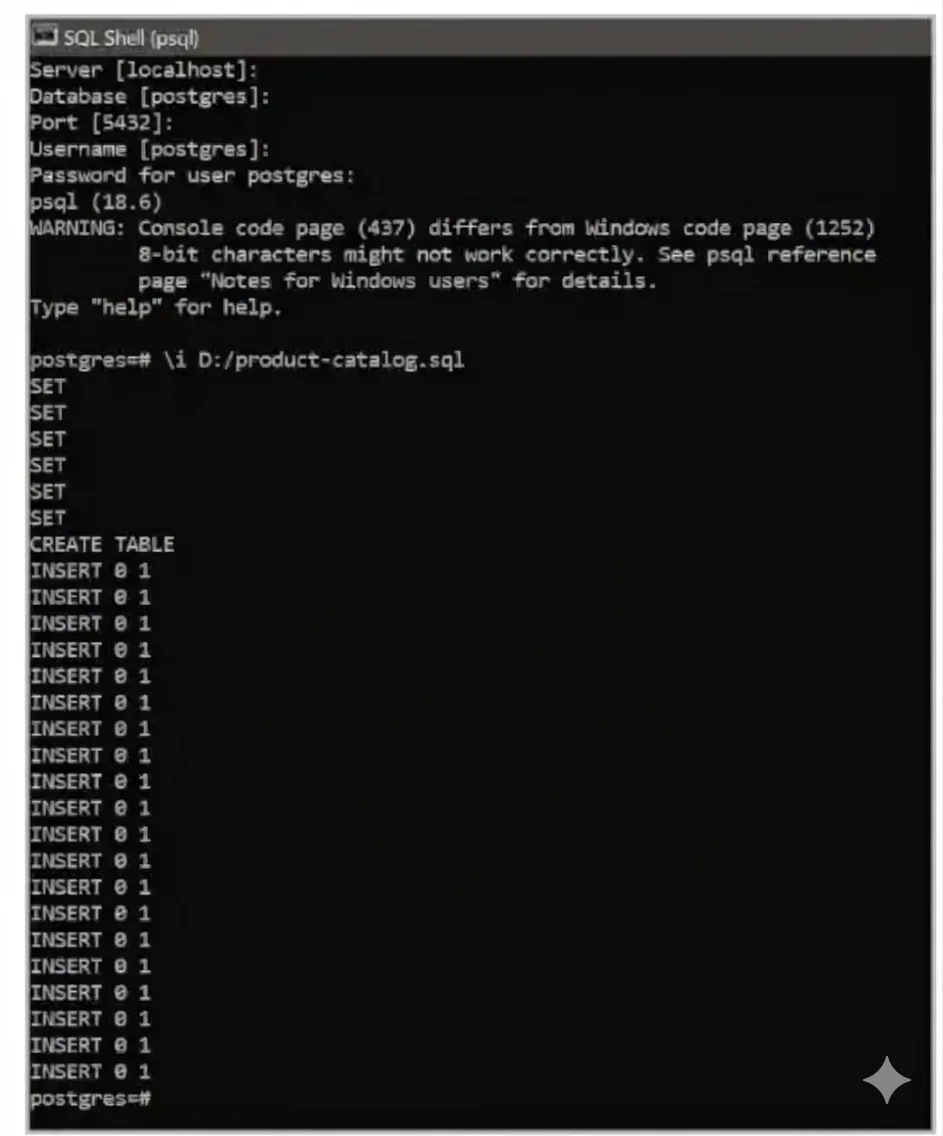
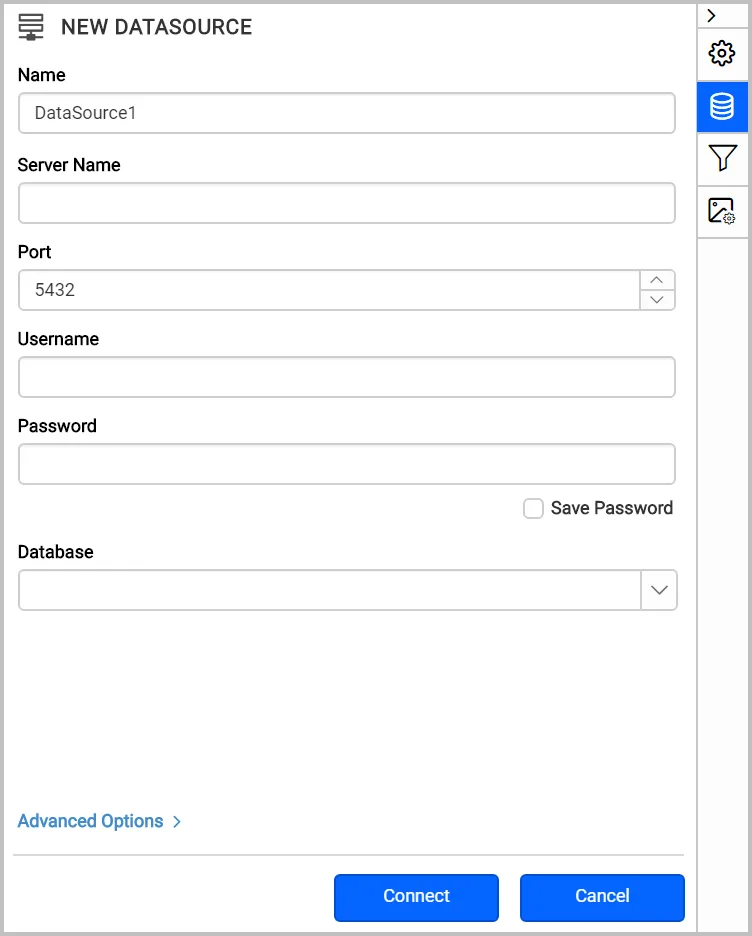
In the designer, enter the server name, port number, username, password, and database for the PostgreSQL server, and select the Save Password checkbox. Save Password embeds the credentials in the report when it is saved to a report server, so use it only with a read-only account.
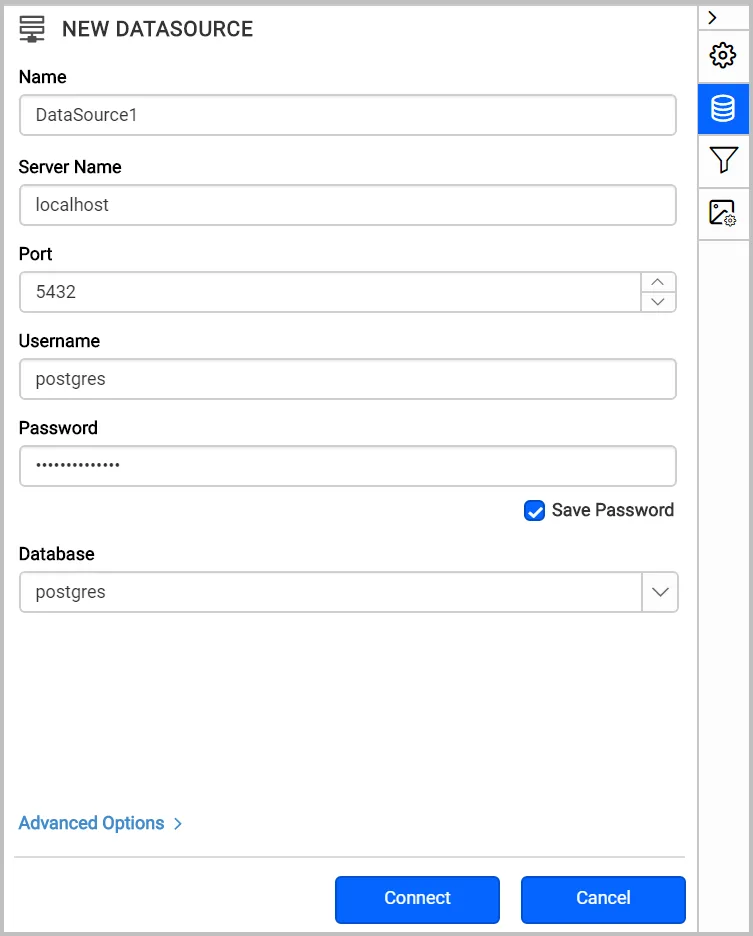
Click Connect to create the data source. If the database is reachable only over an insecure network, the connector also supports a secure SSH tunnel (not available in Bold Reports Cloud): enter the SSH server name, SSH port (22 by default), and SSH username, as described in the PostgreSQL data source documentation.
For a walkthrough centered on the RDL report and the connection string, see How to Connect PostgreSQL Data to RDL Using Bold Reports.
Step 3: Design the query
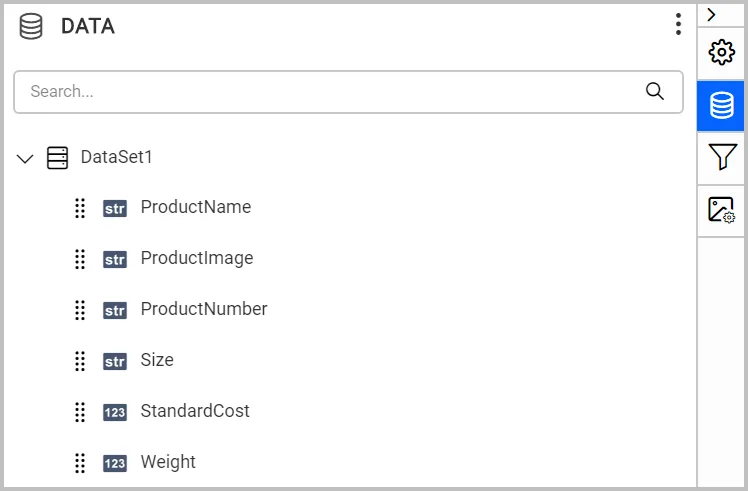
After connecting, the query design view opens with the available tables listed in the tree view on the left.
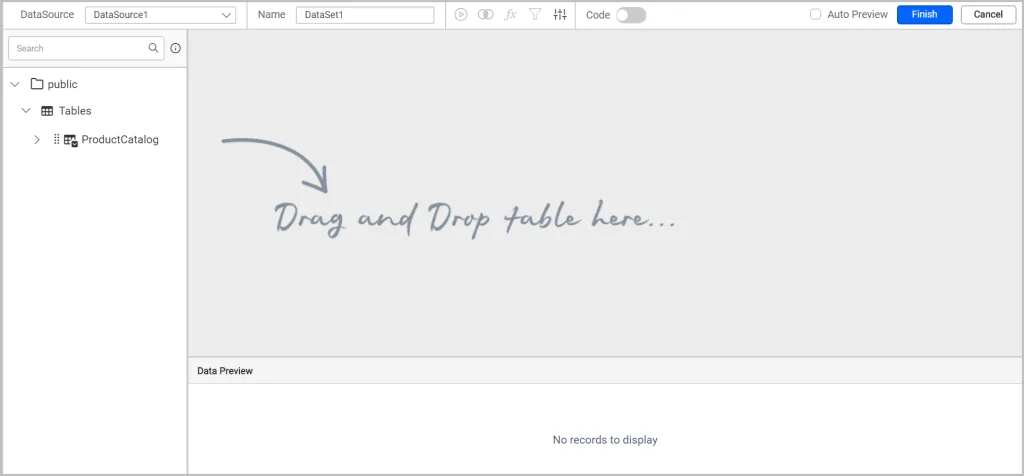
Drag ProductCatalog into the design pane, run the query, and then click Finish.
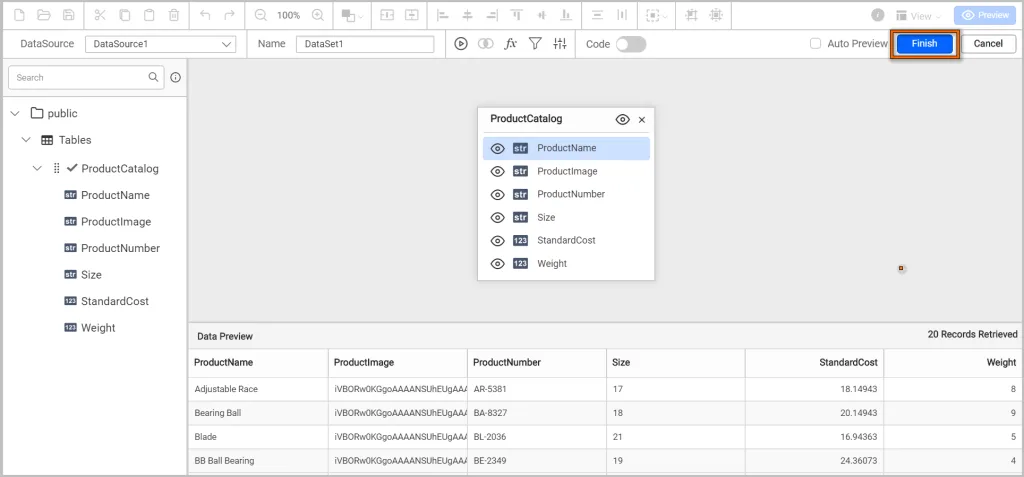
The data fields are now available in the dataset.
Step 4: Design the report
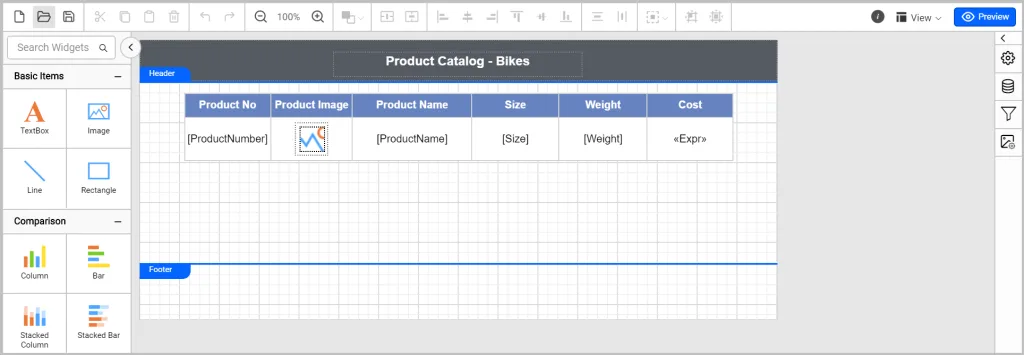
Use the dataset to design a product catalog report that lists bike products and their details. To build a similar table-based report, see “Design an SSRS RDL Report Using a Table.”
When the design is complete, the report looks similar to the following image:
Step 5: Preview the report
Switch to Preview mode to check the layout, formatting, and data with the built-in Bold Reports Viewer while you design. The preview lists the bike products with their details:
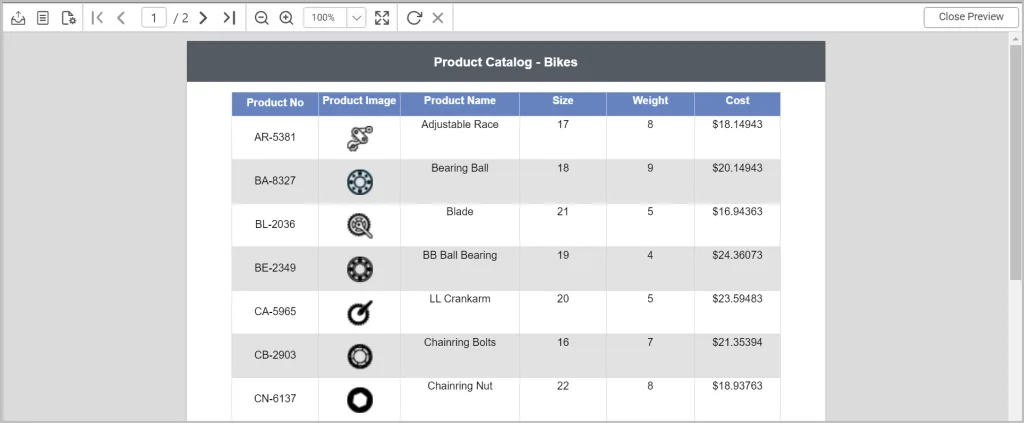
After you confirm that the report displays correctly, export it to PDF, Excel, Word, CSV, or HTML for sharing or printing.
How to connect PostgreSQL to SSRS reports with ODBC or ADO.NET
Classic SSRS has no built-in PostgreSQL data source. Install the psqlODBC driver on the report server, create a 64-bit system DSN, and choose the ODBC data source type in your report project. Alternatively, install a third-party ADO.NET provider on the report server and follow the provider's deployment instructions.
ODBC route
- Install the 64-bit psqlODBC driver on the machine that runs the report server. If you preview reports in Report Builder or SSDT, the driver and DSN must match the tool's bitness.
- Open the ODBC Data Source Administrator that matches the driver (64-bit on the report server) and add a System DSN that uses the PostgreSQL ODBC driver.
- Enter the server, port (5432 by default), database, username, and password, and set the SSL mode to match your server policy. Use Test to confirm the connection, then save.
- In your report project, create a data source of type ODBC with a connection string that names the DSN, such as DSN=YourDsnName.
- Create a dataset with a text query. ODBC datasets in SSRS use positional placeholders for parameters instead of named ones.
ADO.NET route
A third-party ADO.NET provider for PostgreSQL adds a dedicated data source type instead of a DSN. Install it on the report server and on the authoring machine, and follow the provider's own deployment steps, because they differ by product and by report server mode.
You must set up either SSRS route on the report server and on each authoring machine that previews reports. The native connector in Bold Reports Designer removes that driver and DSN work.
How to pass report parameters to a PostgreSQL query
Add a query parameter to the dataset, use it in a WHERE clause, and map it to a report parameter so users choose the value at runtime. The database then returns only the matching rows, which keeps large reports fast and lets one report serve many filters.
- Filter in SQL, not in the report. Filtering in the query reduces the rows sent to the reporting engine.
- Index the filtered columns. A parameter on an unindexed column still forces a full table scan.
- Use dataset-based parameters for lists. Report parameters can be based on a dataset query, and cascading parameters let one choice limit the values of the next.
Embedded datasets support query parameters. For the mapping steps, see the dataset documentation.
How to secure a PostgreSQL report connection
Connect with a dedicated read-only PostgreSQL role, require SSL on the connection, and never embed a superuser password in a report. Limit the role to the schemas the report needs and use an SSH tunnel when the database is reachable only over an untrusted network.
A minimal read-only role looks like this:
CREATE ROLE report_reader LOGIN PASSWORD 'choose-a-strong-password';
GRANT CONNECT ON DATABASE your_database TO report_reader;
GRANT USAGE ON SCHEMA public TO report_reader;
GRANT SELECT ON ALL TABLES IN SCHEMA public TO report_reader;
Grant SELECT on individual tables instead if the report needs only a few. Two more points matter for shared and multi-tenant setups:
- Save Password: The Designer option embeds the credentials in the saved report, which is why the login should never be a superuser or an owner account.
- Row-level security: PostgreSQL row security policies can restrict rows per tenant, but they do not apply to superusers or roles with the BYPASSRLS attribute, and by default not to the table owner, so the report login must be an ordinary role. A single shared login also cannot tell tenants apart, so tenant identity must reach the database through separate roles or a session setting that your policies read.
What are the most common PostgreSQL reporting challenges?
The most common challenges are large result sets, complex multi-table queries, and many users running reports at once. Each adds load to the database, so most fixes belong in the query, the indexes, and the connection settings rather than in the report layout.
Managing large datasets
Large result sets are one of the biggest challenges in PostgreSQL reporting. Reports that retrieve thousands or millions of records can take longer to generate, increase database load, and hurt performance if queries aren't properly optimized.
Complex reporting queries
Multi-table joins, aggregations, and calculated columns can slow queries. Poorly optimized queries increase execution time and can create database bottlenecks.
High concurrent report usage
When many users open reports at the same time, reports with multiple datasets or subreports increase database connections and strain the server.
Real-time reporting demands
Many businesses require real-time reporting from PostgreSQL databases to monitor KPIs, track transactions, and support operational decision-making. Delivering up-to-date insights while maintaining database performance requires efficient query design and resource management.
Best practices for PostgreSQL reports
Applying proven PostgreSQL reporting best practices helps improve report speed, scalability, and data security.
Optimize queries before building reports
Perform filtering, grouping, and aggregation directly in SQL. This reduces the data transferred to the reporting engine and improves report speed.
Create indexes for faster data retrieval
Index the columns that appear in WHERE clauses, JOIN conditions, ORDER BY statements, and report parameters. Indexes on these columns shorten query execution time on large datasets.
Analyze query performance
Run EXPLAIN ANALYZE on report queries before deployment to find sequential scans and other inefficient execution plans.
Limit the rows each report retrieves
For large datasets, filter with report parameters so the database returns only the rows the report needs, rather than loading every record into the report. This improves response time and reduces memory use.
Use pagination for large reports
For large datasets, implement pagination at the database level rather than loading all records into the report. This improves response times and reduces memory consumption.
PostgreSQL reporting use cases
PostgreSQL reporting supports a wide range of business applications, helping organizations turn database records into clear insights. Here are some common use cases:
SaaS and multi-tenant platforms
SaaS teams generate customer usage reports, billing summaries, and tenant-specific activity reports directly from PostgreSQL. Tenant isolation depends on how the report connects, so read the row-level security notes in the security section before sharing one report across tenants.
Finance and accounting
Ledger summaries, account reconciliation, audit reports, and aging reports fit paginated output well. Parameters let users filter by date range, account, or department, and drill-through opens the detailed transactions behind a total.
Healthcare
Healthcare teams report on appointments, staff schedules, and bed utilization. Read-only roles and restricted schemas limit who can see sensitive records, although compliance also depends on your wider access controls.
What causes PostgreSQL data source and dataset errors?
Most PostgreSQL data source errors trace back to credentials, pg_hba.conf rules, the server's listener settings, or schema names. Match the message you see to the table below, apply the fix, and click Connect again to confirm the connection works before you rebuild the dataset.
| Error | Likely cause | Fix |
|---|---|---|
| password authentication failed for user | Wrong credentials, or the pg_hba.conf entry for that host does not allow password authentication. | Confirm the username and password, then check that pg_hba.conf permits md5 or scram-sha-256 authentication for the report server's IP. |
| Could not connect to server: Connection refused | PostgreSQL is not listening on the address or port supplied, or listen_addresses in postgresql.conf is still set to localhost. | Confirm the port (5432 by default), open the firewall if needed, and set listen_addresses to the correct interface for a remote report server. |
| No pg_hba.conf entry for host | The report server's IP or subnet is not listed in pg_hba.conf, or the entry requires SSL and the connection is unencrypted. | Add an entry for that IP or subnet with the right authentication method and SSL setting, then reload the PostgreSQL configuration. |
| relation "table_name" does not exist | The table is in a different database, or in a schema that is not on the reporting role's search_path. | Confirm the database name or qualify the table with its schema (schema.table) in the dataset query. |
| Dataset returns zero rows, but the query works in psql | The data source points to a different database than psql, or row-level security policies filter out every row for the reporting role. | Confirm the database name, run the same query in psql as the reporting role, and review the table's policies. |
| The specified DSN contains an architecture mismatch between the Driver and Application | The ODBC driver and the application that opens it have different bitness. For example, a 64-bit driver with 32-bit Report Builder or SSDT. | Install the driver with the same bitness as the tool and create the DSN in the matching ODBC Data Source Administrator (odbcad32.exe in System32 for 64-bit, in SysWOW64 for 32-bit). |
| Report times out on large datasets | The dataset query has no filter, or the filtered columns have no index. | Add a parameter-driven WHERE clause and index the filtered columns instead of returning the full table. |
Why choose Bold Reports for PostgreSQL reporting?
Bold Reports makes it easy to connect PostgreSQL data sources, create datasets, and build interactive, pixel-perfect reports from a single reporting platform. With native PostgreSQL connectivity and SSRS-compatible reporting, teams can quickly build, manage, and distribute reports without complex integrations.
- Native PostgreSQL connectivity: Connect directly to PostgreSQL databases and retrieve data in real time, ensuring reports always reflect the latest business information.
- Pixel-perfect paginated reports: Build professional reports with tables, charts, and maps. Features such as drill-down, sorting, filtering, and report parameters make it easy to explore and analyze PostgreSQL data.
- SSRS-compatible report design: Use existing RDL reports and SSRS investments by migrating reports with minimal modifications, helping reduce redevelopment time and costs.
- Embedded reporting: Embed PostgreSQL reports directly into .NET, JavaScript, Angular, React, and Vue applications to deliver a reporting experience built into your own product.
- Automated report distribution: Schedule and share reports in multiple formats, including PDF, Excel, Word, and CSV, ensuring stakeholders receive timely insights when they need them.
Conclusion
PostgreSQL is a powerful database platform, but turning raw data into actionable insights requires the right reporting solution. Classic SSRS connects to PostgreSQL through an ODBC driver or third-party ADO.NET provider that must be installed on the report server and authoring environments. With Bold Reports, you can connect to PostgreSQL, build interactive reports, and export them in multiple formats for faster, data-driven decision-making.
To explore PostgreSQL reporting capabilities in greater detail, refer to the PostgreSQL documentation. For more inspiration, explore the Bold Reports demos and comprehensive documentation to see more report items and customization options.
Ready to connect PostgreSQL to your own reports? Request a demo or start a 30-day free trial, no credit card required.
Frequently asked questions
- 1.
Can SSRS connect to PostgreSQL?
Yes. SSRS has no built-in PostgreSQL data source, but it can connect through the psqlODBC driver or a third-party ADO.NET provider installed on the report server. Once you set up the driver and connection, you create datasets and paginated reports as usual. Bold Reports Designer instead provides a native PostgreSQL connector.
- 2.
Can I use custom SQL queries in a PostgreSQL report?
Yes. Bold Reports allows you to create datasets using custom SQL queries. This approach lets you join multiple tables, apply filters, calculate aggregates, and transform data in the database before the report displays results, so it receives only the rows it needs.
- 3.
Does Bold Reports require a separate driver for PostgreSQL?
No. Bold Reports Designer includes a native PostgreSQL connector, so you enter the server, port, credentials, and database without installing an ODBC driver or configuring a DSN. When you host reports in your own application, the server-side BoldReports.Data.PostgreSQL NuGet package provides the connector.
- 4.
How do I secure a PostgreSQL report connection?
Use a dedicated read-only role limited to the schemas the report needs, require SSL on the connection, and never embed a superuser password. In the Designer, the Save Password option stores credentials with the report, so use it only with a low-privilege account.
- 5.
Can Bold Reports connect to PostgreSQL through an SSH tunnel?
Yes. The PostgreSQL connector supports a secure SSH tunnel for databases you reach over an insecure network. Enter the SSH server name, the SSH port (22 by default), and the SSH username in the connection settings, then connect as usual. SSH tunneling is not available in Bold Reports Cloud.
- 6.
Can PostgreSQL reports be embedded into web applications?
Yes. You can embed PostgreSQL reports in ASP.NET, Angular, React, Vue, and JavaScript applications with the Bold Reports Report Viewer and the server-side PostgreSQL data extension. Users open interactive, paginated reports inside your existing application, and the connection details stay on the server.