How to Migrate SSRS .NET App to .NET Core Using Bold Reports
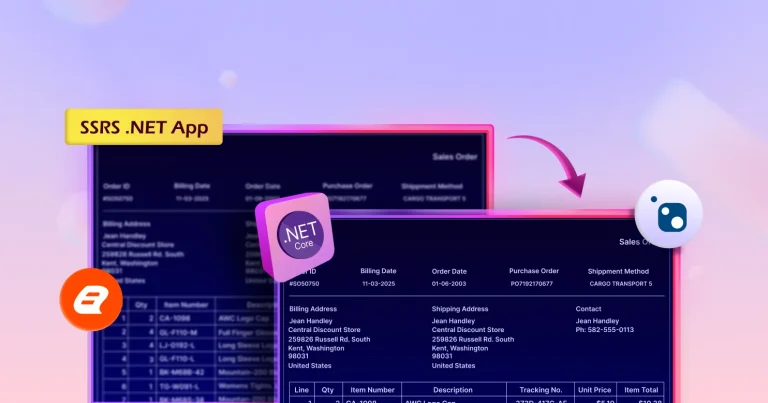
Migrating SSRS reports to a .NET Core app isn’t always straightforward. One of the biggest challenges is the lack of native SSRS support in ASP.NET Core, Microsoft doesn’t offer a Report Viewer control for it. This is where Bold Reports® comes in. It enables SSRS report rendering in .NET Core applications without the need for complex workarounds. This blog will show you how to move a sample SSRS .NET app using Bold Reports. Let’s start by exploring the common issues in SSRS migration and why you should use Bold Reports.
Challenges of migrating SSRS .NET application
Many development teams run into challenges when attempting to migrate their SSRS-based reporting solutions to .NET Core. Here are the core challenges teams typically face:
- No native SSRS support in ASP.NET Core: Microsoft does not offer a report viewer control or built-in SSRS support for ASP.NET Core, which makes it difficult to display SSRS reports directly in .NET Core applications.
- Incompatibility with legacy APIs: Migrating from the traditional .NET Framework to .NET Core introduces breaking changes and eliminates some of the APIs that SSRS components depend on.
- Dependency rework: Legacy SSRS dependencies, configurations, and authentication setups often need to be reworked or replaced to function in the .NET Core environment.
- Data source and version conflicts: Differences in SSRS versions or data source compatibility can introduce errors and require additional adjustments during migration.
- High migration complexity: The migration process is rarely plug-and-play; it demands careful planning, testing, and resource investment to ensure stability and maintainability.
How Bold Reports Simplifies SSRS Migration to .NET Core
Using Bold Reports for migrating SSRS-based .NET applications to .NET Core helps overcome the above challenges and unlocks modern capabilities. Here’s how Bold Reports makes migration easier and more efficient:
- Cross-platform compatibility: Unlike the traditional .NET Framework, .NET Core supports Windows, macOS, and Linux, allowing your SSRS applications to run seamlessly across platforms.
- Improved performance: .NET Core is designed for speed and efficiency, offering faster response times and better scalability compared to.NET applications. This ensures smoother user experiences, even under high traffic loads.
- Modern development support: Migrating to .NET Core introduces advanced features like dependency injection. These practices simplify code management, enhance responsiveness, and ensure future-proofing.
- Seamless reporting integration: .NET Core ensures regular updates, new features, and compatibility with future technologies. Migrating guarantees your SSRS application stays relevant in the ever-evolving tech landscape.
Now, it’s time to dive into a step-by-step guide on migrating SSRS to .NET. With Bold Reports, you can seamlessly integrate SSRS into your .NET Core app, simplifying migration and boosting performance without losing functionality.
How to migrate SSRS .NET App to .NET Core using Bold Reports
To ensure a smooth migration process, we’ll walk you through each critical step to successfully integrate SSRS reports into your .NET Core application using Bold Reports.
Step 1: Set up your .NET Core project
The first step is to create a new .NET Core application that will serve as the foundation for your migrated project.
- Open Visual Studio 2022 and select Create a new project.
- Choose ASP.NET Core Web App, enter the project name, and click Next.

Create ASP.NET Core Project - Select .NET 8.0 or .NET 9.0 in the dropdown and click Create.
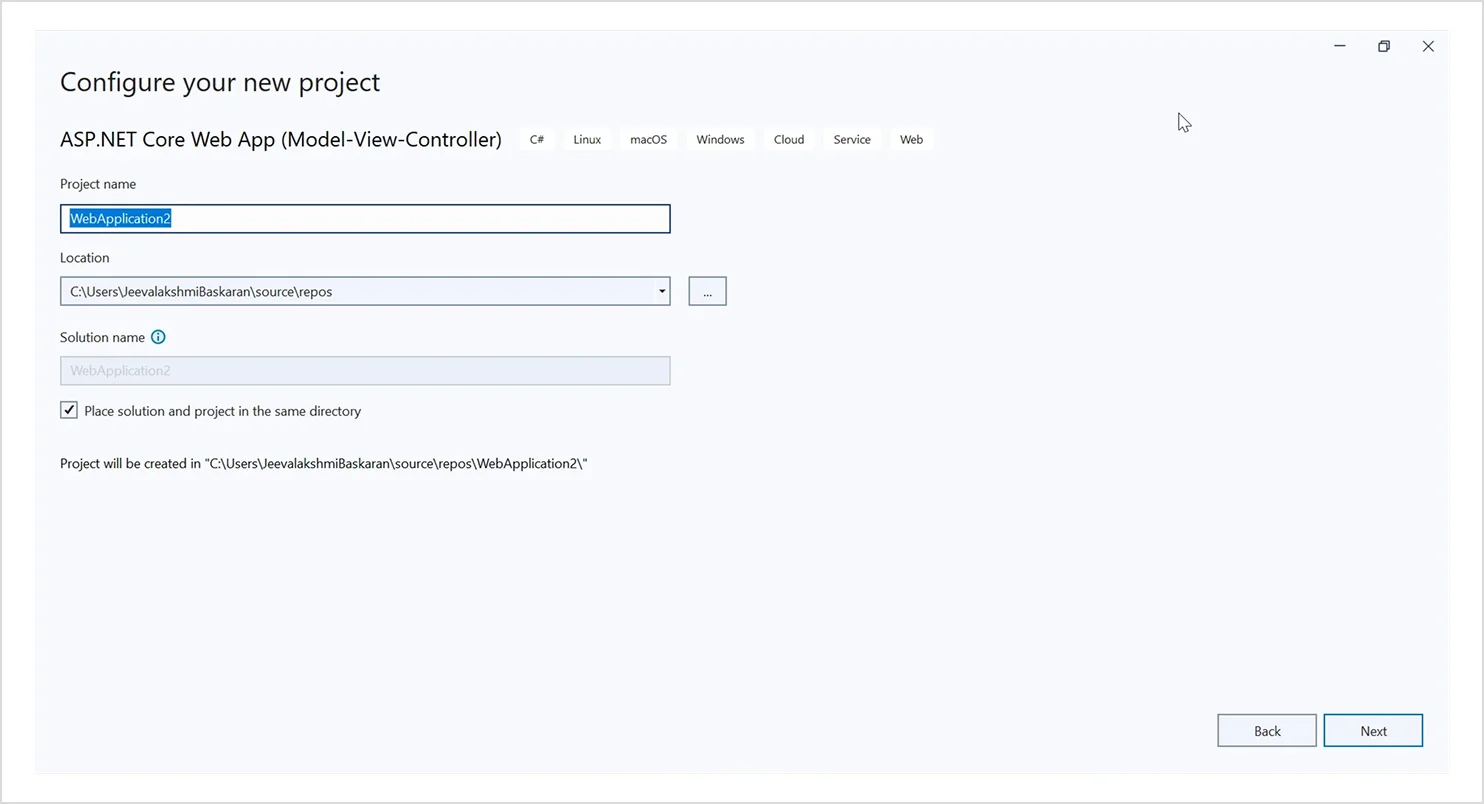
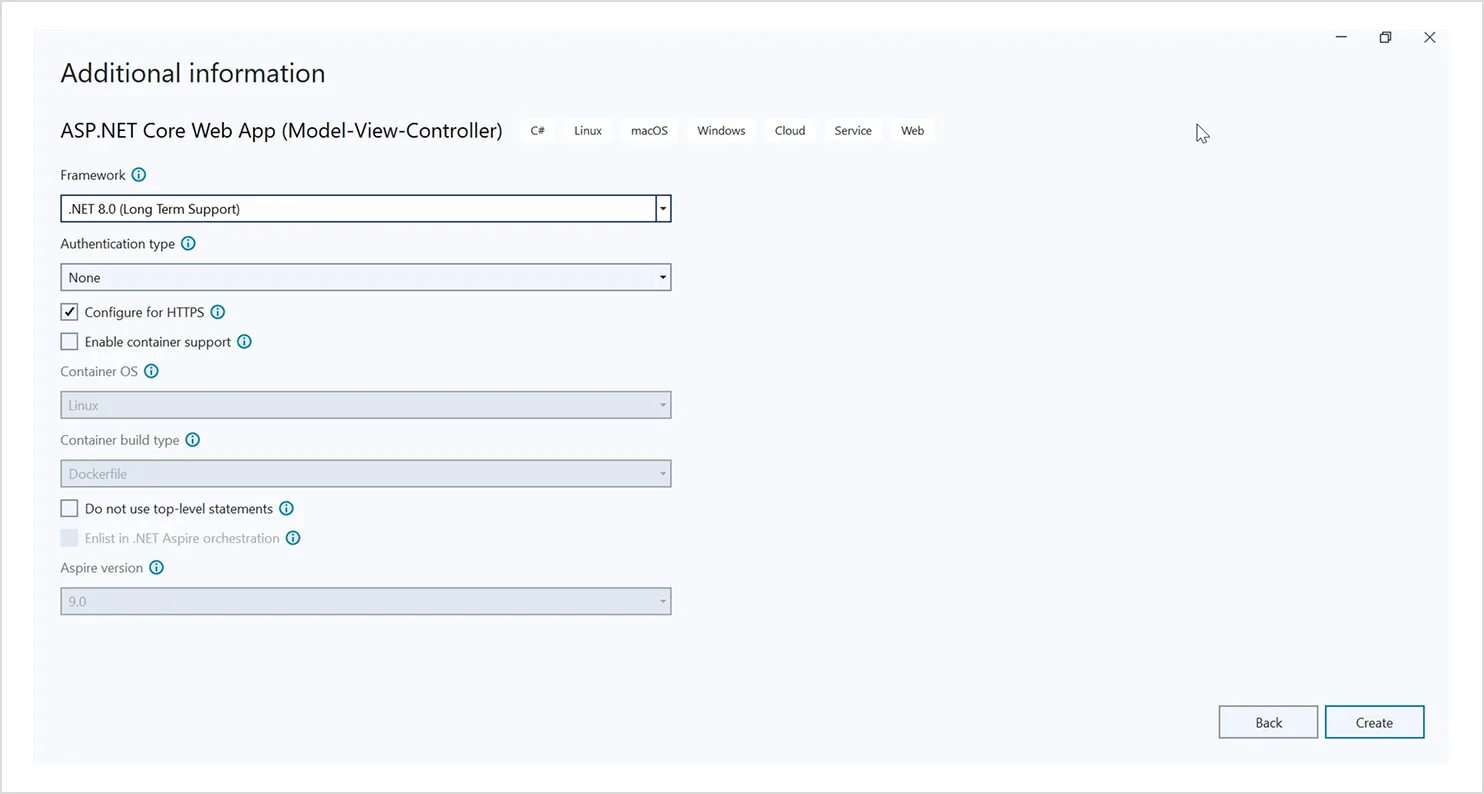
By setting up a new. NET Core application, you’re laying the groundwork for migrating your ASP.NET report project to the more modern framework.
Step 2: Install required Bold Reports dependencies
Next, display SSRS reports in your .NET Core application by installing the Bold Reports NuGet packages for smooth integration.
- In Solution Explorer, right-click the project and select Manage NuGet Packages.
- In the Browser tab, search for BoldReports.AspNet.Core and install it in your Core application.
- Similarly, install the remaining BoldReports.Net.Core package.
| Package | Purpose |
| BoldReports.Net.Core | Creates a web API service to process the reports.
|
| BoldReports.AspNet.Core | Contains tag helpers to create client-side reporting control. |
| System.Data.SqlClient | This is an optional package. If the RDL report contains the SQL Server or SQL Azure data source, then this package should be installed. The package version should be 4.1.0 or higher. |

Installing these packages enables seamless SSRS integration in .NET Core, boosting performance and compatibility. Refer to the NuGet Packages section for installation and configuration details. Additionally, you can check out our documentation to learn more about the required dependency packages and their purposes.
Step 3: Configure Report loading
After configuring the Bold Reports integration in your .NET Core application, you need to ensure that your SSRS reports are loaded correctly. This step involves creating a method that loads your SSRS report as a stream so that it can be processed and rendered by Bold Reports. To achieve this, you need to:
- Create or modify ReportViewerController to handle the report processing and integrate with Bold Reports for rendering. Here, add the OnInitReportOptions method to load the report as a stream when the report is requested.
- This method loads the report from the Resources folder, which is inside wwwroot.
Step 4: Add the Tag helper
To use the Report Viewer component with tag helper support, you must define the required tag helper in the _ViewImports.cshtml file. This ensures the component is properly recognized and initialized in your views.
@using BoldReports.TagHelpers

@addTagHelper *, BoldReports.AspNet.Core
Step 5: Set up the Report Viewer
Once the packages are installed, you need to set up Bold Reports to display SSRS RDL reports in your new .NET Core application. These files enable smooth functionality, styling, and interactivity for the Bold Reports JavaScript Report Viewer, ensuring a seamless reporting experience. Here, you need to:
- Open Views > Shared > _Layout.cshtml.
- Add the Reporting Script Manager at the end of the <body> element to ensure all necessary scripts are loaded, as shown in the following code sample.
<body>

    <div style="min-height: 600px;width: 100%;">
        @RenderBody()
    </div>
    @RenderSection("Scripts", required: false)

    <!-- Bold Reports<sup>®</sup> script manager -->

   <bold-script-manager></bold-script-manager>
</body>
3. Add the following CDN links inside the <head> tag:
<!-- Report Viewer component style -->

<link href="https://cdn.boldreports.com/9.1.7/content/v2.0/tailwind-light/bold.report-viewer.min.css" rel="stylesheet" />

<!-- Report Viewer component dependent scripts -->

<script src="https://cdnjs.cloudflare.com/ajax/libs/jquery/3.6.0/jquery.min.js"></script>

<script src="https://cdn.boldreports.com/9.1.7/scripts/v2.0/common/bold.reports.common.min.js"></script>

<script src="https://cdn.boldreports.com/9.1.7/scripts/v2.0/common/bold.reports.widgets.min.js"></script>

<!-- Report Viewer component script -->

<script src="https://cdn.boldreports.com/9.1.7/scripts/v2.0/bold.report-viewer.min.js"></script>
Step 6: Integrate SSRS Reports into your project
Next, display reports in your .NET Core application. Here, you need to add sample SSRS reports by following these steps:
- Create a Resource folder in the wwwroot/Resources folder in the application. This is where you will keep your RDL Report.
- Add sales-order-detail.rdl to the Resources folder.
With this setup, your application will have the necessary report files ready for rendering.
Step 7: Build the Report API backend
Serve SSRS reports through the Bold Reports Viewer by setting up a Web API controller that handles report processing. Follow these steps to create the API controller:
Create a web API controller
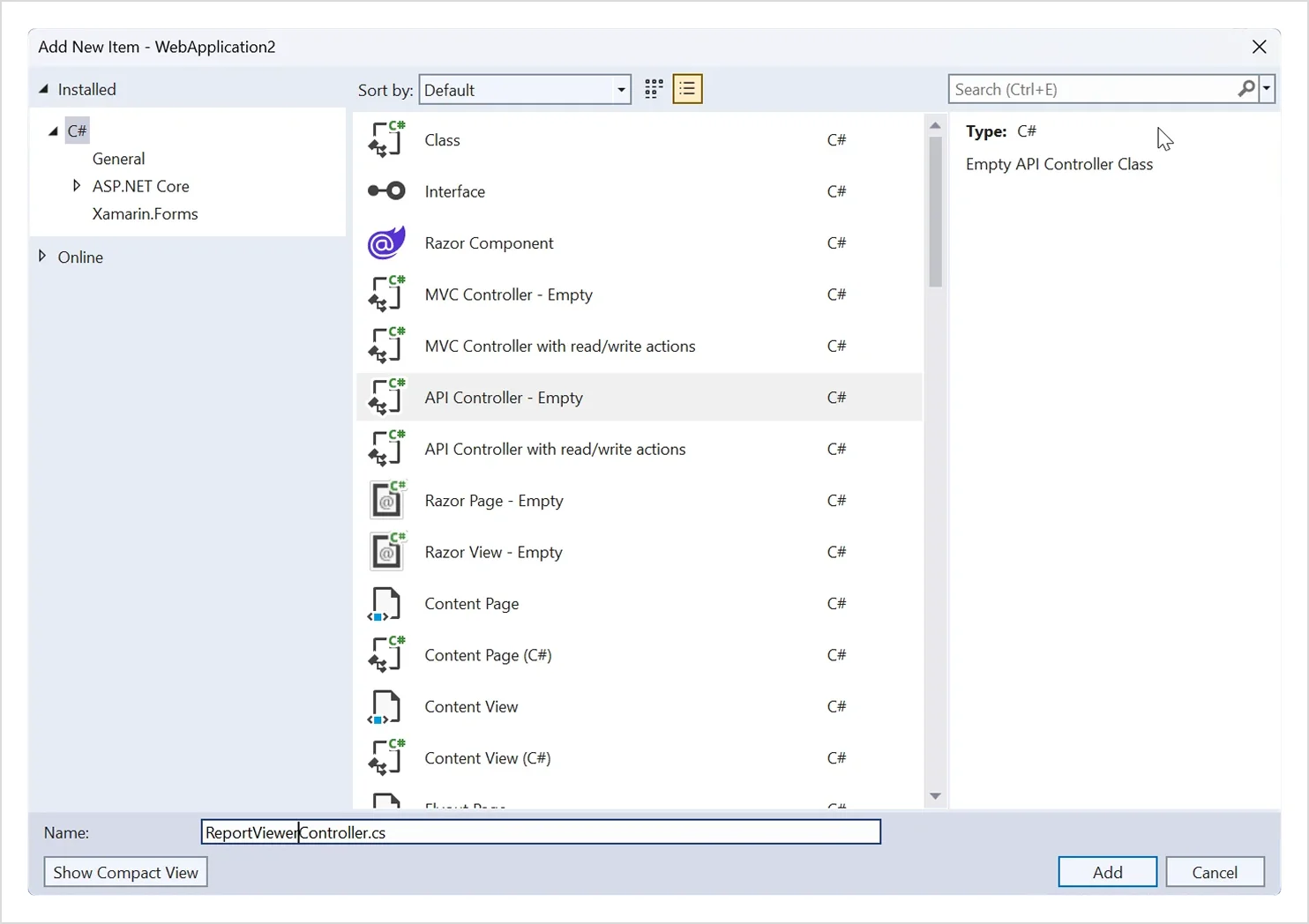
- Right-click the project file; in the context menu, select Add > New Item.
- In the Add New Item dialog, select API controller–Empty and name it ReportViewerController.cs and then click Add.
ReportViewerController.cs - Open the ReportViewerController and add the following statement.
using Microsoft.AspNetCore.Mvc;

using System.IO.

using BoldReports.Web.ReportViewer;
- Inherit the IReportController interface and then implement its methods.
Note: The IReportController interface has the declaration of action methods that are defined in the Web API controller for processing RDL, RDLC, and SSRS reports. It also handles resource requests from the Report Viewer control. The ReportHelper class contains helper methods that process a POST or GET request from the Report Viewer control and return the response to it.
5. Create local variables inside the ReportViewerController.
//Report Viewer requires a memory cache to store the information of consecutive client request and have the rendered report viewer information in server

    private Microsoft.Extensions.Caching.Memory.IMemoryCache _cache;

    // IWebHostEnvironment used to get the report stream from application `wwwroot\Resources` folder.

    private Microsoft.AspNetCore.Hosting.IWebHostEnvironment _hostingEnvironment;
6. Add routing information.
Routing is the process of directing an HTTP request to a controller. The functionality of this processing is implemented in System.Web.Routing. Add the action parameter to the route template, as in:
[Route("api/[controller]/[action]")]
public class ReportViewerController : Controller, IReportController

{
    ...
}
7. Configuring the Report Viewer in the Report Controller.
Configure the Report Viewer by setting it up in the Report Controller to handle processing, resource loading, and other viewer actions, and load the report as a stream in OnInitReportOptions.
[Route("api/[controller]/[action]")]

public class ReportViewerController : Controller, IReportController

{
    // Report viewer requires a memory cache to store the information of consecutive client request and

    // have the rendered Report Viewer information in server.

    private Microsoft.Extensions.Caching.Memory.IMemoryCache _cache;

    // IWebHostEnvironment used with sample to get the application data from wwwroot.

    private Microsoft.AspNetCore.Hosting.IWebHostEnvironment _hostingEnvironment;

    // Post action to process the report from server based json parameters and send the result back to the client.

    public ReportViewerController(Microsoft.Extensions.Caching.Memory.IMemoryCache memoryCache,

        Microsoft.AspNetCore.Hosting.IWebHostEnvironment hostingEnvironment)
    {
        _cache = memoryCache;

        _hostingEnvironment = hostingEnvironment;
    }
    // Post action to process the report from server based json parameters and send the result back to the client.

    [HttpPost]

    public object PostReportAction([FromBody] Dictionary<string, object> jsonArray)

    {
        //Contains helper methods that help to process a Post or Get request from the Report Viewer control and return the response to the Report Viewer control

        return ReportHelper.ProcessReport(jsonArray, this, this._cache);

    }
Step 8: Set report path and service URL
To render the available reports in the application, configure the Report Viewer with the correct report path and service URL.
- Open the Index.cshtml page.
- Set the report-path and report-service-url properties as shown below.
<bold-report-viewer id="viewer" report-path="sales-order-detail.rdl" report-service-url="/api/ReportViewer"></bold-report-viewer>
NOTE: The report path property is set to the RDL report that is added to the project Resources folder.
Step 9: Test and verify SSRS Report migration
Here, you need to:
- Build the application: Build your .NET Core application to check for any errors or missing configuration.
- Run the Application: Launch the application in your browser and navigate to the page containing the Bold Reports Viewer and ensure the reports are displayed correctly, with parameters, exports, paging, and other interactive features working as expected.
SSRS Sales Order Report Rendered in .NET Core Application

By following these steps, your ASP.NET SSRS reports are successfully migrated to .NET Core with Bold Reports, allowing you to access and display reports seamlessly in your new environment. To learn more, check out our documentation for step-by-step guidance and demo samples to simplify your reporting needs in .NET Core.
Conclusion
Migrating your SSRS .NET Framework app to .NET Core is easy with Bold Reports®. It removes the need for an SSRS server and works smoothly in modern .NET Core environments. Ready to make the switch? Try Bold Reports Viewer today by signing up for a 30-day free trial and simplify your SSRS report migration process.