TL;DR:
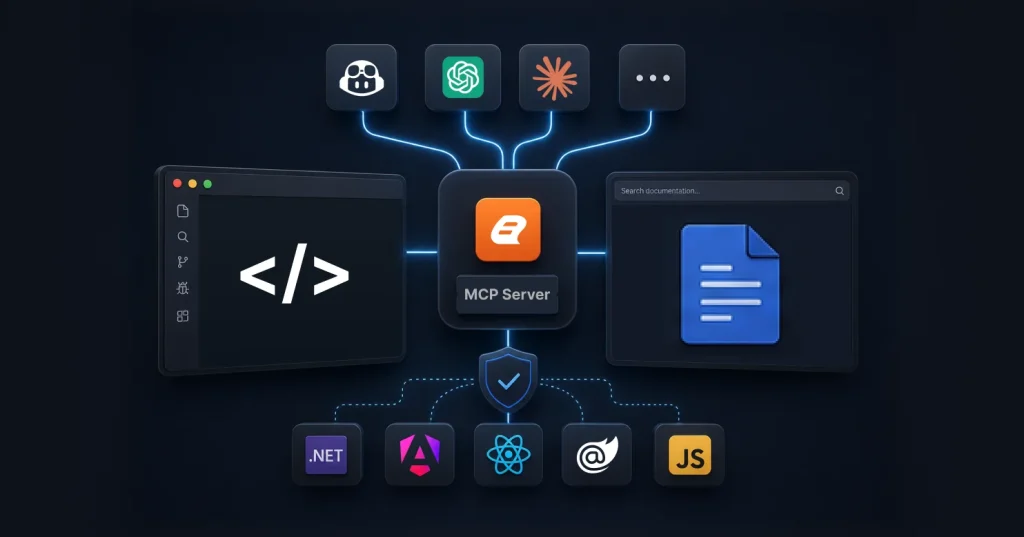
The Bold Reports® Documentation Assistant MCP Server lets your IDE or AI coding assistant answer Bold Reports questions and generate integration code from the official documentation, with no authentication. This post covers setup in VS Code, Visual Studio and ChatGPT, prompts, use cases and how it differs from the Operations (API) server.
Bold Reports, an embedded reporting platform built on RDL and RDLC SDKs, has a deep documentation set: Report Viewer and Designer guides for ASP.NET Core, Angular, React, Blazor and JavaScript, plus references for RDL expressions and data sources. Mid-integration, the usual routine is a browser tab, a search, a copy, and a switch back to the editor. The Documentation Assistant MCP Server moves that lookup into the IDE or chat client where you already write the code.
This guide covers what the server does and does not do, how it differs from Bold Reports’ second MCP server, how to install it in Visual Studio, VS Code and ChatGPT, how to phrase prompts, and what to check when it does not respond. The setup steps follow the official Documentation Assistant setup guide, with added troubleshooting detail.
What Is the Model Context Protocol (MCP)?
The Model Context Protocol is an open standard for connecting AI applications to external tools and data sources. Anthropic introduced it in 2024 and, on December 9, 2025, donated it to the Agentic AI Foundation, a directed fund under the Linux Foundation, so it is now governed as a vendor-neutral standard.
Without a connection like this, a coding assistant answers from its training data, which can lag behind a product release, or from text you paste into the chat. With MCP, the assistant can call an external tool, such as a documentation search, and use the result in its answer. The server provides the tool; your IDE or chat client is the MCP client.
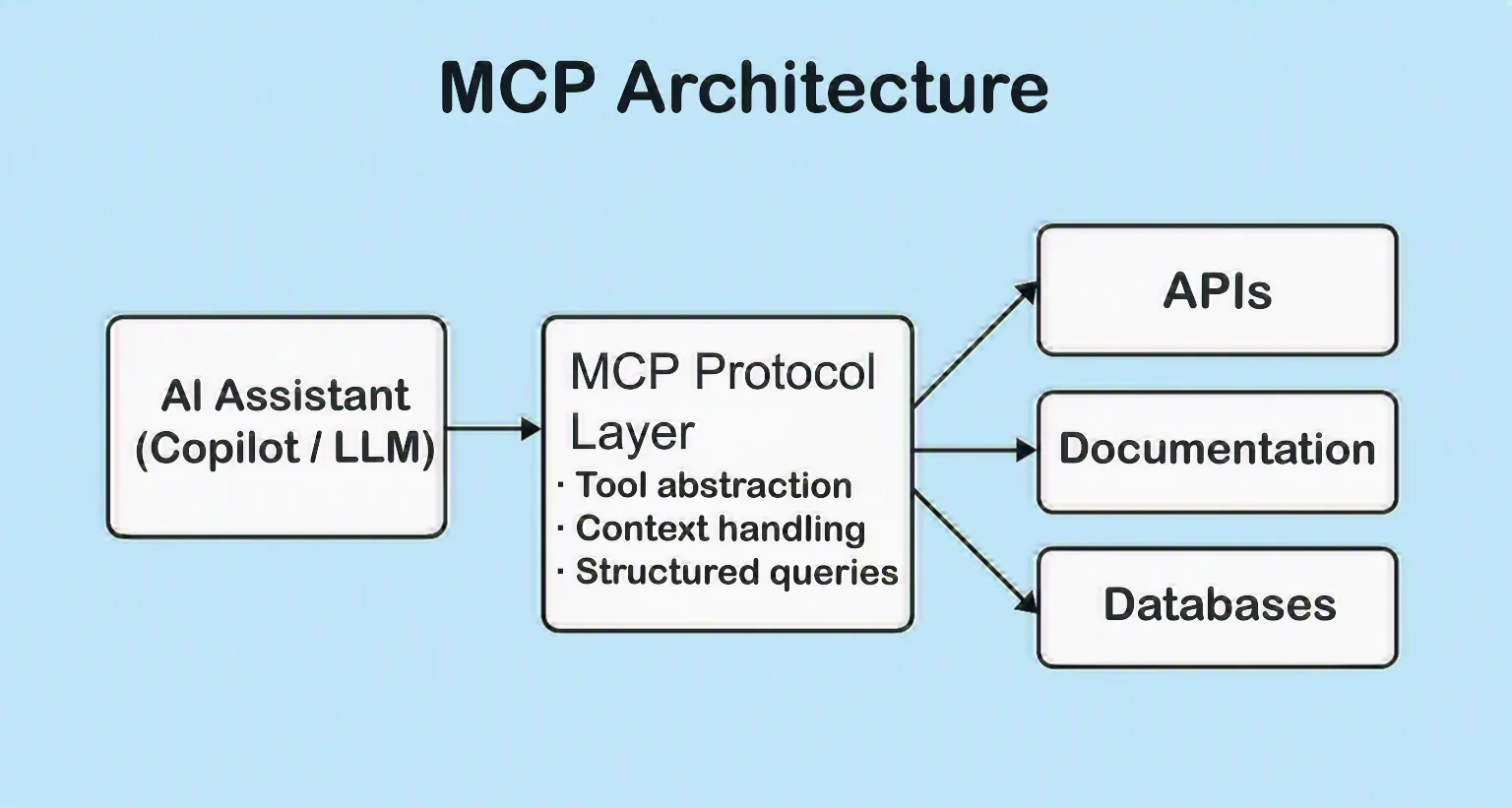
What Is the Bold Reports Documentation Assistant MCP Server?
The Documentation Assistant MCP Server is a hosted endpoint at https://mcp.boldreports.com/docs. Bold Reports manages it, so there is no infrastructure to run and updates are applied automatically. Your client connects over a standard HTTPS endpoint, and the server exposes a single documentation-assistant tool, which your client lists under a name such as #boldreports_docs_assistant.
Once connected, your assistant can:
- Answer questions about Bold Reports features, APIs and concepts.
- Generate code for embedding Report Viewer and Report Designer.
- Help with RDL and RDLC report structures and expressions.
- Guide integrations for ASP.NET, Angular, React, Blazor and JavaScript.
- Retrieve relevant help content from the Bold Reports documentation.
What it does not do: it does not manage your Bold Reports site, so it cannot read or change your reports, users or schedules, and it needs no token or site URL. The assistant you chat with still writes the answer; the server supplies the documentation that answer draws from. To work with a live site, use the Operations server described next.
How the Documentation Assistant Supports Your AI Coding Assistant
The AI in this setup is the coding assistant you already use, such as GitHub Copilot, ChatGPT or Claude. The Bold Reports documentation describes the server as the way those AI-powered assistants reach Bold Reports documentation directly inside your development environment. Bold Reports itself stays what it has always been, an embedded reporting platform; the server only gives the assistant a documentation source.
That matters because a general-purpose assistant knows Bold Reports only as well as its training data. When it calls the Documentation Assistant tool, it retrieves Bold Reports help content and answers from that, which is what the documentation means by documentation-backed guidance. In VS Code you can see the tool describe itself the first time it runs: it presents itself as an assistant that answers Bold Reports questions with guidance and relevant documentation.
Which Bold Reports MCP Server Do I Need?
Bold Reports provides two MCP servers with separate purposes, endpoints and setup. Pick by the job: building or integrating means the Documentation Assistant; operating a live site means the Operations (API) server.
| Documentation Assistant | Operations (API) | |
|---|---|---|
| Purpose | Answers Bold Reports questions and generates integration code from documentation | Connects to your live Bold Reports site to manage reports, users, schedules and permissions |
| Endpoint | https://mcp.boldreports.com/docs |
https://mcp.boldreports.com/api/ |
| Authentication | None | Access token and site URL |
| Example request | “How do I embed the Report Viewer in React?” | “Show all reports in the Finance category and export one to PDF.” |
| Guide | Documentation Assistant guide | Operations (API) guide |
The Operations server requires an access token for your site and, per its limitations page, connects to one site per configuration. Source for the comparison: the Bold Reports MCP Server overview. The rest of this guide covers the Documentation Assistant.
How Does the Documentation Assistant MCP Server Work?
The server acts as a bridge between your AI assistant and the Bold Reports documentation. A request moves through five steps:
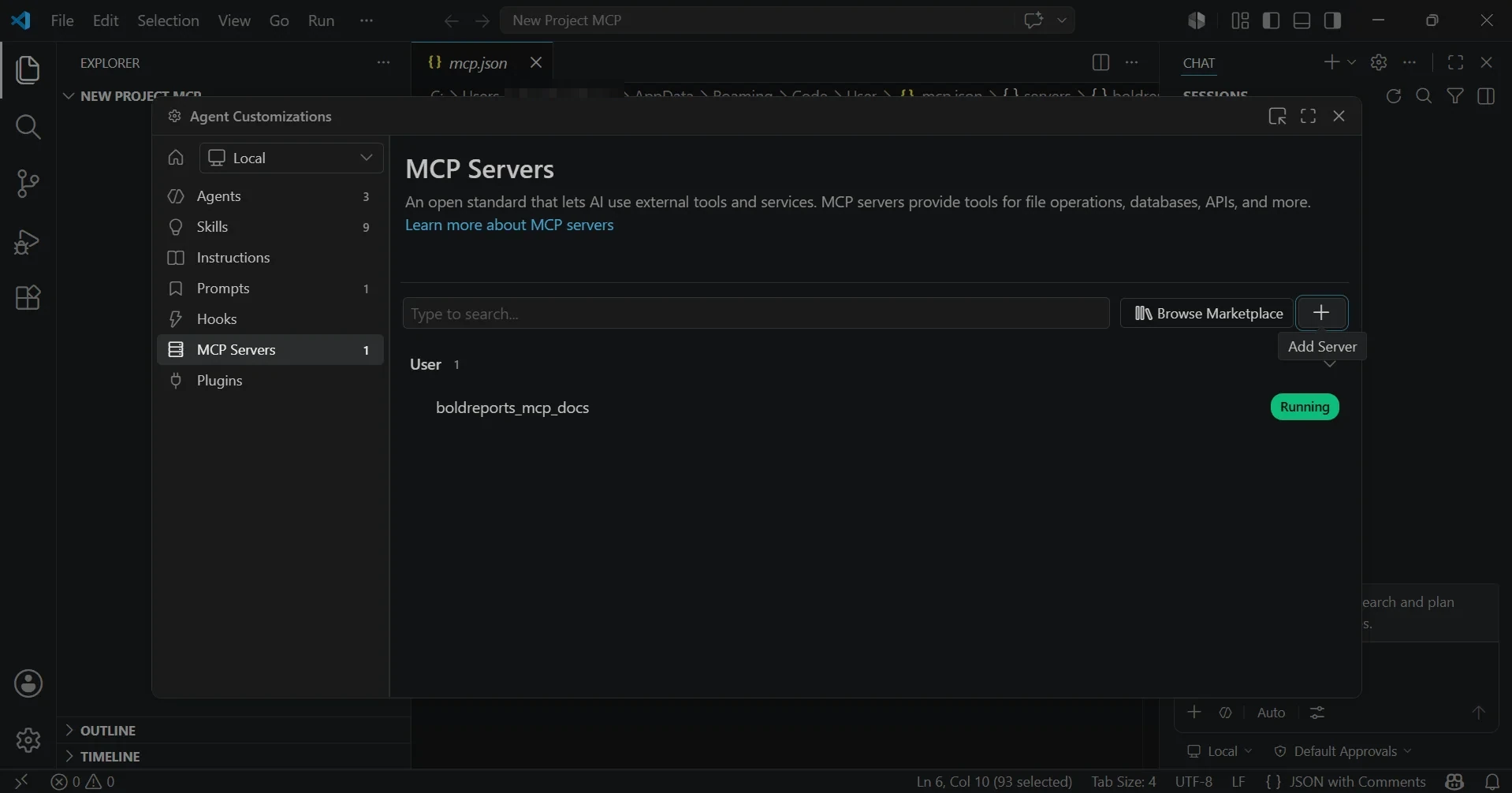
Step 1: Connect your IDE or AI assistant. The MCP Servers panel in VS Code lists the Bold Reports documentation server once it is added and shows its status.
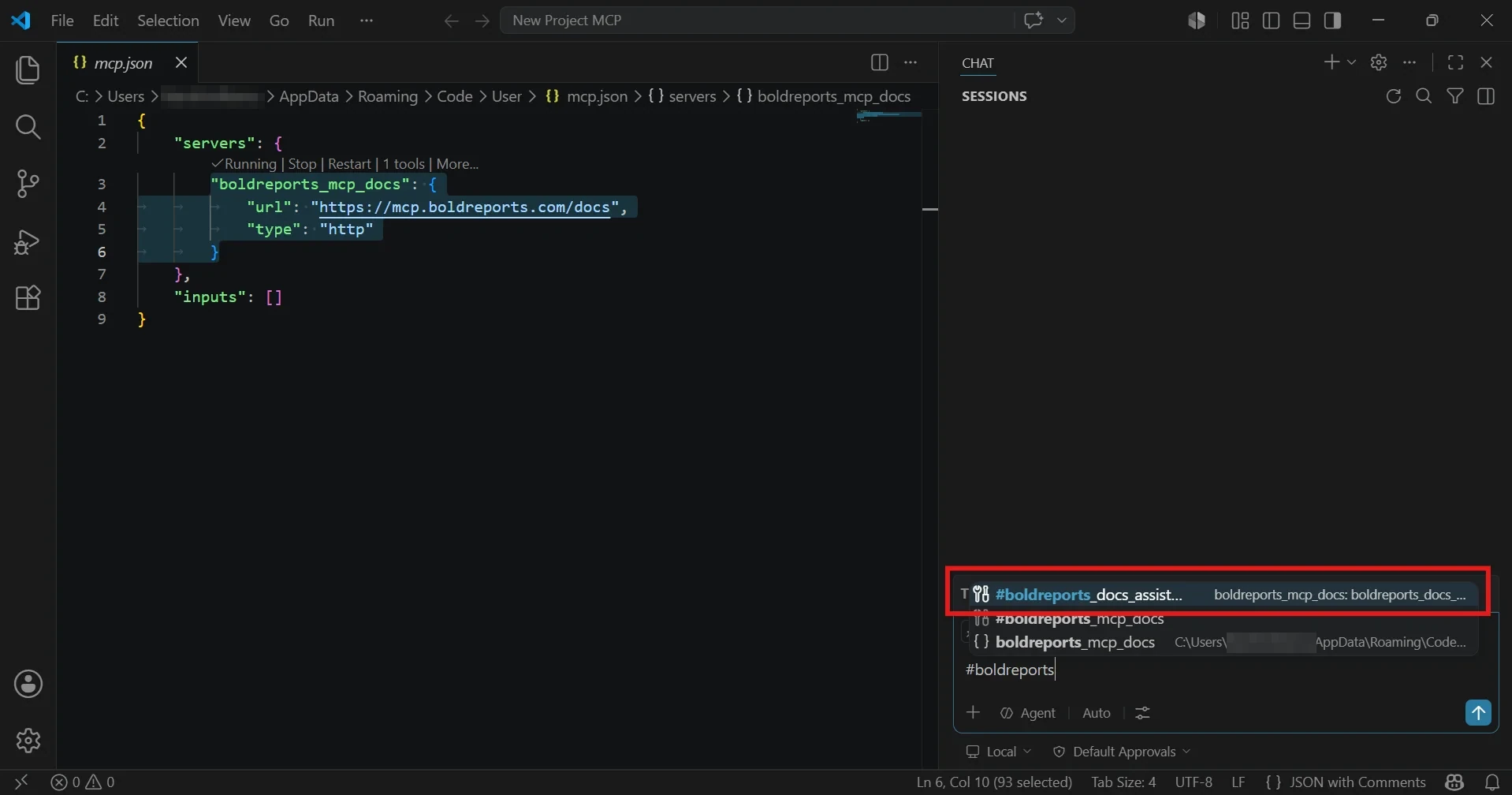
Step 2: Configure the server. Add the endpoint https://mcp.boldreports.com/docs to your client’s MCP configuration. VS Code then offers the Bold Reports tool when you type #boldreports in chat.
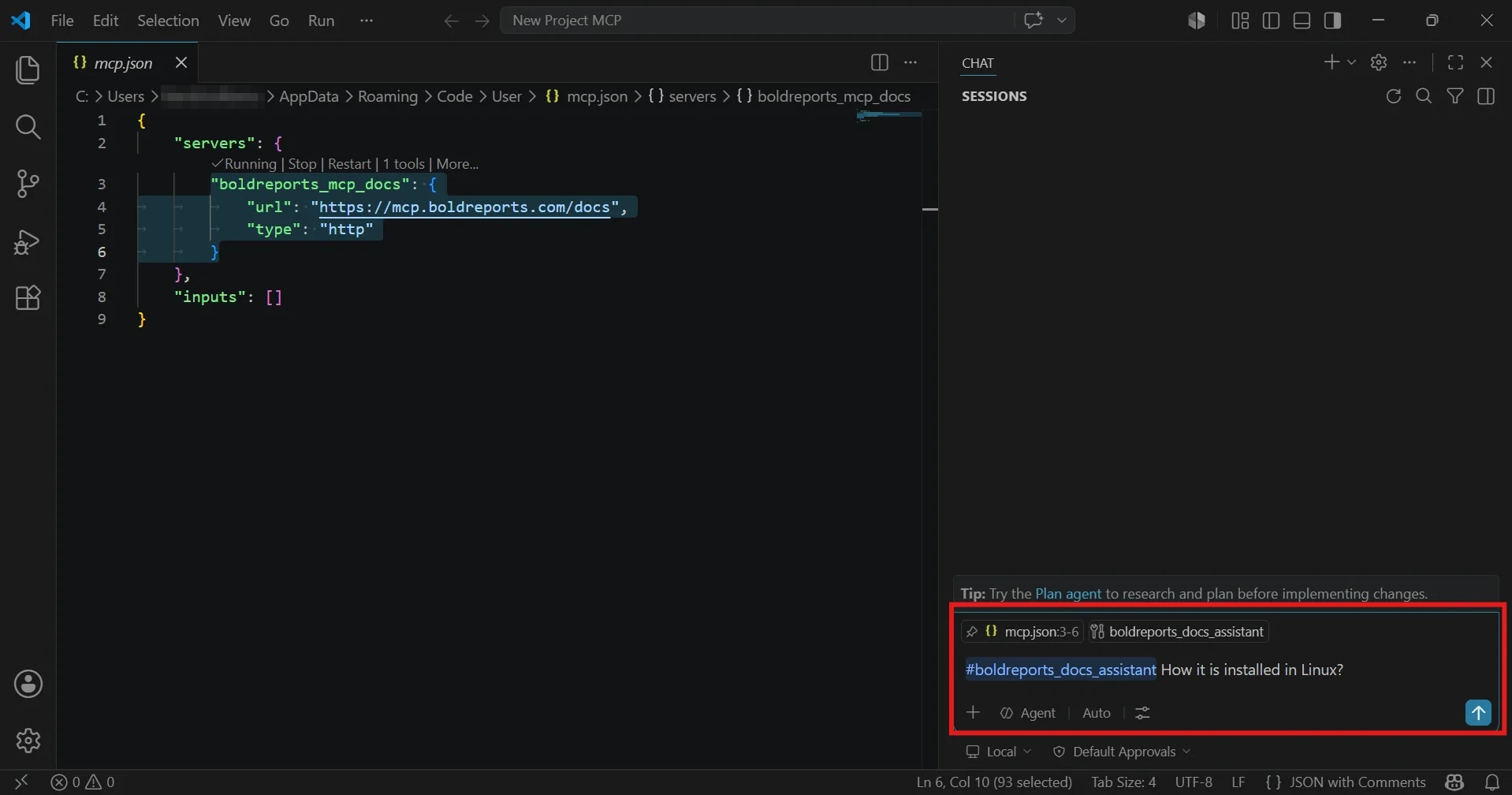
Step 3: Send a request. Ask a Bold Reports question in the assistant’s chat. Naming the tool in the prompt tells the assistant to use it.
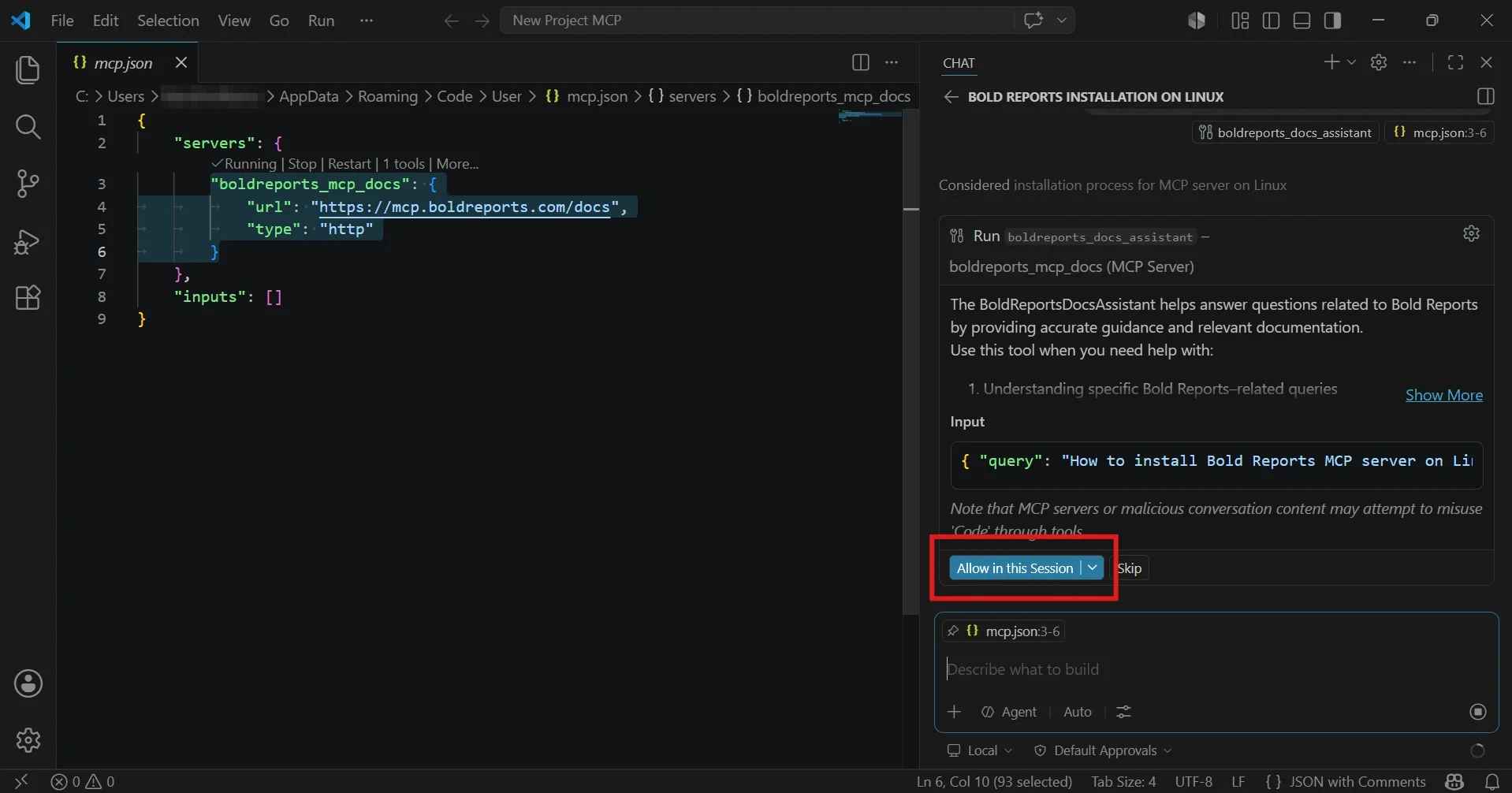
Step 4: The server searches Bold Reports help resources. VS Code asks for approval before the assistant runs the tool with its query.
Step 5: The assistant answers using what the server returned.
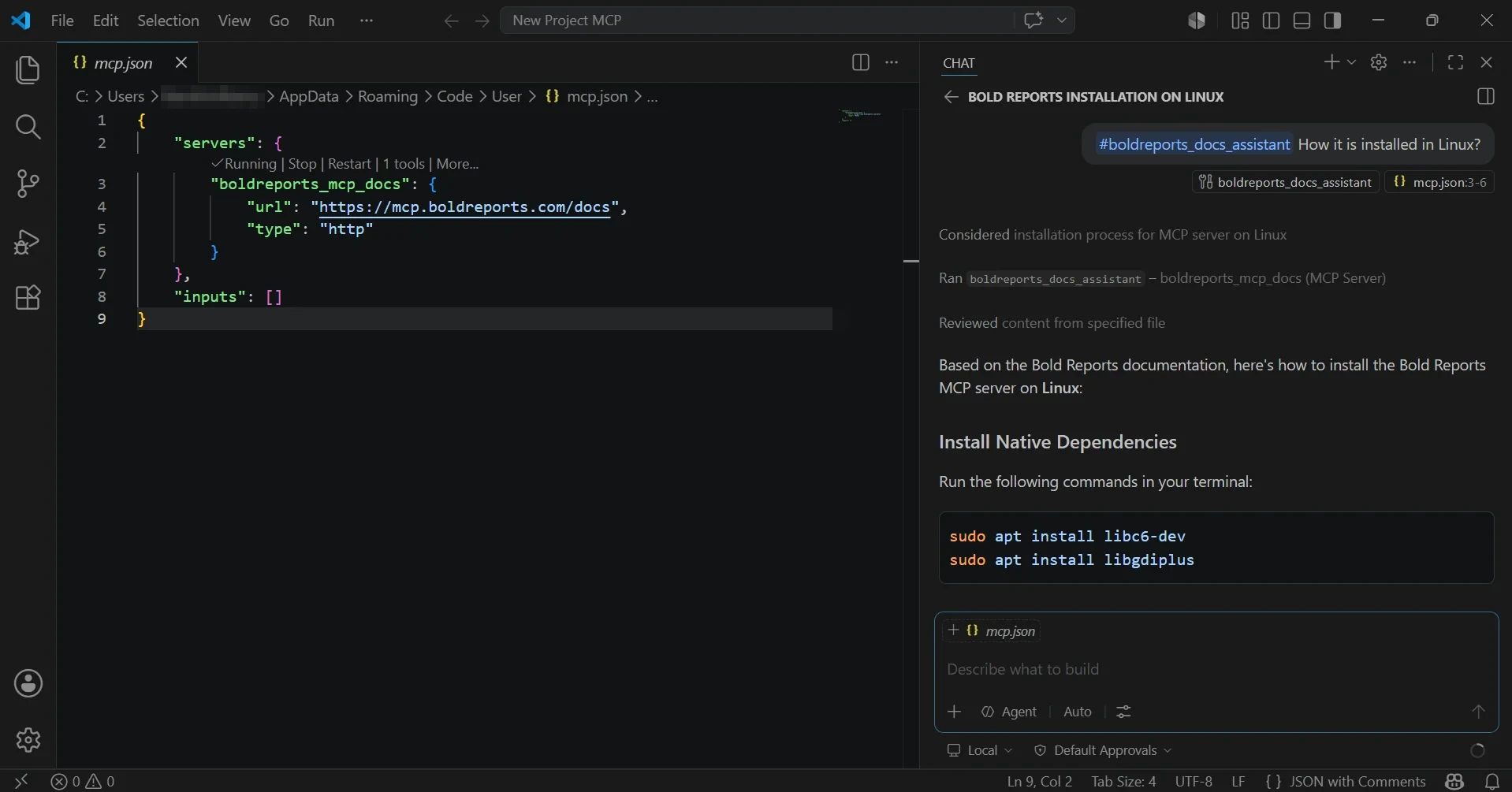
The answer is documentation-backed, not documentation-guaranteed. The assistant still interprets what the server returns, so check the matching Bold Reports help page for anything you are about to ship.
Documentation Assistant MCP Server vs. Browsing the Docs
The server does not replace help.boldreports.com; it adds a second way in. Each is stronger at a different task.
| Dimension | Documentation Assistant MCP Server | Browsing help.boldreports.com |
|---|---|---|
| Where you work | Inside the IDE or chat client you already use | In a browser tab beside the editor |
| Authentication | None | None |
| What you get | An answer or generated code shaped by your prompt and your assistant | The full page exactly as published, with its screenshots and tables |
| Strongest at | A narrow question with your framework named, such as embedding Report Viewer in React | Reading a topic end to end, including prerequisites and every option |
| Main risk | The assistant can misread or over-summarize retrieved text | Time spent switching context and finding the right page |
| Setup | One-time MCP configuration and Agent Mode | None |
| Verification | You check the answer against the source page | The page is the source |
What Can Developers Use the Documentation Assistant MCP Server For?
The documentation describes three jobs: generating code, troubleshooting integrations and retrieving documentation-backed guidance, all without leaving the IDE. In practice they map to these use cases.
| Use case | Example prompt | What the server supplies |
|---|---|---|
| Embed Report Viewer or Designer in a framework | “Generate React code to integrate the Bold Reports Viewer with custom toolbar options.” | Integration guidance for ASP.NET, Angular, React, Blazor or JavaScript |
| Build or fix RDL and RDLC reports | “Design a parameter-driven RDL report using a SQL data source.” | Help content on RDL and RDLC structure, expressions, parameters and data sources |
| Learn a feature | “Explain how to implement drill-through reports.” | The relevant help topic, summarized by your assistant |
| Set up secure access | “Create an ASP.NET Core app with the Bold Reports Viewer and secure access.” | Guidance on the integration steps the docs cover |
| Troubleshoot an integration | “Based on Bold Reports docs, what should I check when the Report Viewer does not load?” | Troubleshooting content from the documentation |
| Look up an installation step | “Based on Bold Reports docs, what are the steps to install Bold Reports on Linux?” | Installation guidance from the documentation |
The productivity gain is the removal of context switching. The question, the answer and the code stay in one window, and the answer comes from Bold Reports documentation instead of the assistant’s memory.
What Do You Gain by Adding the Documentation Assistant MCP Server?
- Answers inside the IDE. Developers can generate code, troubleshoot integrations and retrieve guidance without leaving it.
- Documentation-backed guidance. The assistant answers from Bold Reports help resources rather than from memory alone.
- A low barrier to start. There is no authentication, and nothing to configure on your Bold Reports site.
- Nothing to host. Bold Reports manages the service, with a standard HTTPS endpoint and automatic updates.
- It fits the tools you already use. Visual Studio 2022 and 2026, VS Code, and assistants including GitHub Copilot, ChatGPT, Claude and Gemini CLI.
- Coverage of the frameworks you build in. ASP.NET, Angular, React, Blazor and JavaScript.
The trade-off is that you still own the result. The assistant interprets what the server returns, so review generated code before it ships.
Supported IDEs and AI Tools Before You Set Up
Check your IDE and AI tool against the supported lists, and keep both on current versions so you get smooth integration and the latest capabilities, as the setup guide recommends.
Supported IDEs
- Visual Studio 2022
- Visual Studio 2026
- Visual Studio Code
Supported AI tools
- GitHub Copilot
- JetBrains AI Assistant
- Claude Desktop
- Claude Code (CLI)
- ChatGPT (Plus, Team or Enterprise)
- Gemini CLI
- Other MCP-compatible AI assistants
Turn on Agent Mode in your IDE so MCP-based interactions work. Your IDE’s documentation covers where that setting lives.
How Do You Set Up the Documentation Assistant MCP Server?
Start with the one-click installers and fall back to manual configuration only if they do not work in your environment.
One-click installation
Visual Studio 2022 and 2026
- Add an
.mcp.jsonfile to your user directory,%USERPROFILE%. - Add an entry for the Bold Reports server that points to
https://mcp.boldreports.com/docswith typehttp, in the format Microsoft describes for MCP servers. - Turn on Agent Mode.
Microsoft’s guides cover the host-side steps: configure MCP servers in Visual Studio 2022, enable Agent Mode in Visual Studio 2022, and the equivalents for current Visual Studio and Agent Mode.
VS Code
Open the Command Palette (Ctrl+Shift+P or Cmd+Shift+P), run MCP: Add Server, and enter https://mcp.boldreports.com/docs.
To configure it by hand, edit your user-level mcp.json (on Windows, %APPDATA%\Code\User\mcp.json) or a workspace .vscode/mcp.json. This is the configuration used for the screenshots in this guide:
{
  "servers": {
    "boldreports_mcp_docs": {
      "url": "https://mcp.boldreports.com/docs",
      "type": "http"
    }
  },
  "inputs": []
}
When the entry is valid, VS Code shows Running and 1 tools above it in the editor. The first time the assistant calls the tool, VS Code asks for approval and warns that MCP servers or conversation content can try to misuse tools. Choose Allow in this Session only for servers you trust, such as this one.
The server is a hosted HTTP service, so the entry uses type: http and a URL, matching the payload the one-click installer writes. It does not use a local command. See also VS Code’s MCP server setup and built-in agents documentation.
ChatGPT
- Open ChatGPT in your browser.
- Go to Settings > Connectors > Advanced Settings and enable Developer Mode.
- Click Create Connector.
- Set Name to “Bold Reports® Documentation”, URL to
https://mcp.boldreports.com/docs, and Authentication to None. - Trust and create the connector.
OpenAI’s Help Center has the current Developer Mode guide.
Confirm the connection
Three signals confirm the connection in VS Code. The MCP Servers panel shows the server as Running, the editor shows 1 tools above the server entry, and typing #boldreports in chat offers #boldreports_docs_assistant. Then ask one framework-specific question, for example “Based on Bold Reports docs, how do I add the Report Viewer to an Angular app?” If the answer draws on Bold Reports guidance for Angular, the connection works.
Optionally, add custom instructions to your assistant, such as a preferred language (C# or TypeScript) or a request to include a code sample with every answer.
Prompts That Return Useful Answers From the Documentation Assistant
Answer quality depends on how specific the question is. Four habits make the biggest difference.
| Habit | Stronger prompt | Weaker prompt |
|---|---|---|
| Name the feature | “How do I configure cascading parameters in the Bold Reports Report Designer using a SQL data source?” | “How do I do parameters?” |
| Name your stack | “Generate Angular code to integrate the Bold Reports Viewer with a custom toolbar and export options.” | “Give me integration code.” |
| Ask for a format | “Provide a complete code sample for embedding the Bold Reports Designer in a Blazor Server application, including REST API data source configuration.” | “Explain the Designer.” |
| Point at the docs | “Based on Bold Reports docs, how do I implement drill-through reports?” | “How do drill-through reports work?” |
Use these as starting templates:
- Create an ASP.NET Core application with the Bold Reports Report Viewer, implementing Windows authentication and role-based access control.
- Design a parameter-driven RDL report using a SQL data source with cascading drop-down filters.
- Generate React TypeScript code to integrate the Bold Reports Viewer with custom toolbar buttons for PDF export and page navigation.
- Explain how to implement drill-through reports, including data preparation and navigation setup.
- Build a Blazor WebAssembly application with the Bold Reports Designer component and a REST API data source.
- What are the best practices for handling large datasets in Bold Reports RDL reports to keep rendering performant?
What a real test shows. In VS Code, the prompt #boldreports_docs_assistant How it is installed in Linux? called the tool, and the assistant rewrote the question into a fuller query that named Bold Reports before running it. The approval prompt in step 4 shows that query. The assistant then answered with installation steps that begin with native dependencies. Because the assistant decides what to send to the tool, naming the product and component in your prompt, for example “Bold Reports on Linux”, keeps the query on target.
Troubleshooting the Documentation Assistant MCP Server
| Symptom | Likely cause | Fix |
|---|---|---|
| MCP server not starting | Configuration file missing or in the wrong place | Restart the IDE and confirm the file location: %USERPROFILE%\.mcp.json for Visual Studio, .vscode/mcp.json for VS Code. |
| Invalid JSON | Syntax error in mcp.json |
Check for missing commas, mismatched brackets and unquoted keys. |
| Server not recognized | Wrong endpoint or connection type | Confirm the URL is https://mcp.boldreports.com/docs and the type is http. |
| No AI response | MCP or Agent Mode is off | Enable both in your IDE or assistant settings. |
| Connection errors | Endpoint not reachable from your network | Verify access to the endpoint and check firewall or proxy settings. |
| Bold Reports tool missing | MCP not enabled, or the server is not in the tool list | Confirm MCP is on and that the Bold Reports server appears among available tools. |
What Should You Check Before Using Generated Code?
Treat every generated answer as a draft that you review, the same way you would treat code from a colleague you have not worked with before.
- Review all AI-generated responses before using them.
- Validate configurations and code in a development environment before deployment.
- Confirm framework and package versions in generated code against the current Bold Reports setup page for your framework.
- Make sure your usage fits your organization’s security policies.
The Documentation Assistant has no token and does not manage your site, so nothing it does touches your Bold Reports data. The Operations server is different: for workflows that change reports, schedules or permissions, the Bold Reports documentation recommends a human confirmation step.
Next Steps After Setting Up the Documentation Assistant MCP Server
Start with one framework question you already know the answer to, so you can judge the quality of the response, then move to the integration you are actually building. These guides are a reference to compare the answers against:
- RDLC reports in ASP.NET Core with Report Viewer
- Create your first RDLC report with Report Designer
- Add the Report Designer to a React application
- Report Server vs. Report Viewer SDK: Which Fits Your ISV?
For the components themselves, see the Report Viewer and Report Designer pages, or try Bold Reports free to run what the assistant generates against a real site. Full reference for this server stays in the Documentation Assistant guide.
Frequently Asked Questions
- 1.
What is the Bold Reports Documentation Assistant MCP Server?
It is a hosted Model Context Protocol server at
https://mcp.boldreports.com/docs. It connects your IDE or MCP-compatible assistant to the Bold Reports documentation, so the assistant can answer questions and generate integration code for Report Viewer and Designer without you leaving your editor. Bold Reports manages the service, and it requires no authentication. - 2.
Does the Documentation Assistant MCP Server need authentication?
No. The Documentation Assistant at
https://mcp.boldreports.com/docsdoes not require a token, and you do not need to configure anything on your Bold Reports site. Authentication with an access token and a site URL applies only to the separate Operations (API) MCP Server, which manages a live site. - 3.
What is the difference between the Documentation Assistant and the Operations (API) MCP Server?
The Documentation Assistant answers questions and generates integration code from the documentation, with no authentication. The Operations (API) server connects to your live Bold Reports site to manage reports, users, schedules and permissions, and needs an access token plus your site URL. Use the first while building and the second to operate a site.
- 4.
Which IDEs and assistants work with the Documentation Assistant MCP Server?
Supported IDEs are Visual Studio 2022, Visual Studio 2026 and Visual Studio Code. Supported AI tools include GitHub Copilot, JetBrains AI Assistant, Claude Desktop, Claude Code, ChatGPT on Plus, Team or Enterprise plans, Gemini CLI, and other MCP-compatible assistants. Keep the IDE and extensions on current versions.
- 5.
Why does my assistant not show the Bold Reports documentation tool?
Confirm Agent Mode and MCP support are enabled, then check that the endpoint is
https://mcp.boldreports.com/docsand the connection type ishttp. Restart the IDE after editingmcp.json. If the tool is still missing, remove and re-add the server, then check firewall or proxy access to the endpoint. - 6.
Do I need to host the Documentation Assistant MCP Server myself, or use it offline?
No hosting is needed. Bold Reports runs the server as a managed service with a standard HTTPS endpoint and automatic updates. Because the endpoint is hosted at mcp.boldreports.com, your assistant needs network access to it. The setup guides do not describe an offline or self-hosted option.