Convert Crystal Reports to RDL: A Migration Guide
TL;DR
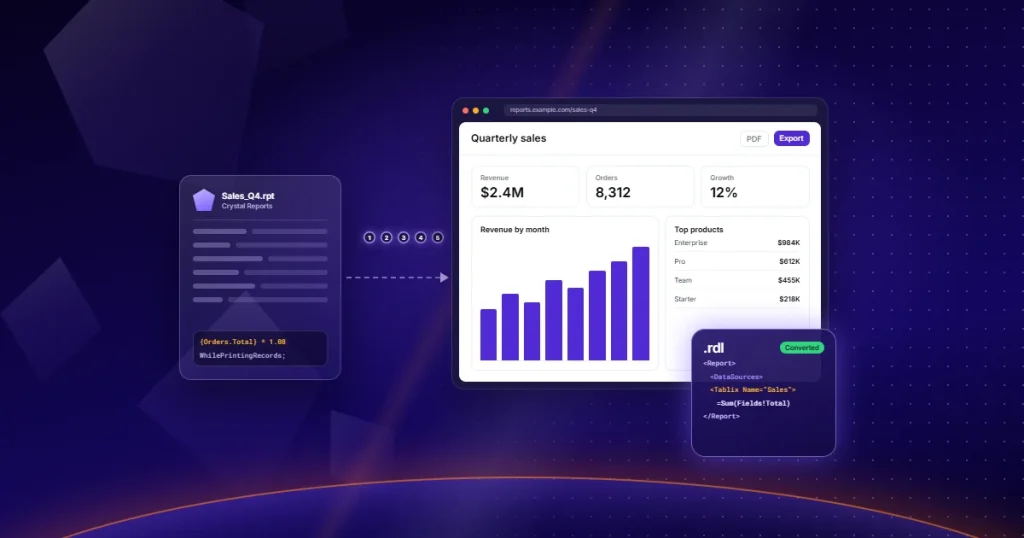
Crystal Reports’ desktop-only architecture, limited web integration, and shrinking vendor investment are pushing organizations to modernize. RDL (Report Definition Language), the open, XML-based format behind SQL Server Reporting Services (SSRS) and Bold Reports, has become the preferred standard for web-based, cloud-ready enterprise reporting. This guide explains why organizations convert Crystal Reports to RDL, compares both formats, walks through a five-phase migration methodology, covers common conversion challenges, and helps you decide between automated conversion and manual rebuild, using Bold Reports as the reference RDL-native platform.
Introduction
For nearly three decades, SAP Crystal Reports was the default choice for pixel-perfect, print-ready business reporting. Thousands of finance, healthcare, insurance, and government systems still rely on production reports built with Crystal Reports. By 2026, however, the gap between what Crystal Reports was designed to do and what modern reporting environments require has become a significant challenge for IT leaders.
Crystal Reports was built for a desktop-first, Windows-centric world where reports were generated locally, distributed as static PDFs, and rarely needed to run in browsers, mobile apps, or multi-tenant SaaS platforms. Today, organizations need reports that render natively on the web, deploy to the cloud, embed within custom applications, and scale for thousands of users. These requirements fall outside Crystal Reports’ original design.
Maintaining Crystal Reports in modern environments has also become increasingly difficult:
-
- Limited web and cloud integration. Crystal Reports lacks a native browser-based rendering engine. Web deployment often depends on legacy viewer controls, third-party middleware, or other workarounds that increase cost and complexity.
- A shrinking specialist talent pool. Fewer developers know Crystal Reports’ proprietary formula language, making maintenance more expensive and time-consuming.
- Growing technical debt. Legacy .rpt files become more tightly coupled to aging infrastructure each year, increasing modernization risks and maintenance burdens.
- Uncertain long-term direction. Many organizations are planning migrations now instead of waiting for future limitations to force the transition.
As a result, RDL (Report Definition Language) has become a leading choice for modern enterprise reporting. RDL is an open, XML-based schema rather than a proprietary binary format. It supports browser-based rendering, cloud deployment, modern data platforms, and a broad reporting ecosystem, including Microsoft SQL Server Reporting Services (SSRS) and Bold Reports. Converting Crystal Reports to RDL is more than a format change. It is a key step in a broader reporting modernization strategy.
This guide covers why organizations convert Crystal Reports to RDL, how the two formats compare, a five-phase migration methodology, common conversion challenges, and how to choose automated conversion versus a manual rebuild. If you’re still scoping the initiative, pair this guide with Bold Reports’ Crystal Reports migration planning guide and guide to evaluating Crystal Reports alternatives.
What Is Crystal Reports?
Crystal Reports is a reporting tool developed by SAP that enables users to design and generate detailed reports from databases, spreadsheets, and web services. Its core strengths include custom report layouts with tables, charts, and formulas; export options to formats like PDF, Excel, and Word; and enterprise-grade usage for financial, operational, and sales reporting.
Despite its long track record, Crystal Reports is fundamentally a desktop-based tool. It lacks native web rendering, modern cloud deployment options, and REST API-driven embedding: the exact capabilities organizations now expect from an RDL reporting tool or any modern Crystal Reports replacement.
What Is RDL (Report Definition Language)?
RDL (Report Definition Language) is an open, XML-based file format used to define the layout, data, and logic of a report, including layout regions, datasets, parameters, and expressions, in a structured, machine-readable schema. Because RDL is XML rather than a proprietary binary format, .rdl files are:
-
- Human-readable and source-control friendly: they can be diffed, versioned, and reviewed like code.
- Portable across RDL-compliant engines, including Microsoft SQL Server Reporting Services (SSRS) and Bold Reports, so reports aren’t locked to a single vendor’s runtime.
- Natively renderable on the web: modern RDL viewers render reports directly in the browser using HTML5/JavaScript, with no ActiveX, Java applets, or desktop plugins required.
- Built for extensibility: custom code and .NET assemblies can be referenced directly inside a report definition to extend logic beyond built-in expressions.
Because RDL is the native format for SSRS and is directly supported by Bold Reports, converting to RDL also means your reports become compatible with the broader Crystal Reports to SSRS migration path, giving organizations flexibility in which RDL-native platform they ultimately standardize on.
Why Convert Crystal Reports to RDL?
Migrating from Crystal Reports to RDL is best understood as two connected sets of drivers: the business case for modernization, and the technical case for why RDL specifically is the right target format.
Business Drivers
-
- Legacy infrastructure costs: consolidating onto an RDL-native platform reduces the infrastructure footprint required for aging application servers and specialized maintenance contracts.
- Technical debt reduction: RDL’s open, structured format makes reports easier to audit, document, and hand off between teams.
- Cloud and web modernization: RDL reports render natively in the browser and deploy to cloud and hybrid infrastructure.
- Improved scalability: RDL-native report servers handle concurrent rendering, caching, and horizontal scaling as usage grows.
- Better report accessibility: RDL reports render in-browser, so users can access them from any device without desktop viewers or plugins.
- Support for self-service reporting: modern RDL designers, like Bold Reports Designer, give business users drag-and-drop authoring, not just developers.
Technical Drivers
-
- Modern report architecture: RDL-native platforms are built on current web and cloud architecture patterns rather than desktop-era frameworks.
- XML-based report definitions: .rdl files can be version-controlled, programmatically generated, and integrated into CI/CD pipelines, something Crystal Reports’ .rpt format was never designed for.
- Easier maintenance: a structured, readable schema makes issues faster to locate and fix than in Crystal Reports’ proprietary format.
- Integration flexibility: RDL reports integrate more readily with modern data sources, authentication providers, and application frameworks.
- Cross-platform support: RDL-compliant engines run across Windows, Linux, and containerized environments, unlike Crystal Reports’ Windows-centric runtime.
- API-enabled deployments: platforms like Bold Reports expose REST APIs for report generation, scheduling, and embedding, enabling headless reporting architectures Crystal Reports cannot natively support.
Crystal Reports vs. RDL: Full Comparison Table
| Feature | Crystal Reports | RDL |
| Architecture | Proprietary, desktop-first, tied to Windows and .NET Framework | Open XML schema, supported across cloud, on-premises, and hybrid setups |
| Report Format | .rpt: proprietary binary/XML hybrid, not human-readable | .rdl: open XML, human-readable and diff-friendly |
| Web Deployment | Needs legacy viewer controls or third-party middleware | Renders natively in the browser via HTML5/JS, no plugins |
| Cloud Readiness | Primarily on-premises; cloud support is limited and retrofitted | Built for cloud, hybrid, and containerized deployment |
| Scalability | Performance degrades with large datasets and high concurrency | Built for concurrent rendering, caching, and horizontal scaling |
| Data Source Support | Strong for on-premises databases; limited cloud or warehouse connectors | Broad connectivity, including cloud warehouses and REST/OData |
| Scheduling | Requires separate infrastructure, such as BusinessObjects add-ons | Native scheduling, subscriptions, and distribution |
| Interactive Reporting | Primarily static, print-oriented output | Native support for parameters, drill-down, and sorting |
| Developer Experience | Proprietary Crystal Syntax; shrinking specialist talent pool | VB.NET-style expressions familiar to .NET and SSRS developers |
| Maintenance | Version-locked licensing, aging SDKs, complex patching cycles | Actively maintained open schema with ongoing vendor investment |
| Migration Complexity | N/A (source format) | Low to moderate with automated tooling; higher for complex reports |
| Future Readiness | Declining vendor investment; uncertain long-term roadmap | Backed by the SSRS ecosystem and platforms like Bold Reports |
This comparison makes clear why so many IT and reporting teams now treat Crystal Reports modernization as a platform decision, not just a file-conversion task: the underlying architecture, not just the file extension, determines long-term scalability and maintainability.
Step-by-Step Guide: How to Convert Crystal Reports to RDL
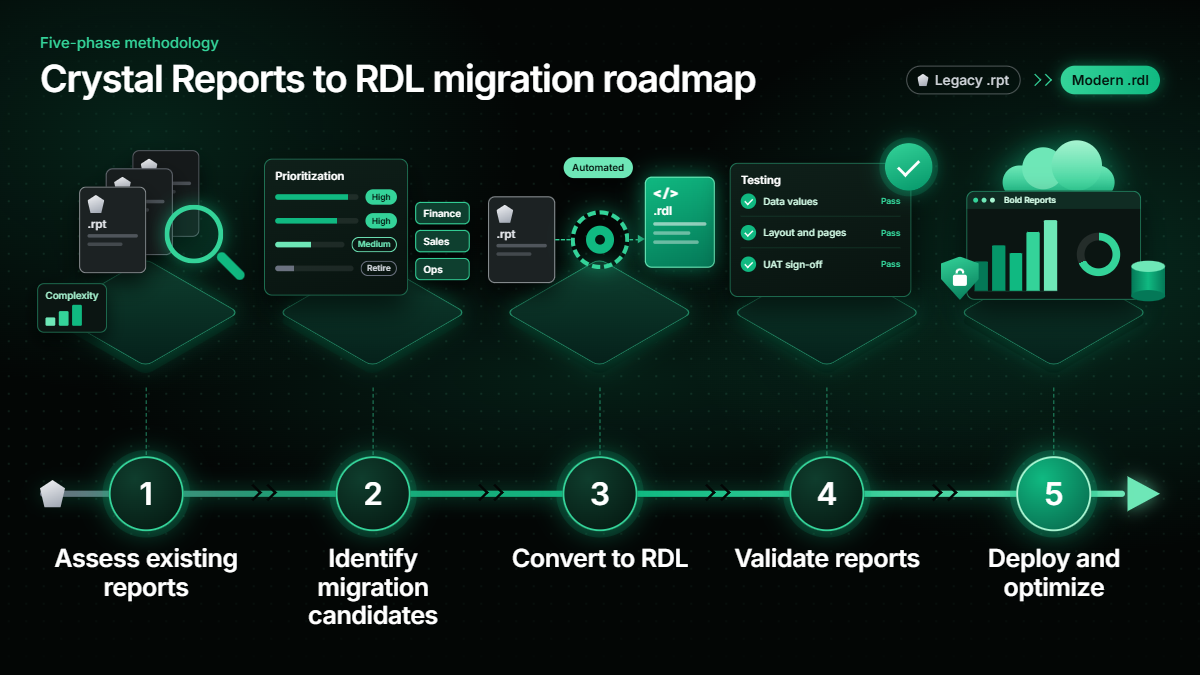
Converting Crystal Reports to RDL at scale requires more than recreating individual reports one at a time. The most successful migrations follow a five-phase methodology that treats conversion as a managed project, not a series of ad hoc rebuilds.
Step 1: Assess Your Existing Crystal Reports Inventory
Before converting a single report, build a complete picture of what you’re migrating: every .rpt file across production, staging, and archived systems; a complexity analysis (simple tabular, grouped or summary, or reports with subreports, cross-tabs, and heavy formula logic); the applications and schedules that depend on each report; shared data sources and stored procedures that should be migrated once and referenced, not duplicated; and a review of custom Crystal Syntax or UFL calls needing special handling. Mapping inventory and dependencies before conversion begins is one of the most reliable predictors of a smooth migration.
Step 2: Identify Migration Candidates
Not every report deserves the same treatment. Segment your inventory into high-value reports tied to revenue, compliance, or executive decisions and prioritize these for careful, validated conversion; frequently used reports where downtime or errors have the broadest impact; archived or rarely used reports that are better candidates for retirement than conversion; and reports with outdated logic or poor performance that are often better rebuilt than converted like-for-like.
Step 3: Convert Crystal Reports to RDL
With your inventory prioritized, begin conversion using a mix of automated and manual techniques. Automated tooling can accelerate straightforward reports by mapping structure and data bindings programmatically, while reports with heavy custom code, nested subreports, or non-standard formulas typically need manual review afterward. This stage also maps Crystal Reports sections (headers, footers, group headers and footers, details) into RDL structures such as tablixes, lists, and rectangles; rewrites formulas into RDL’s VB.NET-style expressions; and recreates fonts, colors, and spacing to match the original design.
Step 4: Validate Converted Reports
Validation is where migration quality is won or lost. For every converted report, confirm output values match the original exactly, including totals and calculated fields; that layout, fonts, and pagination match or improve on the original; that reports render within acceptable time under realistic data volumes; and that business users sign off through user acceptance testing before it replaces the original in production. Bold Reports’ guide to common Crystal Reports migration issues breaks down the most frequent root causes when validation surfaces problems.
Step 5: Deploy and Optimize
Once reports are validated, move to production with a plan for ongoing operations: establish governance for ownership and change approval; configure role-based access, row-level security, and authentication (SSO, OAuth 2.0) before go-live; recreate delivery schedules using the target platform’s native scheduling engine; train authors and consumers on workflow differences; and monitor rendering times and error rates after go-live to catch regressions early.
Formula and Expression Migration: Crystal Reports vs. RDL/Bold Reports
Formula compatibility is one of the most technical parts of any Crystal Reports to RDL conversion, especially for string, date and time, math, logic, and aggregation functions.
Formulas Commonly Supported in Bold Reports (RDL)
-
- String functions: Mid, Left, Right, Replace, Trim
- Date and time functions: Today(), Now(), DateAdd(), Format()
- Math functions: Round(), Abs(), Ceiling(), Floor()
- Logical expressions: IF(), Switch(), IsNothing()
- Aggregations: Sum(), Avg(), Count(), Min(), Max()
- Globals: PageNumber, TotalPages, UserID
Function Comparison: Crystal Reports vs. Bold Reports/SSRS (RDL)
| Category | Crystal Reports Syntax | RDL / Bold Reports Expression | Support Status |
| String | Mid({Field}, 2, 5) | =Mid(Fields!Field.Value, 2, 5) | Supported |
| Date | CurrentDate | =Today() | Supported |
| Math | Round({Field}, 2) | =Math.Round(Fields!Field.Value, 2) | Supported |
| Logic | If {Field} > 10 Then “High” | =IF(Fields!Field.Value > 10, “High”, “Low”) | Supported |
| Aggregation | Sum({Field}) | =Sum(Fields!Field.Value) | Supported |
| Special | PageNumber | =Globals!PageNumber | Supported |
| Arrays/ranges | {1,2,3} | Not natively supported | Use custom .NET code |
| Loops | For i := 1 To 10 | Not natively supported | Use custom assembly reference |
| Select case | Select case x | =Switch(x, …) | Limited |
| Conditional formatting | Native conditional formatting | Expression-based or custom code | Limited |
Unsupported Crystal Reports Features and Their RDL Workarounds
| Feature | Support Status in RDL | Recommended Workaround |
| Range and array data types | Not supported | Use custom .NET code |
| Control structures (for, while, select) | Not supported | Reference a custom .NET assembly |
| Advanced conditional formatting | Limited | Use expressions or custom code |
For logic that RDL’s built-in expression language doesn’t cover natively, such as loops or array handling, Bold Reports lets you reference custom .NET assemblies directly from a report: write the logic in a .NET assembly, reference it in the RDL report, then call the custom methods from within report expressions. This approach extends RDL’s native capabilities well beyond built-in functions, closing most of the gap left by unsupported Crystal Syntax constructs.
Common Challenges When Converting Crystal Reports to RDL
Every Crystal Reports to RDL conversion project runs into a predictable set of technical and operational challenges. Planning for them up front, rather than discovering them mid-project, is what separates a smooth migration from a stalled one.
Technical Challenges
-
- Complex formulas: Crystal Syntax formulas don’t map one-to-one to RDL’s VB.NET-style expressions, especially loops and arrays. Use the function comparison table above to find direct equivalents, then isolate the rest as custom .NET assembly references.
- Stored procedure dependencies: Report-specific parameter conventions can silently break during data source reconfiguration. Document every stored procedure and parameter during assessment, then validate each binding independently.
- Subreports: Nested subreports with their own data sources are among the most conversion-intensive features. Flag them during inventory assessment and consider flattening simple ones into the parent report.
- Cross-tabs: Crystal Reports cross-tab objects have no direct RDL equivalent and often need redesign as matrix or tablix structures. Treat cross-tab reports as rebuild, not automated-conversion, candidates.
- Custom code integrations: UFLs and embedded custom code have no native RDL equivalent. Rebuild the logic as RDL custom assembly references and test it independently before integration.
- Parameter mapping: Parameter types, cascading logic, and defaults don’t always translate directly. Map every parameter explicitly and validate cascading behavior in UAT.
Operational Challenges
-
- Large report inventories: Converting everything at once overwhelms teams and delays high-value reports. Prioritize using the migration-candidate segmentation from the assessment phase.
- Lack of documentation: Many legacy reports have no design documentation, forcing teams to reverse-engineer logic before conversion. Build lightweight documentation during assessment; a one-page summary per report saves time later.
- User adoption: Business users accustomed to Crystal Reports may resist a new platform, undermining migration ROI. Involve end users in UAT early and provide structured training before cutover.
- Validation effort: Validating a large inventory is time-consuming, and rushed validation is the most common source of post-migration issues. Build validation checklists per report category and automate regression comparisons where possible.
- Resource constraints: Migration competes with other IT priorities and rarely gets headcount. Use automated tooling to reduce manual effort on straightforward reports, freeing time for complex ones.
For a deeper breakdown of these and other pitfalls, see Bold Reports’ guide to common Crystal Reports migration issues.
Automated Conversion vs. Manual Rebuild: Which Approach Fits Your Reports?
Once you’ve assessed your inventory, the next decision is whether to migrate or rebuild, and the right answer usually differs by report, not by organization.
Automated Conversion
Advantages include faster migration across large inventories, lower conversion costs than a full manual rebuild, preserved report logic, and less business disruption since layouts stay familiar to end users. The main limitation: complex reports such as subreports, cross-tabs, and heavy custom code often need significant manual tuning even after automated processing.
Manual Rebuild
Advantages include full redesign capability: a chance to fix long-standing usability or performance issues, modernize layouts, add interactivity, and align reports with current branding. The main limitations are higher cost per report, longer timelines, and increased risk if business logic isn’t fully understood before rebuilding.
Decision Criteria
| Factor | Favor Automated Conversion | Favor Manual Rebuild |
| Report complexity | Low to moderate (standard layouts, common formulas) | High (cross-tabs, nested subreports, heavy custom code) |
| Business criticality | Stable, well-understood reports | Reports needing redesign or new functionality |
| Timeline pressure | Tight timeline, large volume | Flexible timeline, smaller batch |
| Budget | Cost-sensitive, high report count | Budget available for redesign investment |
| Report age/usage | Actively used, logic still valid | Outdated logic, poor usability, or low performance |
In practice, most enterprise migrations use a hybrid approach: automated conversion for most standard reports, paired with targeted manual rebuilds for high-complexity or high-visibility reports. For a full breakdown of this decision framework, see Bold Reports’ guide to Crystal Reports migration vs. manual rebuild.
Crystal Reports to RDL Migration Best Practices
Drawing on common patterns across enterprise reporting migrations, these practices consistently reduce risk and timeline overruns.
- Start with a complete inventory and dependency map before writing a conversion script; this is the single biggest predictor of a smooth project.
- Pilot with a representative sample that includes at least one complex report before committing to a full rollout timeline.
- Run Crystal Reports and RDL in parallel during a transition window so business users can compare output before full cutover.
- Automate for volume and review manually for risk: apply automated conversion broadly, then focus manual QA on high-complexity and high-value reports.
- Document formula and parameter mappings as you go, so future migrations and team members don’t have to rediscover the same logic.
- Plan governance and security from day one; role-based access, row-level security, and approval workflows should be configured before reports go live, not retrofitted after.
- Set a realistic phased timeline grounded in inventory size and complexity, not an arbitrary deadline; Bold Reports’ migration roadmap outlines a practical phasing framework.
How Bold Reports Simplifies Crystal Reports to RDL Conversion
Migrating isn’t just about switching file formats; it’s about preparing your reporting infrastructure for the next decade, and Bold Reports is purpose-built to make that conversion practical at enterprise scale.
-
- Crystal Reports migration capabilities: rebuilds layouts, formulas, and data bindings directly in RDL, preserving existing report logic.
- Automated conversion approach: structural mapping between Crystal Reports sections and RDL report items reduces the manual effort needed for high-volume inventories.
- RDL-native architecture: because Bold Reports is built natively on RDL, converted reports get full platform support rather than partial compatibility.
- Web-based report designer: a drag-and-drop Report Designer with real-time preview simplifies recreating layouts, tablixes, and charts for developers and business users.
- Scheduling and distribution: native scheduling, subscriptions, and delivery replace the separate scheduling infrastructure many Crystal Reports deployments depend on.
- Embedded reporting support: REST APIs and SDKs enable reports to be embedded directly inside custom or customer-facing applications.
- Self-hosted deployment options: cloud, on-premises, and hybrid deployment let organizations match reporting infrastructure to their existing security and compliance requirements.
- Enterprise scalability: built-in caching, concurrent rendering, and horizontal scaling support growing volumes without re-architecting the platform.
Bold Reports also supports PPT-to-RDL and Word-to-RDL conversion, free, no-code tools that let teams repurpose existing documents into professional RDL reports, extending modernization beyond Crystal Reports inventories. Combined with SSL encryption, role-based access, and row-level security, Bold Reports keeps report data protected throughout the migration process.
If you’re still comparing platforms before committing to a migration path, Bold Reports’ guide to choosing a Crystal Reports alternative offers a full evaluation framework alongside this conversion guide. Choose Bold Reports today by signing up for a 30-day free trial or requesting a free demo to see your own reports rebuilt in RDL.
Final Thoughts
Converting Crystal Reports to RDL is no longer just a technical file-format exercise; it’s a strategic modernization decision that reduces technical debt, unlocks web and cloud deployment, and positions your reporting infrastructure for the next decade of growth. By assessing your report inventory, choosing the right mix of automated conversion and manual rebuild, validating thoroughly, and deploying on an RDL-native platform like Bold Reports, your organization can migrate away from Crystal Reports without disrupting the workflows the business depends on.
Ready to see your own reports converted to RDL? Start a 30-day free trial or request a free demo to experience Bold Reports’ migration workflow firsthand.
Frequently asked questions
- 1.
Can Crystal Reports be converted to RDL?
Yes. You can convert layouts, data sources, parameters, and most formulas using automated tooling, plus manual rebuilding for complex logic. Bold Reports supports recreating Crystal Reports as native RDL reports, including tablixes, charts, and parameters.
- 2.
What is the easiest way to convert Crystal Reports to RDL?
Combine automated conversion for standard reports with a structured process: analyze the report, extract data sources, rebuild the layout in an RDL designer, rewrite formulas as RDL expressions, and validate before deployment.
- 3.
Is RDL replacing Crystal Reports?
RDL is an open format adopted by platforms like SSRS and Bold Reports, not a single vendor’s product. As organizations modernize away from Crystal Reports’ desktop-first architecture, RDL has become the standard for web-based, cloud-ready reporting.
- 4.
What are the benefits of moving from Crystal Reports to RDL?
Native web and cloud deployment, improved scalability, easier maintenance through an open XML schema, broader data source support, native scheduling, and a larger pool of developers familiar with RDL expressions.
- 5.
How long does Crystal Reports migration take?
Small inventories with mostly standard reports can migrate in a few weeks; large inventories with subreports, cross-tabs, and custom code often need a phased rollout spanning several months.
- 6.
What migration challenges should organizations expect?
Complex formula conversion, stored procedure and parameter mapping, subreport and cross-tab conversion, limited documentation, and validation effort across large inventories.
- 7.
Do converted reports require manual adjustments?
Often, yes, especially for complex formulas, subreports, cross-tabs, or custom code. Automated conversion handles most structural mapping, but manual review is typically needed for full fidelity.
- 8.
What reporting platforms support RDL?
Microsoft SQL Server Reporting Services (SSRS) and Bold Reports, which offers a cloud-ready RDL designer and server platform with web-based authoring, embedding, and scheduling.