TL;DR:
To print an SSRS or RDL report in ASP.NET Core, you don’t print the report directly. Instead, export it to a print-ready PDF on the server using the Bold Reports® ASP.NET Core Report Writer, stream the PDF to the browser, and then open the native print dialog using PrintJS. This guide walks through the full workflow: install BoldReports.Net.Core and print-js, load an .rdl file with ReportWriter, export with WriterFormat.PDF, and call printJS() on the returned Blob URL. You’ll also get guidance on export quality, large-report handling, and cross-browser consistency.
Introduction
To print SSRS reports in ASP.NET Core, you typically export the report to PDF and then use browser-based printing. Unlike traditional .NET Framework applications, ASP.NET Core doesn’t include a built-in ReportViewer control with native printing support. For organizations that rely on RDL reports for invoices, statements, purchase orders, and other business documents, delivering consistent print-ready output remains essential.
Printing directly from a report viewer or browser isn’t always reliable. Browser rendering differences, pagination behavior, and viewer UI elements can affect the final output and lead to inconsistent print results.
If your users need an interactive report viewing experience before printing, see our guide on viewing RDLC reports in ASP.NET Core using Report Viewer. Unlike the export-to-PDF workflow covered in this article, Report Viewer is designed for scenarios where users need to preview, navigate, and interact with reports before printing. For SSRS-based implementations, see how to display SSRS RDL reports in ASP.NET Core applications.
A more consistent approach is to export SSRS reports to PDF on the server and then print the generated PDF from the browser. With Bold Reports® ASP.NET Core Report Writer and PrintJS, you can generate print-ready PDFs and print them from the browser using the native print dialog.
In this guide, you’ll learn how to print SSRS reports in ASP.NET Core using PrintJS and export RDL reports to PDF for browser-based printing. Silent printing (printing without the browser dialog) is outside the scope of this article. If you’re modernizing an existing SSRS application, see our guide on how to migrate SSRS .NET applications to ASP.NET Core while continuing to use existing RDL reports and reporting workflows.
How do you print an SSRS report in ASP.NET Core?
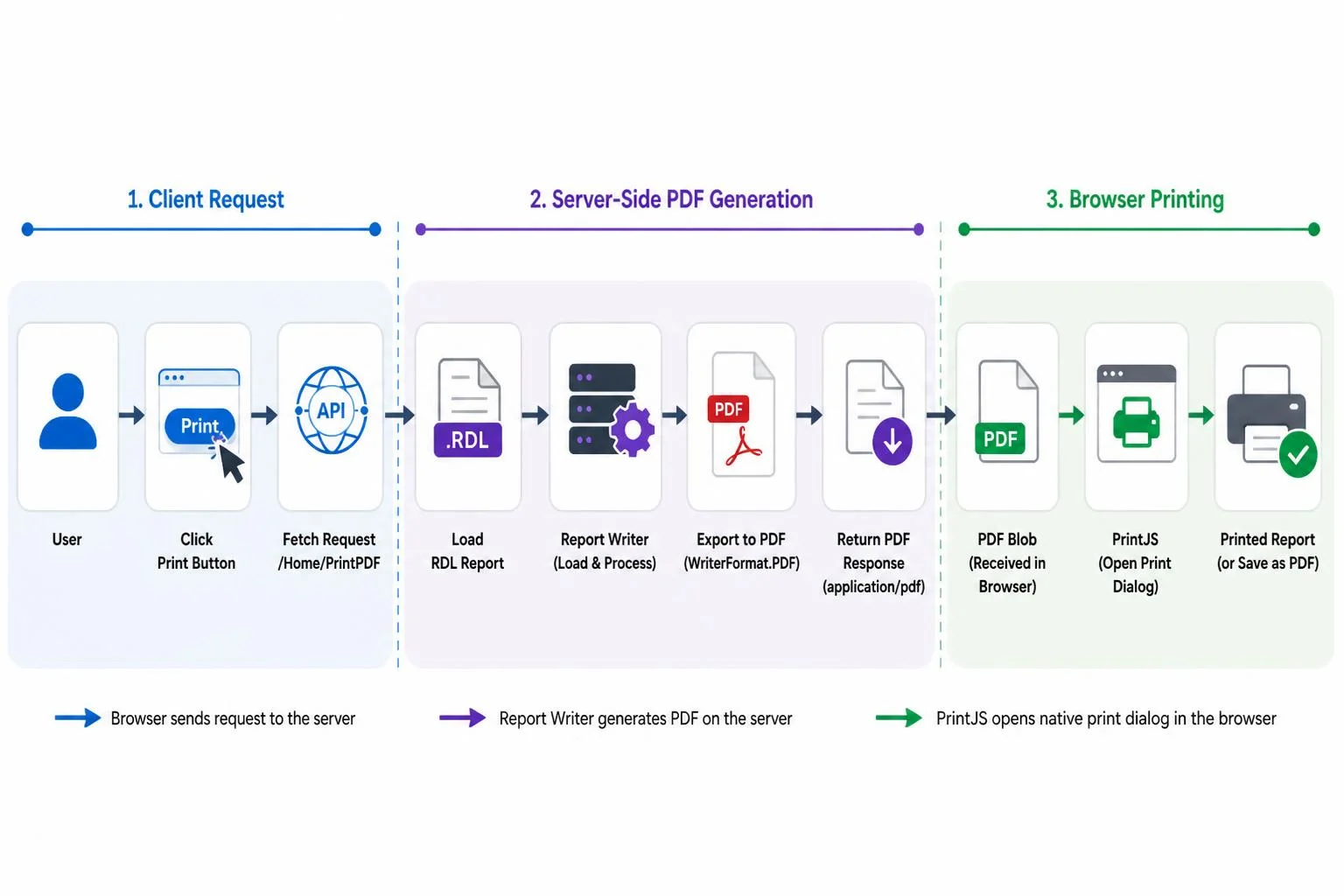
To print an SSRS report in ASP.NET Core, export the RDL report to PDF on the server with Bold Reports Report Writer, return the PDF from a controller action, and pass its Blob URL to PrintJS in the browser. PrintJS loads the PDF into a hidden iframe and opens the browser’s native print dialog. Here is the full flow, step by step:
- User action: The user clicks a Print button in the browser.
- Client request: A fetch() call sends a request to a server endpoint, such as /Home/PrintPDF. According to MDN Web Docs, the Fetch API provides an interface for fetching resources, including across the network, and the fetch() method makes a request and fetches a resource.
- Server-side load: The application loads the .rdl file from disk, a database, blob storage, or an SSRS report server.
- Server-side export: BoldReports.Writer.ReportWriter loads the report and calls Save() with WriterFormat.PDF, rendering it into a fully paginated, print-ready PDF that preserves layout, fonts, and page breaks.
- Response: The server returns the PDF as a FileStreamResult or byte array with the application/pdf content type.
- Client-side receipt: The browser receives the PDF as a Blob and creates an object URL using URL.createObjectURL(blob).
- Print trigger: printJS({ printable: <object URL>, type: “pdf” }) loads the PDF into a hidden iframe and opens the browser’s native print dialog.
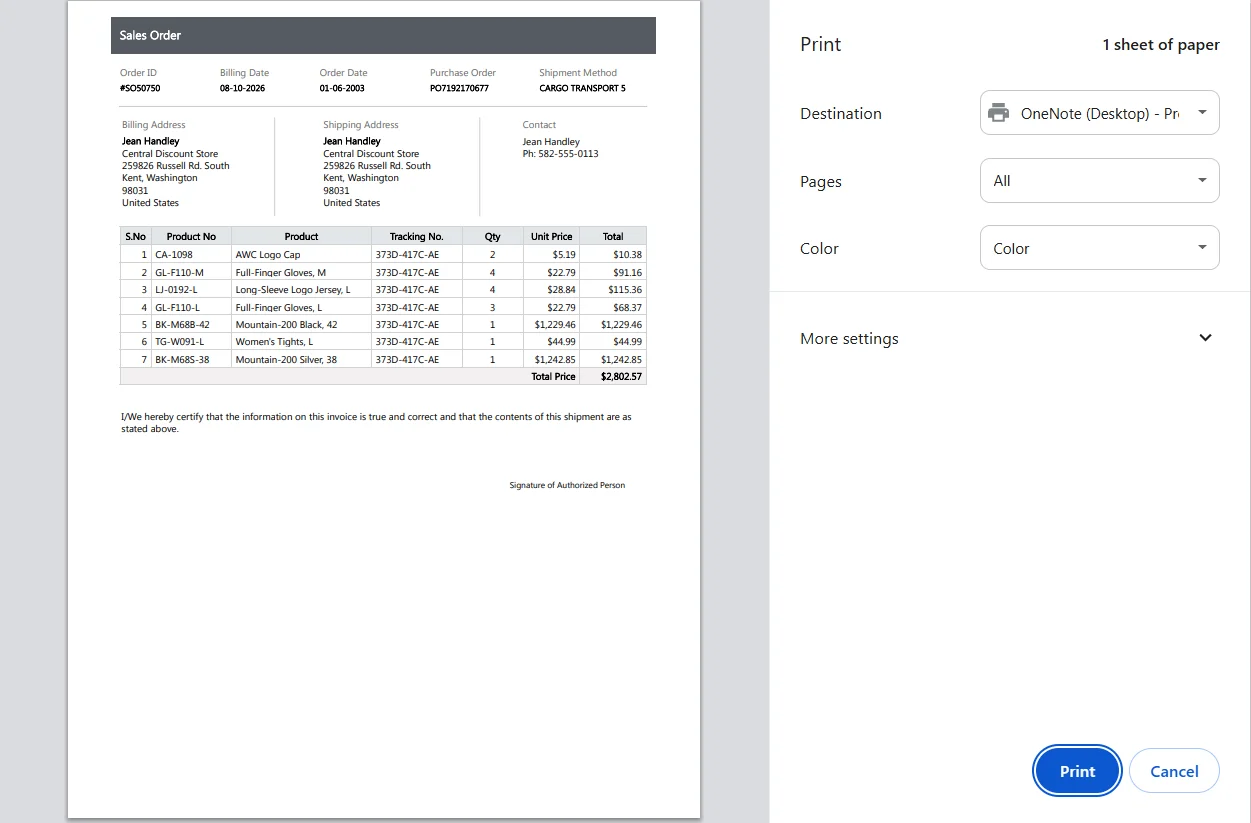
- Printed output: The user prints the document or saves it as a PDF, preserving the layout, fonts, pagination, and formatting generated during export.
Because PrintJS does not modify the exported document, the PDF Report Writer generates the same output users print. For a broader comparison of report generation approaches, including Report Writer and viewer-based implementations, see our guide on generating reports in ASP.NET Core.
What components are involved in the PDF Printing workflow?
The PDF printing workflow consists of three components that work together from report generation to printing.
-
- ASP.NET Core Report Writer: Loads and processes SSRS/RDL reports on the server. It renders reports in formats such as PDF, Word, Excel, and CSV.
- PDF Export (WriterFormat.PDF): Converts the rendered report into a print-ready PDF. This helps preserve the report layout, fonts, pagination, and page breaks defined in the RDL report.
- PrintJS: Receives the exported PDF in the browser and opens the browser’s native print dialog, allowing users to print the generated report without requiring a report viewer.
- How to print SSRS Reports in ASP.NET Core using Report Writer and PrintJS
Prerequisites
Ensure your development environment includes:
- Visual Studio Code or Visual Studio 2022
- The .NET SDK current LTS (.NET 10) or later
- Node.js and npm, if you plan to install Print.js via npm rather than a script tag
- A valid Bold Reports® license or 30-day free trial for the BoldReports.Net.Core package
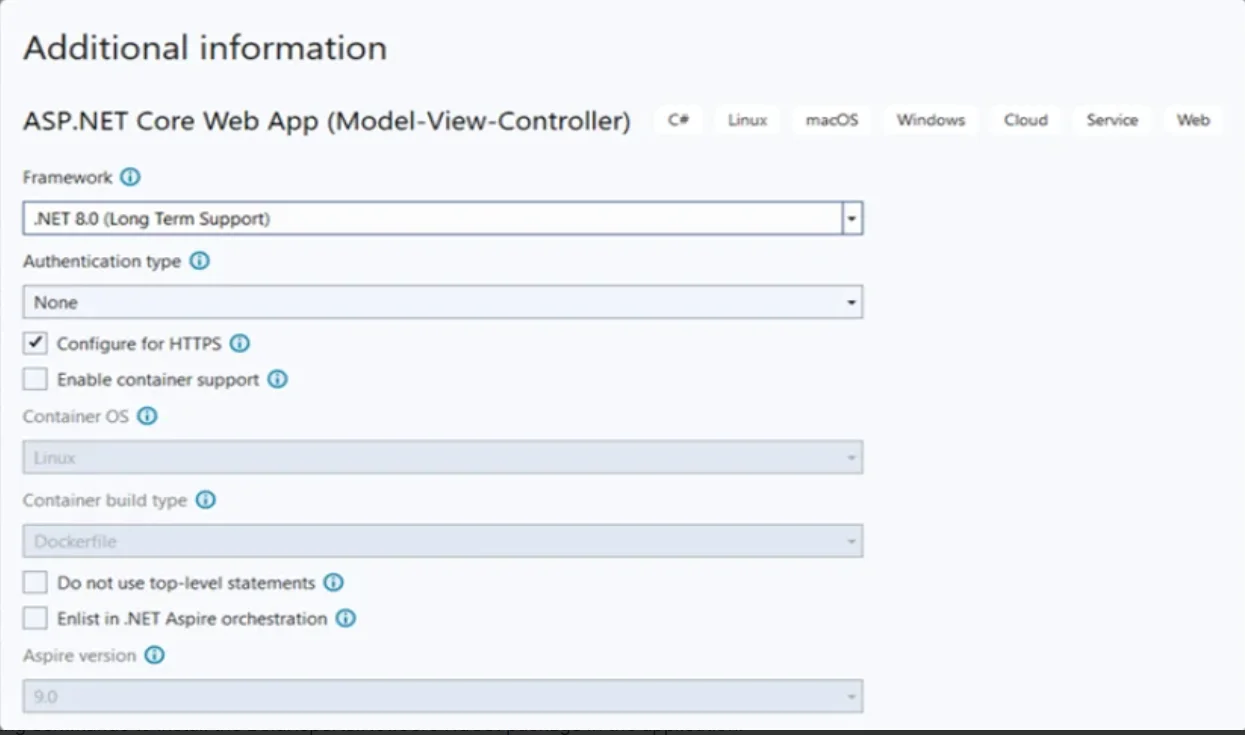
Step 1: Create the ASP.NET Core Application
- Open your terminal and create an ASP.NET Core MVC application:
dotnet new mvc --framework net10.0 --name CoreReportWriter
The ASP.NET Core Web App (MVC) project scaffolds with a default HomeController, a Views/Home folder, and a wwwroot folder for static assets. Put the export logic in HomeController, and the print logic in Views/Home/Index.cshtml.
Step 2: Install the BoldReports.Net.Core NuGet Package
To use the Bold Reports Report Writer library in your project, you need to install the BoldReports.Net.Core NuGet package.
Run the following commands to install the BoldReports.Net.Core NuGet package in the application.
cd CoreReportWriter
dotnet add package BoldReports.Net.Core
If your RDL report uses a SQL Server or Azure SQL data source, also install Microsoft.Data.SqlClient. For a full breakdown of what each dependency does, including the Syncfusion PDF, Word, and Excel export engines that Report Writer relies on internally, see the Report Writer library overview.
Step 3: Install Print.js
First, you need to install Print.js in your ASP.NET Core project to use the PrintJS-related APIs. You can install it with npm or download it from the Print.js website.
To install it using npm, run the following command in your project’s terminal.
npm install print-js
Step 4: Add already created reports
- Create a Resources folder in the project root, next to the Controllers and Views folders and not inside wwwroot, to store the RDL reports. Files outside wwwroot are never served as static files, so the report definitions stay private.
- Download the sales-order-detail.rdl sample report from the Samples and Demos page. The page also includes additional sample reports that you can use for testing and learning.
- Extract the compressed file and paste the sales-order-detail.rdl file into the Resources folder.
Step 5: Create a controller action to print SSRS reports
Open the Controllers/HomeController.cs file. The MVC template already generates a constructor that takes ILogger, so extend that constructor with the hosting environment instead of adding a second one. Two constructors with the same number of parameters make dependency injection fail with an ambiguous-constructor error. Replace the existing fields and constructor with the following:
private readonly ILogger<HomeController> _logger;
private readonly IWebHostEnvironment _hostingEnvironment;
public HomeController(ILogger<HomeController> logger, IWebHostEnvironment hostingEnvironment)
{
    _logger = logger;
    _hostingEnvironment = hostingEnvironment;
}
Now, add a PrintPDF() action that opens the sales-order-detail.rdl report in read-only mode. Build the report path from ContentRootPath with Path.Combine(), and open the FileStream with a using declaration so it is disposed after the report is processed.
public IActionResult PrintPDF()
{
    var rdlPath = Path.Combine(_hostingEnvironment.ContentRootPath, "Resources", "sales-order-detail.rdl");
    using FileStream inputStream = new(rdlPath, FileMode.Open, FileAccess.Read);
    BoldReports.Writer.ReportWriter writer = new();
    writer.LoadReport(inputStream);
    using MemoryStream memoryStream = new();
    writer.Save(memoryStream, BoldReports.Writer.WriterFormat.PDF);
    return File(memoryStream.ToArray(), "application/pdf", "sales-order-detail.pdf");
}
The action passes the file stream to the Report Writer’s LoadReport method, then calls Save with WriterFormat.PDF to render the RDL report as a PDF. The rendered bytes are returned as a file result with the application/pdf content type.
Step 6: Initialize Print.js to print the PDFs
To print the PDF files generated from the server side to the client side, you need to use Print.js’s printJS API in your cshtml page.
-
- Open the Views/Home/Index.cshtml page.
- Remove the existing div code and add the following code. This will create a button to print the PDF file.
<button id="print-SSRS-reports">Print SSRS reports</button>
-
- Since you already installed the print-js package, for simplicity, you can copy the print.js file from the node_modules/print-js/dist folder to the wwwroot/js folder in your application.
- Now, you can reference the print.js file in your Index.cshtml page and use printJS() to print the PDF generated by the server. Add a Scripts section that calls the PrintPDF action, checks that the response succeeded, reads the PDF as a Blob, and passes the Blob URL to printJS(). The onPrintDialogClose callback releases the Blob URL after the print dialog closes.
@section Scripts {
    <script src="~/js/print.js"></script>
    <script>
        document.getElementById("print-SSRS-reports").addEventListener("click", async () => {
            const response = await fetch("/Home/PrintPDF");
            if (!response.ok) {
                console.error("PDF export failed:", response.status);
                return;
            }
            const url = URL.createObjectURL(await response.blob());
            printJS({
                printable: url,
                type: "pdf",
                onPrintDialogClose: () => URL.revokeObjectURL(url)
            });
        });
    </script>
}
Step 7: Run the application to print SSRS reports using PrintJS
Run the application and click the “Print SSRS reports” button. The print page will automatically open, allowing you to print the SSRS report file.
Export configuration and output quality considerations
Several export settings can directly affect PDF quality, print accuracy, and overall output consistency. Review these settings before deployment to avoid blank pages, clipped content, and layout shifts.
-
- Report parameters: If the RDL report requires parameters, set them through writer.SetParameters() before calling Save(). Missing or unresolved parameters can result in incomplete output, placeholder values, or blank pages.
- Shared data source credentials: Use SetDataSourceCredentials() only when the report uses a shared data source hosted on an SSRS report server. Reports that use embedded or local data sources do not require this configuration.
- Fonts and embedded resources: Custom fonts used in the report design should be available on the server or embedded during export. Missing fonts can alter pagination, page breaks, and overall report layout.
- File size considerations: Large PDF exports can increase memory usage and response times. Test large reports under realistic workloads and monitor resource consumption to ensure acceptable performance.
- Security: If reports contain sensitive information such as financial data, personally identifiable information (PII), or compliance records, consider generating a password-protected PDF using Report Writer’s PDFOptions.Security API before delivering the file to users.
- File handling: If exported PDFs are temporarily stored rather than streamed directly, use unique file names or short-lived signed URLs to reduce the risk of unauthorized access.
For additional export capabilities, including Word, Excel, and CSV output, refer to the official Report Writer export documentation. You can also explore exporting SSRS reports with ASP.NET Core Report Writer for additional export scenarios.
Configuration options worth knowing
Beyond the basic implementation, PrintJS provides several configuration options that improve the report-printing experience, particularly when working with large PDFs, custom workflows, or production applications.
-
- onError / onLoadingEnd: Handle loading and export failures more gracefully by notifying users when a PDF cannot be retrieved or printed, rather than failing silently.
- showModal: true: Displays a loading indicator while a PDF is being retrieved and prepared for printing. This is especially useful for large reports that may take longer to export or download.
- onPrintDialogClose: Executes a callback after the browser’s print dialog closes. This can help clean up Blob URLs, update the UI, or log print activity after the user completes or cancels the print operation.
- base64: true: Enables printing a base64-encoded PDF directly when the application returns encoded content instead of a Blob. This is useful for APIs that return additional metadata alongside the report output.
What browser limitations should you consider when printing SSRS reports?
Even with a PDF-based printing workflow, browser behavior can affect how reports load and print. Keep the following considerations in mind when deploying SSRS and RDL report printing functionality:
-
- Content Security Policy (CSP) restrictions: PrintJS loads PDFs in a hidden iframe rather than a new tab. Although this avoids most pop-up blockers, restrictive CSP settings can prevent the PDF from loading correctly. If the PDF fails to load or the print dialog doesn’t appear, allow blob: in frame-src because the exported PDF loads from a Blob URL, and check connect-src as well.
- Mobile browser differences: PDF loading, print dialogs, and available print options can vary across mobile browsers and devices. A community-reported Print.js issue describes PDF printing failing to trigger on Android Chrome and Edge while iPhone Safari worked. Test on the platforms your users commonly use, and consider a direct PDF download or open-in-tab option as a fallback.
- Large PDF documents: Very large reports can take longer to download, render, and print, particularly on lower-powered devices. Large files may also increase browser memory usage and delay the print dialog. Where possible, consider exporting filtered datasets, report subsets, or date-range-specific reports to improve responsiveness.
- HTTPS requirements: Browser APIs used for PDF handling and printing work most reliably in secure contexts. In production environments, serve applications over HTTPS to help ensure PDF delivery, Blob URL handling, and browser-based printing function as expected. Microsoft Learn recommends that production ASP.NET Core web apps use HTTPS Redirection Middleware to redirect HTTP requests to HTTPS and HSTS Middleware to send HTTP Strict Transport Security (HSTS) headers to clients.
Best practices for predictable, print-ready report delivery
To improve reliability, performance, and print quality, consider the following best practices when implementing SSRS and RDL report printing in ASP.NET Core:
-
- Validate PDF exports before troubleshooting printing issues: During development, save exported PDFs and review them directly. Validating the exported document first helps isolate export-related issues from browser or PrintJS-related issues.
- Cache frequently requested exports: If the same report is generated repeatedly with identical parameters, cache the PDF for a short duration instead of re-exporting it on every print request. This reduces server load and improves response times.
- Match report page settings to the target paper size: Ensure page size, margins, and report dimensions in the RDL design align with the intended paper format. Incorrect page settings can cause clipped content, unexpected page breaks, or extra pages.
- Set report parameters explicitly: Avoid relying on default parameter values, especially for automated, scheduled, or API-driven report generation scenarios. Explicit parameters help produce predictable output.
- Test on actual target devices: Browser behavior, printer drivers, operating systems, and mobile devices can all affect the printing experience. Validate report printing on the environments your users are most likely to use.
- Separate export and print logging: Record Report Writer export failures independently from browser or PrintJS printing failures. Distinguishing server-side and client-side errors makes troubleshooting significantly easier.
- Protect and audit sensitive reports: For reports containing financial, personal, or compliance-related data, consider password-protecting exported PDFs and maintaining an audit trail of report generation and printing activity.
Common SSRS report export and printing issues and how to fix them
When implementing SSRS and RDL report printing in ASP.NET Core, issues can occur during PDF export, PDF delivery, or browser-based printing. Use the table below to quickly identify common problems and their recommended fixes.
| Symptom | Likely Cause | Fix |
| Print dialog does not open | fetch() returned an error or non-PDF response | Check for non-200 responses and verify the endpoint returns application/pdf. |
| Blank or empty printed pages | Missing report parameters or shared data source credentials. | Configure report parameters. If the report uses a shared SSRS report server data source, provide credentials with SetDataSourceCredentials(). |
| Incorrect fonts or layout | Required fonts unavailable on the export server | Install or embed the fonts used in the RDL report. |
| Nothing happens on mobile browsers | CSP restrictions, non-HTTPS deployment, or Print.js PDF limitations on some Android browsers | Enable HTTPS, allow blob: in frame-src, and test on the target devices. Offer a direct PDF download or open-in-tab option as a fallback. |
| Works locally but not in production | PrintJS not loading or blocked by CSP | Verify the PrintJS script path and review script-src, frame-src (including blob:), and connect-src policies. |
| Large reports print slowly | Oversized PDF export | Export filtered data or split large reports into smaller PDFs. |
| File-in-use or stream errors during export | RDL file stream not disposed correctly | Use using statements and properly dispose FileStream objects after export. |
| Slow exports under load | ReportWriter instance reused across concurrent requests | Create a new ReportWriter instance per request. |
| Different output between environments | Font, culture, locale, or time zone differences | Keep environments aligned and explicitly configure culture settings when required. |
Final thoughts
Exporting RDL reports to PDF with ASP.NET Core Report Writer and printing them with PrintJS is particularly useful for document-centric reporting scenarios such as invoices, statements, purchase orders, audit reports, and other paginated reports where layout accuracy and predictable print output are essential.
To learn more about PDF export capabilities, explore the Export SSRS RDL Report documentation, or see the complete workflow in the ASP.NET Core Report Writer demo.
Ready to implement SSRS report printing in your own application? Start a 30-day free trial of Bold Reports® to build and test your solution with the ASP.NET Core Report Writer. If you’d like guidance tailored to your reporting requirements, request a personalized demo and see how Bold Reports supports report generation, PDF export, and browser-based printing at scale.
Frequently asked questions
- 1.
What’s the difference between printing with Report Viewer and printing with Report Writer + PrintJS?
Report Viewer renders and prints reports interactively inside a viewer control, which is useful when users need to preview, page through, or parameterize a report first. Report Writer + PrintJS skips the viewer entirely. It’s a headless export-to-print pattern better suited to one-click printing, batch document generation, and scenarios where you don’t want viewer chrome in the output.
- 2.
Do I need SSRS Server installed to use this workflow?
No. Report Writer processes local .rdl files directly and doesn’t require a running SSRS Server or Bold Reports® Server instance for this export-and-print scenario, though it can also connect to a remote report server if your reports are centrally hosted.
- 3.
Why does my exported PDF print blank pages?
This almost always traces back to the export step, not PrintJS. Most often, unresolved report parameters or failed data source authentication at export time cause it. Set parameters and credentials explicitly before calling Save(), and validate the exported PDF by opening it directly before troubleshooting the print step.
- 4.
Is PrintJS compatible with all browsers?
Not consistently. PDF printing through a hidden iframe can behave differently across browsers, devices, and platforms, and a community-reported issue describes PDF printing failing to trigger on Android Chrome and Edge. Test the browsers and devices your users rely on, and offer a direct PDF download as a fallback.
- 5.
How do I print large SSRS reports without freezing the browser?
Filter or paginate the report parameters at export time to reduce output size where possible, stream the PDF rather than buffering multiple copies server-side, and use PrintJS’s showModal option to keep users informed while a large file loads into the print iframe.
- 6.
Does this approach work with Blazor or Razor Pages, not just MVC?
Yes. The pattern is framework-agnostic on the client: fetch and PrintJS only need a server endpoint that returns the exported PDF. That endpoint can be an MVC controller action, a Razor Pages handler, or a minimal API endpoint. In Blazor, call the same endpoint from the browser through JavaScript interop.