TL;DR:
To add an ASP.NET Web Forms Report Designer, install the BoldReports.Web, BoldReports.WebForms, and BoldReports.JavaScript NuGet packages, register the Bold tag prefix in Web.config, load the designer scripts and styles, add a Web API controller that implements IReportDesignerController, and set ServiceUrl to that controller’s route. The project must target .NET Framework 4.6.2 or later.
Introduction
Many organizations continue to maintain ASP.NET Web Forms applications because they support important business processes and represent significant long-term investments. Rather than rebuilding these applications, teams often extend them with new capabilities such as embedded reporting. While many organizations are modernizing their technology stacks, replacing stable Web Forms applications is often costly and unnecessary. Instead, teams are looking for ways to add modern functionality while preserving their existing infrastructure.
A common challenge is delivering flexible reporting experiences. Traditional reporting workflows often require developers to create, update, and maintain reports for every business request, slowing productivity and increasing development effort.
By integrating an embedded report designer into an ASP.NET Web Forms application, organizations can enable self-service reporting, letting users design, customize, and manage reports through a browser-based interface. This reduces development bottlenecks, accelerates report delivery, and improves the overall user experience.
This guide explains how to integrate an ASP.NET Web Forms Report Designer, configure reporting infrastructure, apply best practices, and deliver a complete embedded reporting experience.
What does an ASP.NET Web Forms report designer do?
An ASP.NET Web Forms Report Designer is a browser-based reporting component that enables users to create, open, edit, preview, and save RDL and RDLC reports directly within an existing Web Forms application. In Bold Reports, the Report Designer renders inside an ASP.NET Web Forms page and communicates with a Web API controller that handles report authoring operations such as opening, saving, browsing, previewing, and uploading reports and related resources.
Because Web Forms applications run on .NET Framework, the Report Designer requires .NET Framework 4.6.2 or later. As of October 2026, Microsoft ends support for 4.6.2 on January 12, 2027, so new projects should target .NET Framework 4.8 or 4.8.1, which Microsoft’s lifecycle page lists without an end date.
An embedded ASP.NET Web Forms Report Designer helps business users, analysts, or report authors create and modify reports without relying on developer releases. If developers maintain reports exclusively, designing them in Visual Studio and deploying the RDL files with the application may be simpler.
Prerequisites
- Visual Studio 2022.
- A Web Forms project that targets .NET Framework 4.6.2 or later.
- A Bold Reports license key or a free 30-day trial.
- A data source for the reports you plan to design.
This guide uses the current v2.0 designer assets. If your project still uses the classic designer, follow the classic ASP.NET Web Forms guide instead, because the script and theme paths differ.
How do you integrate the report designer in ASP.NET Web Forms?
For a documentation-focused walkthrough, refer to the official guide, Add Web Report Designer to an ASP.NET Web Forms Application.
1. Create the Web Forms project
- Open Visual Studio 2022 and click Create a new project.
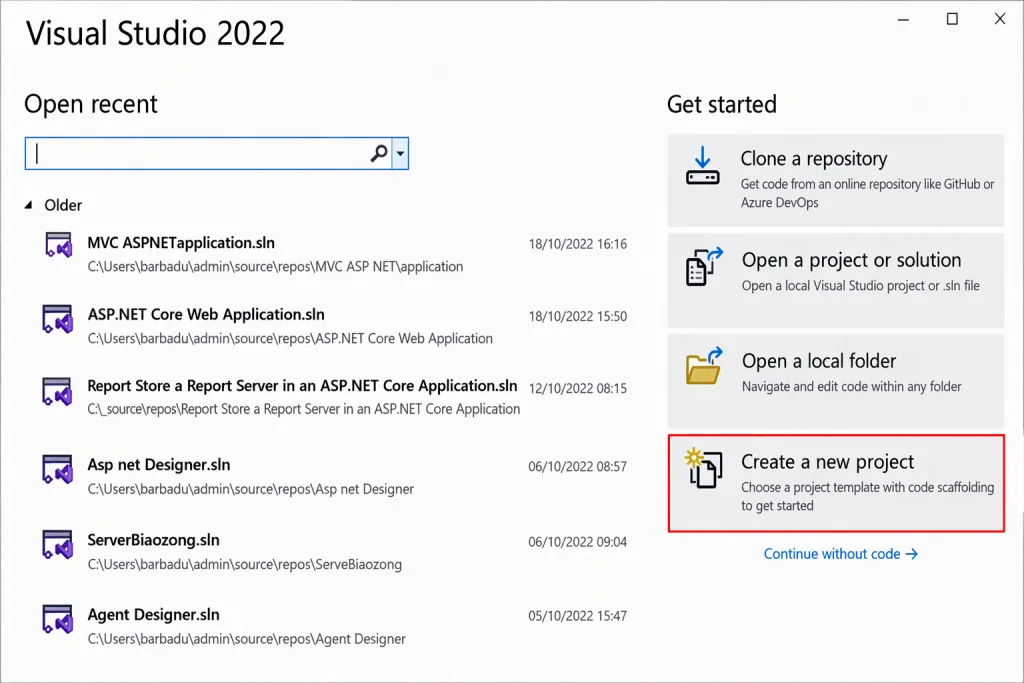
Create a new project - Choose ASP.NET Web Application (.NET Framework) and click Next.
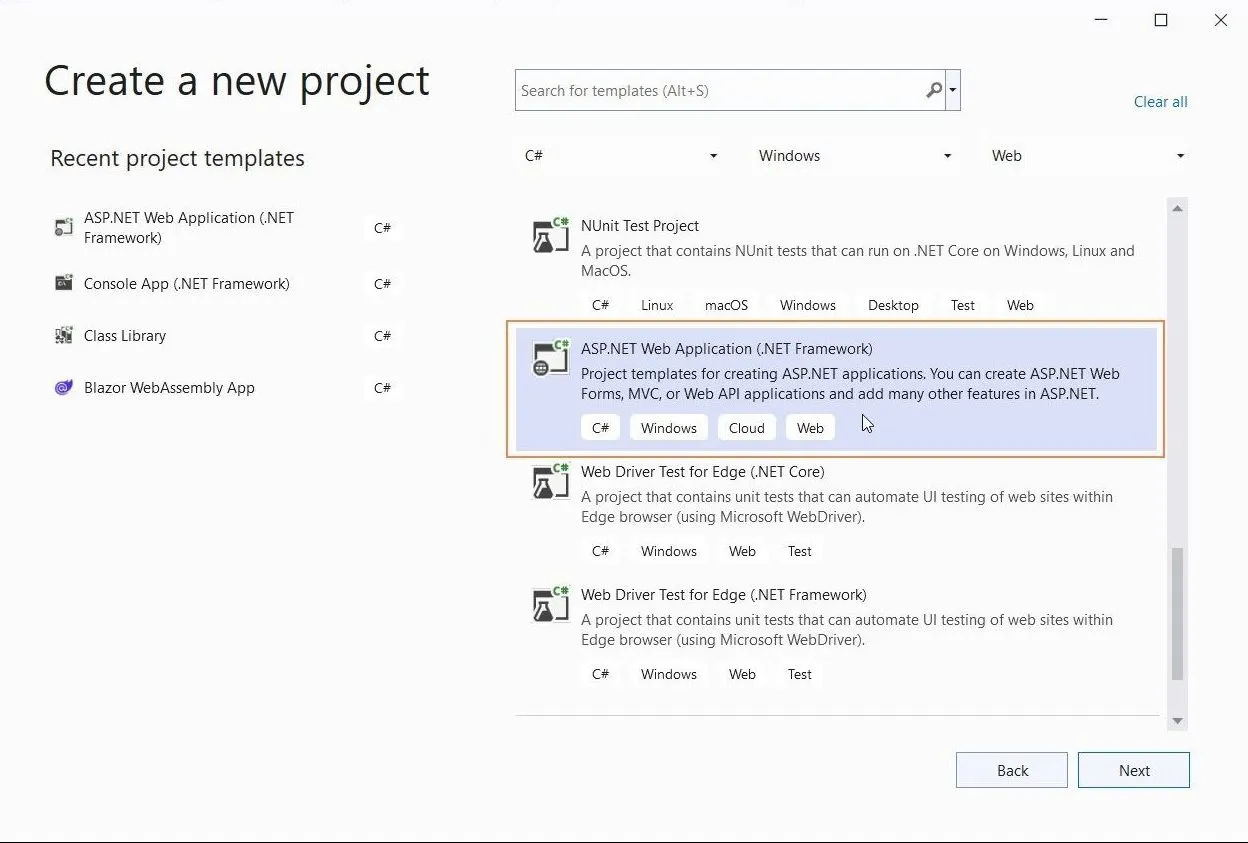
Select the ASP.NET Web Application template - Name the project, choose .NET Framework (Bold Reports requires 4.6.2 or higher), and click Create.
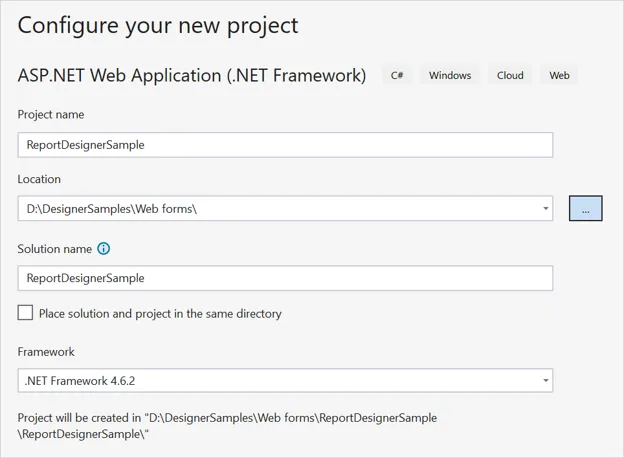
Enter project name and framework version - Select the Web Forms template, enable the Web API checkbox, and click Create.
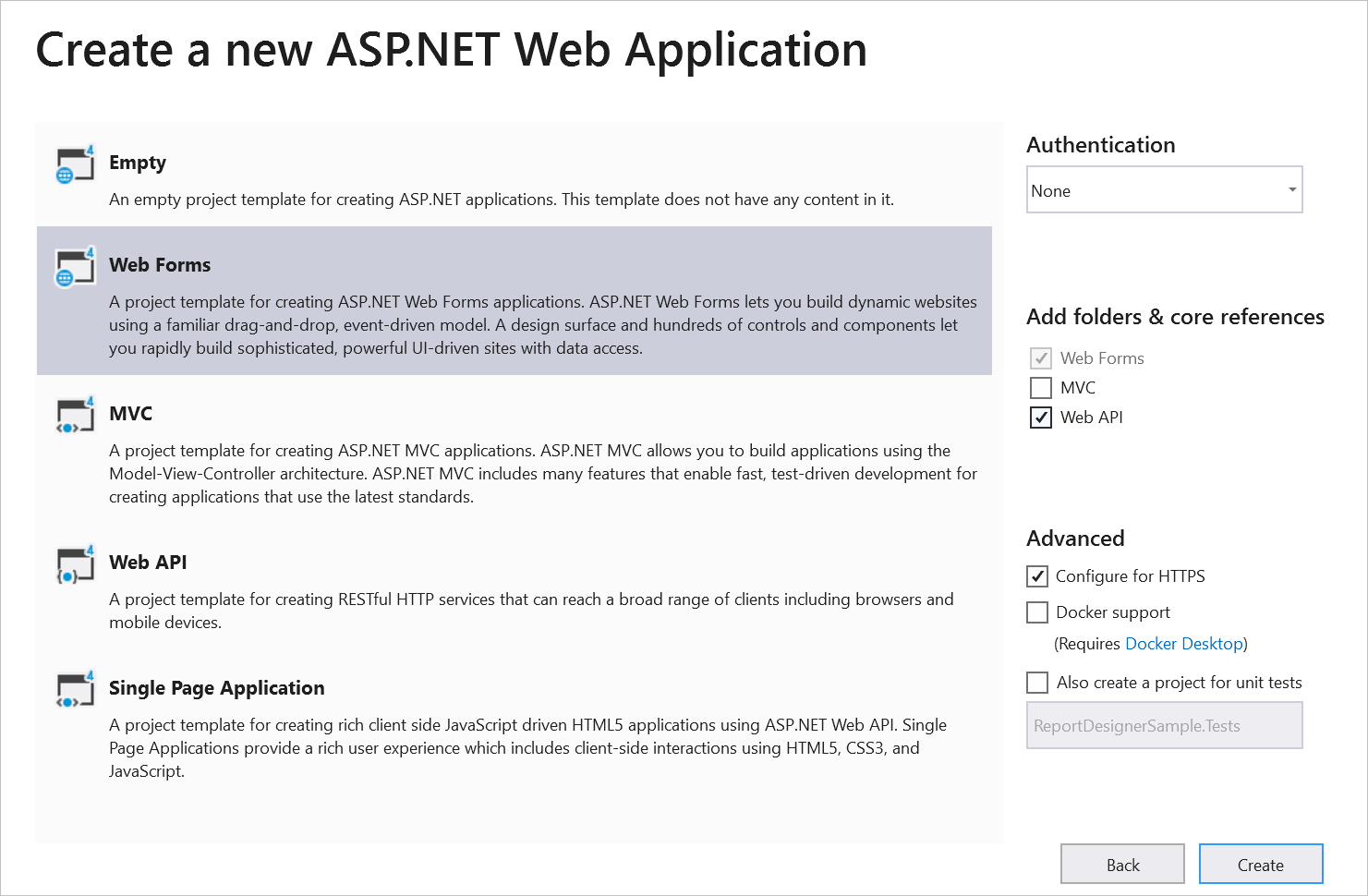
Web Forms template with Web API enabled
2. Install the packages and register the control
Right-click the project or solution in Solution Explorer, choose Manage NuGet Packages, and install the packages in the following table. See the NuGet packages reference for version details.
| Package | Purpose |
|---|---|
| BoldReports.Web | Creates the Web API service that processes reports. |
| BoldReports.WebForms | Provides the server control that renders the client-side Report Designer. |
| BoldReports.JavaScript | Adds the designer scripts and styles to the Scripts and Content folders. |
Open Web.config and add the BoldReports.WebForms assembly to the <system.web> → <pages> → <controls> section, with Bold as the tagPrefix. The prefix appears in the opening tag of the control you add in step 4.
<configuration>
  ....
  ....
  <system.web>
    ....
    <pages>
      ....
      <controls>
        <add assembly="BoldReports.WebForms" namespace="BoldReports.WebForms" tagPrefix="Bold" />
        ....
      </controls>
    </pages>
  </system.web>
  ....
  ....
</configuration>
3. Reference the scripts and styles
Add the following to Default.aspx, inside the content placeholder. The BoldReports.JavaScript package installed in step 2 copies these v2.0 scripts and styles into your Scripts and Content folders.
<asp:Content ID="BodyContent" ContentPlaceHolderID="MainContent" runat="server">
<!-- Report Designer styles -->
<link href="Content/bold-reports/v2.0/tailwind-light/bold.report-designer.min.css" rel="stylesheet" />
<link href="Scripts/CodeMirror/lib/codemirror.css" rel="stylesheet" />
<link href="Scripts/CodeMirror/addon/hint/show-hint.css" rel="stylesheet" />
<script src="https://cdnjs.cloudflare.com/ajax/libs/jquery/3.6.0/jquery.min.js"></script>
<script src="Scripts/CodeMirror/lib/codemirror.js"></script>
<script src="Scripts/CodeMirror/addon/hint/show-hint.js"></script>
<script src="Scripts/CodeMirror/addon/hint/sql-hint.js"></script>
<script src="Scripts/CodeMirror/mode/sql/sql.js"></script>
<script src="Scripts/CodeMirror/mode/vb/vb.js"></script>
<!-- Report Designer dependent scripts -->
<script src="Scripts/bold-reports/v2.0/common/bold.reports.common.min.js"></script>
<script src="Scripts/bold-reports/v2.0/common/bold.reports.widgets.min.js"></script>
<!-- Report Viewer and Designer scripts -->
<script src="Scripts/bold-reports/v2.0/bold.report-viewer.min.js"></script>
<script src="Scripts/bold-reports/v2.0/bold.report-designer.min.js"></script>
<!-- Step 4 adds the designer control here -->
</asp:Content>
If your reports use gauge, map, or chart items, check the dependencies page for any extra scripts.
4. Add the designer control to the page
Initialize the Web Report Designer in Default.aspx, as shown in the following code sample.
<asp:Content ID="BodyContent" ContentPlaceHolderID="MainContent" runat="server">
    <!-- Report Designer component styles -->
    ...
    <!-- Report Designer component dependent scripts -->
    ...
    <!-- Report Viewer and Designer component scripts -->
    ...
    <div style="height: 650px;width: 950px">
    <Bold:ReportDesigner runat="server" ID="designer"></Bold:ReportDesigner>
    </div>
</asp:Content>
5. Create the Web API controller
The designer sends every open, save, browse, preview, and upload request to a Web API controller in your project. Add the controller class first, then replace its contents.
- Right-click the Controllers folder, choose Add, then New Item.
- Choose the Web API Controller Class template and name the file ReportingAPIController.cs.
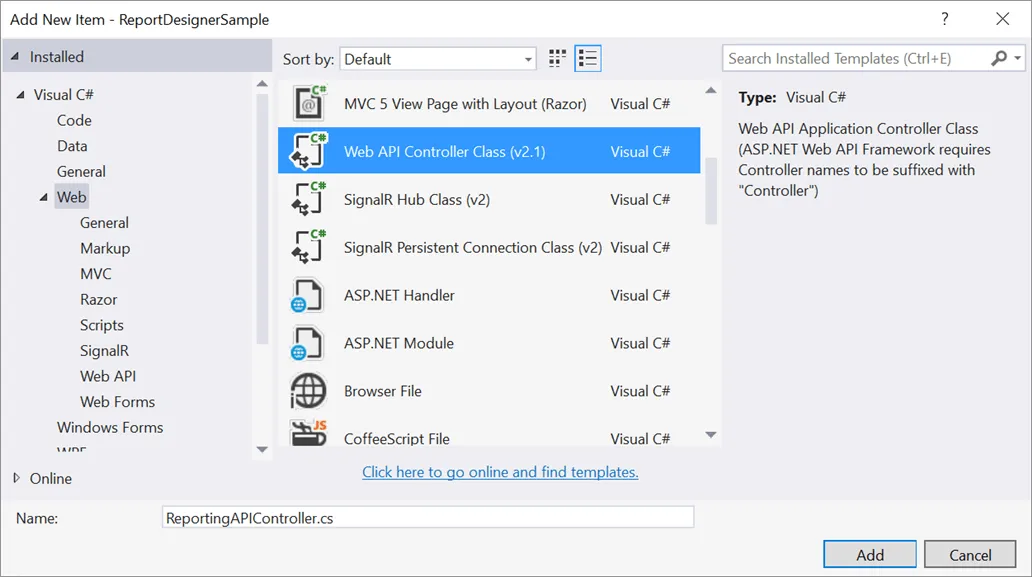
Adding the Web API Controller Class - Open ReportingAPIController.cs and add these statements.
using BoldReports.Web.ReportViewer;
using BoldReports.Web.ReportDesigner;
- Make the class implement
IReportDesignerControllerand its methods. - Replace the generated file contents with the following code.
using System; using System.Collections.Generic; using System.Linq; using System.Net; using System.Net.Http; using System.Web.Http; using BoldReports.Web; using BoldReports.Web.ReportViewer; using BoldReports.Web.ReportDesigner; using System.IO; using System.Reflection; using System.Web;
namespace ReportDesignerSample.Controllers { public class ReportingAPIController : ApiController, IReportDesignerController { /// <summary> /// Get the path of specific file /// </summary> /// <param name=“itemName”>Name of the file to get the full path</param> /// <param name=“key”>The unique key for report designer</param> /// <returns>Returns the full path of file</returns> [NonAction] private string GetFilePath(string itemName, string key) { string dirPath = Path.Combine(HttpContext.Current.Server.MapPath(“~/”)+ “Cache”, key);
if (!Directory.Exists(dirPath)) { Directory.CreateDirectory(dirPath); } return Path.Combine(dirPath, itemName); } /// <summary> /// Action (HttpGet) method for getting resource of images in the report. /// </summary> /// <param name="key">The unique key for request identification.</param> /// <param name="image">The name of requested image.</param> /// <returns>Returns the image as HttpResponseMessage content.</returns> [System.Web.Http.ActionName("GetImage")] [AcceptVerbs("GET")] public object GetImage(string key, string image) { return ReportDesignerHelper.GetImage(key, image, this); } /// <summary> /// Action (HttpPost) method for posting the request for designer actions. /// </summary> /// <param name="jsonData">A collection of keys and values to process the designer request.</param> /// <returns>Json result for the current request.</returns> public object PostDesignerAction(Dictionary<string, object> jsonData) { //Processes the designer request and returns the result. return ReportDesignerHelper.ProcessDesigner(jsonData, this, null); } /// <summary> /// Sets the resource into storage location. /// </summary> /// <param name="key">The unique key for request identification.</param> /// <param name="itemId">The unique key to get the required resource.</param> /// <param name="itemData">Contains the resource data.</param> /// <param name="errorMessage">Returns the error message, if the write action is failed.</param> /// <returns>Returns true, if resource is successfully written into storage location.</returns> [NonAction] public bool SetData(string key, string itemId, ItemInfo itemData, out string errorMessage) { errorMessage = string.Empty; if (itemData.Data != null) { File.WriteAllBytes(this.GetFilePath(itemId, key), itemData.Data); } else if (itemData.PostedFile != null) { var fileName = itemId; if (string.IsNullOrEmpty(itemId)) { fileName = Path.GetFileName(itemData.PostedFile.FileName); } itemData.PostedFile.SaveAs(this.GetFilePath(fileName, key)); } return true; } /// <summary> /// Gets the resource from storage location. /// </summary> /// <param name="key">The unique key for request identification.</param> /// <param name="itemId">The unique key to get the required resource.</param> /// <returns>Returns the resource data and error message.</returns> [NonAction] public ResourceInfo GetData(string key, string itemId) { var resource = new ResourceInfo(); try { var filePath = this.GetFilePath(itemId, key); if (itemId.Equals(Path.GetFileName(filePath), StringComparison.InvariantCultureIgnoreCase) && File.Exists(filePath)) { resource.Data = File.ReadAllBytes(filePath); } else { resource.ErrorMessage = "File not found from the specified path"; } } catch (Exception ex) { resource.ErrorMessage = ex.Message; } return resource; } /// <summary> /// Action (HttpPost) method for posted or uploaded file actions. /// </summary> public void UploadReportAction() { //Processes the designer file upload request's. ReportDesignerHelper.ProcessDesigner(null, this, System.Web.HttpContext.Current.Request.Files[0]); } /// <summary> /// Send a GET request and returns the requested resource for a report. /// </summary> /// <param name="key">The unique key to get the desired resource.</param> /// <param name="resourcetype">The type of the requested resource.</param> /// <param name="isPrint">If set to <see langword="true"/>, then the resource is generated for printing.</param> /// <returns> Resource object for the given key</returns> [System.Web.Http.ActionName("GetResource")] [AcceptVerbs("GET")] public object GetResource(string key, string resourcetype, bool isPrint) { //Returns the report resource for the requested key. return ReportHelper.GetResource(key, resourcetype, isPrint); } /// <summary> /// Report Initialization method that is triggered when report begin processed. /// </summary> /// <param name="reportOptions">The ReportViewer options.</param> [NonAction] public void OnInitReportOptions(ReportViewerOptions reportOption) { //You can update report options here } /// <summary> /// Report loaded method that is triggered when report and sub-report begins to be loaded. /// </summary> /// <param name="reportOptions">The ReportViewer options.</param> [NonAction] public void OnReportLoaded(ReportViewerOptions reportOption) { //You can update report options here } /// <summary> /// Action (HttpPost) method for posting the request for report process. /// </summary> /// <param name="jsonData">The JSON data posted for processing report.</param> /// <returns>The object data.</returns> public object PostReportAction(Dictionary<string, object> jsonData) { //Processes the report request and returns the result. return ReportHelper.ProcessReport(jsonData, this as IReportController); } }}
What does IReportDesignerController require? The interface declares the actions the designer calls to open, save, browse, upload, and preview reports.
| Action | What it does |
|---|---|
| PostDesignerAction | Processes designer requests such as open, save, and browse. |
| UploadReportAction | Receives files the designer uploads, such as images and reports opened from the client. |
| SetData | Writes a resource to storage. ReportDesignerHelper calls it with the data received from UploadReportAction. |
| GetData | Reads a resource that SetData stored. |
| GetImage | Returns an image used in a report (HTTP GET). |
| PostReportAction | Processes a preview request on the server and returns the result to the client. |
| GetResource | Returns the report resource for the requested key (HTTP GET). |
| OnInitReportOptions | Runs before a report is processed for preview. For example, reportOption.ReportModel.CsvOptions.FieldDelimiter = ","; changes the CSV delimiter. |
| OnReportLoaded | Runs when the report and subreports start loading. For example, reportOption.ReportModel.UserProfile.UserID = "NewUserID"; changes the user ID. |
Which helper methods does the controller call? The sample delegates to two static helper classes.
| Helper class | Method called | What it does |
|---|---|---|
| ReportDesignerHelper | ProcessDesigner | Processes designer requests and uploads, and returns the response. |
| ReportDesignerHelper | GetImage | Returns an image for the requested key. |
| ReportHelper | ProcessReport | Processes a report request and returns the result. |
| ReportHelper | GetResource | Returns the report resource for the requested key. |
6. Add routing information
Routing maps a request to an action method. Open WebApiConfig.cs in the App_Start folder and change the routeTemplate in the Register method to include {action}. Without it, the designer’s requests return 404.
public static class WebApiConfig
{
    public static void Register(HttpConfiguration config)
    {
        // Web API configuration and services
    // Web API routes
    config.MapHttpAttributeRoutes();

    config.Routes.MapHttpRoute(
        name: "DefaultApi",
        routeTemplate: "api/{controller}/{action}/{id}",
        defaults: new { id = RouteParameter.Optional }
    );
}
}
7. Set the service URL
To browse, open, and save reports in the application, set the ServiceUrl property of the Web Report Designer to the route of the Web API controller you created in step 5. Update Default.aspx as follows.
<asp:Content ID="BodyContent" ContentPlaceHolderID="MainContent" runat="server">
<!-- Report Designer component styles -->
<link href="Content/bold-reports/v2.0/tailwind-light/bold.report-designer.min.css" rel="stylesheet" />
<link href="Scripts/CodeMirror/lib/codemirror.css" rel="stylesheet" />
<link href="Scripts/CodeMirror/addon/hint/show-hint.css" rel="stylesheet" />
<script src="https://cdnjs.cloudflare.com/ajax/libs/jquery/3.6.0/jquery.min.js"></script>
<script src="Scripts/CodeMirror/lib/codemirror.js"></script>
<script src="Scripts/CodeMirror/addon/hint/show-hint.js"></script>
<script src="Scripts/CodeMirror/addon/hint/sql-hint.js"></script>
<script src="Scripts/CodeMirror/mode/sql/sql.js"></script>
<script src="Scripts/CodeMirror/mode/vb/vb.js"></script>
<!-- Report Designer component dependent scripts -->
<script src="Scripts/bold-reports/v2.0/common/bold.reports.common.min.js"></script>
<script src="Scripts/bold-reports/v2.0/common/bold.reports.widgets.min.js"></script>
<!-- Report Viewer and Designer component scripts -->
<script src="Scripts/bold-reports/v2.0/bold.report-viewer.min.js"></script>
<script src="Scripts/bold-reports/v2.0/bold.report-designer.min.js"></script>
<div style="height: 650px;width: 950px">
<Bold:ReportDesigner runat="server" ID="designer" ServiceUrl="/api/ReportingAPI">
</Bold:ReportDesigner>
</div>
</asp:Content>
If the site runs in a virtual directory, include the application name in the path, for example /MyApp/api/ReportingAPI. To check the page before your controller is ready, you can temporarily point ServiceUrl to the Bold Reports demo service, https://demos.boldreports.com/services/api/ReportingAPI, which the official guide uses in its sample.
8. Run the application
Run the application. The designer loads on the page as shown in the following screenshot. If saving a report fails, check the Cache folder permissions in the troubleshooting table.
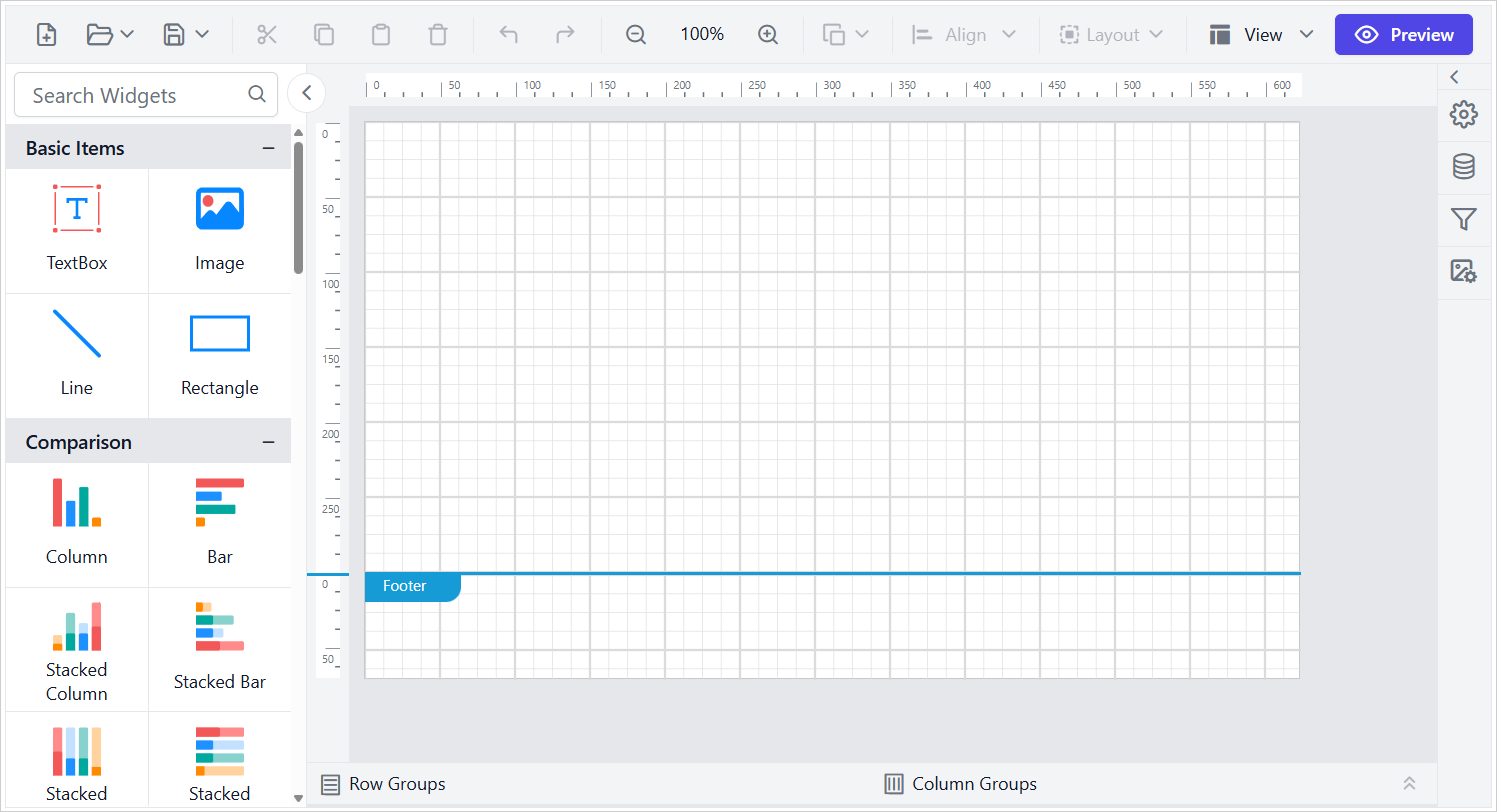
Troubleshooting common integration errors
| Symptom | Likely cause | Fix |
|---|---|---|
| 404 on requests to /api/ReportingAPI | The route template has no {action} segment. | Use api/{controller}/{action}/{id} in WebApiConfig.cs (step 6). |
| Blank designer area with no toolbar | A script or style path is wrong, or two jQuery versions load. | Open the browser Network tab, look for 404s on Scripts and Content files, and confirm the folder names the package installed. Keep one jQuery reference. |
| Designer renders, but Open, Save, or Browse fails | ServiceUrl points to the wrong place. A root-relative /api/... path misses the app when the site runs in a virtual directory. | Set ServiceUrl to the controller’s full path, including the application name. |
| Image upload or report upload fails | The application pool identity cannot write to the storage folder. | Grant modify rights on the folder, or move storage as described in the next section. |
| Compile error: ItemInfo or ResourceInfo not found | The controller is missing using BoldReports.Web;. | Add the using statement. |
| A saved report is missing on another server | Storage is local to one server. | Use shared storage so every server reads the same files. |
Hardening the designer for production
The sample controller is designed as a getting-started implementation. Before deploying to production, review the following security, storage, and scalability considerations.
- Require authentication on the Web API. The sample controller does not include authorization. Unless your application applies authentication elsewhere, users who can access the endpoint may be able to open, upload, and save report files. Consider protecting the controller with the
[Authorize]attribute and verify that Report Designer requests include the required authentication cookie or token. - Move storage out of web-served folders. The sample
GetFilePathmethod writes resources to a Cache folder under the application root. For production deployments, consider storing reports and uploaded resources in App_Data, which IIS does not serve over HTTP, or another configured location outside the application folder, to reduce accidental file exposure and simplify environment-specific storage settings. - Share storage across servers. If the application runs on multiple servers behind a load balancer, use shared or centralized storage so reports remain available regardless of which server handles the request.
Which report designer fits an ASP.NET Web Forms app?
The right report designer depends on your existing report format, hosting requirements, and the level of Web Forms support you need. The following comparison highlights how several reporting platforms approach report design in ASP.NET Web Forms environments.
| Bold Reports | Telerik Reporting | DevExpress Reporting | ActiveReports | SSRS Report Builder | |
|---|---|---|---|---|---|
| Web designer in a Web Forms host | Bold:ReportDesigner server control backed by a Web API controller. | HTML5/jQuery widget with a REST service. Telerik advises hosting it outside the ASPX form to avoid postbacks. | ASPxReportDesigner server control, dropped in from the Visual Studio toolbox. | Web Designer backends are documented for ASP.NET MVC 5 and ASP.NET Core. The WebViewer control covers Web Forms. | Not a control you host. A stand-alone authoring tool installed on the author’s computer. |
| Report definition format | RDL and RDLC. | Declarative definitions (TRDP files in Telerik’s own sample). | REPX, an XML format. | Section, Page, and RDL (RDLX) reports. Imports SSRS RDL. | RDL. |
| What you host on the server | A Web API controller that implements IReportDesignerController. | A Report Designer REST service, packaged in Telerik.WebReportDesigner.Services. | A report storage implementation to load and save REPX files. | A backend for the Web Designer (MVC or Core). | An SSRS report server that Report Builder publishes to. |
| Where it is strongest | Works with RDL, the format SSRS uses, and with RDLC. Has separate designer guides for ASP.NET Core and MVC. | A dedicated Web Forms report viewer wrapper next to the HTML5 viewer. | A Visual Studio template that scaffolds a Web Forms reporting app with a designer page. | Several report types in one engine, plus SSRS import. | The complete native SSRS authoring feature set. |
| What to weigh | You host and secure the Web API. Web Forms support is .NET Framework only. | The designer is a JavaScript widget that Telerik recommends hosting outside the ASPX form. | Documents Web Forms-specific requirements and limitations, including a session-state setting. | The Web Designer pages reviewed cover MVC and Core backends, not Web Forms. | Microsoft is not releasing a new SSRS version for SQL Server 2025 and names Power BI Report Server the default. |
If your existing reports are RDL files, an RDL-based designer like Bold Reports can reduce migration effort. If you already use Telerik or DevExpress controls, staying within the same ecosystem may simplify maintenance. If embedded Web Forms design is required, confirm the vendor explicitly supports it. For further evaluation, see the Bold Reports pages on Telerik Reporting alternatives, SSRS migration, and DevExpress Reports alternatives.
Conclusion
Integrating an ASP.NET Web Forms Report Designer provides a practical way to add browser-based report authoring to existing Web Forms applications. By configuring the required components, Web API services, and routing, organizations can support creating, editing, previewing, and managing RDL reports within a familiar application environment.
After integration, organizations can extend their ASP.NET Web Forms reporting solution by adding report viewing with the Web Forms Report Viewer guide, exploring the MVC approach in Add the Report Designer Component to an ASP.NET MVC Application, and selecting suitable data sources from the most popular reporting databases guide.
Ready to deploy an ASP.NET Web Forms Report Designer? Start a 30-day free trial or request a demo to explore embedded reporting, browser-based report design, and end-user report authoring in ASP.NET Web Forms. For integration or migration assistance, contact the Bold Reports team.
Frequently asked questions
- 1.
How do I integrate a report designer into an ASP.NET Web Forms application?
Install the BoldReports.Web, BoldReports.WebForms, and BoldReports.JavaScript NuGet packages, register the Bold tag prefix in Web.config, reference the designer scripts and styles, and add the Bold:ReportDesigner control to a page. Then add a Web API controller that implements IReportDesignerController, update the route template to include the action, and set the ServiceUrl property.
- 2.
Which .NET Framework version does the Web Forms Report Designer need?
The Bold Reports guide requires .NET Framework 4.6.2 or higher. As of October 2026, Microsoft ends support for 4.6.2 on January 12, 2027, so new projects should target 4.8 or 4.8.1, which Microsoft’s lifecycle page lists without an end date. Existing 4.6.2 projects should plan to retarget before that date.
- 3.
Can I open existing SSRS RDL reports in the designer?
Bold Reports designs and edits RDL, the definition format SSRS uses, and RDLC, so you can open existing RDL files in the designer. Open and preview each report before rollout and confirm that its data source connections still resolve from your application rather than from the SSRS server.
- 4.
Where does the Report Designer store reports and uploaded images?
In the Bold Reports sample, the controller writes uploaded resources to a Cache folder under the application root through the GetFilePath, SetData, and GetData methods. That suits a quick start. For production, point storage to App_Data or a shared location so files aren’t web-accessible and every server can read them.
- 5.
Do I need to host a Web API service for the designer?
Yes. The designer control runs in the browser and sends every open, save, browse, and upload request to the Web API service named in its ServiceUrl property. You host that service in the same application by adding a controller that implements IReportDesignerController and updating the route template to include the action parameter.
- 6.
Can I use the same designer in ASP.NET Core?
Bold Reports ships a separate ASP.NET Core designer built on the BoldReports.Net.Core package, and the help documentation covers Core, MVC, Blazor, and Web Forms separately. The BoldReports.WebForms package runs only in Web Forms projects on .NET Framework, so a move to Core means adding the designer again with the Core packages.