TL;DR:
How to add a report viewer to ASP.NET MVC: install the BoldReports.Web, BoldReports.Mvc5, and BoldReports.JavaScript NuGet packages, register the BoldReports.Mvc namespace, reference the v2.0 scripts and styles, add a Web API controller with an {action} route, then set ReportServiceUrl and ReportPath on the viewer.
Build an ASP.NET MVC Report Viewer in 11 Steps
By the end, an MVC 5 page renders the sample sales-order-detail.rdl report through your own Web API endpoint. Reports that live on an SSRS Report Server need one extra property and, if the server requires it, a credential, covered after the main steps. Package names, script paths, and prerequisites below match the Bold Reports® ASP.NET MVC Report Viewer documentation as of October 2026.
Building on ASP.NET Core instead? Read “How to Add the Report Viewer Component to an ASP.NET Core Application.”
What the Bold Reports ASP.NET MVC Report Viewer Handles
The Bold Reports ASP.NET MVC Report Viewer displays SSRS RDL reports inside MVC 5 views. A Web API controller in your project processes every request, while the browser handles report parameters, drill-down, drill-through, interactive sorting, printing, and export. The same controller architecture also processes RDLC reports, though this guide walks through an RDL file.
The viewer can read reports from three places:
- Local .rdl files stored inside the application.
- Reports authored in a design tool such as Bold Reports Designer. To create and edit reports inside an MVC application, see adding the ASP.NET MVC Report Designer.
- Reports deployed to a Microsoft SSRS Report Server, covered in the SSRS section below.
Looking for the official reference? The Display SSRS RDL Report in ASP.NET MVC Application documentation is the product-documentation version of this walkthrough.
Can You Use the Microsoft ReportViewer Control in ASP.NET MVC?
Not directly. Microsoft’s ReportViewer ships as an ASP.NET Web Forms server control; its NuGet package describes it as the Report Viewer Control for ASP.NET Web Forms applications. Razor views have no server-control model to host it, so MVC teams that stay on it usually add a Web Forms page and embed that page in the view, often inside an iframe.
The Bold Reports viewer removes that detour. It is a JavaScript component that a Razor view renders through the Html.Bold() helper, and a Web API controller in your project handles the processing. Teams modernizing an application built around the legacy Microsoft.Reporting.WebForms.ReportViewer control can keep their report files, provided the report schema is one the viewer accepts. The viewer supports RDL schema versions 2008, 2010, and 2016, according to the Bold Reports error code reference.
How Do You Add the Report Viewer to an MVC 5 Project?
Prerequisites
- Visual Studio 2022 with the ASP.NET and web development workload
- .NET Framework 4.6.2 or later (4.8 is the better choice for new projects; see the note below)
- An ASP.NET MVC 5 application with Web API support
- Access to NuGet packages
- An RDL report file, or access to an SSRS Report Server (see the SSRS section)
- A supported report data source, if the report queries data
Note: This guide uses Report Viewer v2.0 assets (paths such as /bold-reports/v2.0/) and the BoldReports.Mvc5 package. Documentation that refers to Report Viewer Classic (v1.0) uses different package names, resource paths, and configuration, so its steps will not match this guide.
Note: Microsoft ends support for .NET Framework 4.6.2 on January 12, 2027, according to the .NET Framework support policy. That’s less than three months from this update, and .NET Framework 4.8 and 4.8.1 remain in active support on the same page. Bold Reports version 8.1.1 ended official support for .NET Framework 4.6 and earlier, so 4.6.2 is the minimum for current versions. To stay on 4.6, use Bold Reports 7.1.10 or earlier, as the .NET 4.6 setup guide explains.
Step 1: Create an ASP.NET MVC 5 Application
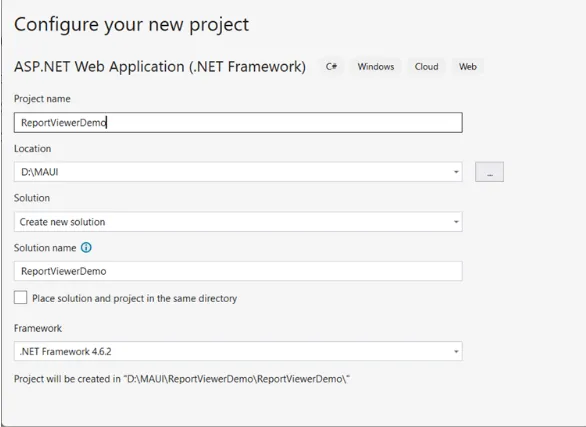
- In Visual Studio, select Create a new project, choose ASP.NET Web Application (.NET Framework), and click Next.
- Enter a Project name, select .NET Framework 4.6.2 or later in the Framework field, and click Create.
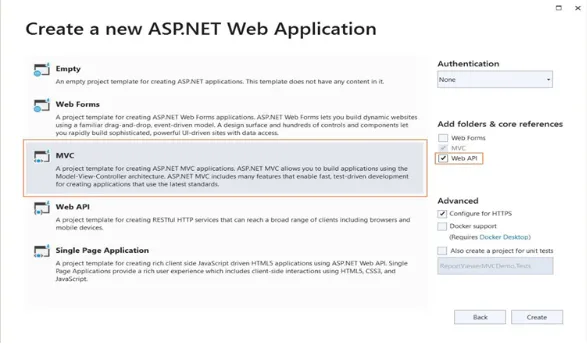
- In the Create a new ASP.NET Web Application dialog, select the MVC template, enable the Web API checkbox, and click Create.
Step 2: Install the Bold Reports NuGet Packages
In Solution Explorer, right-click the project and choose Manage NuGet Packages. On the Browse tab, search for and install these three packages:
- BoldReports.Web creates the Web API service that processes reports.
- BoldReports.Mvc5 contains the HTML helpers that create the client-side Report Viewer control.
- BoldReports.JavaScript contains the viewer scripts and style sheets, which land in the Scripts and Content folders.
Step 3: Register the BoldReports.Mvc Namespace
Open the web.config file inside the Views folder, not the one in the project root, and add the BoldReports.Mvc namespace. This makes the Html.Bold() helper available in every Razor view.
<configuration>
  ....
  <system.web.webPages.razor>
    ....
    <pages pageBaseType="System.Web.Mvc.WebViewPage">
      <namespaces>
        ....
        <add namespace="BoldReports.Mvc"/>
      </namespaces>
    </pages>
  </system.web.webPages.razor>
  ....
</configuration>
Step 4: Turn Off Unobtrusive JavaScript
Open the web.config file in the project root and set the UnobtrusiveJavaScriptEnabled key to false.
<configuration>
  <appSettings>
    ......
    <add key="UnobtrusiveJavaScriptEnabled" value="false" />
  </appSettings>
  ......
</configuration>
Step 5: Reference the Required Scripts and Styles
Open Views/Shared/_Layout.cshtml and replace its markup with the code below. Keep the references in this order: jQuery first, then the Bold Reports common and widgets scripts, then the viewer script. A different order produces the “jQuery is not defined” console error covered in the troubleshooting section.
<!DOCTYPE html>
<html>
<head>
    <meta charset="utf-8" />
    <meta name="viewport" content="width=device-width, initial-scale=1.0">
    <title>@ViewBag.Title - My ASP.NET Application</title>
    @Styles.Render("~/Content/css")
    @Styles.Render("~/content/bold-reports/v2.0/tailwind-light/bold.report-viewer.min.css")
    @Scripts.Render("~/bundles/modernizr")
</head>
<body>
    <div style="min-height: 600px;width: 100%;">
        @RenderBody()
    </div>
    @Scripts.Render("~/bundles/jquery")
    @Scripts.Render("~/bundles/bootstrap")
    <!-- Report Viewer component dependent scripts -->
    @Scripts.Render("~/Scripts/bold-reports/v2.0/common/bold.reports.common.min.js")
    @Scripts.Render("~/Scripts/bold-reports/v2.0/common/bold.reports.widgets.min.js")
    <!-- Report Viewer component script -->
    @Scripts.Render("~/Scripts/bold-reports/v2.0/bold.report-viewer.min.js")
    @RenderSection("scripts", required: false)
    @Html.Bold().ScriptManager()
</body>
</html>
To load the files from a CDN instead of local copies, see the Bold Reports CDN links.
Step 6: Initialize the Report Viewer Component
Open Views/Home/Index.cshtml, delete its existing markup, and add the viewer helper. The string viewer is the control ID. You can place the same helper in a partial view if your application composes pages that way.
@(Html.Bold().ReportViewer("viewer"))Step 7: Add a Sample Report
Create a Resources folder in the project and place sales-order-detail.rdl in it. Download the file from the sample report link in the Bold Reports documentation, or copy it from %localappdata%\Bold Reports\Embedded Reporting\Samples\Common\Data\ReportTemplate if you installed the Bold Reports samples. Step 10 references the file as ~/Resources/sales-order-detail.rdl.
Reports can use SQL Server and other supported data sources defined inside the report. To create reports and configure datasets before embedding them, see adding the ASP.NET MVC Report Designer to an application. To load reports from an SSRS Report Server instead of the Resources folder, see the SSRS section below.
Step 8: Add the Web API Controller
- Right-click the Controllers folder, select Add > New Item, choose Web API Controller Class, and name it
ReportViewerController.cs. The Controller suffix is mandatory.
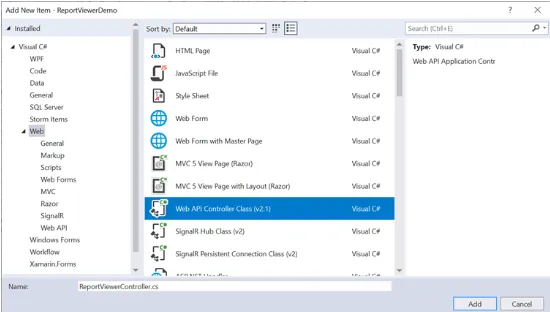
- Replace the generated class with the code below. It implements
IReportController, the interface the viewer calls into.
using System.Collections.Generic;
using System.Web.Http;
using BoldReports.Web.ReportViewer;

public class ReportViewerController : ApiController, IReportController
{
    // Post action for processing the RDL/RDLC report
    public object PostReportAction(Dictionary<string, object> jsonResult)
    {
        return ReportHelper.ProcessReport(jsonResult, this);
    }

    // Get action for getting resources from the report
    [System.Web.Http.ActionName("GetResource")]
    [AcceptVerbs("GET")]
    public object GetResource(string key, string resourcetype, bool isPrint)
    {
        return ReportHelper.GetResource(key, resourcetype, isPrint);
    }

    // Called when the report options are initialized, before processing starts
    [NonAction]
    public void OnInitReportOptions(ReportViewerOptions reportOption)
    {
        // You can update report options here
    }

    // Called when the report is loaded
    [NonAction]
    public void OnReportLoaded(ReportViewerOptions reportOption)
    {
        // You can update report options here
    }
}
IReportController declares four members:
PostReportActionis the HTTP POST action that receives every viewer request.GetResourceis the HTTP GET action that serves report resources such as images.OnInitReportOptionsruns when the report is about to be processed.OnReportLoadedruns when the report and its subreports start loading.
ReportHelper provides two helper methods, ProcessReport and GetResource, that return responses to the viewer. Step 10 and the security section both build on OnInitReportOptions.
Step 9: Add the Web API Route
Web API routing maps an incoming request to a controller action. The default Web API route omits the action name, so add an {action} parameter to let the viewer’s requests reach PostReportAction and GetResource. Open App_Start/WebApiConfig.cs and change the route template as shown.
public static class WebApiConfig
{
    public static void Register(HttpConfiguration config)
    {
        // Web API configuration and services

        // Web API routes
        config.MapHttpAttributeRoutes();

        config.Routes.MapHttpRoute(
            name: "DefaultApi",
            routeTemplate: "api/{controller}/{action}/{id}",
            defaults: new { id = RouteParameter.Optional }
        );
    }
}
Step 10: Set the Report Path and Service URL
To render an RDL file stored in the application, set two viewer properties. ReportServiceUrl is the Web API endpoint that processes requests, and ReportPath is the location of the report file in the Resources folder. Replace the helper in Index.cshtml with the code below.
@(Html.Bold().ReportViewer("viewer")
    .ReportServiceUrl("/api/ReportViewer")
    .ReportPath("~/Resources/sales-order-detail.rdl")
)
Note: ReportServiceUrl (for example, /api/ReportViewer) is the Web API endpoint inside your MVC application. It is not an SSRS Report Server URL.
Need to author the report first? See How to Create an RDLC Report Using Bold Reports Designer; the same controller also processes RDLC files.
Step 11: Preview the Report
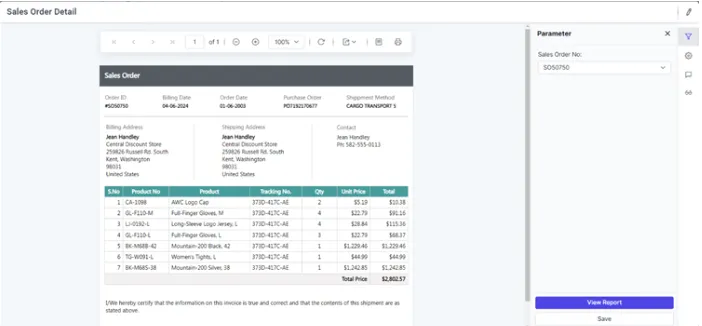
Build and run the application. The Sales Order Detail report renders with a parameter panel on the right; pick another sales order number and select View Report to reprocess it.
For more working code, Bold Reports publishes ASP.NET MVC Report Viewer examples online. The aspnet-mvc-samples repository on GitHub, which holds runnable Report Viewer and Report Designer projects, was archived by its owner on July 24, 2026. It is now read-only, but you can still clone it for reference.
Request Flow: From the Razor View to the Rendered Report
The viewer sends each request to a Web API endpoint in your application, which loads the report definition, processes it, and returns the rendered output to the browser. The four stages below map to the settings you configured in the steps above.
- The user loads a page that contains the Report Viewer helper.
- The viewer posts requests, such as report loading, parameter updates, printing, and exporting, to the URL in
ReportServiceUrl. - The controller passes each request to
ReportHelper.ProcessReport, which reads the definition from theReportPathfile or from an SSRS Report Server. - The rendered output returns to the browser for display and interaction.
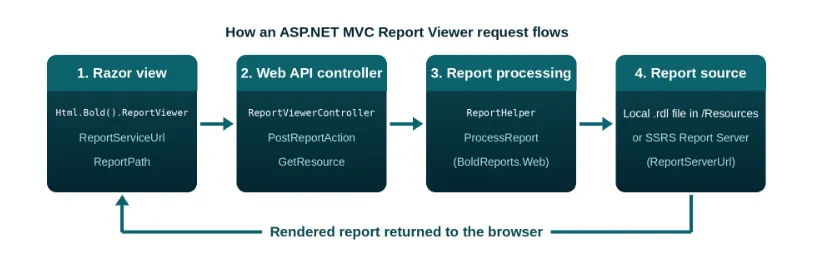
Because the viewer depends on the Web API service for processing, both ReportServiceUrl and the {action} route must be correct. A mismatch in either commonly leaves the viewer blank.
How Do You Load Reports from an SSRS Report Server?
The viewer can also read RDL reports from a Microsoft SSRS Report Server instead of the Resources folder. Keep ReportServiceUrl pointed at your own Web API endpoint, set ReportServerUrl to the SSRS web service URL, and set ReportPath to the report’s server path in the /folder name/report name format. ReportServiceUrl is never the SSRS address. Check the list of SSRS server versions supported in Bold Reports before you point the viewer at a server.
@(Html.Bold().ReportViewer("viewer")
    .ReportServiceUrl("/api/ReportViewer")
    .ReportServerUrl("http://<servername>/reportserver")
    .ReportPath("/<folder name>/<report name>")
)
If the SSRS server requires credentials, assign a network credential to ReportModel.ReportServerCredential inside OnInitReportOptions of ReportViewerController. Read the values from secure configuration rather than hardcoding them in production.
[NonAction]
public void OnInitReportOptions(ReportViewerOptions reportOption)
{
    reportOption.ReportModel.ReportServerCredential =
        new System.Net.NetworkCredential("<username>", "<password>");
}
For shared data source credentials and connection string overrides, see Load SSRS Report Server reports in ASP.NET MVC.
How Do You Troubleshoot Common ASP.NET MVC Report Viewer Issues?
If the viewer does not load or behaves unexpectedly, check the browser’s Network and Console tabs first for failed API requests, missing resources, or JavaScript errors. Then match the symptom below.
| Symptom | Likely cause | Fix |
|---|---|---|
| Blank Report Viewer | Missing ScriptManager, wrong script order, or a route issue | Check _Layout.cshtml, @Html.Bold().ScriptManager(), and the Web API route. |
| 404 on /api/ReportViewer/PostReportAction | The {action} parameter is missing from the route template | Update the route template in WebApiConfig.cs (Step 9). |
| Viewer unstyled, or script files return 404 | Classic (v1.0) asset paths used with v2.0 packages | Use the /bold-reports/v2.0/ paths from Step 5 and confirm the files exist in the project. |
| RV0001: The source of the report definition has not been specified | ReportPath is not set, or the file name or path is wrong | Confirm sales-order-detail.rdl exists in Resources and matches the ReportPath value. |
| RV0013: invalid schema version | The report uses an RDL schema the viewer does not support | Use a report built on schema version 2008, 2010, or 2016. |
| SSRS report will not load | ReportServerUrl, the report path, or the credentials are wrong or missing | Set ReportServerUrl to the SSRS web service URL, use the /folder/report path, and assign ReportServerCredential in OnInitReportOptions. |
| Trial-version notice in the viewer | No license token registered before the viewer initialized, or a token for a different version | Register the token in Application_Start and regenerate it for the installed version. |
The Bold Reports error codes reference documents the cause and fix for each code. Two more apply to server-hosted reports and connectivity:
- RV0009: Provide Report Server information to get shared data source information. A report with a shared data source needs
ReportServerUrland, when required,ReportServerCredential, so the viewer can retrieve the data source. - RV0010: An error occurred while sending a request to the reporting service. The viewer could not reach the configured reporting endpoint. Confirm the service is running and that the application can reach the URL.
For background on MVC controllers and views, see the Microsoft Learn introduction to ASP.NET MVC.
What Should You Check Before Deploying the Report Viewer to Production?
Confirm four things before deploying: the ReportServiceUrl endpoint is reachable and the Web API route includes {action}; every script and style reference uses v2.0 paths; report endpoints require authentication and restrict which reports a caller can open; and a Bold Reports license token is registered.
Configuration
- Document the NuGet package versions and keep them identical across environments.
- Verify that all viewer script and CSS references use v2.0 asset paths.
- Confirm the
ReportServiceUrlendpoint is reachable from the deployed environment. - Test rendering, printing, and export on the deployed server, not only in Visual Studio.
Security
Every request the viewer sends comes from the browser, so treat each posted value, including ReportPath, as untrusted input. Add the Web API [Authorize] attribute to ReportViewerController so PostReportAction and GetResource both require an authenticated caller, and protect the MVC page that hosts the viewer with the MVC [Authorize] attribute. Then restrict which report files a caller can open. The sample below allows one report path and returns 403 Forbidden for anything else.
using System;
using System.Collections.Generic;
using System.Net;
using System.Web.Http;
using BoldReports.Web.ReportViewer;

[Authorize]
public class ReportViewerController : ApiController, IReportController
{
    private static readonly HashSet<string> AllowedReports =
        new HashSet<string>(StringComparer.OrdinalIgnoreCase)
        {
            "~/Resources/sales-order-detail.rdl"
        };

    [NonAction]
    public void OnInitReportOptions(ReportViewerOptions reportOption)
    {
        // ReportPath is posted by the browser, so treat it as untrusted input.
        if (!AllowedReports.Contains(reportOption.ReportModel.ReportPath ?? string.Empty))
        {
            throw new HttpResponseException(HttpStatusCode.Forbidden);
        }
    }

    // PostReportAction, GetResource, and OnReportLoaded stay as in Step 8.
}
In a multi-tenant application, replace the fixed set with a lookup of the reports the signed-in tenant or role may open.
Licensing
Generate a license token for your installed Bold Reports version from the Downloads section of the Bold Reports site, then register it before any Bold Reports control initializes. For ASP.NET MVC, the online license token guide places the call in Application_Start of Global.asax.cs. Tokens are version specific, so regenerate one whenever you upgrade the packages. Offline deployments use a license key file instead, described in the offline license key guide.
protected void Application_Start()
{
    // Register before any Bold Reports control initializes
    Bold.Licensing.BoldLicenseProvider.RegisterLicense("YOUR ONLINE LICENSE TOKEN");

    AreaRegistration.RegisterAllAreas();
    GlobalConfiguration.Configure(WebApiConfig.Register);
    // ... existing registrations
}
What Comes after Your First MVC Report?
With the viewer rendering a local RDL file, two extensions usually come next. To read reports from an SSRS server, set ReportServerUrl and pass credentials as shown above, or follow the SSRS report guide for the full sample. Before you deploy, work through the checklist above. On ASP.NET Core? Follow the Core Report Viewer guide or the RDLC reports in ASP.NET Core guide.
Ready to add reporting to your ASP.NET MVC app? Start a free trial, take the ASP.NET MVC Report Viewer feature tour, or browse the ASP.NET MVC Reporting documentation.
Frequently Asked Questions
- 1.
Can I use the Microsoft ReportViewer control in ASP.NET MVC?
Not directly. Microsoft’s ReportViewer package is built for ASP.NET Web Forms, and Razor views cannot host a server control, so MVC teams usually wrap it in a Web Forms page. The Bold Reports viewer is a JavaScript component rendered through an HTML helper, with a Web API controller handling the processing, so it doesn’t need a Web Forms page.
- 2.
Can the Report Viewer load reports from an SSRS Report Server?
Yes. Set
ReportServerUrlto the SSRS web service URL, setReportPathto the report’s folder path, and keepReportServiceUrlpointed at your own Web API endpoint. If the SSRS server requires credentials, assign them toReportServerCredentialinside theOnInitReportOptionsmethod of your ReportViewerController. - 3.
Why does the Report Viewer display a blank page?
A blank viewer usually means the page never reached the Web API or the scripts failed to initialize. Open the browser console and network tab: a 404 on
PostReportActionpoints to the missing{action}route, and “jQuery is not defined” points to script order in _Layout.cshtml. If both are clean, confirmReportPathmatches a file in the Resources folder. - 4.
What is the difference between ReportServiceUrl and ReportServerUrl?
ReportServiceUrlis the Web API endpoint in your MVC application (e.g.,/api/ReportViewer) that processes every viewer request.ReportServerUrlis the address of the SSRS or Bold Report Server that hosts the report definitions. Local RDL files need onlyReportServiceUrlandReportPath; SSRS-hosted reports need all three. - 5.
How do report parameters work in the Report Viewer?
Parameters defined in the report definition appear in the viewer’s parameter block. Users enter or select values there, and the viewer reprocesses the report with those values. Set default values, available values, and data types in the report itself, using Bold Reports Designer or another RDL tool, rather than in the MVC view code.
- 6.
Is a license required to use the Report Viewer in production?
Yes. Generate a license token for your installed Bold Reports version and register it in
Application_StartwithBoldLicenseProvider.RegisterLicensebefore any viewer initializes. Tokens are version specific, so regenerate one after upgrading packages. Without registration, the viewer shows a trial-version notice, and exports can carry the same message.