TL;DR:
Pixel-perfect reports in Blazor are paginated RDL or RDLC reports whose page size, margins, headers, footers, and page numbers stay fixed in preview, print, and export. This guide embeds the Bold Reports® Report Designer in a Blazor Web App, builds a multi-page invoice with repeating headers, and checks the PDF and Excel output against the preview.
Introduction
A report that looks correct in a browser can still fail when exported or printed. Columns shift, totals spill onto another page, and headers disappear after page one. For invoices, financial statements, and other business documents, these formatting issues can impact readability, professionalism, and compliance.
This is where pixel-perfect Blazor reports become essential. Unlike responsive web layouts, paginated RDL and RDLC reports use a fixed-page design that preserves page size, margins, headers, footers, and page breaks across preview, print, PDF, and Excel exports. With the Bold Reports Report Designer embedded in your Blazor application, developers and report authors can build, edit, and maintain professional Blazor reports directly in the browser while ensuring consistent output across every delivery format.
In this guide, you’ll learn how to build pixel-perfect RDL and RDLC reports in a Blazor application using the Bold Reports Report Designer and verify that the exported output matches what users see on screen. For additional step-by-step guidance, see the Add Web Report Designer in Blazor application documentation and our Blazor Report Designer guide.
What makes a Blazor report pixel-perfect?
A pixel-perfect Blazor report uses a fixed-page layout where the report defines page size, margins, headers, footers, page numbers, and page breaks. As a result, the layout remains consistent across preview, printing, and PDF export. This is the standard behavior of paginated reports, whereas an HTML grid adapts to the browser and screen size.
Not every document belongs to a responsive interface. Invoices, purchase orders, customer statements, and other business documents must maintain the same layout whether viewed in a browser, exported to PDF, or printed. This is the purpose of pixel-perfect reporting. The table below highlights the differences between a paginated report and an HTML grid:
| Aspect | Paginated report (RDL or RDLC) | HTML grid in a Blazor app |
|---|---|---|
| Layout control | Fixed page size, margins, and element placement | Responsive layout driven by CSS |
| Pagination | Explicit page breaks, repeated headers, page numbers | Scrolling or UI paging |
| Print and PDF output | Matches the designed layout | Depends on browser print rendering |
| Best for | Invoices, statements, forms, and other print-ready documents | Interactive lists, filtering, and on-screen exploration |
If users primarily view, filter, and analyze data on screen, an HTML grid is often the better choice. When reports need to be printed, exported, emailed, or archived, a pixel-perfect Blazor report provides the consistency and control required for professional business documents.
Set up the Report Designer in a Blazor Web App
Follow these instructions to integrate the Report Designer into a Blazor Web App. You can also access the complete sample on GitHub.
Prerequisites
- Visual Studio 2022 with the ASP.NET and web development workload.
- The .NET 8 or .NET 9 SDK.
- A Bold Reports license or free trial.
1. Create the project and add packages
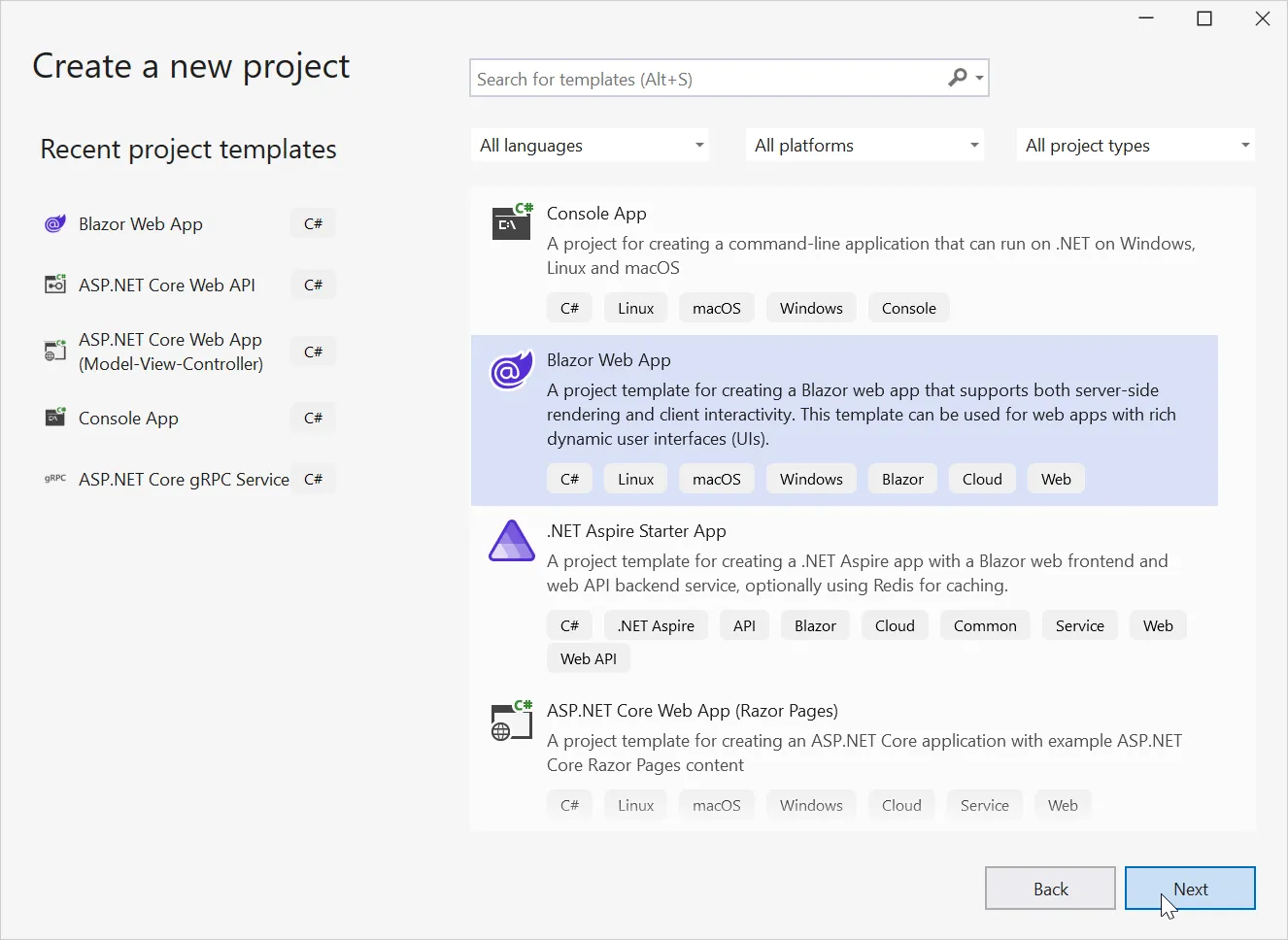
- In Visual Studio 2022, create a Blazor Web App named BlazorReportingTools and choose .NET 8 or .NET 9.
- Install these NuGet packages: BoldReports.Net.Core (the Web API that processes reports), Microsoft.AspNetCore.Mvc.NewtonsoftJson (version 8.0.0 or higher), and Microsoft.Data.SqlClient (version 5.1.0 or higher, needed for SQL Server data sources).
2. Add the Web API controller
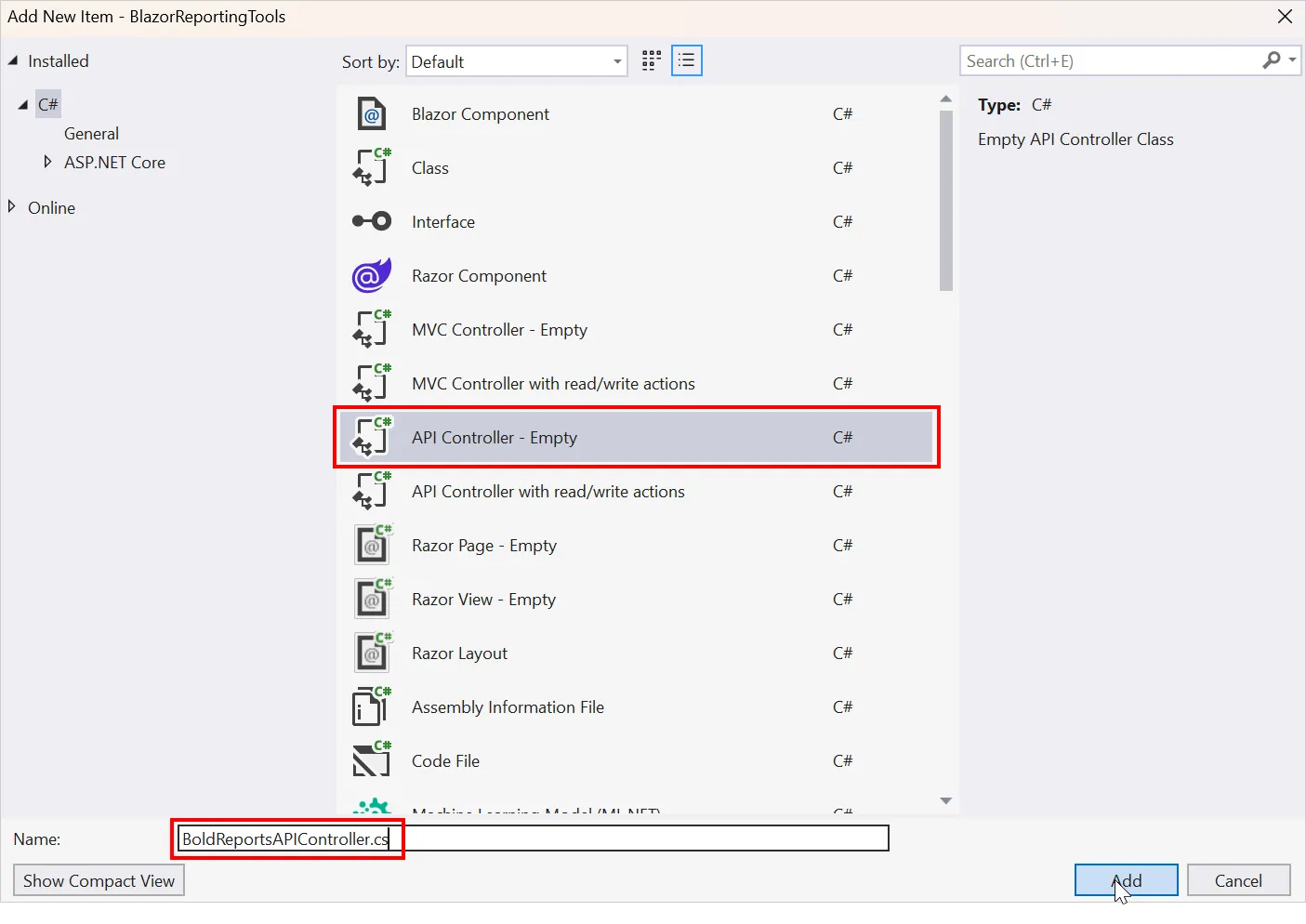
The designer talks to a server-side API for every action: opening reports, saving working files, and processing previews. Add an empty API controller named BoldReportsAPIController.cs. The name must end in “Controller”, and the class must include the route attribute shown below so requests resolve to the correct action.
- Open BoldReportsAPIController and add the following code.
using BoldReports.Web.ReportViewer;
using Microsoft.AspNetCore.Hosting;
using BoldReports.Web.ReportDesigner;
using Microsoft.Extensions.Caching.Memory;
using Microsoft.AspNetCore.Mvc;

namespace BlazorReportingTools
{
    [Route("api/{controller}/{action}/{id?}")]
    public class BoldReportsAPIController : ControllerBase, IReportDesignerController
    {
        private Microsoft.Extensions.Caching.Memory.IMemoryCache _cache;
        private IWebHostEnvironment _hostingEnvironment;

        public BoldReportsAPIController(Microsoft.Extensions.Caching.Memory.IMemoryCache memoryCache, IWebHostEnvironment hostingEnvironment)
        {
            _cache = memoryCache;
            _hostingEnvironment = hostingEnvironment;
        }

        /// <summary>
        /// Get the path of specific file
        /// </summary>
        /// <param name="itemName">Name of the file to get the full path</param>
        /// <param name="key">The unique key for report designer</param>
        /// <returns>Returns the full path of file</returns>
        [NonAction]
        private string GetFilePath(string itemName, string key)
        {
            string rootPath = string.IsNullOrEmpty(this._hostingEnvironment.WebRootPath) ? this._hostingEnvironment.ContentRootPath : this._hostingEnvironment.WebRootPath;
            string dirPath = Path.Combine(rootPath, "Cache", key);

            if (!System.IO.Directory.Exists(dirPath))
            {
                System.IO.Directory.CreateDirectory(dirPath);
            }

            return Path.Combine(dirPath, itemName);
        }

        /// <summary>
        /// Action (HttpGet) method for getting image resource in the report.
        /// </summary>
        /// <param name="key">The unique key for request identification.</param>
        /// <param name="image">The name of requested image.</param>
        /// <returns>Returns the image as HttpResponseMessage content.</returns>
        public object GetImage(string key, string image)
        {
            return ReportDesignerHelper.GetImage(key, image, this);
        }

        /// <summary>
        /// Send a GET request and returns the requested resource for a report.
        /// </summary>
        /// <param name="resource">Contains report resource information.</param>
        /// <returns> Resource object for the given key</returns>
        public object GetResource(ReportResource resource)
        {
            return ReportHelper.GetResource(resource, this, _cache);
        }

        /// <summary>
        /// Report Initialization method that is triggered when report begin processed.
        /// </summary>
        /// <param name="reportOptions">The ReportViewer options.</param>
        [NonAction]
        public void OnInitReportOptions(ReportViewerOptions reportOption)
        {
            //You can update report options here
        }

        /// <summary>
        /// Report loaded method that is triggered when report and sub report begins to be loaded.
        /// </summary>
        /// <param name="reportOptions">The ReportViewer options.</param>
        [NonAction]
        public void OnReportLoaded(ReportViewerOptions reportOption)
        {
            //You can update report options here
        }

        /// <summary>
        /// Action (HttpPost) method for posting the request for designer actions.
        /// </summary>
        /// <param name="jsonData">A collection of keys and values to process the designer request.</param>
        /// <returns>Json result for the current request.</returns>
        [HttpPost]
        public object PostDesignerAction([FromBody] Dictionary<string, object> jsonResult)
        {
            return ReportDesignerHelper.ProcessDesigner(jsonResult, this, null, this._cache);
        }

        /// <summary>Action (HttpPost) method for posting the request for designer actions.</summary>
        /// <returns>Json result for the current request.</returns>
        public object PostFormDesignerAction()
        {
            return ReportDesignerHelper.ProcessDesigner(null, this, null, this._cache);
        }

        public object PostFormReportAction()
        {
            return ReportHelper.ProcessReport(null, this, this._cache);
        }

        /// <summary>
        /// Action (HttpPost) method for posting the request for report process.
        /// </summary>
        /// <param name="jsonResult">The JSON data posted for processing report.</param>
        /// <returns>The object data.</returns>
        [HttpPost]
        public object PostReportAction([FromBody] Dictionary<string, object> jsonResult)
        {
            return ReportHelper.ProcessReport(jsonResult, this, this._cache);
        }

        /// <summary>
        /// Sets the resource into storage location.
        /// </summary>
        /// <param name="key">The unique key for request identification.</param>
        /// <param name="itemId">The unique key to get the required resource.</param>
        /// <param name="itemData">Contains the resource data.</param>
        /// <param name="errorMessage">Returns the error message, if the write action is failed.</param>
        /// <returns>Returns true, if resource is successfully written into storage location.</returns>
        [NonAction]
        bool IReportDesignerController.SetData(string key, string itemId, ItemInfo itemData, out string errorMessage)
        {
            errorMessage = string.Empty;
            if (itemData.Data != null)
            {
                System.IO.File.WriteAllBytes(this.GetFilePath(itemId, key), itemData.Data);
            }
            else if (itemData.PostedFile != null)
            {
                var fileName = itemId;
                if (string.IsNullOrEmpty(itemId))
                {
                    fileName = System.IO.Path.GetFileName(itemData.PostedFile.FileName);
                }

                using (System.IO.MemoryStream stream = new System.IO.MemoryStream())
                {
                    itemData.PostedFile.OpenReadStream().CopyTo(stream);
                    byte[] bytes = stream.ToArray();
                    var writePath = this.GetFilePath(fileName, key);

                    System.IO.File.WriteAllBytes(writePath, bytes);
                    stream.Close();
                    stream.Dispose();
                }
            }
            return true;
        }

        /// <summary>
        /// Gets the resource from storage location.
        /// </summary>
        /// <param name="key">The unique key for request identification.</param>
        /// <param name="itemId">The unique key to get the required resource.</param>
        ///  <returns>Returns the resource data and error message.</returns>
        [NonAction]
        public ResourceInfo GetData(string key, string itemId)
        {
            var resource = new ResourceInfo();
            try
            {
                var filePath = this.GetFilePath(itemId, key);
                if (itemId.Equals(Path.GetFileName(filePath), StringComparison.InvariantCultureIgnoreCase) && System.IO.File.Exists(filePath))
                {
                    resource.Data = System.IO.File.ReadAllBytes(filePath);
                }
                else
                {
                    resource.ErrorMessage = "File not found from the specified path";
                }
            }
            catch (Exception ex)
            {
                resource.ErrorMessage = ex.Message;
            }
            return resource;
        }

        /// <summary>
        /// Action (HttpPost) method for posted or uploaded file actions.
        /// </summary>
        [HttpPost]
        public void UploadReportAction()
        {
            ReportDesignerHelper.ProcessDesigner(null, this, this.Request.Form.Files[0], this._cache);
        }
    }
}- To request the report processing unit properly, change the router API attribute to include the controller and action names using
[Route("api/{controller}/{action}/{id?}")].
3. Register the controller in Program.cs
To invoke this Web API with the controller and action, we must include AddControllers() and AddMemoryCache() builder services and MapControllers() in the Program.cs file.
builder.Services.AddControllers();
builder.Services.AddMemoryCache();

...
...
...

app.MapControllers();
Replace the template code below in the Program.cs file.
using BlazorReportingTools.Components;

var builder = WebApplication.CreateBuilder(args);

// Add services to the container.
builder.Services.AddControllers();
builder.Services.AddMemoryCache();
builder.Services.AddRazorComponents()
    .AddInteractiveServerComponents();

var app = builder.Build();

// Configure the HTTP request pipeline.
if (!app.Environment.IsDevelopment())
{
    app.UseExceptionHandler("/Error", createScopeForErrors: true);
    // The default HSTS value is 30 days. You may want to change this for production scenarios, see https://aka.ms/aspnetcore-hsts.
    app.UseHsts();
}

app.UseHttpsRedirection();

app.UseStaticFiles();

app.UseAntiforgery();
app.MapControllers();

app.MapRazorComponents<App>()
    .AddInteractiveServerRenderMode();

app.Run();
4. Initialize the Report Designer
The designer is a JavaScript control, so a small interop layer connects it to Blazor.
- Add an options class. Right-click the project, choose Add > Class, and name it BoldReportDesignerOptions.cs.
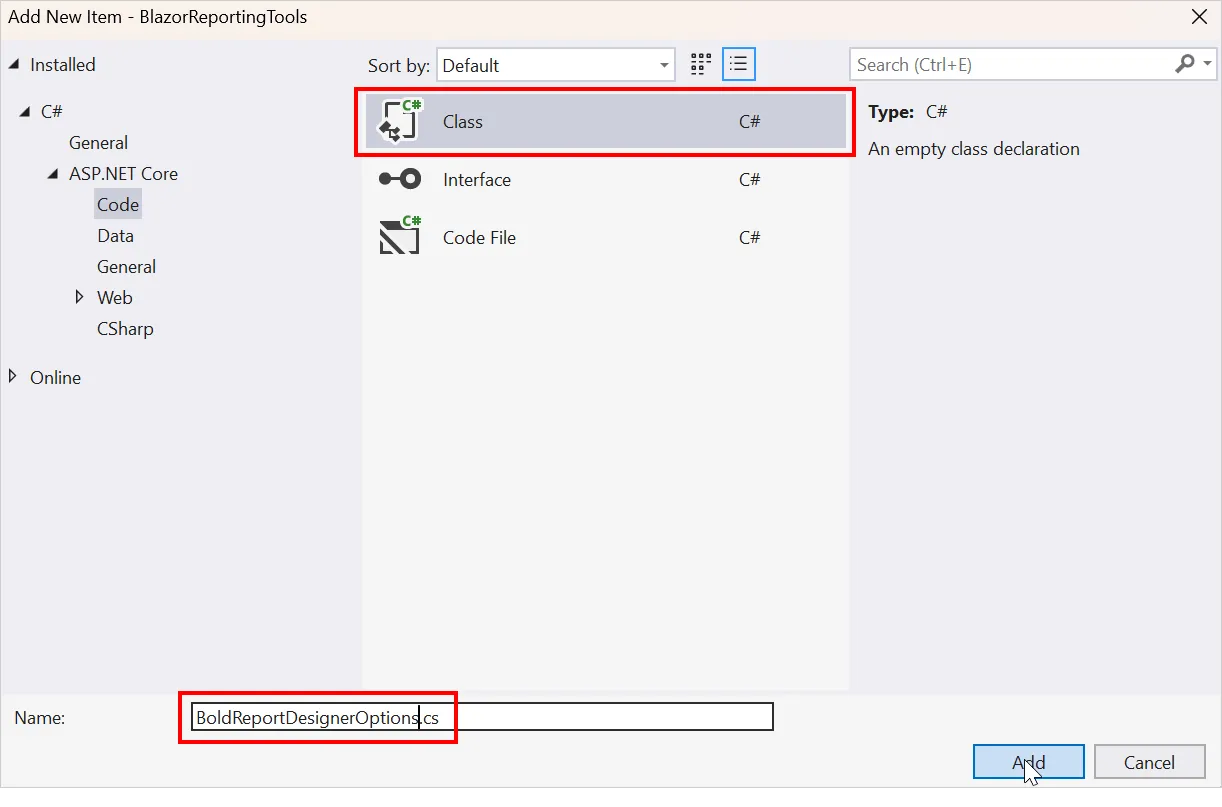
Add the following code to the BoldReportDesignerOptions.cs file to hold the RDL report rendering properties.
namespace BlazorReportingTools
{
    public class BoldReportDesignerOptions
    {
        public string ServiceURL { get; set; }
    }
}- Add the interop file. Create boldreports-interop.js in the wwwroot/scripts folder and use the following code snippet to invoke the Bold Report Designer JavaScript control.
// Interop file to render the Bold Report Designer component with properties.
window.BoldReports = {
    RenderDesigner: function (elementID, reportDesignerOptions) {
        $("#" + elementID).boldReportDesigner({
            serviceUrl: reportDesignerOptions.serviceURL
        });
    }
}- Reference the styles and scripts. Add the following CDN links and the
boldreports-interop.jsfile to the<head>section ofComponents/Layout/MainLayout.razorto enable Bold Reports JavaScript reporting controls in your Blazor application.
<!-- Report Designer component styles -->
<link href="https://cdn.boldreports.com/15.1.10/content/v2.0/tailwind-light/bold.report-designer.min.css" rel="stylesheet" />
<link href="https://cdnjs.cloudflare.com/ajax/libs/codemirror/5.37.0/codemirror.min.css" rel="stylesheet" />
<link href="https://cdnjs.cloudflare.com/ajax/libs/codemirror/5.37.0/addon/hint/show-hint.min.css" rel="stylesheet" />

<script src="https://cdnjs.cloudflare.com/ajax/libs/jquery/3.6.0/jquery.min.js"></script>
<script src="https://cdnjs.cloudflare.com/ajax/libs/codemirror/5.37.0/codemirror.min.js" type="text/javascript"></script>
<script src="https://cdnjs.cloudflare.com/ajax/libs/codemirror/5.37.0/addon/hint/show-hint.min.js" type="text/javascript"></script>
<script src="https://cdnjs.cloudflare.com/ajax/libs/codemirror/5.37.0/addon/hint/sql-hint.min.js" type="text/javascript"></script>
<script src="https://cdnjs.cloudflare.com/ajax/libs/codemirror/5.37.0/mode/sql/sql.min.js" type="text/javascript"></script>
<script src="https://cdnjs.cloudflare.com/ajax/libs/codemirror/5.37.0/mode/vb/vb.min.js" type="text/javascript"></script>

<!-- Report Designer component dependent scripts -->
<script src="https://cdn.boldreports.com/15.1.10/scripts/v2.0/common/bold.reports.common.min.js"></script>
<script src="https://cdn.boldreports.com/15.1.10/scripts/v2.0/common/bold.reports.widgets.min.js"></script>

<!-- Report Viewer and Designer component scripts -->
<script src="https://cdn.boldreports.com/15.1.10/scripts/v2.0/bold.report-viewer.min.js"></script>
<script src="https://cdn.boldreports.com/15.1.10/scripts/v2.0/bold.report-designer.min.js"></script>

<!-- Blazor interop file -->
<script src="scripts/boldreports-interop.js"></script>
- Render the designer. Inject IJSRuntime, add the InteractiveServer render mode, and invoke the JavaScript interop with your BoldReportsAPI URL in the
Components/Pages/Home.razorfile to visualize the report designer.
@page "/"
@rendermode InteractiveServer

@using Microsoft.JSInterop
@using Microsoft.AspNetCore.Components
@inject IJSRuntime JSRuntime
@using BlazorReportingTools;

<div id="designer" style="width: 100%;height: 950px"></div>

@code {
    // ReportDesigner options
    BoldReportDesignerOptions designerOptions = new BoldReportDesignerOptions();

    // Render the Bold Report Designer once, after the first render of the page.
    protected override async Task OnAfterRenderAsync(bool firstRender)
    {
        if (firstRender)
        {
            // Point the designer at the BoldReportsAPIController in this app.
            designerOptions.ServiceURL = "/api/BoldReportsAPI";
            await JSRuntime.InvokeVoidAsync("BoldReports.RenderDesigner", "designer", designerOptions);
        }
    }
}
Here we created and used BoldReportDesignerOptions to pass the parameters for the report designer. ServiceURL points to the BoldReportsAPIController you added in step 2, and the designer initializes only on the first render.
5. Run the application
Press F5. The designer loads in the browser. To confirm that it uses your controller, open the browser Network tab and look for requests to /api/BoldReportsAPI/PostDesignerAction.
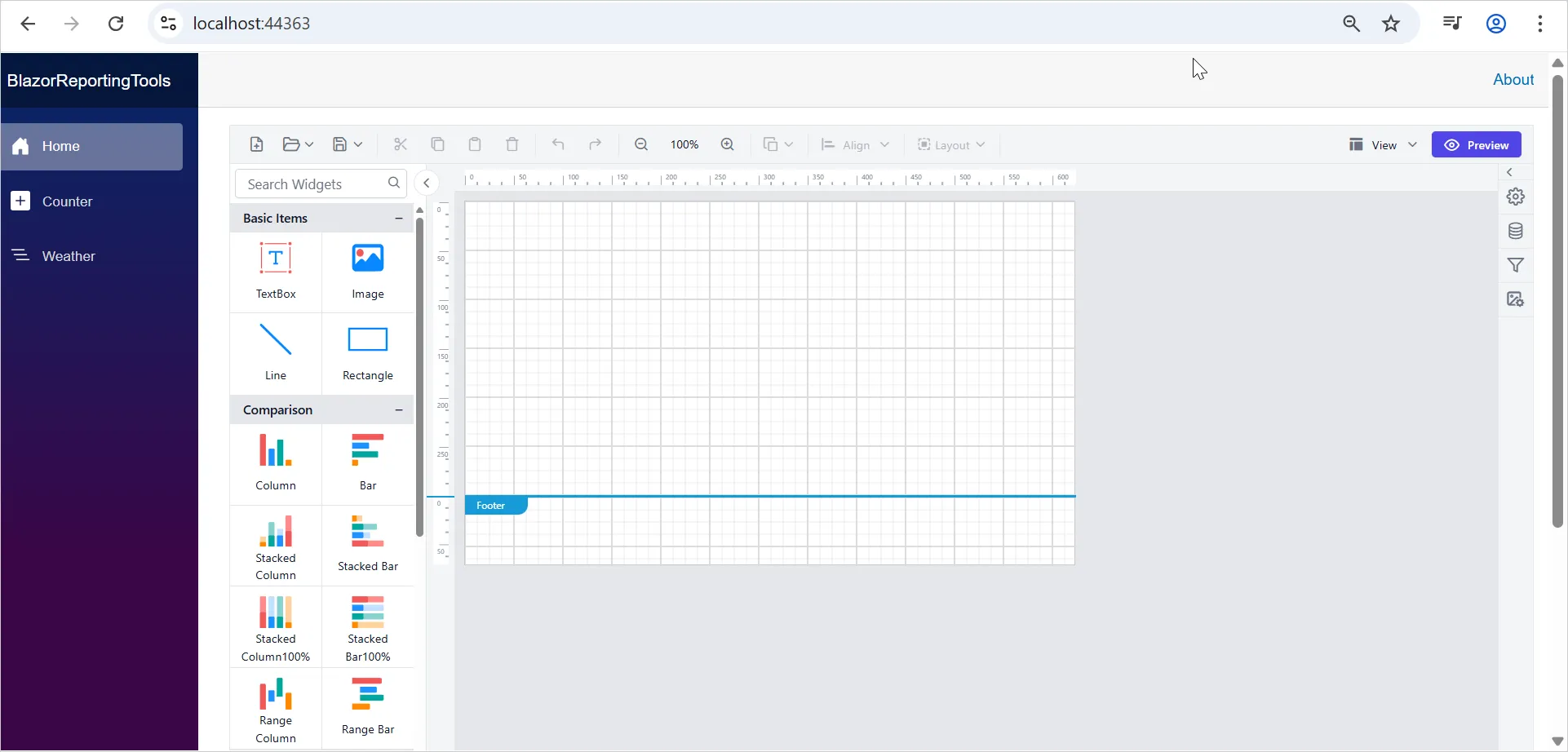
Build a pixel-perfect invoice report in Blazor
Invoices are one of the most common examples of pixel-perfect reports in Blazor because they require fixed layouts, consistent pagination, repeating headers, and reliable export to PDF and Excel. Rather than recreating the entire invoice-design process in this article, follow our guide, Creating an Invoice Report with Bold Reports Designer, which covers invoice design, parameters, datasets, and report layout in detail.
After creating the report, focus on the settings that affect print and export quality:
- Configure page size, orientation, and margins before finalizing the layout.
- Keep tables and report items within the available page width to prevent unexpected page breaks.
- Enable repeating column headers for multi-page reports.
- Add page numbers and other recurring content in page headers and footers.
- Test the report with large datasets to validate pagination behavior.
- Export the report to PDF and Excel and compare the output with the report preview.
To generate and export invoices programmatically without displaying a report viewer, see Producing Invoice Reports in a Blazor Server Application, which demonstrates using Report Writer to export invoice reports from a Blazor application.
These practices help ensure your Blazor reporting solution delivers consistent results across preview, print, and export scenarios, laying the foundation for pixel-perfect reporting in Blazor.
How do you export a Blazor report to PDF and Excel?
Preview the report in the designer, open the export option, and choose PDF or Excel. Bold Reports also exports to Word, CSV, PowerPoint, and HTML. Open each file and compare page breaks, repeated headings, and totals with the preview. For server-side export without a viewer, use the Report Writer library.
Bold Reports exports reports to PDF, Excel, CSV, PowerPoint, Word, and HTML, and you can export from the Report Designer, the Report Viewer, or Report Server. To check the invoice:
- With the large order previewed, open the export option and choose PDF.
- Open the PDF and compare it with the preview: page size and margins, repeated headings, page numbers, and totals.
- Export the same report to Excel and open the worksheet.
- Judge the PDF on page geometry. Excel is a worksheet, not a fixed page, so judge it on whether columns, totals, and number formats survive.
Common report designer issues and troubleshooting tips
Common Bold Reports report designer issues often trace to configuration, rendering, data source, or export settings. Use the following troubleshooting tips to quickly identify and resolve them.
1. The designer area is blank
If the browser console shows errors such as “$ is not defined” or “boldReportDesigner is not a function”, the required scripts may be missing, loaded in the wrong order, or executed before they are ready. Ensure jQuery loads before the Bold Reports scripts in Components/Layout/MainLayout.razor, and initialize the designer from OnAfterRenderAsync only during the first render.
2. Designer requests return 404
A 404 on a request such as /api/BoldReportsAPI/PostDesignerAction usually indicates a routing problem. Confirm that AddControllers() and MapControllers() are configured, the controller name ends with “Controller”, the [Route("api/{controller}/{action}/{id?}")] attribute is on the class, and ServiceURL is /api/BoldReportsAPI.
3. Icons are missing, or the layout looks broken
Missing icons or broken layouts often result from version mismatches. Make sure all CSS and JavaScript files use the same Bold Reports version and that the theme path references the correct version number.
4. Charts or gauges render blank
If data loads but charts or gauges remain blank, you’re likely missing a required dependency script. Compare your script references with the installation instructions for your Bold Reports version and add any missing dependencies.
5. Dataset parameter errors
An error like “Must declare the scalar variable @SalesOrderID” means the query uses a parameter the dataset doesn’t define. Add the dataset parameter and map it to the report parameter.
6. The database connection fails
Verify the connection string, the credentials, and network access from the application server to the database server, and confirm Microsoft.Data.SqlClient is installed. Test connectivity from the machine that hosts the application, not from your workstation.
7. Table headings do not repeat on page two
If table headers do not repeat, RepeatOnNewPage is likely set on the wrong member. Enable Advanced Mode in the grouping panel and apply the setting to the static row-group member instead of the table.
8. Export fails or produces an empty file
Export issues are commonly caused by server-side configuration problems. Review the failed request in the browser’s Network tab, and check proxy limits, timeouts, folder permissions, and access to temporary files.
Practical rules for creating reliable reports
Reliable pixel-perfect reports require more than accurate data. Following design best practices can help ensure consistent pagination, readability, and export results across PDF, Excel, and print formats.
- Define the page layout first. Set the page size, orientation, and margins before designing the report, as these settings determine the available space and help prevent unexpected page breaks.
- Use fixed widths where possible. Consistent column widths improve alignment and readability, while flexible row heights help avoid text truncation and overlapping content.
- Test with realistic data volumes. Validate reports with both small and large datasets to ensure layouts, pagination, and performance remain consistent under different conditions.
- Keep related information together. Group totals, summaries, and supporting details to prevent important information from being split across pages.
- Verify export consistency. Compare PDF and Excel exports with the report preview to confirm that formatting, pagination, and data presentation remain intact across output formats.
Final thoughts
With the Report Designer configured and your first report created, the next step is enabling users to view and interact with reports in your application. Follow the Blazor Report Viewer Guide and Report Viewer documentation to complete your Blazor reporting solution.
Ready to build pixel-perfect reports in Blazor? Start a 30-day free trial or request a demo to see Bold Reports in action. For additional guidance, watch the video tutorial that covers the full Report Designer setup process.
Frequently asked questions
- 1.
What is a pixel-perfect report in Blazor?
It is a paginated report, usually RDL or RDLC, where the page is the unit of design. Page size, margins, headers, footers, and page numbers are fixed, so the layout you see in preview carries into print, PDF, and other exports. An HTML grid, by contrast, reflows to fit the browser window.
- 2.
Can I use the Report Designer with Blazor Server and WebAssembly?
This guide uses a Blazor Web App with Interactive Server rendering, where the API controller lives in the same project. The controller must run on a server, so a WebAssembly client needs a separate ASP.NET Core host for the API. Check the current Bold Reports Blazor documentation for WebAssembly specifics.
- 3.
Which .NET versions does the Blazor Report Designer support?
The Bold Reports help documentation lists .NET 8 and 9 with Visual Studio 2022 for the current Report Designer. Check that page before you start, because supported runtimes change with each release, and confirm support before moving a production application to a newer .NET version.
- 4.
Does it create RDL or RDLC reports, and can it open existing SSRS reports?
It creates and edits both RDL and RDLC reports, and it can open existing SSRS report files for editing. Work on a copy first and preview it before relying on it, because you should confirm every report item, expression, and data source in the designer before replacing the original file.
- 5.
How do I export a Blazor report to PDF or Excel?
Preview the report, choose the export option, and pick PDF, Excel, or Word. Bold Reports also exports CSV, PowerPoint, and HTML. Open each file and compare page breaks, repeated headings, and totals with the preview. In production, export failures usually trace to proxy limits, timeouts, or write permissions on temporary storage.
- 6.
How do I secure the designer API endpoint?
Treat the designer API like any other application endpoint. Add authentication and role authorization to the controller, restrict the designer page to report authors, keep working files outside wwwroot, and give the data source a read-only database login. Anonymous access to the controller exposes both the designer actions and your data.