Bold Reports vs. SSRS: A 2026 Developer’s Guide to Switching
TL;DR
The Bold Reports® vs. SSRS decision comes down to where your reports live. Microsoft has confirmed that SSRS 2022 is the last SSRS version, supported through January 11, 2033, and that Power BI Report Server (PBIRS) is its on-premises path forward. If your reports serve internal users on Windows and SQL Server, staying on Microsoft’s stack is a sound choice. If you embed RDL reports inside a web or SaaS product, need Linux or container hosting, or serve multiple tenants, an RDL-compatible embedded platform like Bold Reports usually fits better.
Introduction
SQL Server 2025 changed the SSRS conversation. Until recently, most teams treated SSRS as permanent infrastructure: install it, write RDL, and forget about the platform underneath. Microsoft’s consolidation announcement ended that assumption. It did not create an emergency, but it did create a decision, and that decision looks different depending on whether you consume reports or build them into software.
This guide is written for developers, architects, and ISV engineering leads. It covers what Microsoft announced, how SSRS, PBIRS, and Bold Reports differ, which teams should stay where they are, and what a migration involves in practice. It also covers when you should not switch at all.
Is SSRS being retired, and what changes for you?
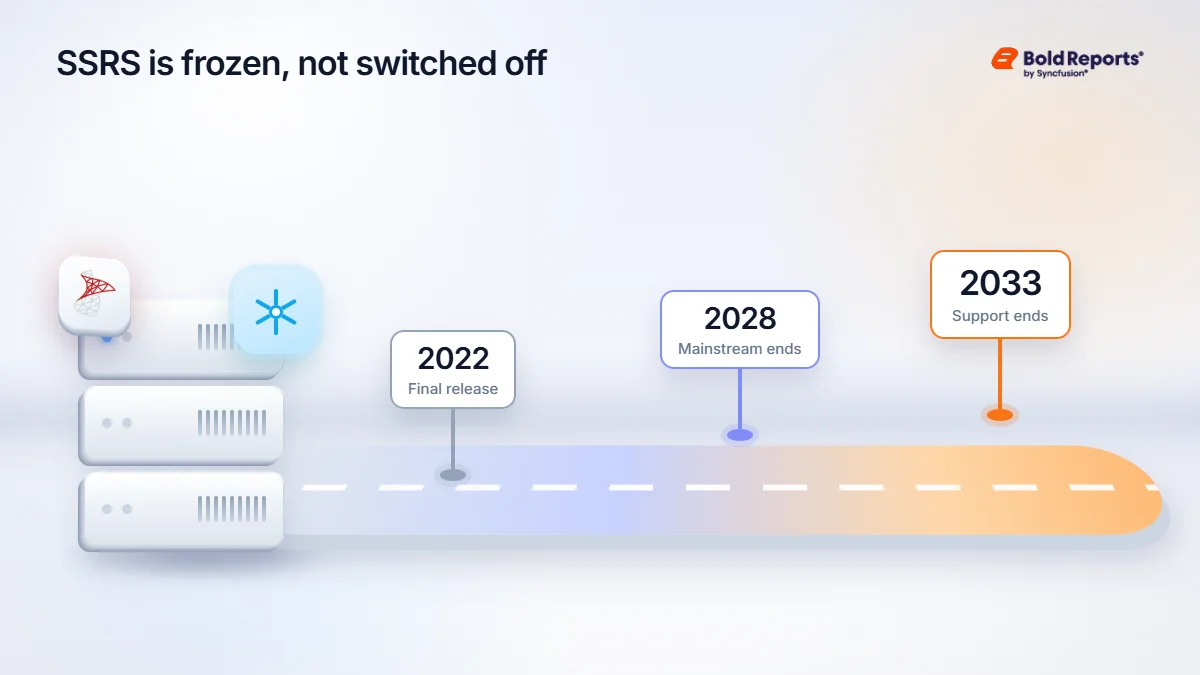
SSRS is frozen, not switched off. According to Microsoft’s Reporting Services consolidation FAQ, Microsoft will not release any new SSRS versions after SSRS 2022. That version keeps security updates and support through January 11, 2033, and mainstream support ends January 11, 2028.
In practical terms, a frozen product means three things for your team:
-
- No new capabilities. Whatever SSRS 2022 can do today is what it will do in 2033. Feature requests you have been waiting on will not arrive.
- Security and support continue on a fixed schedule. You are not forced to move in 2026, but the dates are now known, which makes them easy to put on a roadmap.
- Your surrounding stack keeps changing. Application frameworks, identity providers, hosting models, and browsers keep moving. A reporting server that stops evolving becomes a larger integration gap each year.
For a working SSRS estate, nothing breaks on a given day. What changes is the direction of travel. For a deeper look at the announcement, read our SQL Server 2025 SSRS migration guide. If you want the case for staying put, our post on why SSRS still powers enterprise reporting makes it fairly.
What is Microsoft steering SSRS users toward?
Microsoft’s recommended path is Power BI Report Server. Per the same FAQ, PBIRS runs paginated RDL reports like SSRS and adds Power BI (PBIX) reports on top. Existing RDL reports are compatible, which makes PBIRS the lowest-friction move for teams that want to keep running what they have on a supported Microsoft product.
Three planning details matter:
-
- Licensing: PBIRS rights come with SQL Server 2025 Standard and Enterprise. For SQL Server 2022 and earlier, they apply to Enterprise edition with active Software Assurance. Confirm your edition before assuming PBIRS is free.
- Lifecycle: PBIRS follows Microsoft’s Modern Lifecycle Policy, so expect regular upgrades rather than occasional cumulative updates. Teams used to the slower SSRS pace should budget for a more frequent upgrade rhythm.
- Migration: There is no in-place upgrade from SSRS. You move the report server databases, as described in Microsoft’s report server migration guide.
If cost is your main worry, our breakdown of SSRS-to-Power BI migration costs and our Power BI vs. SSRS comparison cover that route in detail.
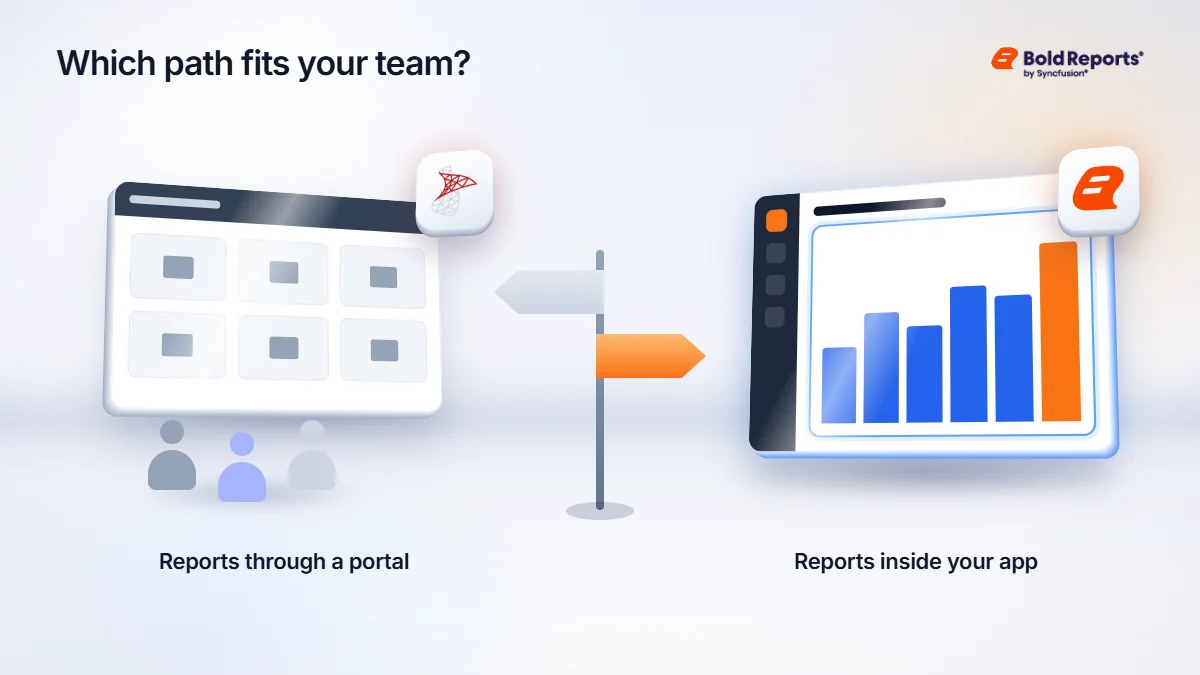
PBIRS solves the lifecycle problem. It does not change the shape of the product. It is still a Windows-only report server with a web portal, designed to send reports to people rather than embed them in another application. Whether that matters depends on who your report consumers are.
Why does the decision look different for developers than for IT administrators?
Most SSRS content online is written for administrators: install the server, configure the portal, schedule subscriptions, manage folder permissions. For that audience, the report server is the product. Users log in, browse folders, and open reports.
Developers and ISVs live on the other side of that boundary. Their users never see a report portal. Reports appear inside a customer-facing application, under the application’s branding, behind the application’s login. The questions that matter are different:
-
- How does a report viewer fit into our front-end framework and build pipeline?
- Can we reuse our existing identity provider instead of maintaining a second set of credentials?
- Can we separate one customer’s reports and data from another’s without running a separate server for each?
- Can we deploy the reporting layer the same way we deploy everything else, including on Linux or in containers?
SSRS and PBIRS can be pushed into an embedded role through URL access, iframes, and custom security extensions, and many teams have done exactly that. Microsoft documents security extensions for custom authentication. But those approaches are workarounds around a product built for portal-style delivery. An embedded reporting platform starts from the other assumption.
How do SSRS, Power BI Report Server, and Bold Reports differ?
This table compares fit, not quality. Several rows favor Microsoft.
| Consideration | SSRS 2022 | Power BI Report Server | Bold Reports |
| New versions | None (final release) | Regular releases | Active release line (14.1) |
| Paginated RDL reports | Native | Native | RDL and RDLC supported, with documented limits |
| Power BI (PBIX) reports | No | Yes | No |
| Report server OS | Windows only | Windows only | Windows, Linux, Docker, Kubernetes |
| Catalog database | SQL Server | SQL Server | SQL Server, PostgreSQL, or MySQL |
| Authentication | Windows by default; custom Forms extension possible | Same model as SSRS | Local accounts, Active Directory/LDAP, Microsoft Entra ID, OAuth 2.0, OpenID Connect, JWT |
| Embedding in web apps | Possible via URL access and iframes | Same as SSRS | JavaScript, Angular, React, Blazor, ASP.NET Core, and ASP.NET MVC components plus REST APIs |
| Multi-tenant isolation | Folders and roles; no tenant model | Same as SSRS | Multiple sites in one deployment |
| Cost if you own SQL Server | Included | Included under the licensing above | Separate license |
| Vendor support | Microsoft | Microsoft | Syncfusion |
Read the table by column purpose, not by row count. SSRS and PBIRS win on bundled licensing, single-vendor support, and, for PBIRS, access to Power BI reports. Bold Reports wins on hosting flexibility, embedding components, and tenant separation. Nobody wins every row, and any comparison that claims otherwise is selling something.
Which path fits which kind of team?
These profiles show where each option tends to fit. Your own constraints may shift the answer.
| Team profile | Likely fit | Why |
| Internal IT team publishing reports to employees through a portal | SSRS 2022 or PBIRS | The portal is the delivery model, the licensing is already paid for, and RDL reports keep working. |
| Team that wants paginated and Power BI reports side by side on-premises | PBIRS | It is the only option here that serves both report types from one server. |
| ISV putting reports inside a customer-facing web application | Bold Reports | Embedding components, SSO options, and tenant separation match how the product is delivered. |
| Team moving .NET Framework apps and RDLC reports to ASP.NET Core | Bold Reports | The ASP.NET Core Report Viewer renders existing RDL and RDLC files in modern .NET. |
| Team that must deploy on Linux or in containers | Bold Reports | SSRS and PBIRS install only on Windows. |
| Team with a small, stable SSRS estate and no embedding needs | Stay on SSRS for now | Support runs to 2033, so the cost of moving may outweigh the benefit today. |
When should you stay with SSRS or move to Power BI Report Server?
Stay on Microsoft’s stack when most of these are true:
-
- Reports reach people through the report portal or email subscriptions, not through your own application.
- You run Windows Server and SQL Server and intend to keep doing so.
- Your SQL Server license already includes PBIRS rights.
- You want Power BI reports next to paginated reports on-premises.
- Your team can absorb PBIRS’s regular upgrade cycle.
In that situation, a separate reporting platform adds cost without adding much. This is the honest answer, and it applies to many internal reporting teams.
There is also a timing argument for waiting. SSRS 2022 is supported for years, and a migration done under deadline pressure is harder than one done on your own schedule. If nothing in your roadmap requires embedding, Linux hosting, or tenant separation, use the time to inventory your reports and clean up the ones nobody opens. That work pays off whichever platform you choose.
When does Bold Reports fit better?
Bold Reports makes sense when reporting is part of the product you ship. Five situations come up most often.
You embed reports in a web or SaaS app
The Report Viewer and Report Designer components cover JavaScript, Angular, React, Blazor, ASP.NET Core, and ASP.NET MVC. In a typical setup, the viewer runs in the browser and calls a report service hosted inside your own application, so reports render under your branding and behind your authentication. You can also embed the Report Designer, which lets users edit reports without leaving your product. For server-side generation without a user interface, the Report Writer component and the export API handle scheduled or on-demand output.
Our step-by-step posts show the pattern for ASP.NET MVC, Angular, and React.
You are moving RDLC reports to ASP.NET Core
Microsoft built ReportViewer controls for .NET Framework Web Forms and WinForms apps. Teams modernizing those apps often discover that their reporting layer is the last piece tied to the old framework. The ASP.NET Core Report Viewer renders RDL and RDLC files in modern .NET, and our guide to RDLC reports in ASP.NET Core walks through it.
If you are modernizing the whole application, see how to migrate an SSRS .NET app to .NET Core. If you print reports from the browser, our post on printing SSRS reports in ASP.NET Core covers that pattern.
You need Linux or container hosting
SSRS and PBIRS install only on Windows, although a SQL Server instance on Linux can host their catalog database. Bold Reports Server runs on Windows, Linux, Docker, and Kubernetes, so the reporting layer can follow the same deployment model as the rest of your services. Our step-by-step guide to deploying a report server on Docker walks through a multi-container setup, and Bold Reports publishes a Docker deployment repository for containerized setups. See our guides to preparing a reporting solution on Linux and deploying Bold Reports on Google Kubernetes Engine.
You serve more than one customer
Bold Reports lets you create separate sites in one deployment, each with its own users and content. For an ISV, that means onboarding a new customer is a configuration step, not a new server build. Approximating the same isolation in SSRS means custom folder and role engineering, and every customer you add increases the chance of a permissions mistake.
You want modern single sign-on without writing a security extension
Bold Reports documents authentication providers including Active Directory/LDAP, Microsoft Entra ID, OAuth 2.0, and OpenID Connect. SSRS uses Windows authentication by default, and anything else requires a custom security extension, which Microsoft’s authentication documentation describes as a developer-built component. Our post on Azure AD single sign-on for the report server shows the Bold Reports setup, and the security documentation covers the wider model.
What are the trade-offs of choosing Bold Reports?
A fair guide has to say what you give up. Before you commit, weigh these:
-
- It is a separate purchase. In many cases, SSRS and PBIRS ride along with SQL Server licensing. Bold Reports does not, so you need a budget line for it.
- It does not serve Power BI reports. If part of your audience relies on PBIX files, you will need a second tool or keep PBIRS for that group.
- RDL compatibility has documented limits. Object and VB functions have incomplete support, and the RDL specification for SQL Server 2000 and 2005 is not supported. Reports built on heavy custom code need testing.
- Migration is real work. Credentials are re-entered, and schedules are recreated, as the next section explains.
- Framework coverage varies. Vue is supported through a JavaScript-based approach described in a help article, not through a dedicated Vue component, so check that the integration fits your front end.
- Support comes from a different vendor. If your organization wants every infrastructure component under one Microsoft agreement, that is a legitimate reason to stay.
What carries over when you migrate SSRS reports to Bold Reports?
Bold Reports reads RDL, the same XML report definition SSRS uses. Most standard reports, including tables, matrices, charts, parameters, drill-down, and subreports, move without a rebuild. Our post on using RDL reports with Bold Reports instead of SSRS explains the file-level details.
Plan for these specifics before you commit:
- Bulk migration is scripted. You can move reports, shared data sources, and shared datasets with PowerShell scripts and the Bold Reports REST API, as described in the SSRS migration overview and this PowerShell automation article. SSRS folders map to Bold Reports categories.
- Credentials do not transfer. SSRS does not allow you to export stored data source credentials, so you must re-enter them after import.
- Schedules are recreated. Budget time to rebuild SSRS subscriptions after migration.
- Some features have limits. Bold Reports documents incomplete support for object and VB functions, and it does not support the RDL specification for SQL Server 2000 and 2005. If your reports rely on embedded VB code, test them first.
- Test your hardest reports. Pick 10 to 20 reports with deep subreports, custom code, or unusual data extensions. Compare PDF and Excel output side by side before migrating the full catalog.
Bold Reports Server exports to PDF, Excel, Word, HTML, PowerPoint, CSV, and XML. If you also maintain Crystal Reports, the same planning applies; see our Crystal Reports migration guide and guide to choosing a Crystal Reports alternative.
Run an audit before you move anything
A migration goes faster when you know what you are moving. Before touching the new platform, build a simple inventory:
-
- Every RDL and RDLC file, with the last date it was opened or run. Reports nobody uses are candidates for retirement, not migration.
- Every shared data source and dataset, with the credential type each one uses.
- Every subscription and data-driven subscription, including recipients, formats, and schedules.
- Reports that contain embedded code, custom assemblies, or external images and URLs.
- Folder permissions, written down as who can see what, so you can recreate the same boundaries.
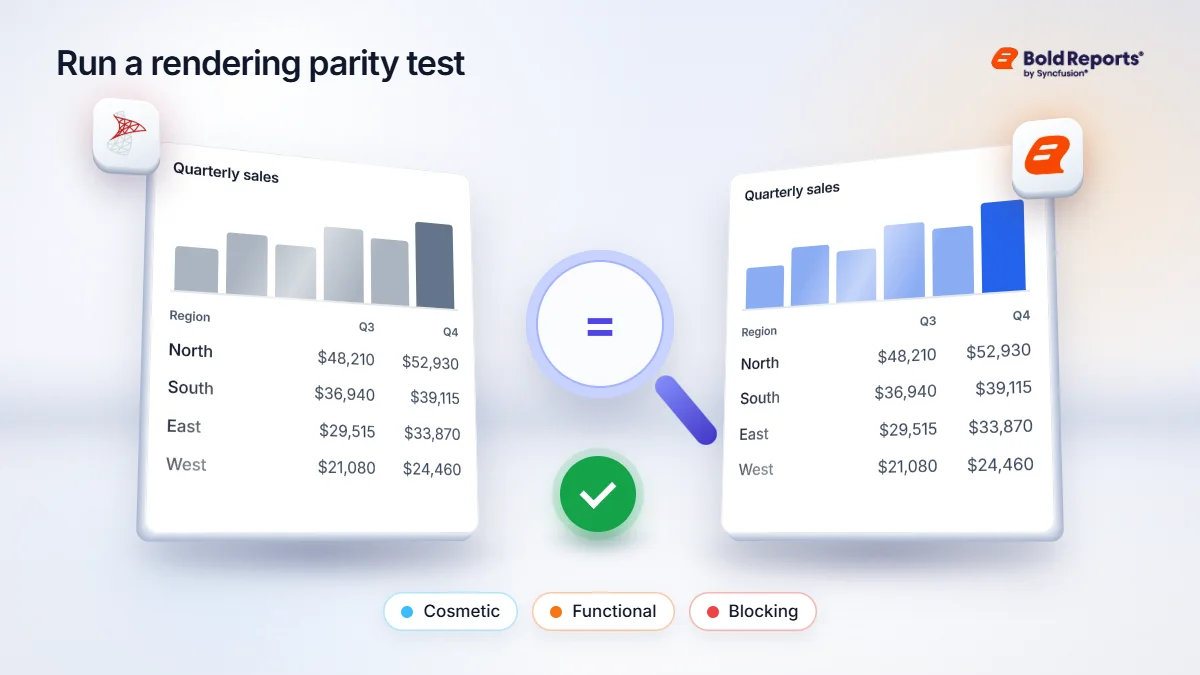
Run a rendering parity test
Rendering fidelity is where migrations succeed or stall. A parity test keeps the conversation factual, not anecdotal.
- Choose a sample that stresses the renderer: deep subreports, nested groups, conditional formatting, long tables with repeating headers, and page-break rules.
- Run each report on SSRS and on Bold Reports against the same data and the same parameter values.
- Export both to PDF and Excel, then compare page counts, column widths, group totals, and pagination.
- Log every difference with a screenshot, classify it as cosmetic, functional, or blocking, and fix the blocking ones before moving to the next batch.
Choose a cutover pattern
The two platforms run on independent servers, so you don’t have to move everything at once. Teams typically pick one of three patterns: a phased move by report group, a parallel run where both platforms serve users for a trial period, or a product-by-product cutover where each customer-facing feature switches when its reports are verified. Phased moves carry the least risk. Parallel runs cost more in the short term but make rollback trivial.
How should you handle security and permissions during a move?
Permissions are the most commonly underestimated part of a reporting migration. SSRS permissions live in folder and item security, often built up over years, and nobody remembers why they exist. Treat the move as a chance to document and simplify them.
-
- Export a list of who can access which folders, then decide which of those rules still reflect business requirements.
- Map identity first. Decide whether users will authenticate through Active Directory/LDAP, Microsoft Entra ID, or your application’s own identity provider before you recreate any permission.
- For multi-customer products, give each customer its own site rather than recreating one large folder tree with customer-specific rules.
- Re-enter data source credentials with accounts that have the least access needed to run the report.
Review the Bold Reports security documentation before you finalize the design, and validate any compliance requirement against current vendor documentation rather than assuming it.
How is Bold Reports licensed compared with SQL Server-bundled options?
SSRS comes with your SQL Server license, and PBIRS comes with the licensing described above. Bold Reports is a separate purchase. Its pricing page lists quote-based licensing across Cloud, Managed Private Cloud, and On-Premises editions, with no per-user or per-developer fees and a free 30-day trial.
Small teams may qualify for the free Community License. It is limited by annual revenue, developer count, total employees, and outside capital raised, so check the current terms before relying on it.
When you request a quote, bring specifics so the number reflects your real deployment. Useful details include the hosting edition you want, the number of servers, whether you will run multiple customer sites, and whether you are embedding the viewer, the designer, or both. When you compare total cost, include more than license price: hosting, migration labor, upgrade effort, and the cost of running two tools if you keep PBIRS for Power BI reports.
How should you plan the switch?
- Inventory first. Count RDL and RDLC reports, subscriptions, data sources, custom code, and every place a report is embedded.
- Sort reports by audience. Internal portal reports fit the Microsoft track. Reports embedded in products or customer portals fit the embedded track.
- Pilot both paths on the same reports. Compare rendering fidelity, authentication integration, hosting cost, and upgrade effort.
- Decide per workload, not per vendor. Many teams run PBIRS for internal reporting and an embedded engine for product reporting.
- Migrate in phases. Move one report group, verify it with users, then continue. Keep SSRS running until subscriptions and permissions are confirmed on the new platform.
- Compare wider options if needed. Our roundup of SSRS alternatives for modern reports covers other tools, and the SSRS alternative page explains how Bold Reports positions itself.
What mistakes should you avoid?
-
- Migrating everything. Many SSRS catalogs contain reports nobody has run in years. Retire them instead of paying to move them.
- Testing only the easy reports. A pilot of simple tables proves nothing. Include your ugliest report.
- Forgetting subscriptions. Reports can migrate cleanly while the email schedules that users depend on quietly disappear.
- Ignoring credentials. Data sources will not run until you re-enter credentials, so plan a secure way to do it.
- Switching because of a deadline alone. January 2033 is far away. Move when the product reasons are clear, not because the lifecycle date feels urgent.
- Treating this as all or nothing. Running both platforms for different audiences is a legitimate end state.
Next steps
Take a few of your own RDL files and load them into a free Bold Reports trial. Compare the rendered output with SSRS before you decide. Our SSRS migration page shows how the bulk process works.
Frequently asked questions
-
- 1.
Is SSRS end of life?
Not yet, but it is frozen. Microsoft has said no new SSRS versions will ship after SSRS 2022, which will continue to receive security updates and support through January 11, 2033. Power BI Report Server is now Microsoft’s on-premises reporting server going forward, so plan new reporting work with that lifecycle in mind.
- 2.
Can Bold Reports open my existing SSRS RDL files?
Bold Reports uses the same RDL format, so most standard reports with tables, matrices, charts, parameters, and subreports import without a rebuild. Embedded VB code, object functions, and very old RDL versions need testing first, and you must re-enter stored data source credentials after import. Validate a sample of your most complex reports before committing.
- 3.
Does Bold Reports run on Linux?
Yes. Bold Reports Server runs on Windows, Linux, Docker, and Kubernetes, and its catalog database can sit on SQL Server, PostgreSQL, or MySQL. SSRS and Power BI Report Server install only on Windows, although a SQL Server instance on Linux can host their catalog database.
- 4.
Do I have to move to Power BI Report Server?
Only if you want Microsoft’s supported path forward. SSRS 2022 keeps running until 2033, but PBIRS is where Microsoft ships new on-premises reporting releases. PBIRS rights come with SQL Server 2025 Standard and Enterprise, or SQL Server 2022 Enterprise with Software Assurance, so check your licensing before budgeting a separate product.
- 5.
How is Bold Reports priced?
Bold Reports uses quote-based licensing across its Cloud, Managed Private Cloud, and On-Premises editions, with no per-user or per-developer fees. Small teams may qualify for the free Community License, which has revenue, developer, and headcount limits. Check the pricing page for current terms, and start with the free trial.
- 6.
Can I run SSRS and Bold Reports side by side during migration?
Yes. The two are independent servers, so you can keep SSRS serving existing users while a pilot set of reports runs on Bold Reports. Point both at the same data sources, compare rendered output, and move report groups in phases. Retire SSRS only after you confirm users and subscriptions on the new platform.
- 7.
Which reports should I test first?
Start with the reports that stress the renderer: deep subreports, nested groups, complex expressions, embedded VB code, and heavy page-break logic. Next, add your highest-traffic and most audited reports. If those render correctly in PDF and Excel, the simpler tablix and chart reports are unlikely to cause trouble.
- 1.